
Data Access Management
Data Access Management allows you to control which companies, branches, and departments each user can see in ByteHR.
Admins can assign one of three access levels: Full Access, Restricted, or No Access.
Access Levels
The current access level is shown as a colored badge at the top right of the Data Access tab and on the User Info tab.
-
Full Access
The user can see all companies, branches, and departments, including any new ones added in the future.
-
Restricted
The user can only see the companies, branches, and departments they have been granted access to. If new branches or departments are added, an Admin must manually update their access.
-
No Access
The user cannot access any data.
How to Set Up Data Access
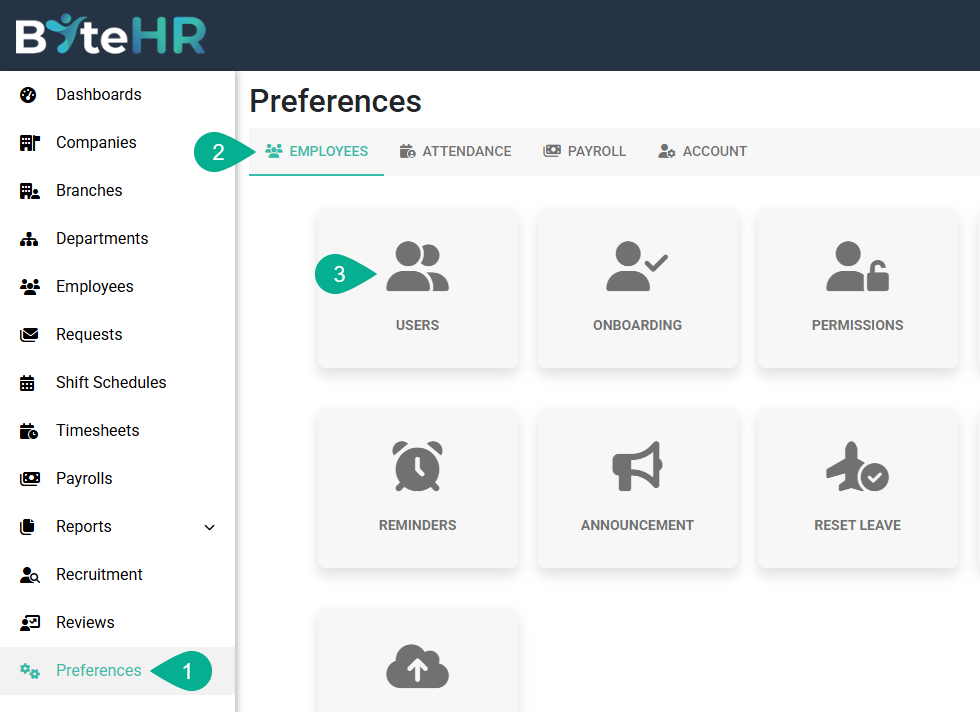
- Go to Preferences
- Select the Employees tab
-
Select Users
-
Click on the User you want to configure
Click the Data Access tab, then tick the checkboxes to grant access
The tree structure has three levels:
1) Company
2) Branch
3) Department

- Ticking a parent level automatically selects all items below it. For example, ticking a branch will select all departments within that branch.
- "None" under a branch refers to employees who have not been assigned to any department. Tick "None" if you want the user to see this group as well.
Then, Click Save
The configured user will be automatically logged out. When they log back in, their new access level will take effect.
Important Note
If a user has Restricted access and a new branch or department is added to the system, they will not see it automatically. An Admin must manually update their access.