
Invite Employees to Start Using ByteHR
Admin can invite employees to access ByteHR in two ways:
- Invite Employees One at a Time.
- Invite Multiple Employees at Once
📄Note: The email address must be correctly entered in the Employee Details before sending invitation to the employees.

Invite Employees One at a Time
- Go to the Preferences tab.
- Select Employees option.
-
Click: Users.
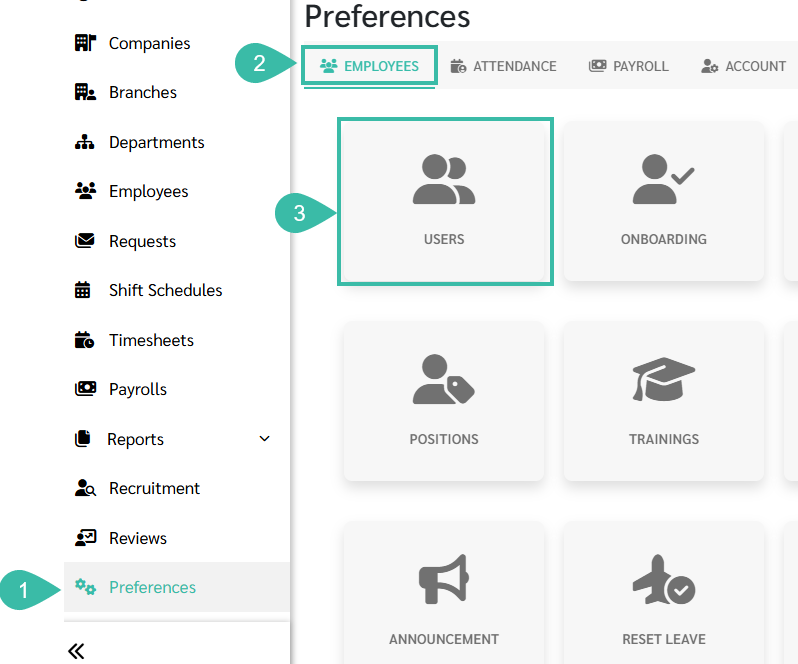
- Click + Add.
- Enter the employee's email address in the Username field. The system will automatically display the employee's First Name and Last Name
-
Click Save.
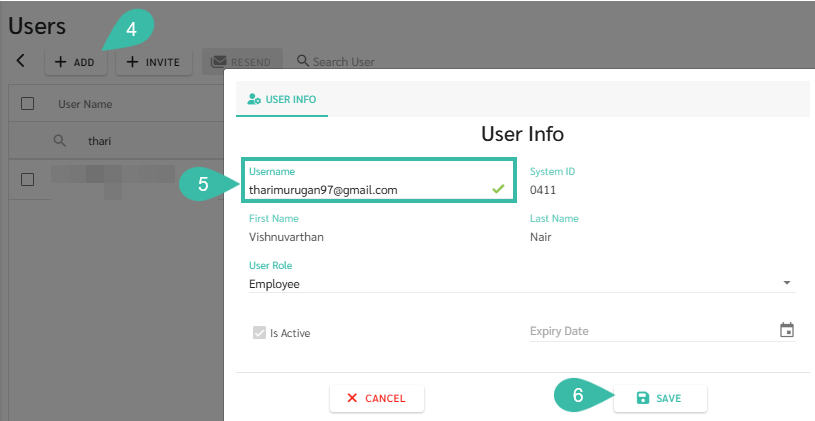
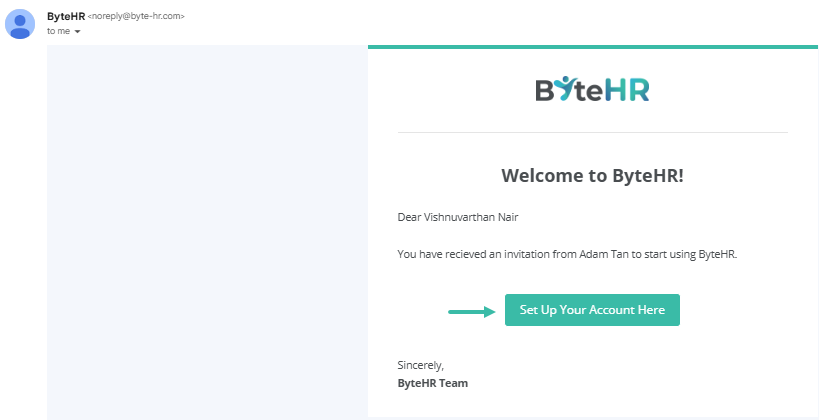
- ByteHR sends an email invitation to the employee.
-
Employees clicks 'Set Up Your Account Here".
-
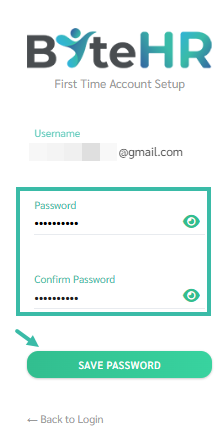
The employee is redirected to ByteHR First Time Account Setup page to create a password. Click Save Password.
-
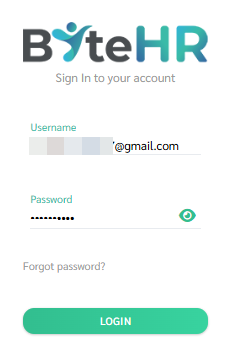
After setting the Password, the employee will be redirected to ByteHR Sign In page to fill in their username (email address) and password to access to ByteHR app.
Invite Multiple Employees at Once
- Go to the Preferences tab.
- Select Employees option.
-
Click Users
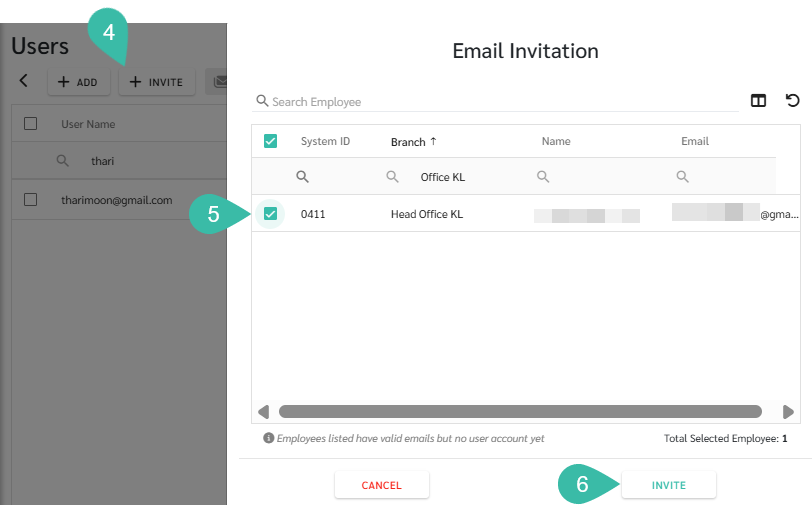
- Click + Invite.
- Select one or more employees from the list.
- Filters can be used by Company, Branch or Department to select the right group of employees to invite. This can be configured by clicking the Column Chooser.
-
Click Invite.
- ByteHR sends email invitation to all selected employees who have an email address recorded in the Employee Detail but not yet a system user.
-
Employees clicks 'Set Up Your Account Here".
-
The employee is redirected to ByteHR First Time Account Setup page to create a password. Click Save Password.
-
After setting the Password, the employee will be redirected to ByteHR Sign In page to fill in their username (email address) and password to access to ByteHR app.
📃Note
ByteHR will automatically send email notification to employees in the following cases:
- When a Payslip is notified to an employee.
- When an admin submits a Request, the employee's first level manager receives a notification.
- When an admin Approves or Rejects a Request, employees receives a notification to view their submission status.
- When an admin adds an employee to a KPI Review.
🏷️ Case
- If an employee changes their email address, the admin must:
- Remove the existing User Account.
- Update the Employee's email address in the Employee Details.
- Re-invite the employees.
- To resend an email invitation to an employees:
- Select the checkbox next to the employees name.
- Click Resend at the top of the employee list.
- The email invitation links are valid for only 30 days.
- If the invitation is resent, the previous email invitation link become invalid. Employees must use the latest email invitation link.