
Add Users and Assign Permissions
Account Owners or Admin Users can add system users and configure their access permissions following the below steps:
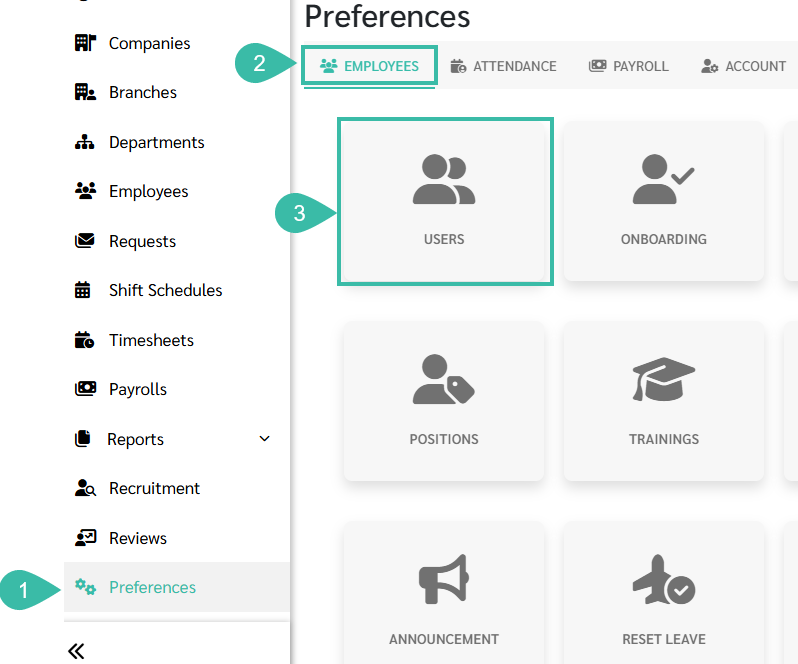
- Go to Preferences.
- Select Employees option.
-
Click Users.
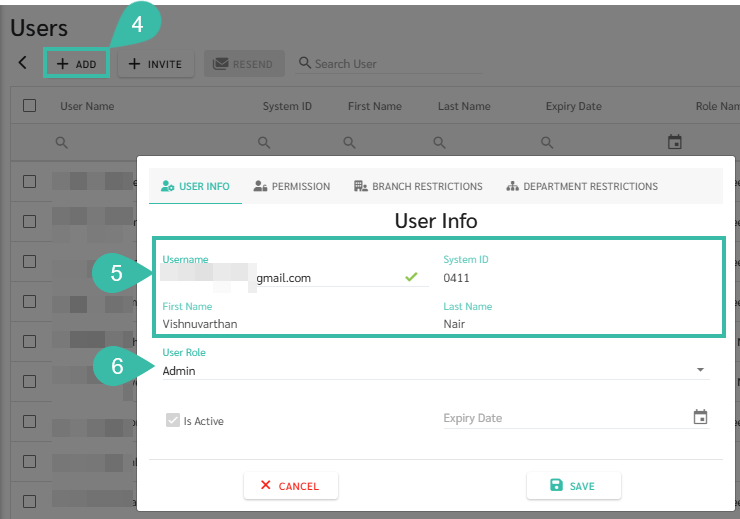
- Click + Add.
- Enter the email address of the employee in the Username field.
- The system will automatically display the System ID, First Name and Last Name provided that their email address is recorded in the Employee details.
- The Admin users can be invited without linking their email address to the employee profile.
-
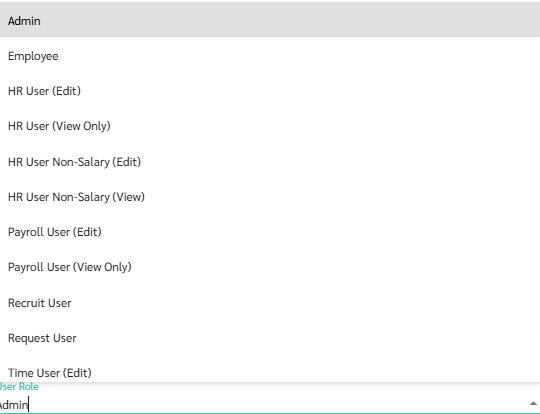
Select the User Role such as Admin, Employee, HR User, Time User, Payroll User.
-
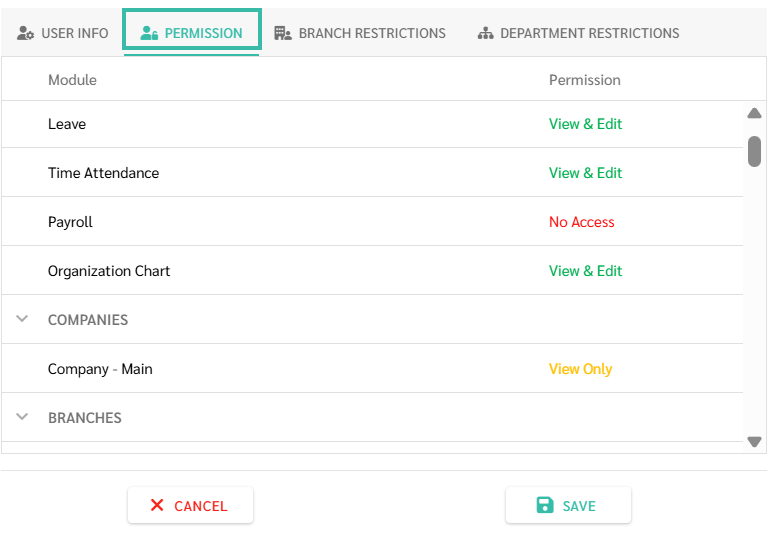
Configure Module access in the Permissions tab.
- To restrict access by Branch or Department:
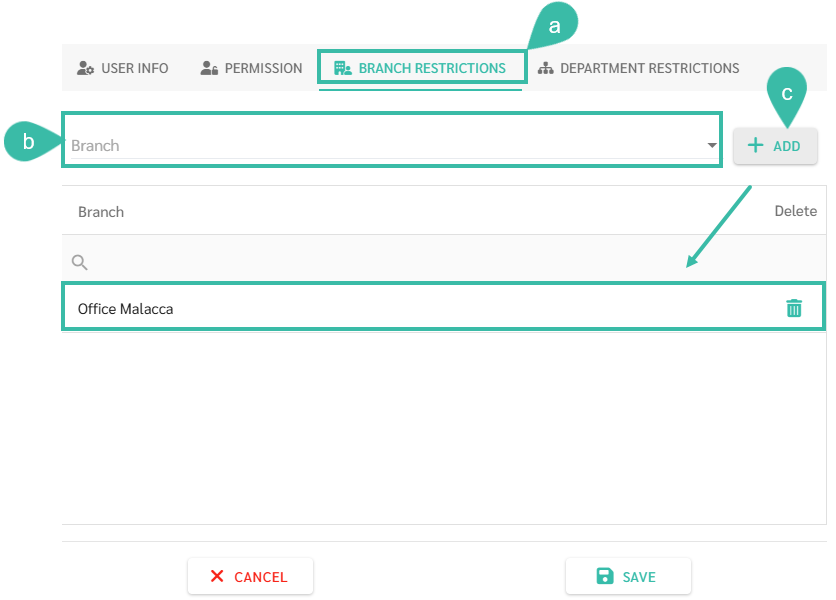
- Go to Branch Restrictions/ Department Restrictions.
- Select a Branch/Department from the dropdown list.
-
Click + Add.
This prevents the user from accessing selected branches or departments .
Note : Admins with Restricted visibility can only see Branches/Departments they are allowed to access and the Account Owner's username.
- Click Save to complete the setup.
💬 Note
Expiry Date
- When an employee's contract ends:
- The system will automatically sets the Expiry Date to one day after the Contract End Date.
- The employee's last login date is the Contract End Date.
-
Example:
Contract End Date: 22/01/2025
Expiry Date: 23/01/2026
The employees can log in until 23/01/2026.
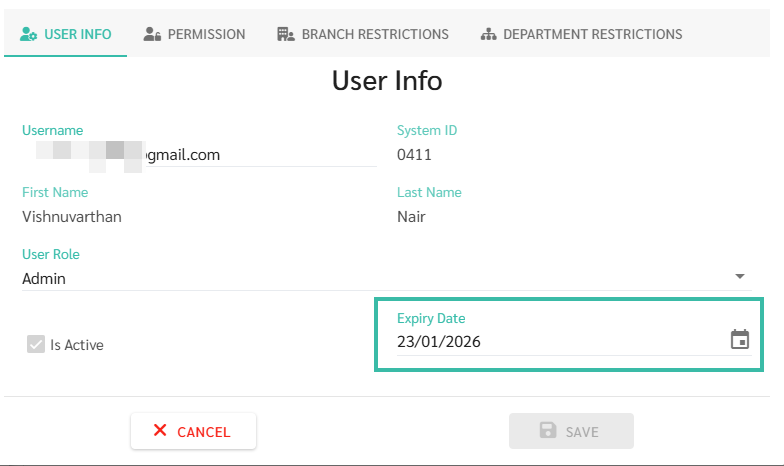
- Admins can manually set an Expiry Date to immediately deactivate a User account.
