Information Displayed on the Timesheet
- The Timesheet has two Views:
- Timestamp View
- Work Hours View
The general symbols displayed in both Timesheet views have the following meanings:
| Symbol | Meaning |
|---|---|
|
|
Yellow Font Indicates Weekly Holidays as specified in the Shift Schedule. |
|
|
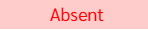
Indicates there is no Clock-In or Clock-Out records for the day. |
|
|
Indicates that the employee has not Clocked in for the Shift of the current day yet. |
|
|
Indicates that the employee has not Clocked Out for the Shift of current Day yet. |
|
|
Indicates missing Clock-In or Clock-Out records (Only One Timestamp recorded). |
|
|
Indicates no Clock-In/Out data as the date is in the future. |
|
|
Indicates the employee's contract has ended. |
|
|
Indicates that the employee's employment start date is in the future. |
|
|
The Red colour indicates the employee Clocked-In Late after the Scheduled Shift start time (Timestamp View) |
|
|
The Red colour Indicates the employee Clocked-Out earlier than scheduled Shift end time (Timestamp View). |
|
|
Indicates a Public Holiday as specified in the Calendar Settings. |
|
|
Indicates the employee has taken Annual Leave. |
|
|
Indicates that the Timesheet has been approved for Payroll processing. |
|
|
Indicates that only some items like Salary and Reimbursement are approved while others like Overtime is pending for approval. |













Work Hours View
The Work Hours View also provides additional details regarding the employee's regular hours, extra hours and approved overtime as shown in the table below:
| Symbol | Meaning |
|---|---|
|
|
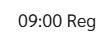
Shows the Regular working hours. |
|
|
Shows Extra Worked hours in addition to Regular Working Hours. OT Request is not yet to Approved. |
|
|
Shows the Regular Working Hours together with the Approved OT Hours and OT Rate. |