
Create Attendance Request - Edit Shift for Flexible Shifts
Go to Requests tab -> Attendance -> + New Request -> Select Edit Shift -> Fill in the Request details -> Submit
How to Submit Edit Shift Request
- Navigate to Requests tab.
- Select Attendance.
-
Click +New Request.
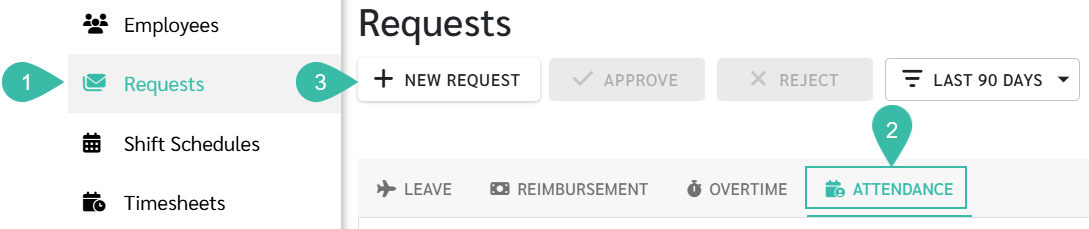
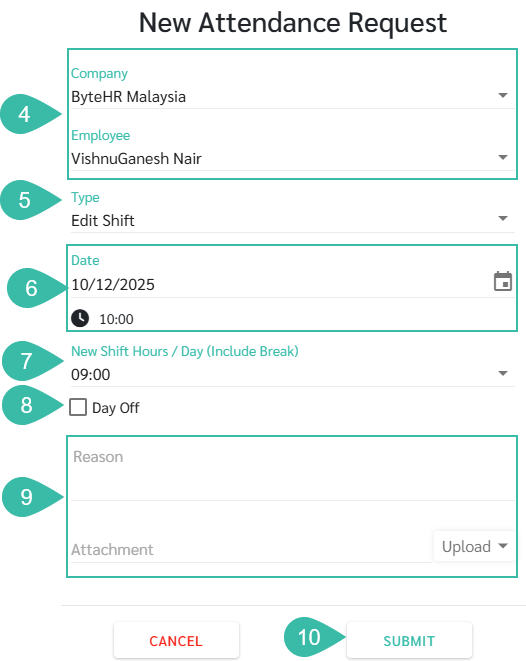
- Select the Company. and Employee.
- Select Edit Shift as the request Type.
- Select the Date you want to Edit Shift.
-
The system will display the current Shift Hours/Day (Including Break Hours).

-
- Select a New Shift Hours/Day (Including Break).
- To change the selected Date to a weekly Day Off, tick the Day Off checkbox.
-
Enter Remarks and Attach supporting documents (if required).
***Up to five attachments is allowed. Maximum Document size 7MB. Maximum Image size 10MB.***
-
Click Submit.
🚩 Rules: Rules for Submitting Edit Shift Request.
- An Edit Shift Request cannot be submitted if an Edit Shift Request or A Swap Shift Request already exists for the same date regardless of the submission status (Submitted, Approve, Reject)
-
If attempted, the system will prompt an error message below the selected date as Edit shift/Swap shift request exists on this date".

- You cannot submit Edit Request if the selected Shift Hours/Day is the same as the existing Shift Hours/Day.
-
Example:
On 28/09/2025, the employee is scheduled for Shift Hours/Day 9 Hours.
Selecting 9 hours again as the new New Shift Hours/Day will not be allowed, as no change is made.
If attempted, the system will prompt an error message "Shift time is same".

The price of each add-on feature depends on the number of employees in your package and will be prorated according to your billing cycle.