Create Multiple Overtime Request for Rest Day and Public Holiday
On Rest Days and Public Holidays where multiple Overtime rates apply, admin can submit multiple Overtime Requests in a single submission by selecting a specific Start Time and End Time. The system will automatically determine the applicable OT Type for the selected time period and generate the Overtime records accordingly.
💬 Note
- To submit Overtime Requests, Overtime Rules must be properly configured.
- For example, Overtime on Public Holidays may be calculated at:
- ORP 2.0 for regular work hours.
- HRP 3.0 for after regular work hours.
How to Submit Multiple Overtime Request for Rest Day and Public Holidays
- Go to the Requests tab.
- Select Overtime.
-
Click + New Request.

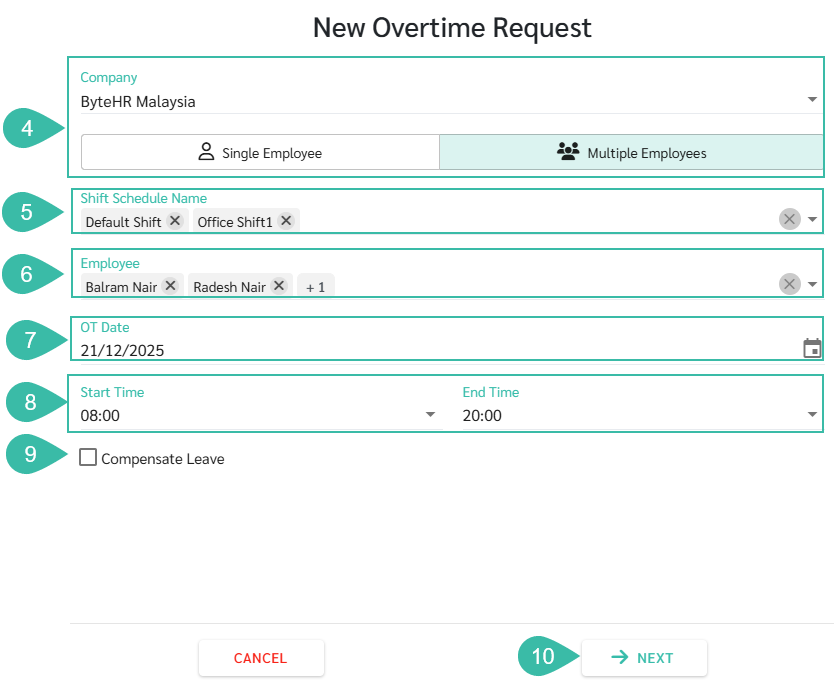
- Select the Company, and switch to the Multiple Employee tab.
- Select the Shift Schedule Name to filter multiple employees by shift (if applicable).
- Select Employee Name (up to 50 employees per request).
- Select OT Date
- Enter the Start Time and End Time.
- To convert Overtime hours to Compensate Leave, tick the Compensate Leave checkbox (optional. You can leave it unchecked if not required)
-
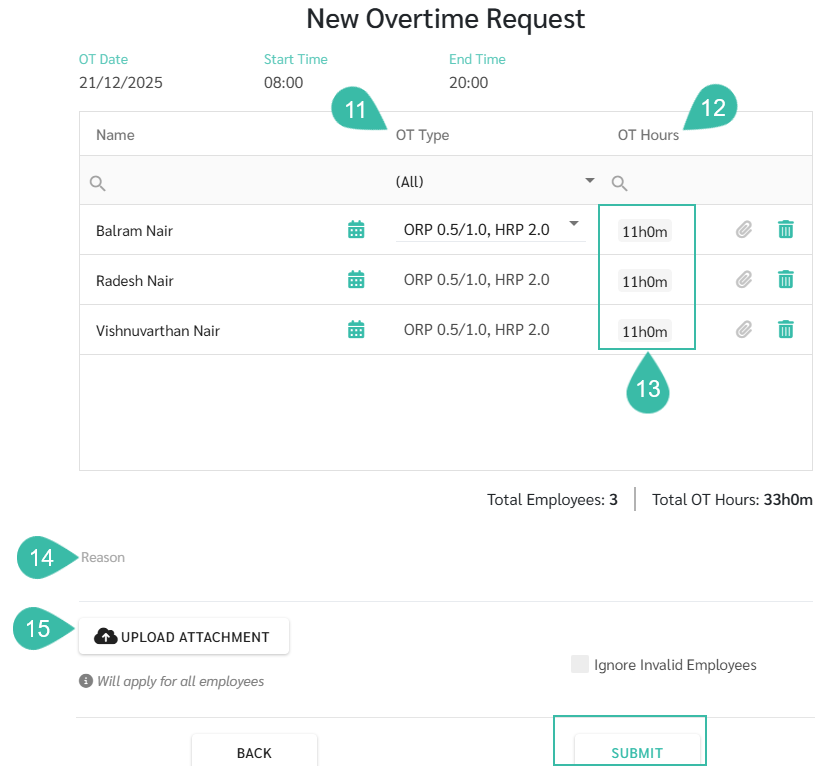
Click Next. The system will display each selected employee's name, OT Type, and total OT Hours.
-
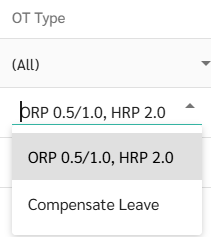
If required, adjust the OT Type to Compensate Leave directly in this table.
-
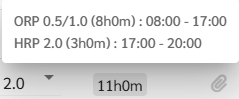
Hover over the OT Hours to view breakdown of Overtime rates applied by time period.
- Review the summary of employee details and OT Hours in the table.
- Enter the Reason (if any).
- Attach supporting documents. (Upload Attachment button uploads documents for all the selected employees)
- If Invalid employee data is detected, remove the affected employee from the Request or Ignore Invalid Employees
-
Click Submit.