
Create Single Overtime Request for Rest Day & Public Holiday
On Rest Days and Public Holidays where multiple Overtime rates apply, employees can submit a Single Overtime Request by selecting a specific Start and End Time. The system will automatically determine the applicable Overtime Type based on the selected time period and generate the corresponding overtime records.
💬 Note
To submit Overtime Requests, Overtime Rates must be properly configured accordingly.
- For example: Overtime on Public Holiday may be calculated at:
- ORP 2.0 during regular work hours
- HRP 3.0 after regular work hours.
How to Submit Overtime Request for Rest Days and Public Holidays
- Navigate to Requests tab.
- Select Overtime.
-
Click + New Request.

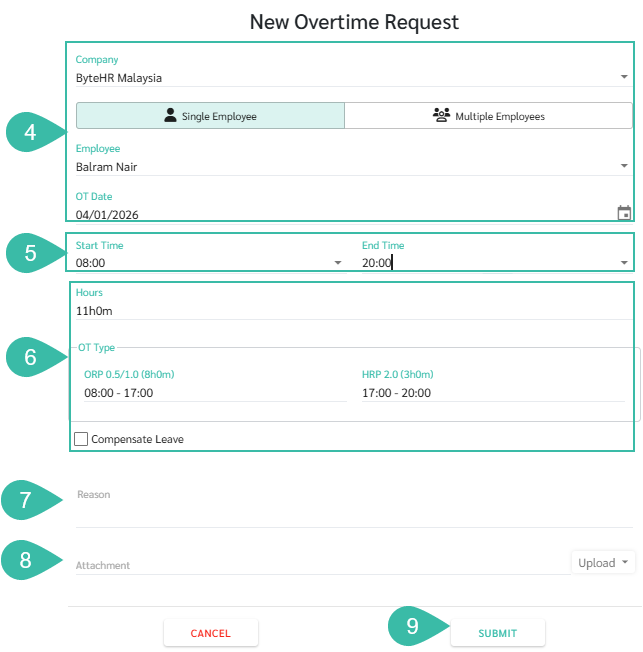
- Select a Company, Single Employee, Employee, and OT Date.
- Enter the Start Time and End Time.
- Once the Start and End Times are entered, the system will automatically calculate and display the Overtime hours and OT Type.
- Enter the Reason
- Attach supporting documents (If any).
-
Click Submit to send the request.
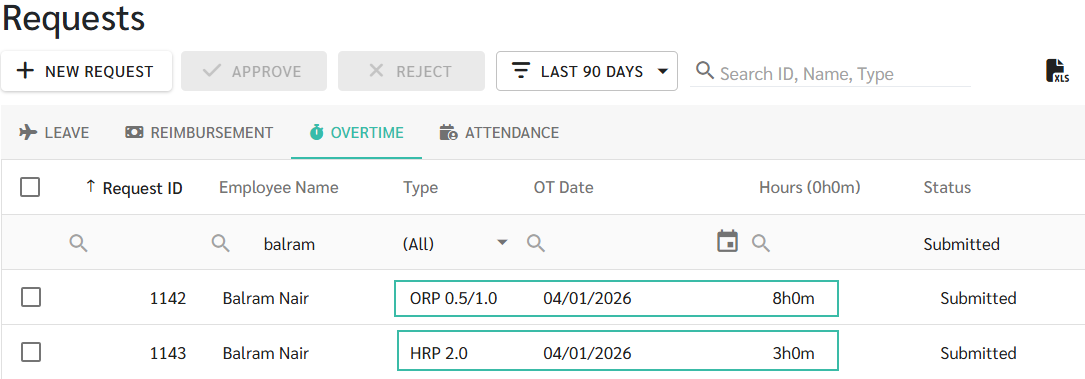
The system will automatically generate separate Overtime requests based on the time periods and OT Type applied.
⚠️ Cautions
Requirements for Selecting the Overtime Start and End Times
- It is not possible to select OT Type for OT performed on workdays, Days Off, Rest Day and Public Holiday for Shift Employees where the system automatically detects the applicable OT Type.
- The selected Start and End Times must fall within the same work day.
- OT Type and OT hours cannot be manually edited once calculated. These values are automatically determined by the system.
- The maximum number of Overtime entries that can be generated from a single request is three.