
Edit Timesheet
How to Edit Employee Sign In/Out in the Timesheet page
- Go to Timesheets.
- Select Company, Branch, Start Date, End Date, and Timestamp view or Work Hours.
- Click Load.
-
Click on the date you want to edit the information, such as Absent, Invalid Data (Forgot to scan).
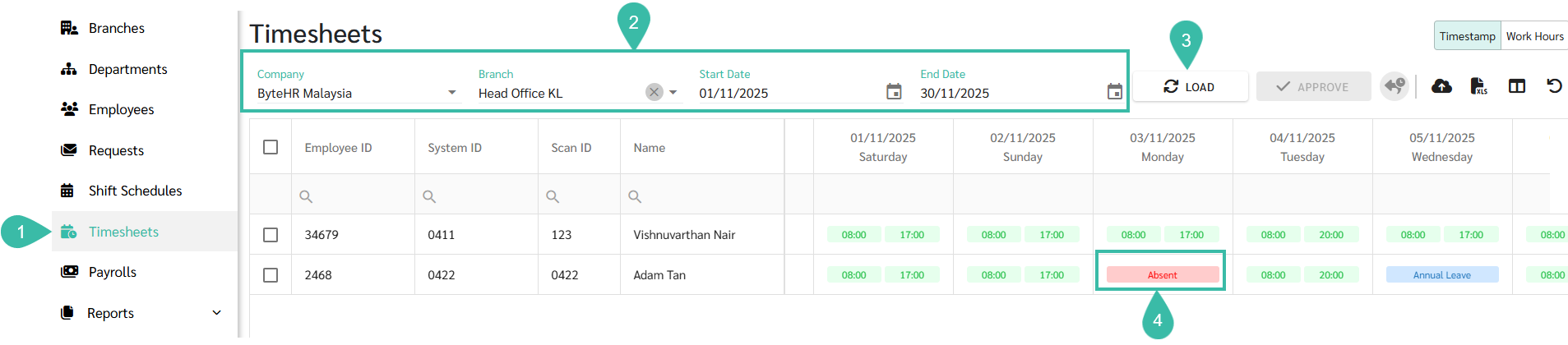
- Edit information, such as correcting Sign In/ Sign Out times, changing Absent to Leave days, or changing Absent to regular Shift entries, etc.
-
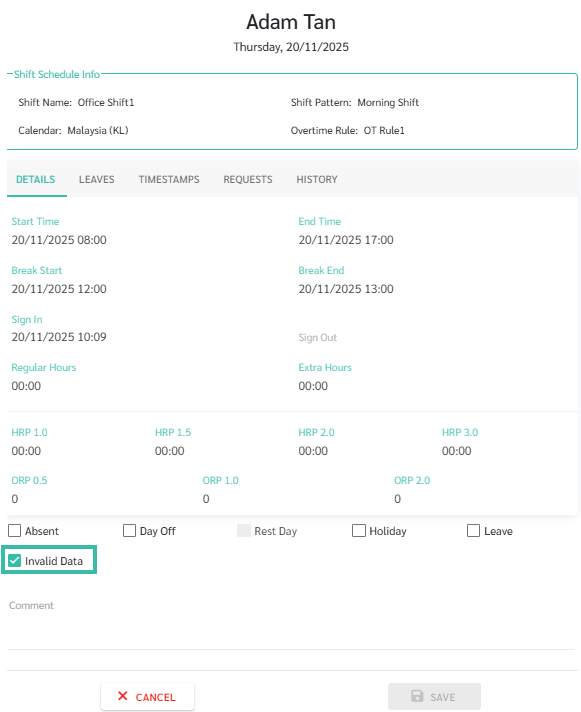
If the Timesheet shows "Invalid Data," it means that the Sign In/Out was recorded only once. The system will not allow you to edit the data until you uncheck the "Invalid Data" box.
-
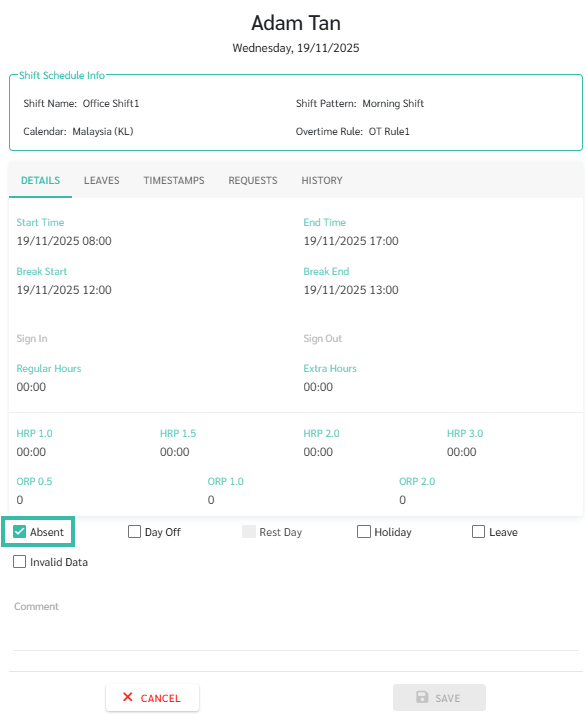
If the Timesheet shows Absent, it means there is no Sign In and Sign Out recorded. The system will not allow you to edit the data until you uncheck the "Absent" box.
-
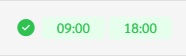
If the Timesheet has been approved for Payroll, a checkmark will be displayed, and the data cannot be edited until the Payroll block is deleted.
-
- You can add notes in the Comments section.
- Click Save.
Notes🚩
- If manual edits are made to the Clock-In or Clock-Out on the Timesheet, and the employee subsequently clocks in again, the manually entered time will be overwritten by the actual Clock-In/Out time recorded by the system.
- Additionally, if the admin enters the leave days directly into the Timesheet data, the system will deduct the leave balance from the current year only.
- Therefore, it is not recommended to manually enter the leave days that cross into a new year. Instead submit a Leave request on behalf of the employee and have it approved through the system.