
Create Reimbursement Request for Single Payment
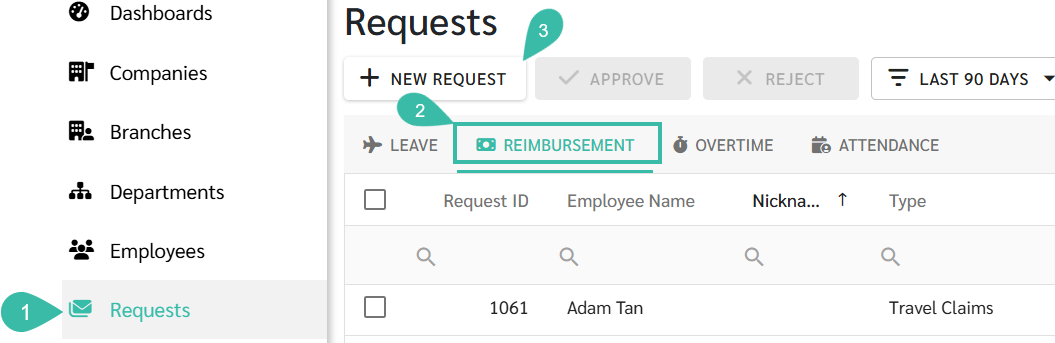
Go to Requests -> Select Reimbursement -> Click +New Request -> Select Single Payment -> Fill in the details -> Submit Request
💬 Note
Before submitting a Reimbursement Request, ensure that:
- The Payment Type is enabled at the branch the employees belong to.
- The Submit Request checkbox must be ticked
Only after completing these steps can a Reimbursement Request be submitted.

How to Submit Reimbursement Request for a Single Payment
- Navigate to Requests tab.
- Select Reimbursement tab.
-
Click + New Request.
-
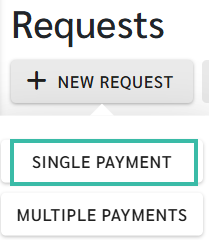
Select Single Payment.
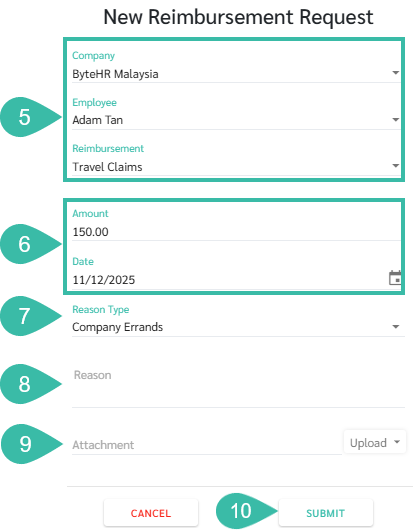
- Select the Company, Employee, Reimbursement Type.
- Enter the reimbursement amount and the date the payment was made.
- You may submit more than one Reimbursement request per day (based on the request date).
- Select the Reason Type.
- Enter the reason.
- Attach supporting documents by clicking Upload
- Up to five files can be attached.
- File size must not exceed 7MB
- Images file up to 10MB.
-
Click Submit.
🏷️ Case
-
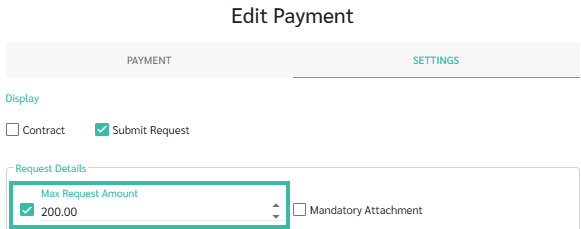
If a Max Request Amount is configured in the Payment Settings, per Reimbursement requests exceeding the amount cannot be submitted.
- Employees may submit more than one Reimbursement Request per day.
🚩 Note: Reimbursement Request and Payroll Processing
- Only Reimbursement Requests with a Request date within the Payroll processing period and an Approved Reimbursement Request status will be included as Payments for that Pay period.
- If a Reimbursement Request is Approved after Payroll has been processed, it will be included in the next Payroll cycle.