
Create Leave Request
💬 Note
Before submitting a Leave Request, ensure that the employee's Leave type and entitlement days has been added in the Leave settings and correctly set up in the employee profile. Only then will the employees be able to submit Leave requests.
How to Submit a Leave Request
- Go to the Requests tab.
- Select Leave.
-
Click + New Request.

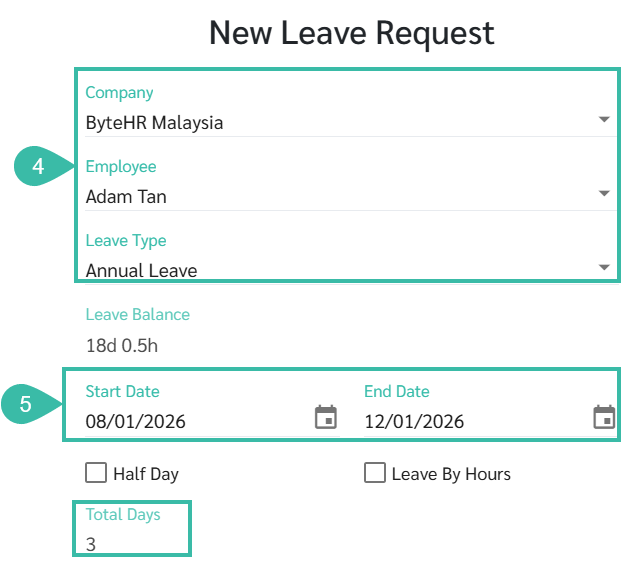
- Select Company, Employee, and Leave Type.
- The system will display:
- The number of Leave days entitled for the year.
- Any Accumulated leave days carried forward from the previous year (if any).
- The system will display:
- Enter the Start Date and End Date.
-
The system will automatically calculate the total number of Leave days.
-
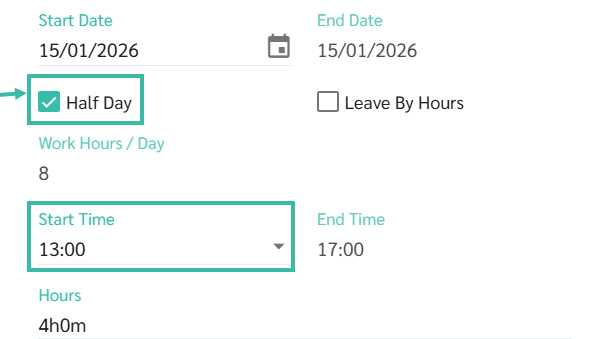
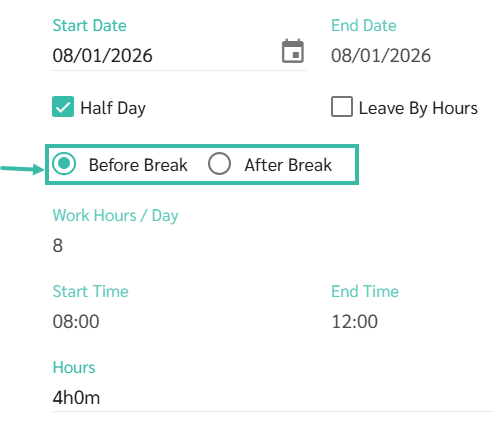
- To apply for Half-Day Leave, tick the Half Day Leave checkbox:
-
If Half-Day Leave is based on Employment Contract, select Start Time. The system will automatically calculate and display the End Time.
-
If Half-Day Leave is based on the Shift Schedule, select Before Break or After Break. The system will automatically display the Start Time, End Time, and Total Hours.
-
-
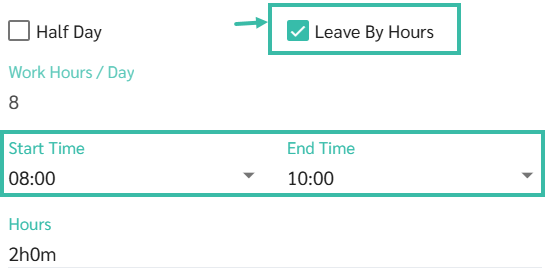
To apply Leave by Hours, tick the Leave by Hours checkbox and enter the Start Time and End Time. The system will automatically calculate the total number of hours.
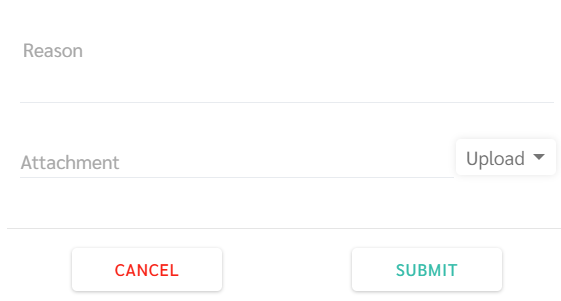
- Enter Reason if any.
- Upload supporting documents by clicking Upload
- Five supporting documents can be uploaded with the Maximum File Size:
- Documents: up to 7 MB.
- Image Files: up to 10 MB.
- Five supporting documents can be uploaded with the Maximum File Size:
-
Click Submit.
📃Note
- To request Leave By Hours or as a Half Day, the Leave Permissions must be configured for the selected Leave Type.
- For example, if the Leave Type Vacation has the Leave Permission as Full Day, employees will not be able to submit Leave Requests By Hours or Half Day.
- Leave Permission Half Day, employees will be able to submit Leave Requests for Half Day and Full Day.
- Leave Permission By Hours, the employees will be able to submit Leave Request for Full Day, Half Day and By Hours.
- To make document attachments mandatory for Leave Requests, tick the checkbox of Mandatory Attachment option in the Leave Settings.
🏷️ Case
- For Approved Unpaid Leave requests, the system processes the Leave based on the Payroll Cycle corresponding to the Leave request date.
- If the Leave Request is Approved after Payroll has already been generated, the Leave will not be carried forward to the next pay cycle.
- Only admins are allowed to submit Leave Requests on behalf of employees. Managers are not permitted to submit Leave Requests on behalf of employees.