
Columns in the Request Grid
This article explains how to select Columns and Filter data in the Requests grid.
By default, the Requests page displays records from the last 90 days. This filter can be changed to 100 days, 365 days, or All using the filter options.

How to Select Columns and Filter Data in the Requests grid
-
Click the Column Chooser button to select the data fields you want to display in the Requests grid.
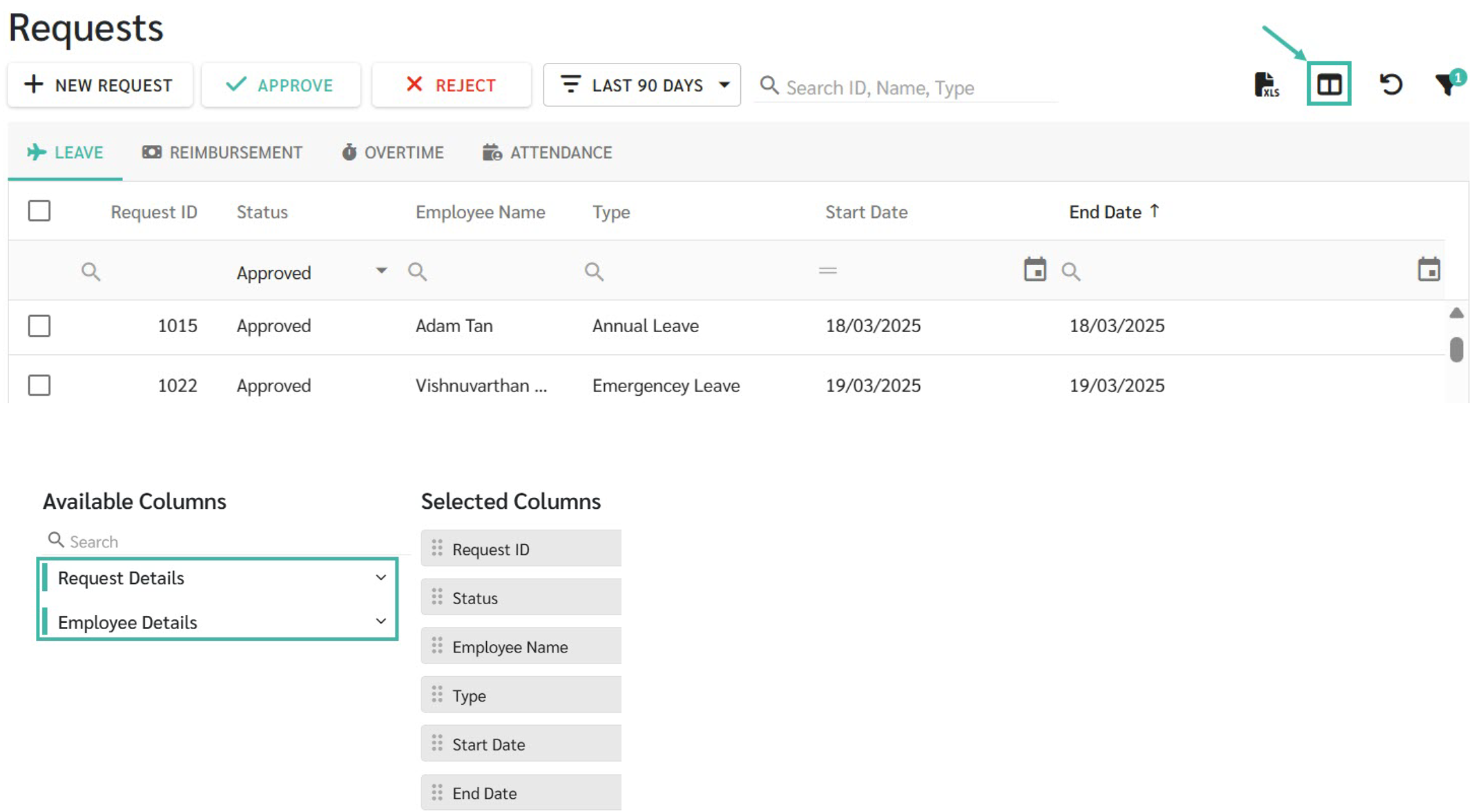
- In addition to the fields available in the Requests form, the following column headings are available:
- Employee Details
- Branch Name
- Company Name
- Department
- Employee ID
- Employee Name
- Employee Type
- Manager Level 1
- Manager Level 2
- Nickname
- Position
- Salutation
- System ID
- Request Details
- Admin Remarks: Notes entered by Admin when approving or rejecting the Request.
- End Date
- End Time
- Last Updated By: Displays the first and last name if updated by an employee or manager, or the username if updated by an admin.
- Last Updated On: The date and time when the Request information was edited.
- Manager Remarks: Notes entered by the Manager when approving or rejecting the Request.
- Pay Period: Refers to the month(s) and year(s) of the Pay period, including the date range in which the request is included in the payroll process. This column is displayed only after the request has been transferred to Payroll.
- Reason: The reason entered by the employee or admin when creating the Request.
- Request ID: The ID of employee submitting the Request.
- Start Date
- Start Time
- Status: The Request can be one of the following:
- Submitted: The employee has successfully submitted the Request.
- Approved: The Request has been Approved.
- Rejected: The Request has been Rejected.
- Re-submitted: The employee has resubmitted the same Request after it was Rejected by the Manager.
- Accepted: The Request has been Accepted by the employee (applicable to Swap Shift Request)
- Cancelled: The Request has been cancelled by the applicant.
- In Progress: The Request has been Approved by at least one Manager and is awaiting approval from the other Managers.
- Submitted On: Refers to the date and time when the employee or admin clicks Submit on the Request.
- Total Days
- Transferred to Payroll: Indicates that the Request has already been transferred to Payroll processing.
- Type: The type of Request submitted (Leave Type, Reimbursement Type, OT Rate, and Attendance Type)
- Employee Details
- Admin can preview attached documents directly in the "Attachments" column without downloading the file.
- Preview is available for image and PDF files only.
-
Other file types must be downloaded first.

-
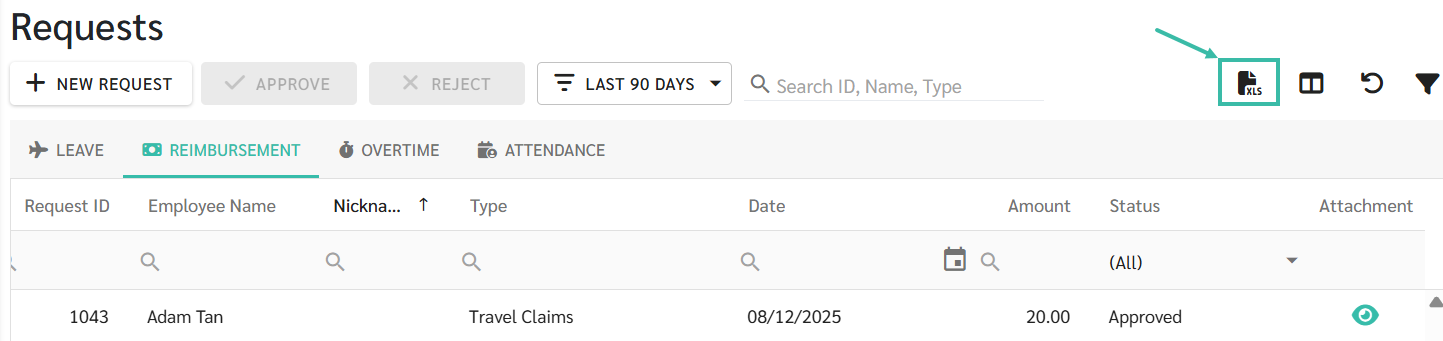
Data in the Requests page can be exported as an Excel File.
💬 Note
- By default, the Requests menu displays requests from the last 90 days. You can change the filter to 180 days, 365 days, or All using the Last 90 Days filter.
- Export (Excel File)
- Admin: Can export all employee request data from the Requests page.
- Employee: Can export their own request data from the My Requests tab.
- Manager: Can export request data for the employees they oversee from the Manager Requests tab.