
Setting Weekly Shift Time and Days Off
The admin can set employee Shifts and weekly Days Off in the Shift Schedule as follows:
- Go to the Shift Schedules menu.
- Select the Shift Schedule Name.
-
To set Shift hours for a specific employee, click on the employee's name.
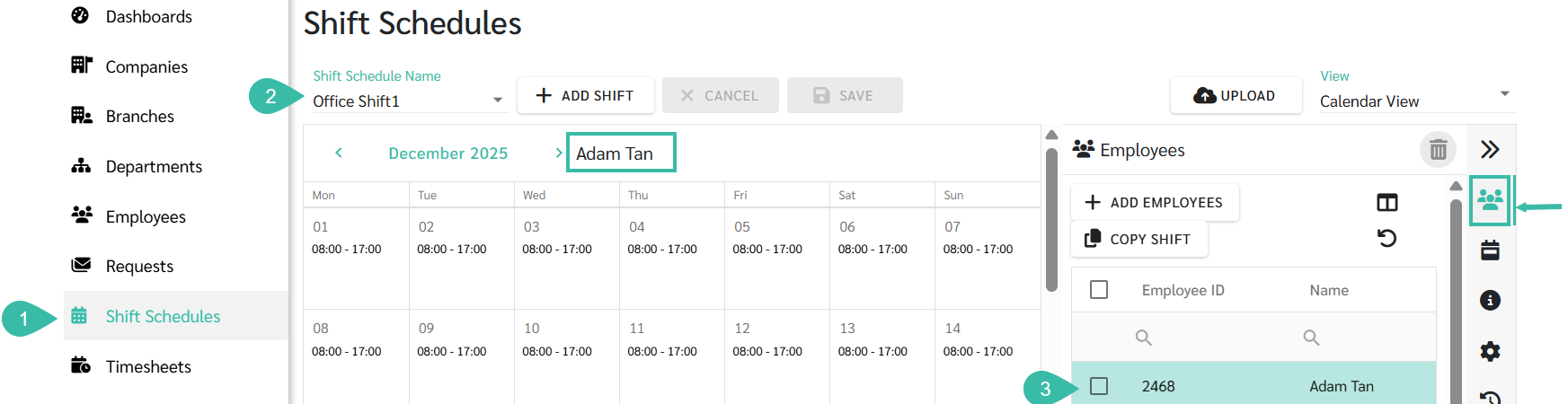
- Click the date on the calendar for which you want to set a new Shift time.
-
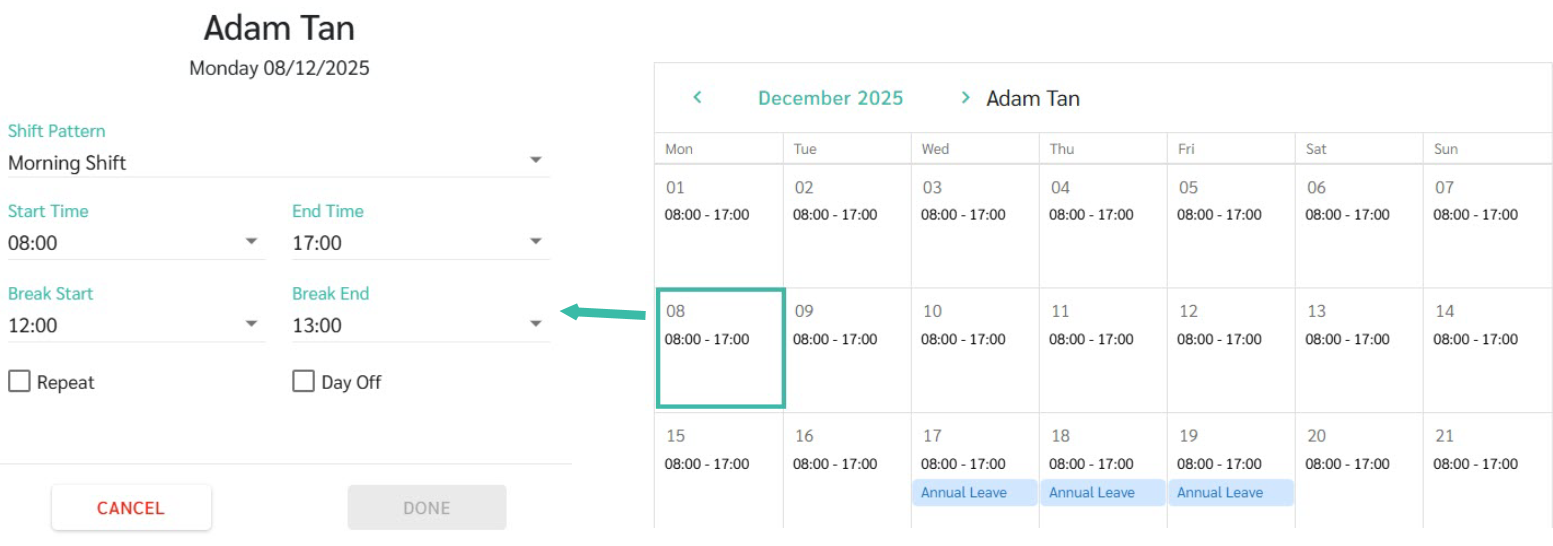
A window appears showing the current Shift time: Start Time, End Time, Break Start, and Break End.
-
If a Shift Pattern has been created, you can select the desired Shift Pattern, and the system automatically updates the window with the shift time and break time of the chosen Shift Pattern.

- If no Shift Pattern has been created, you can edit the shift times and break times as needed.
- If there are multiple days with the same shift, check the "Repeat" box.
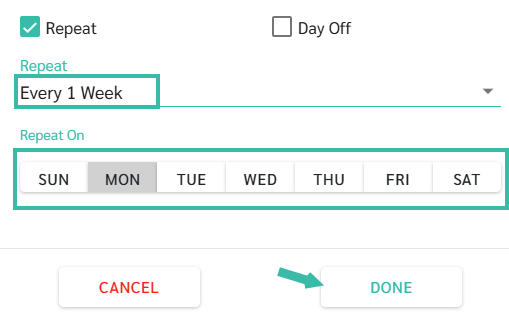
- Then you can select how to have the system repeat the shift over several days as follows:
- Daily
- Every 1 week
- Every 2 weeks
-
Every 3 weeks

- If you select "Repeat" as "Every 1 week or more," the system will display Sunday - Saturday; choose the day you want to repeat the process.
-
Once you have made your selections, click Done.
-
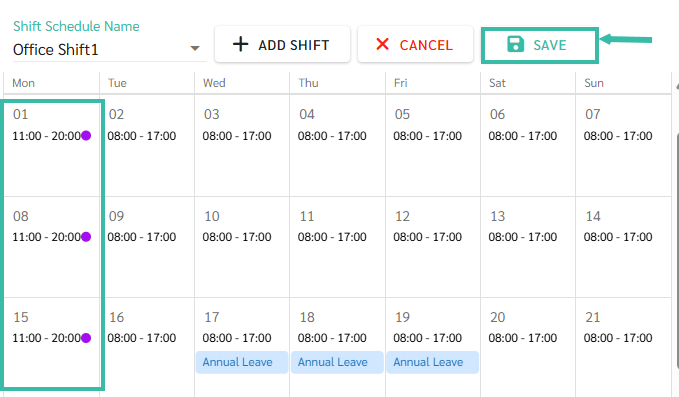
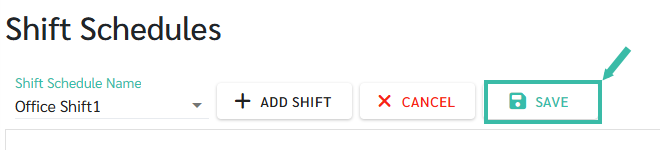
Once you have checked the Shift Time in the shift schedule, click Save.


Setting Weekly Days Off.
-
Click the date you want to set as a weekly holiday.
A window will then display the start time and end time of the current Shift.
- Checking the "Weekly Day Off" box will treat that entire day as a holiday.
- For weekly holidays, tick "Repeat" every 1 week.
- The system will display Sunday - Saturday; select the days to repeat, such as the regular Saturday and Sunday holidays of the week.
-
Once you have completed setting up, click Done.

-
Once you have checked the times in the shift schedule, click Save.

Note
- For overnight shifts, such as a 7:00 PM - 4:00 AM shift, the system will record employee working hours based on the shift start date. For example, if the shift starts at 7:00 PM on 01/01/2025 and ends at 4:00 AM on 02/01/2025 (overnight), when the employee clocks out at 4:00 AM on 02/01/2025, the system will record the data as of 01/01/2025 because it's the shift for 01/01/2025.
- Therefore, if you find that an employee's clock-in is recorded as for an earlier date, please check the employee's shift time and review the settings for Sign In Before Shift Start (Hours).
- Changes/Edits to Shift hours or weekly days off can be made for specific days or for specific employees as needed.
⚠️ Caution
- Even if a day is set as a Weekly Day Off, the start and end times for that shift must still be specified so that the system can correctly calculate Overtime rates based on the employee's Shift hours.
- Therefore, if the Weekly Day Off is Monday, the shift time is 08:00 - 17:00 every week, and the Weekly Day Off is Tuesday, the shift time is 10:00 - 19:00 every week. We need to schedule two rounds of holidays.