
Notify Payslip
There are two ways to Notify Payslip
- Notify payslip by individual Payroll Block as follows:
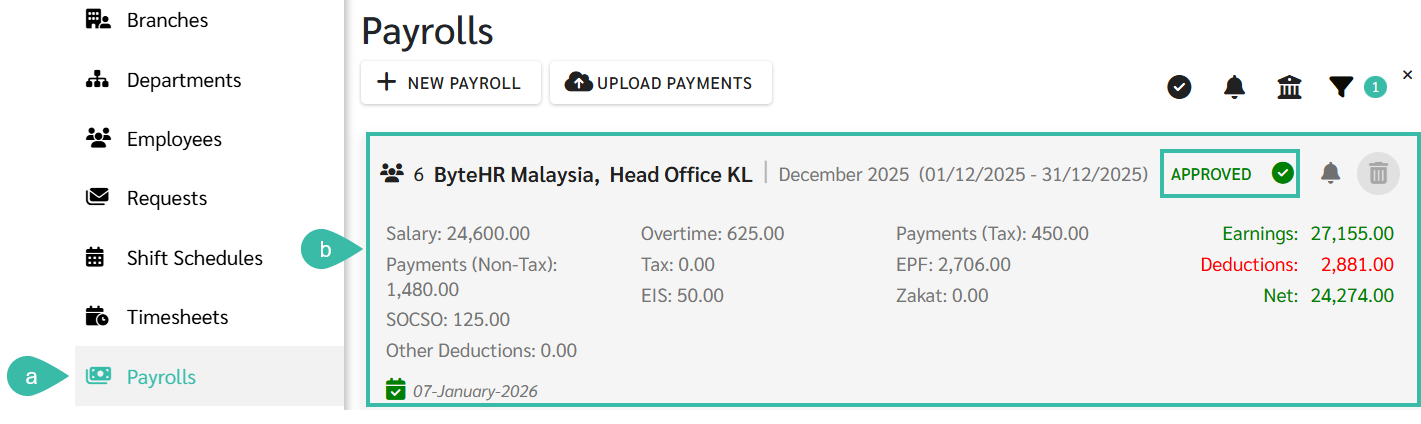
- Go to the Payrolls tab.
-
Click on the Payroll block to Notify Payslips. The Payroll Block must be Approved before the Payslip can be notified.
-
Click Notify.
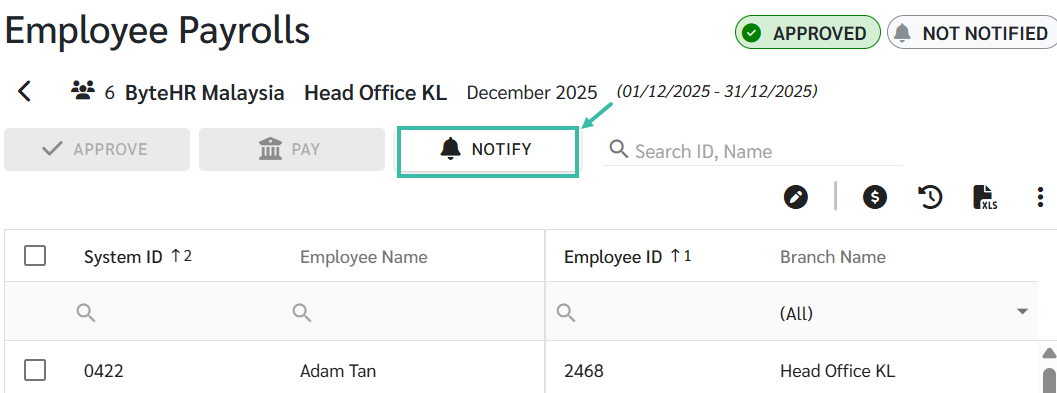
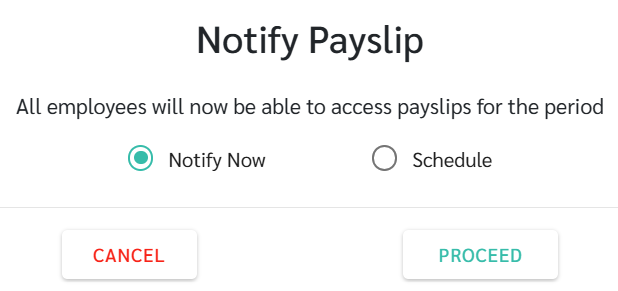
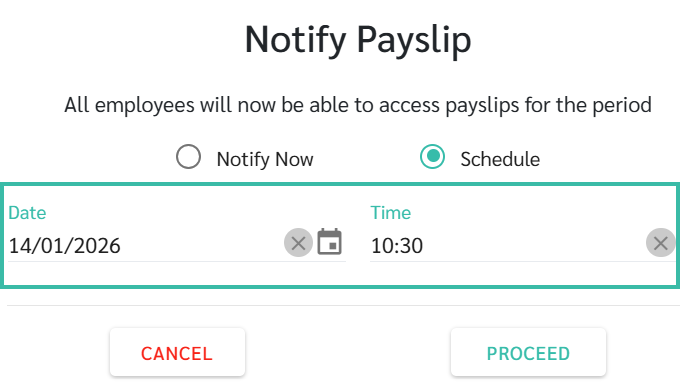
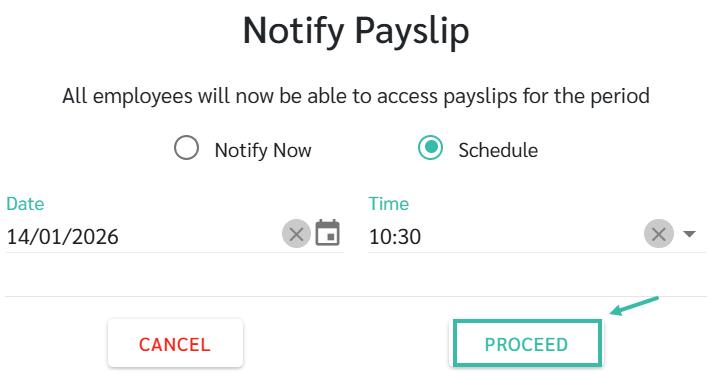
A pop-up window appears prompting you to select when to Notify Payslip, as follows:
-
Notify Now: Immediately notifies Payslip to the employees.
-
Schedule: Schedule a future date and time to notify Payslips to the employees.
-
-
Click Proceed.
-
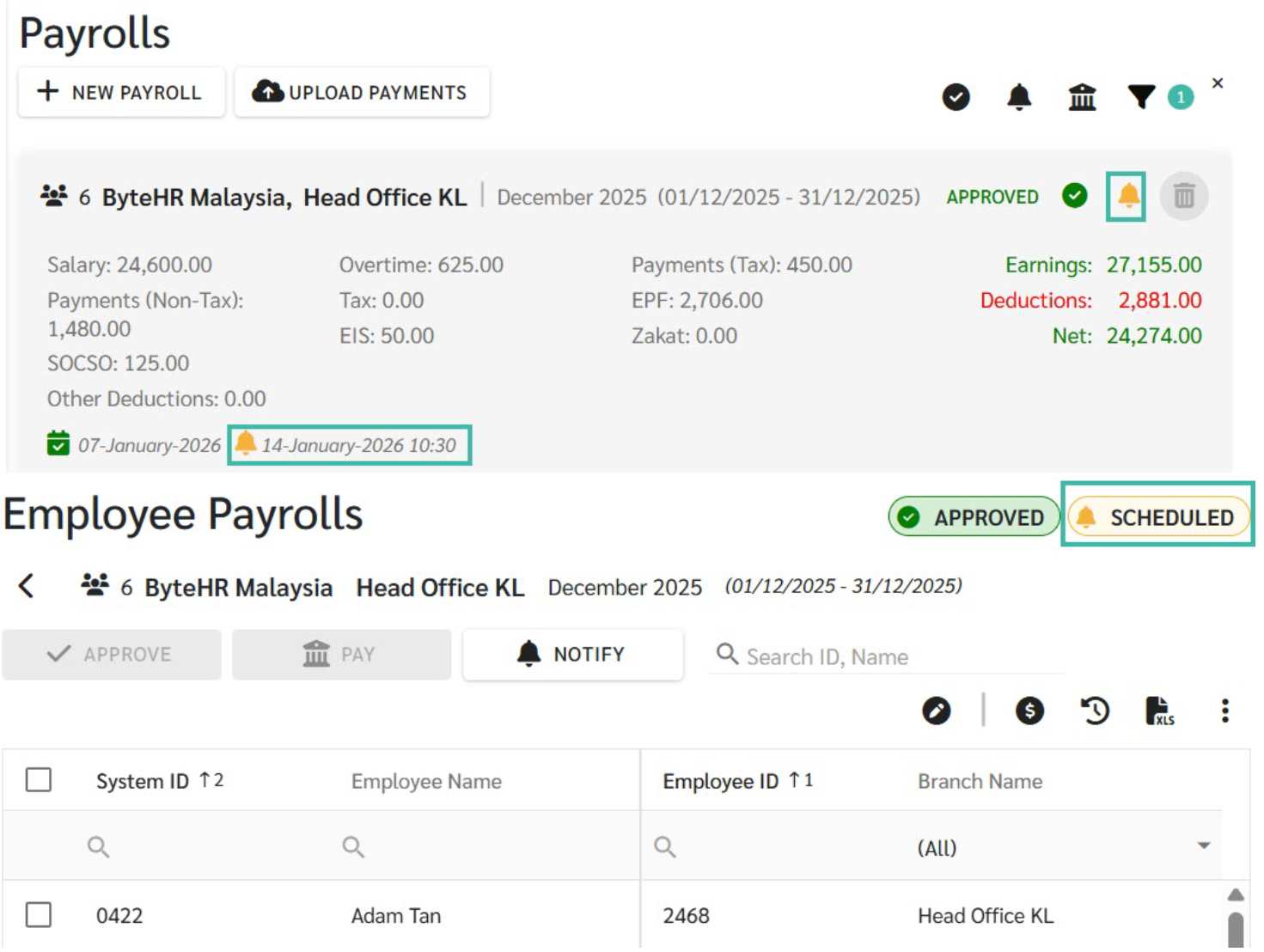
If the Payslip notification is scheduled for a future date and time, the status will be displayed as "Scheduled", and the selected Date and Time will be shown on the Payroll Block.
-
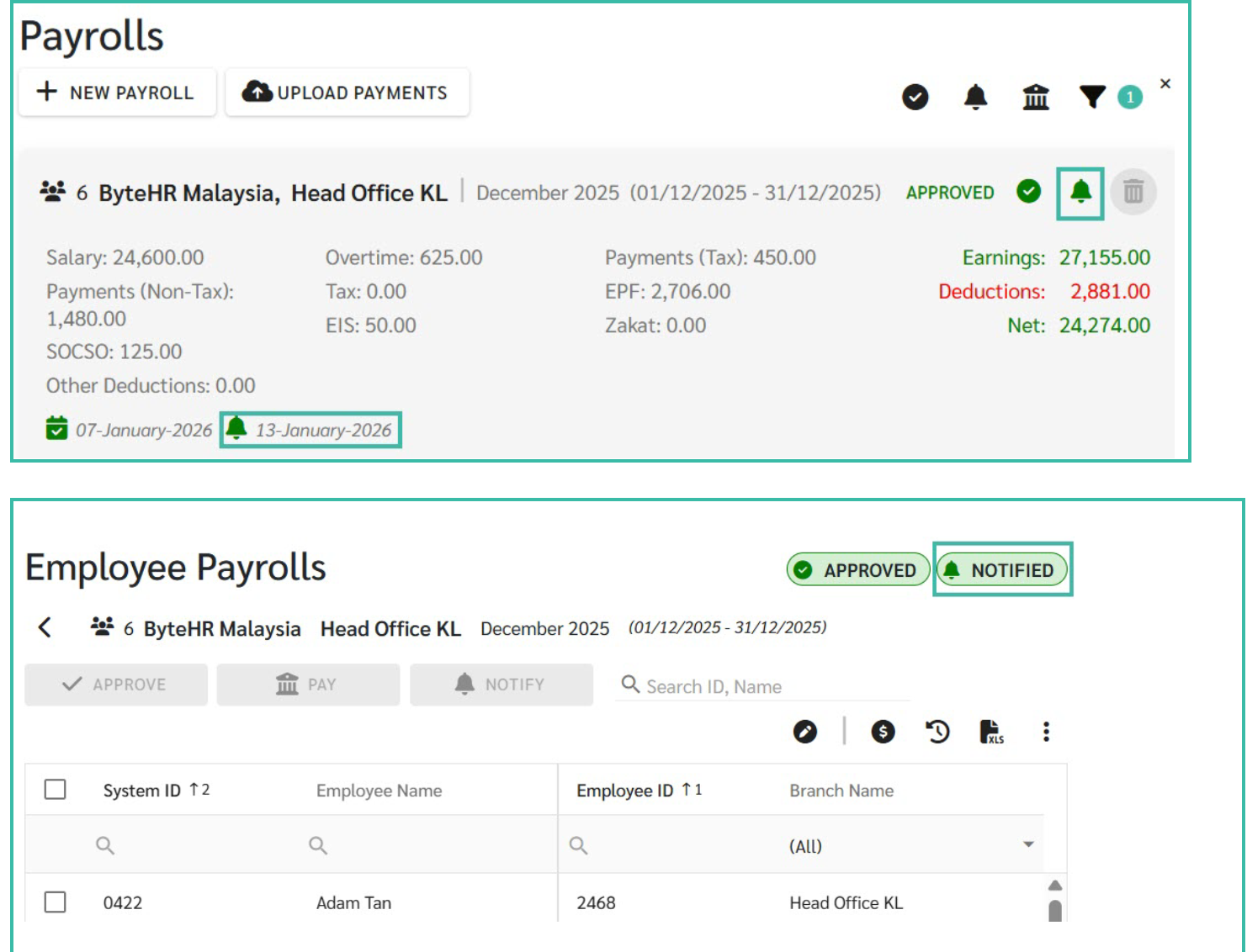
Once the Payslip has been notified, the status will be updated to "Notified", and the date the Payslip was notified to employees will be displayed on the Payroll Block.
- Employees will receive an email notification informing them that the Payslip is ready to be viewed.
- Notify Payslip for Multiple Payroll Blocks simultaneously.
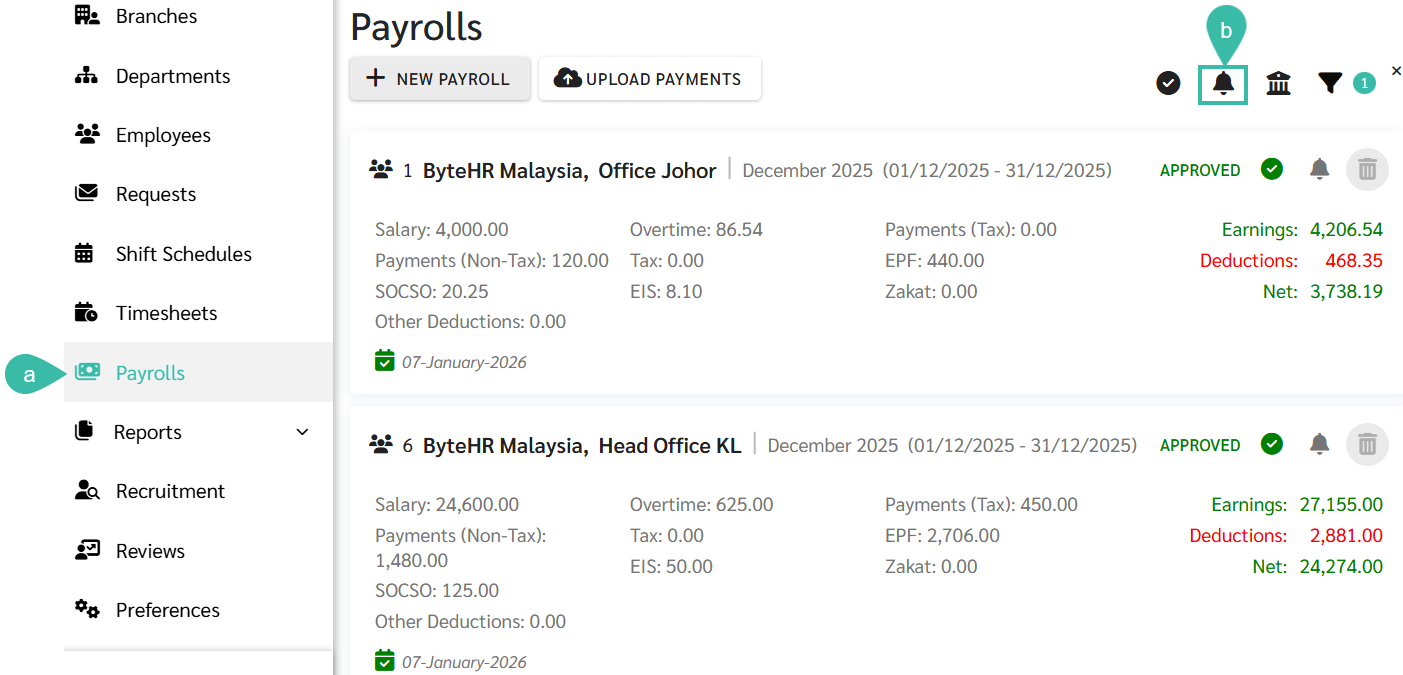
- Go to the Payrolls tab.
-
Click Notify Payslips.
-
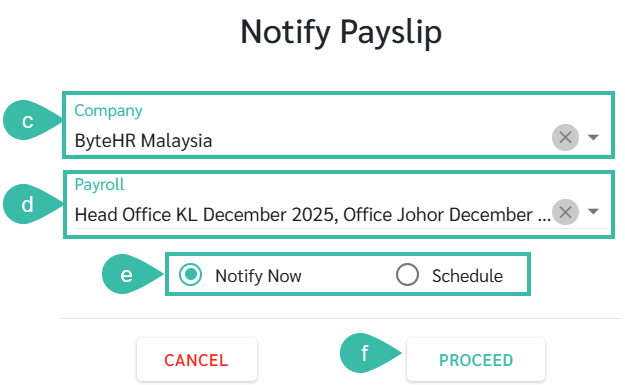
Select Company.
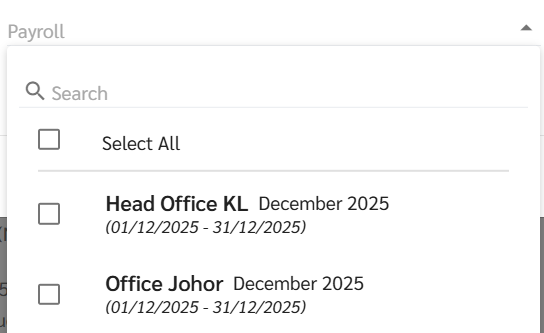
- Select the Payroll block to which employees you want to notify the Payslip belongs. The system will display the Payroll blocks that are yet to Notify Payslip under the selected company.
- Choose when to notify the Payslip.
- Notify Now: Immediately notifies the Payslip to employees.
- Schedule: Schedule a future date and time to notify Payslips to employees.
-
Click Proceed.
-
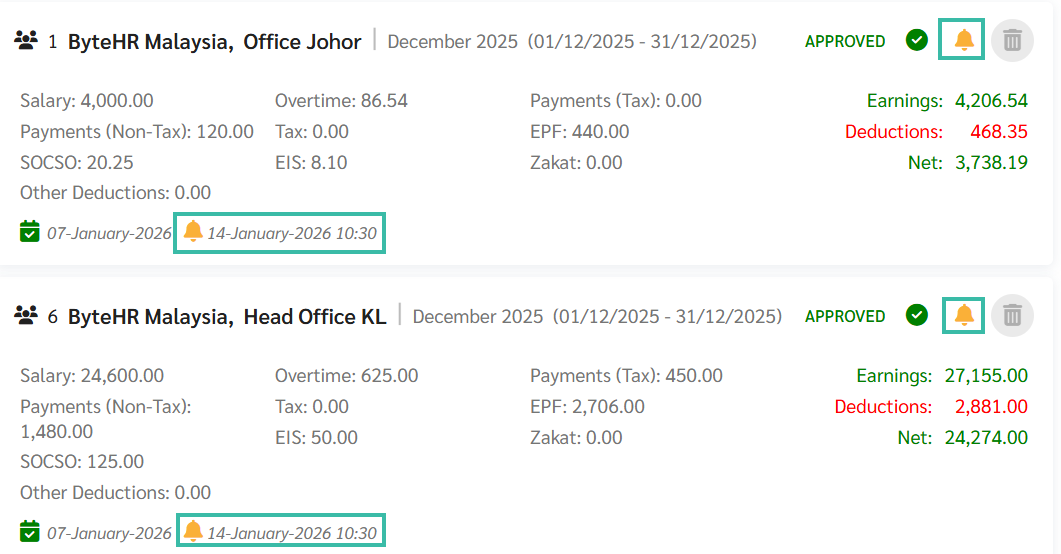
If the Payslip notification is scheduled for a future date and time, the status will be displayed as "Scheduled", and the Selected Date and Time will be shown on the Payroll Block.
-
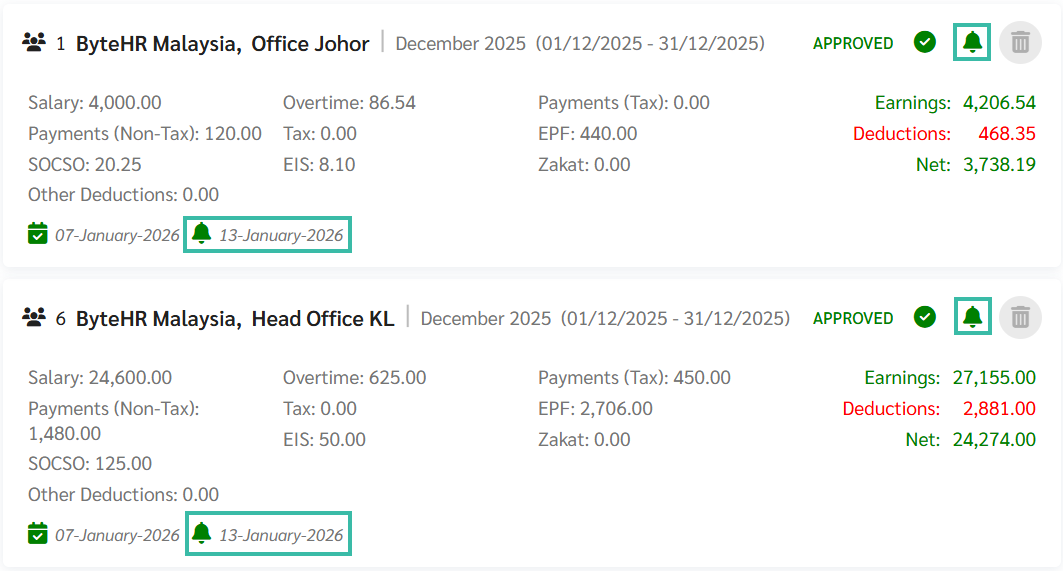
Once the Payslip has been Notified, the status will be updated to "Notified", and the date the Payslip was notified to employees will be displayed on the Payroll block.
- Employees will receive an email notifications informing them that the Payslip is ready to be viewed .
How to Edit the Scheduled Notified Payslip
- Select the Scheduled Payroll block you want to change on when to Notify the Payslip.
-
Click Notify.
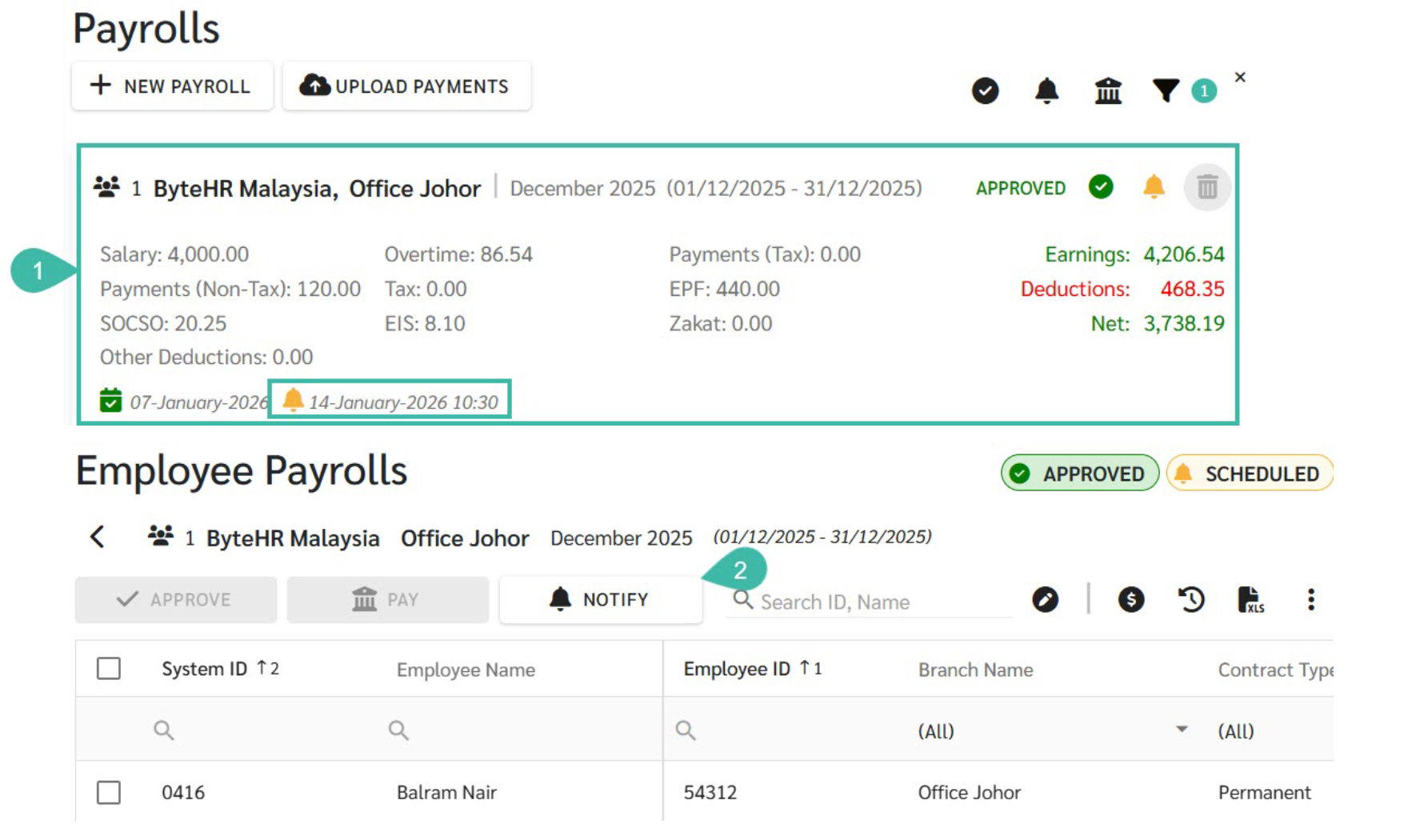
- A pop window appears for you to select when to Notify Payslip to employees.
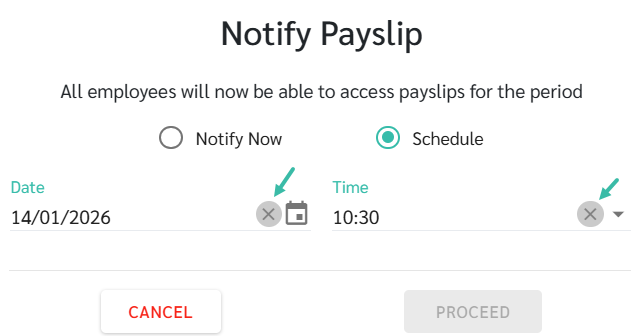
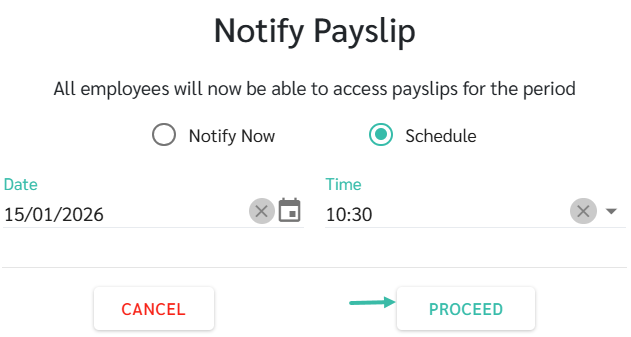
- You may change the Scheduled Notify Payslip to a new date and time.
-
To cancel the Scheduled Notify Payslip, delete the Scheduled date and time.
-
Click Proceed to save the changes.
💬 Note
The Notify Payslip feature notifies the employees that their Payslip is ready to be viewed and redirects them to view their Payslip on ByteHR Mobile App.
If the status of the Payroll block is Draft, you will not be able to Notify Payslips.
📃Note
- The Departments and Positions of employees reflected on the Payslip is captured from the Employee Contract at the time the Payroll was generated.
- Therefore, if the changes to the employee's personal information was made retrospectively after the Payroll has been generated, the Payslip displays the old information.