The Manager Reviews and Approves Requests on Mobile App
Requests tab -> Select Manager option -> Select the Requests type -> Click on the Requests to review the details -> Scroll down to view the History of the Submission, Approval, Rejection of the Requests.
The Manager Reviews the Subordinate's Requests
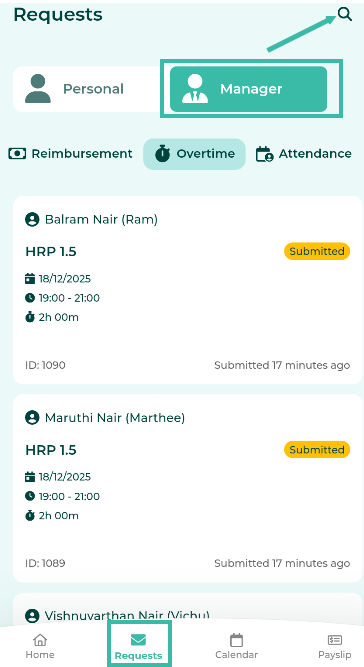
- Tap Requests tab.
- Select Manager.
-
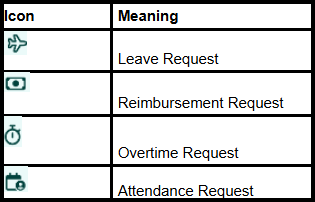
Select the Requests type you want to view.

-
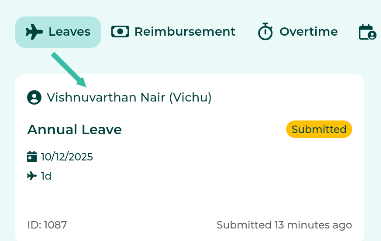
Tap on the Subordinate's request to see the details.
-
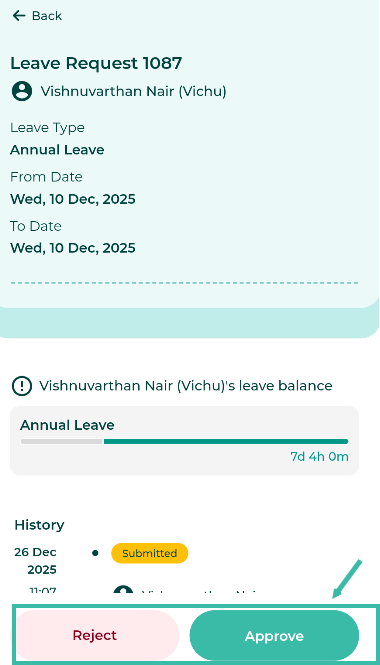
Managers will be able Reject or Approve the submitted request on the Details page.
-
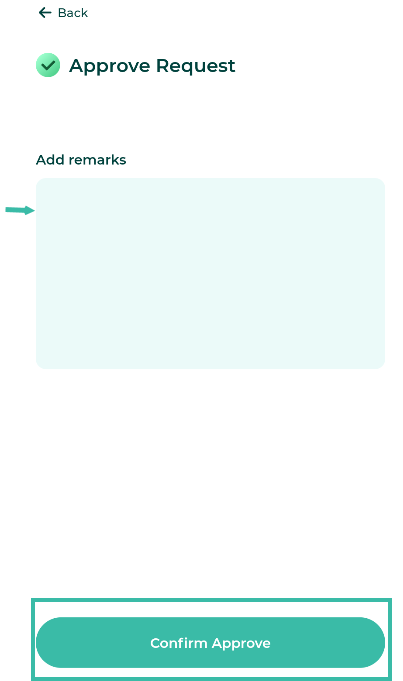
Add remarks, if any, then tap the Confirm Approve button.
-
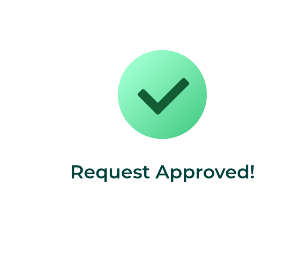
Once a request is approved or rejected, a confirmation message will be displayed "Request Approved" and the employee will receive an email and mobile notification.
-
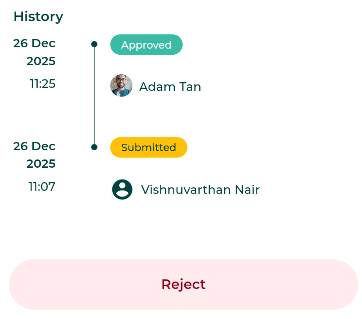
All managers will be able to view the request approval history and remarks by scrolling down to the bottom of the Details page.

The Manager Approves Multiple Requests Simultaneously
-
On the manager's request page, tap the magnifying glass button.
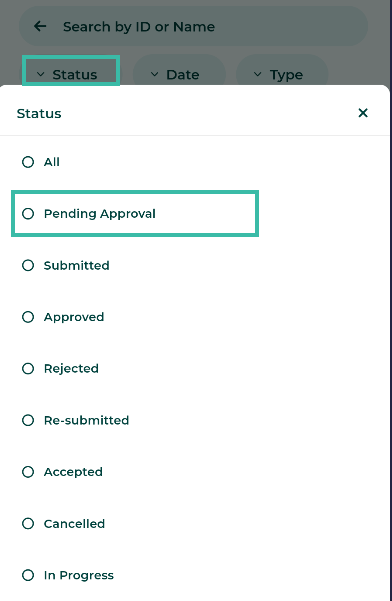
Tap on the Status heading -> Select Pending Approval.
-
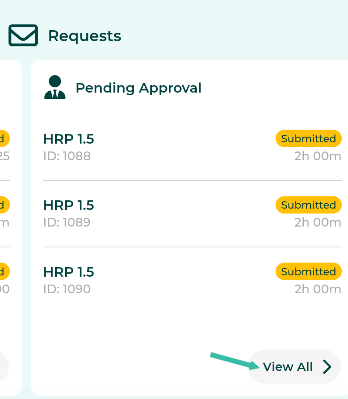
Alternatively, managers can check the Request Dashboard, then under the Pending Approval section, select View All.
-
-
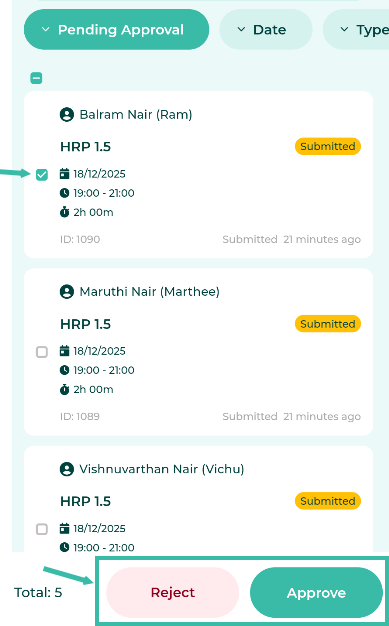
Tick the checkbox next to the request, then tap the Approve or Reject button below.
-
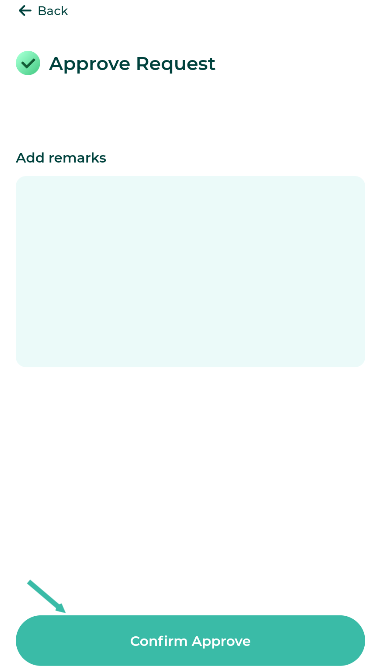
Add any remarks, if any, then tap the Confirm Approve button.
-
Once Approved, a confirmation message will be displayed "Request Approved".