
Create Attendance Requests for Flexible Shifts in the Mobile App
Employees can submit Attendance requests from their mobile application for manager or admin approval in cases where Edit Shift, Swap Shift, or Edit Sign In/Out times are required.
How to submit an Attendance Request via ByteHR Mobile App
There are three types of Attendance Requests:
- Edit Shift
- Swap Shift
- Edit Sign In/Out
How to Submit an Edit Shift Request
Employees can submit requests to edit their shift schedules, such as start and end time, and can also change working days to days off.
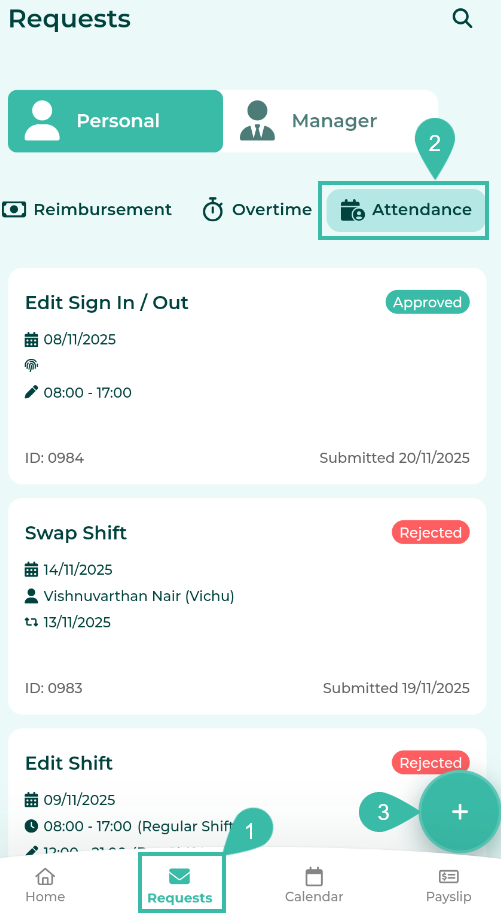
- Click Requests tab.
- Select Attendance.
-
Click the circular button with the "+" sign in the bottom right corner to create a request.
-
Select the Attendance type as Edit Shift.
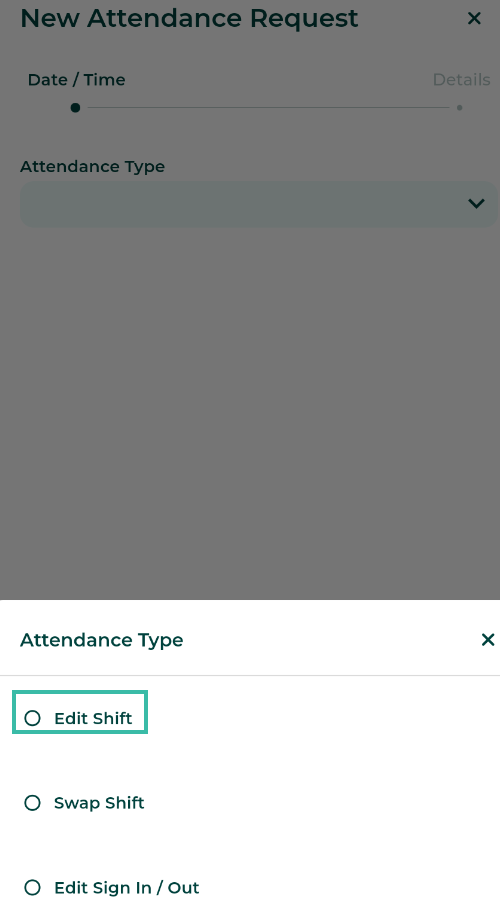
- Select the date you wish to edit. The system will display the number of working hours per day (including breaks) below this field.
- Select a new number of working hours per day (including breaks).
- If you want to change that day's work shift to a weekly day off, check the "Day Off" box.
-
Click Next to proceed.

-
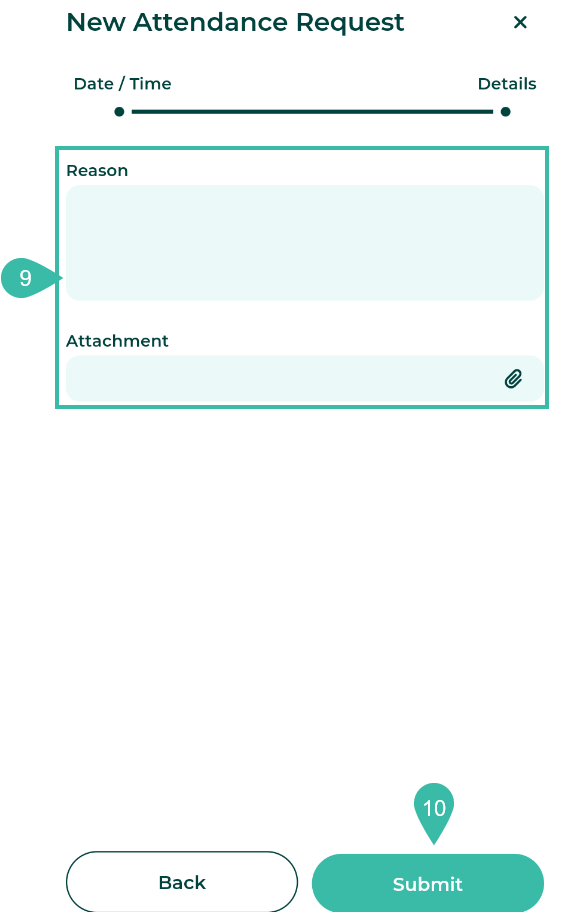
Provide a reason and attach a supporting document if any.
***You may attach one supporting document, maximum in size 7MB (image files must be up to 10MB).***
-
Click Submit to send the Edit Shift request.
-
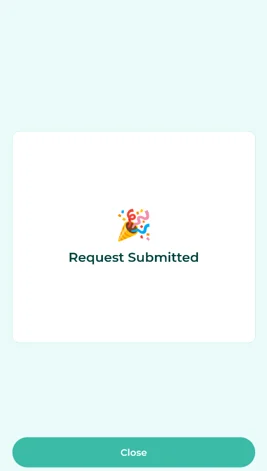
Once a request has been successfully submitted, the system displays a confirmation message "Request Submitted" and the submitted request will appear on the Requests page under Attendance displaying the type of Attendance Request, with the status "Submitted".

🚩 Rules: Rules for submitting Edit Shift Request
- You cannot submit Edit Shift request on a day when shift edit requests and/or shift swap requests are already submitted with the status Submitted, Approved, Accepted.
- You cannot submit a request to edit a shift on a day with the same number of working hours.
-
For example,
on 28/09/2025, an employee has worked 9 hours. Select a new number of working hours per day (including breaks): 8 hours.
How to Submit a Swap Shift Request
Employees can submit swap shifts requests to change working hours with colleagues or switch their weekly days off. For example, switching from Saturday and Sunday off to Sunday and Monday off.
- Click on the Requests tab.
- Select Attendance.
-
Click the circular button with a "+" sign in the bottom right corner to create a request.
-
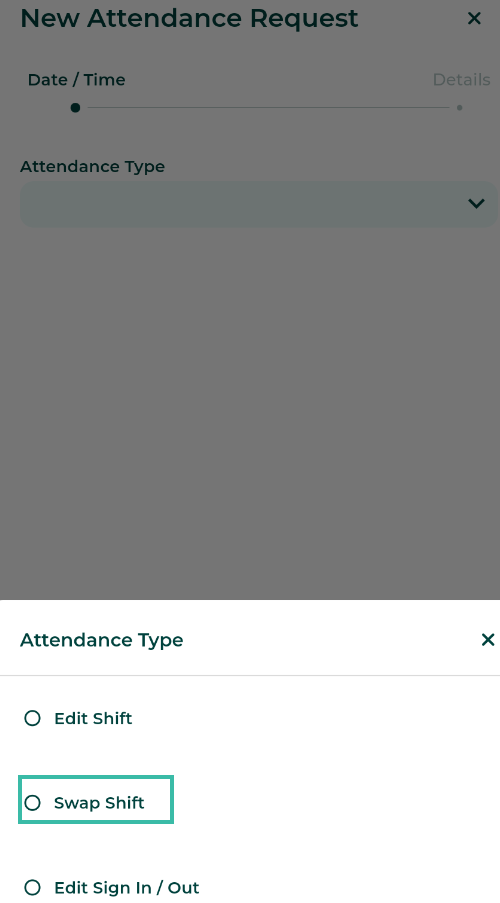
Select the Attendance Type as Swap Shift.
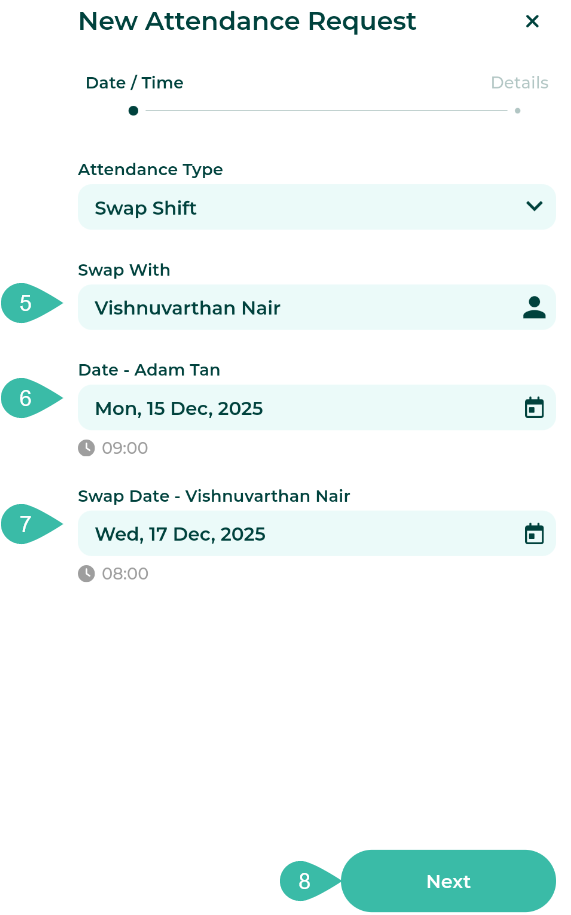
- Select "Swap With" to choose the employee you want to swap shifts with, or you can select the employee's name if you want to swap their day off to a different day.
- Select your desired date for shift swapping. Once you've selected the date, the system will display the number of working hours per day (including breaks) for that day below this field.
- Select the Swap Date for the colleague or the employee you wish to swap shifts with. The system will display the number of working hours per day (including breaks) for that day below this field.
-
Click Next to proceed.
-
Provide reason and attach a supporting document if any.
***You may attach one supporting document, maximum in size 7MB (image files must be up to 10MB).***
-
Click Submit to send the request.
- Once a request has been successfully submitted, the system prompts a message "Request Submitted" and the submitted Swap Shift request will appear on the Requests page under Attendance displaying the type of Attendance Request, with the status "Submitted".
🚩 Rules: Rules for submitting Swap Shift requests.
1. You can only swap shifts with employees within the same shift schedule, not with employees in different shift schedules.
2. Employees cannot switch public holidays that have been created from the Calendar menu.
3. If the working hours of employees on the day they wish to swap shifts are the same, such as having the same working hours or being on the same day off, they cannot swap shifts.
How to Submit Edit Sign In/Out Request
Employees can submit requests to edit their clock-in/clock-out times for days with irregularities, such as absences, invalid data, lateness, or out early before shift ends.
- Click on the Requests tab.
- Select Attendance.
-
Click the circular button with a "+" sign in the bottom right corner to create a request.
-
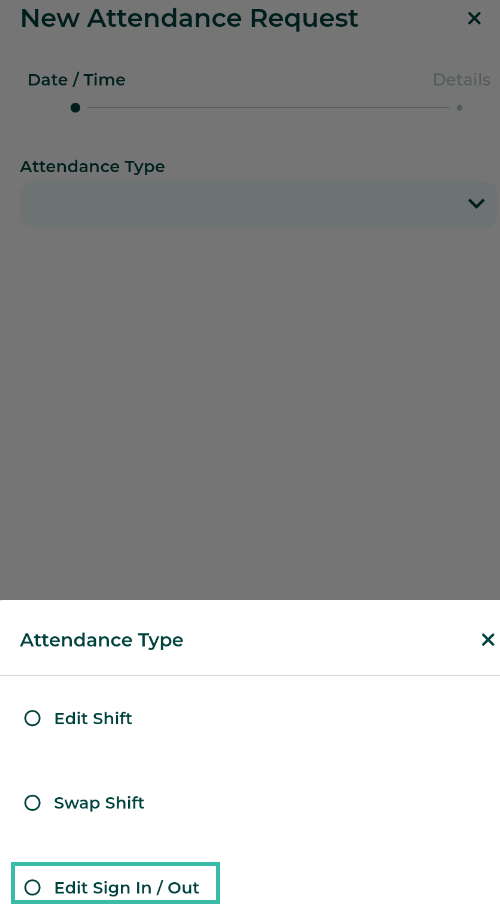
Select the Attendance Type as Edit Sign In/Out.
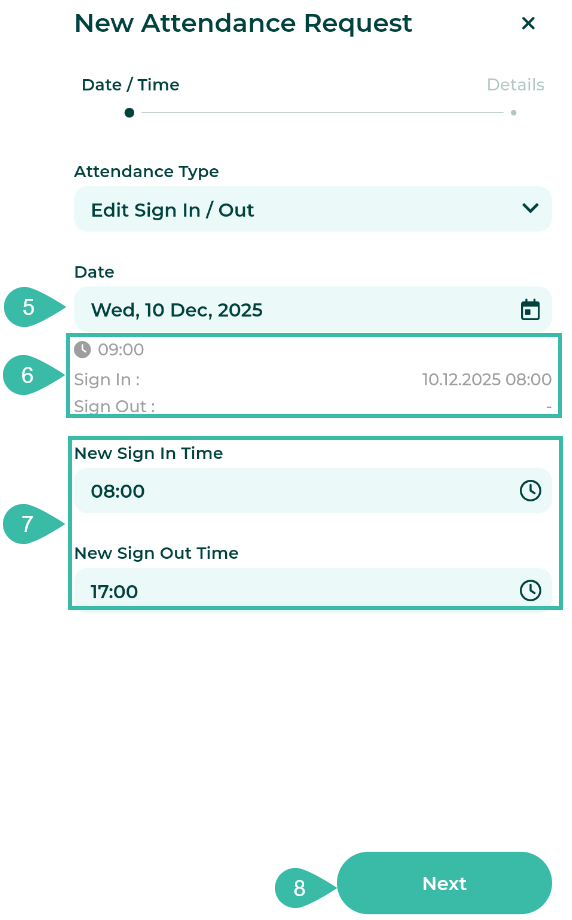
- Select the date you wish to edit for the clock-in/clock-out time. This must be a past date.
- Once the date is selected, the system will display the start and end times according to the employee's shift schedule and show any unusual statuses for that day.
- Enter new sign-in time and new sign-out time.
-
Click Next to proceed.
-
Provide a reason and attach a supporting document.
***You may attach one supporting document, maximum in size 7MB (image files must be up to 10MB).***
-
Click Submit to send the Edit Sign In/Out request.
- Once a request has been successfully submitted, the system prompts a confirmation message "Request Submitted" and the submitted request will appear on the Requests page under Attendance displaying the type of Attendance Request, with the status "Submitted
🚩 Rules: Rules for submitting Edit Sign In / Out Request
Employees cannot choose to request Edits to the current date or future date.
The pricing for the Edit Shift, Swap Shift, and Edit Sign In/Out features will depend on the number of employees in your package and will procure according to your billing cycle.