
Create Reimbursement Requests for Multiple Payments in the Mobile App
Employees can submit Reimbursement Requests through the mobile application for approval of their manager or admin, in cases where employees have paid for expenses in advance and wish to claim reimbursement from the company.
How to Submit a Multiple Payments Reimbursement Request via ByteHR application
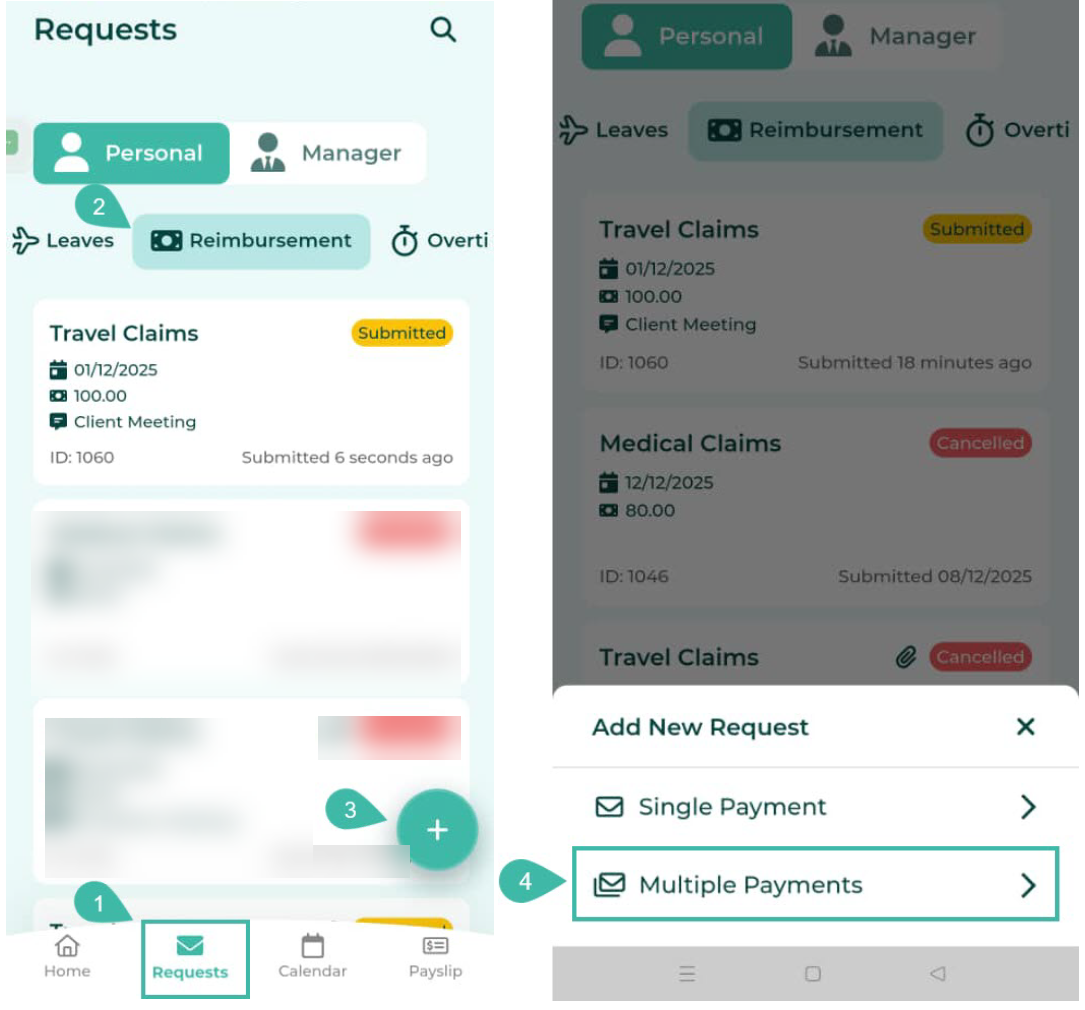
- Click on the Requests tab.
- Select Reimbursement option.
- Click the circular button with the "+" sign at the bottom right corner to add a Reimbursement request.
-
Select Multiple Payments.
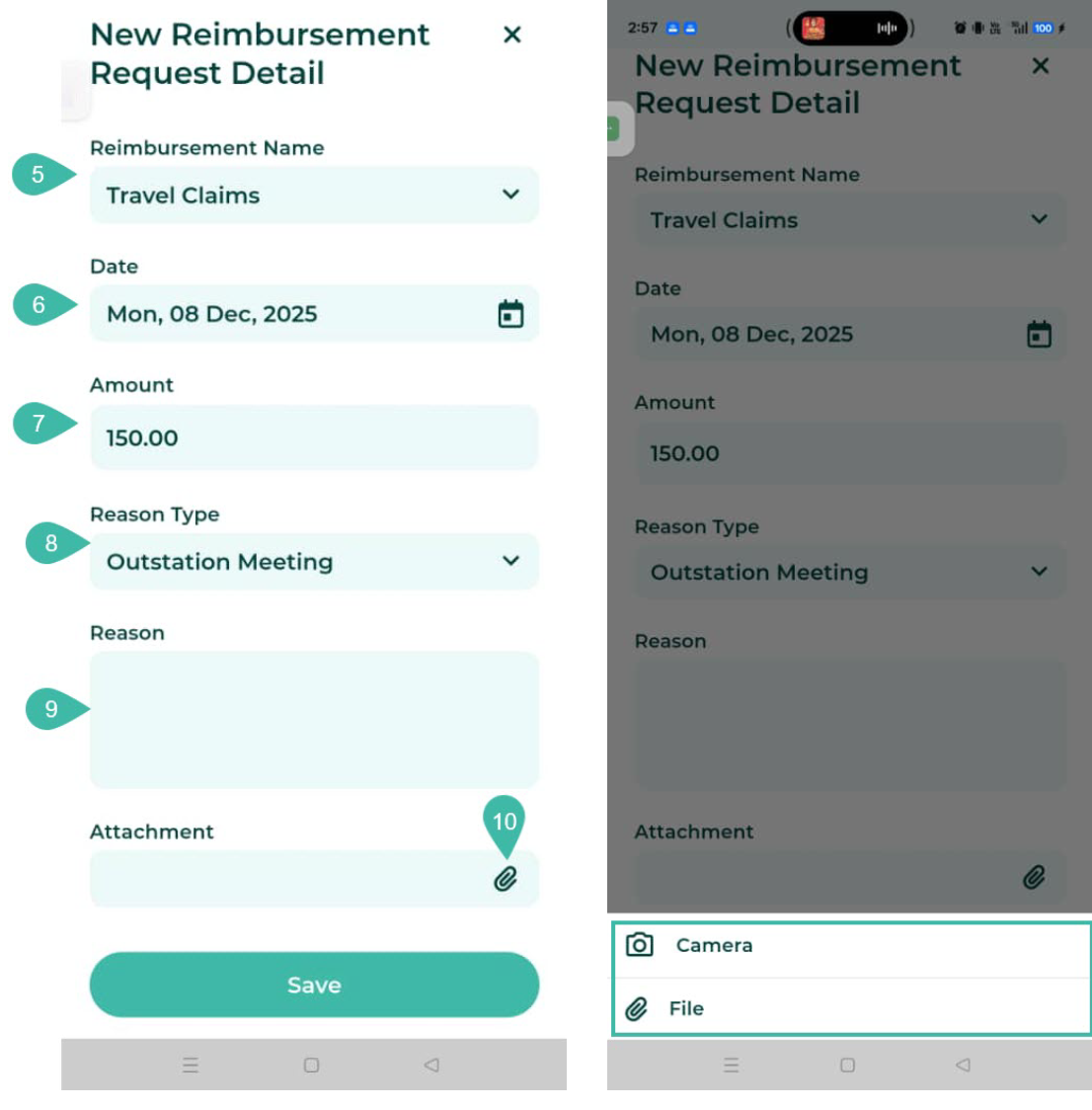
- Select a Reimbursement Name.
- Select a date.
- Enter the amount you wish to reimburse.
- Select the Reason Type from the dropdown list.
- Provide a reason if any.
- Attach a support document. There are two options: Camera and File.
- Camera: The system will link to your camera. Once you have captured a picture, select OK or Use Photo in the bottom right corner of your mobile screen to upload the photo.
-
File: Select files from your mobile device to upload as attachments to your request.
*You can attach only one supporting document file, which must not exceed 7MB (image files must not exceed 10MB).*
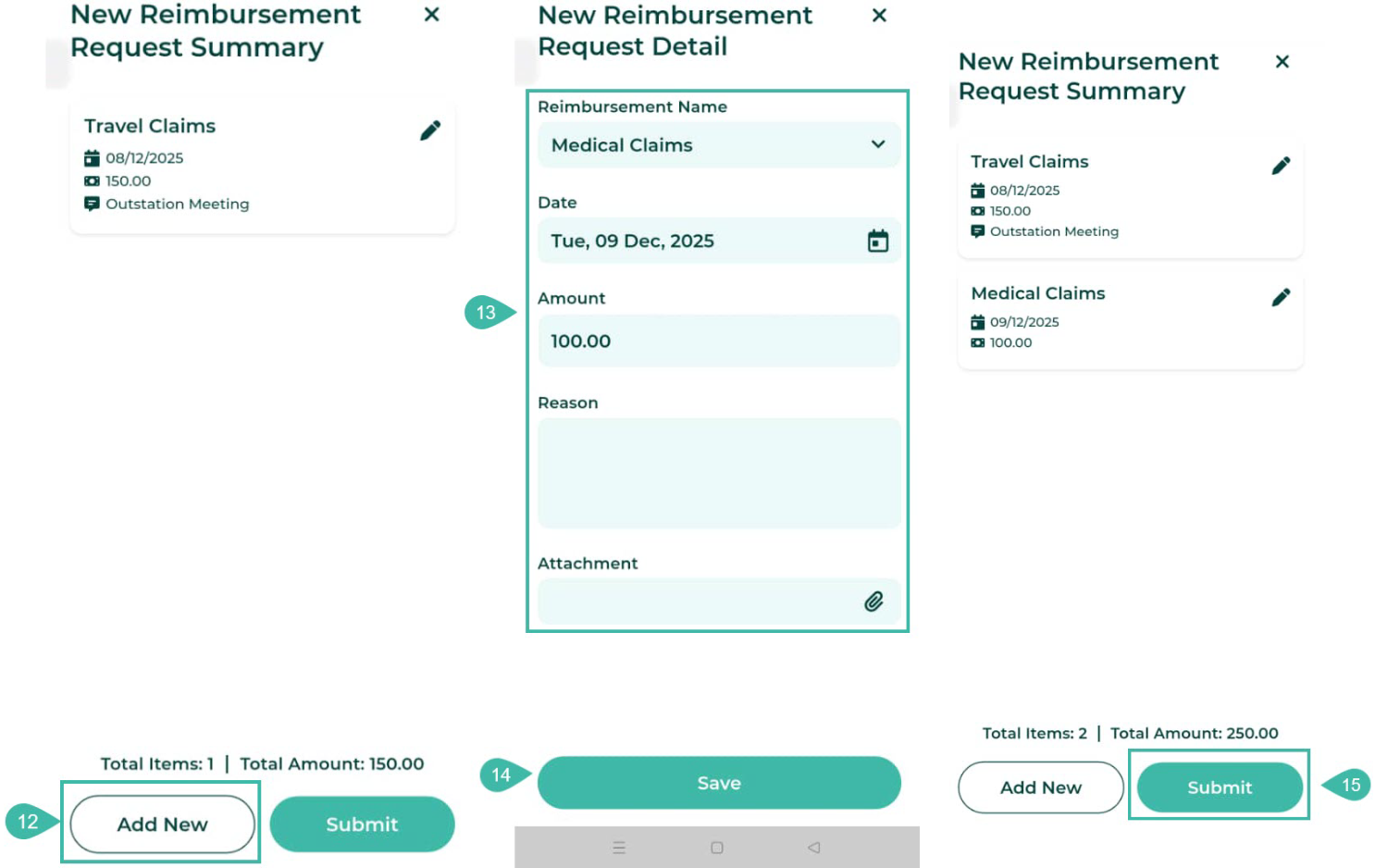
- Click Save to save the first request.
- Clicking Save will take the user to the New Reimbursement Request Detail page. Then, click the Add New button to more requests.
- Fill in the required information following the same procedure.
- Click Save.
-
Click Submit.
- Once a request has been successfully submitted, it will appear on the requests page categorized by request type, with the status "Submitted".

Note
- If a Maximum Amount Per Period has been configured for a reimbursement type, the system will display the employee's remaining reimbursement balance and the cut-off date for that reimbursement period when the employee submits the reimbursement request.
