
Create Reimbursement Requests for Single Payment in the Mobile App
Employees can submit reimbursement requests through the mobile application for approval of their manager or admin, in cases where employees have paid for expenses in advance and wish to claim reimbursement from the company.
How to submit a Single Payment Reimbursement Request through the ByteHR Mobile application
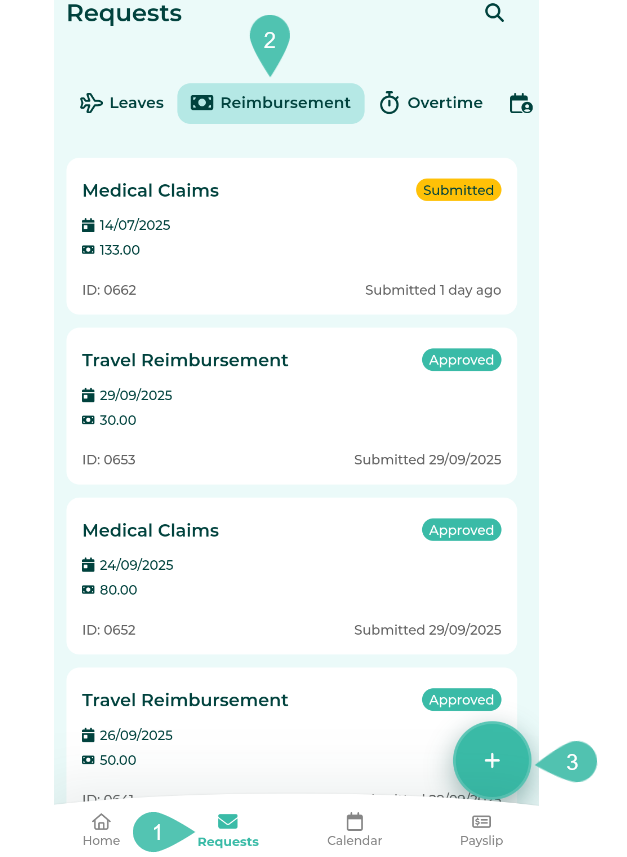
- Click the “Request” tab.
- Select “Reimbursement” option.
-
To add a new request, tap the “+” icon at the bottom right.
-
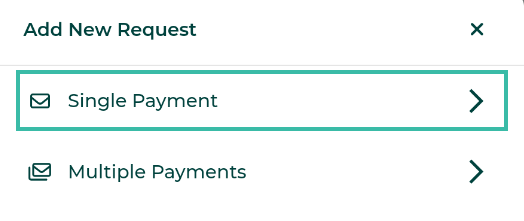
Select Single Payment to reimburse for only an item.
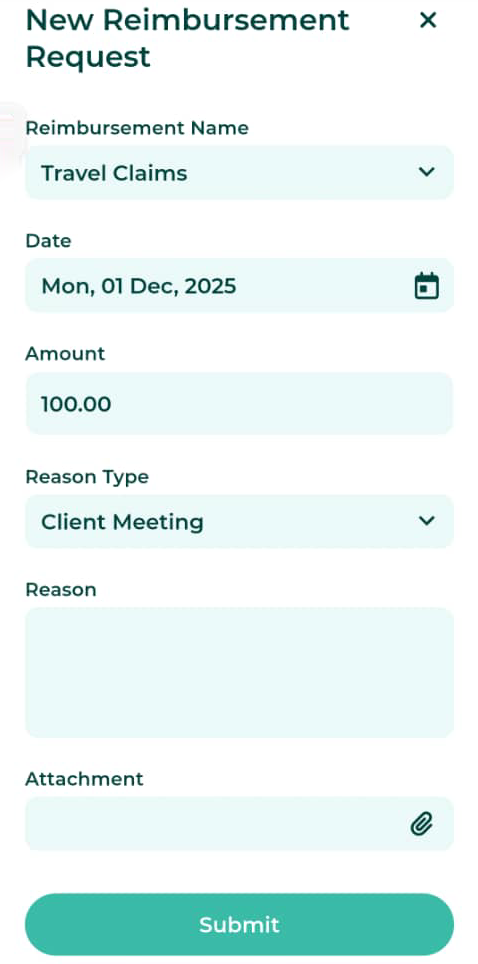
- Select the Reimbursement type.
- Select a Date
- Add the amount you wish to reimburse.
- Select the Reason type from the drop down list.
- Provide a reason if any.
- Attach a supporting document. There are two options to upload the attachment: Camera and File.
- Camera: The system will link to your camera. Once you have captured a picture, select OK or Use Photo in the bottom right corner of your screen to upload it.
-
File: You can also select files from your phone to upload and attach to your request.
***You can attach only five supporting document files, which must not exceed 7MB (image files must not exceed 10MB).***
-
Click “Submit” to send your request.
-
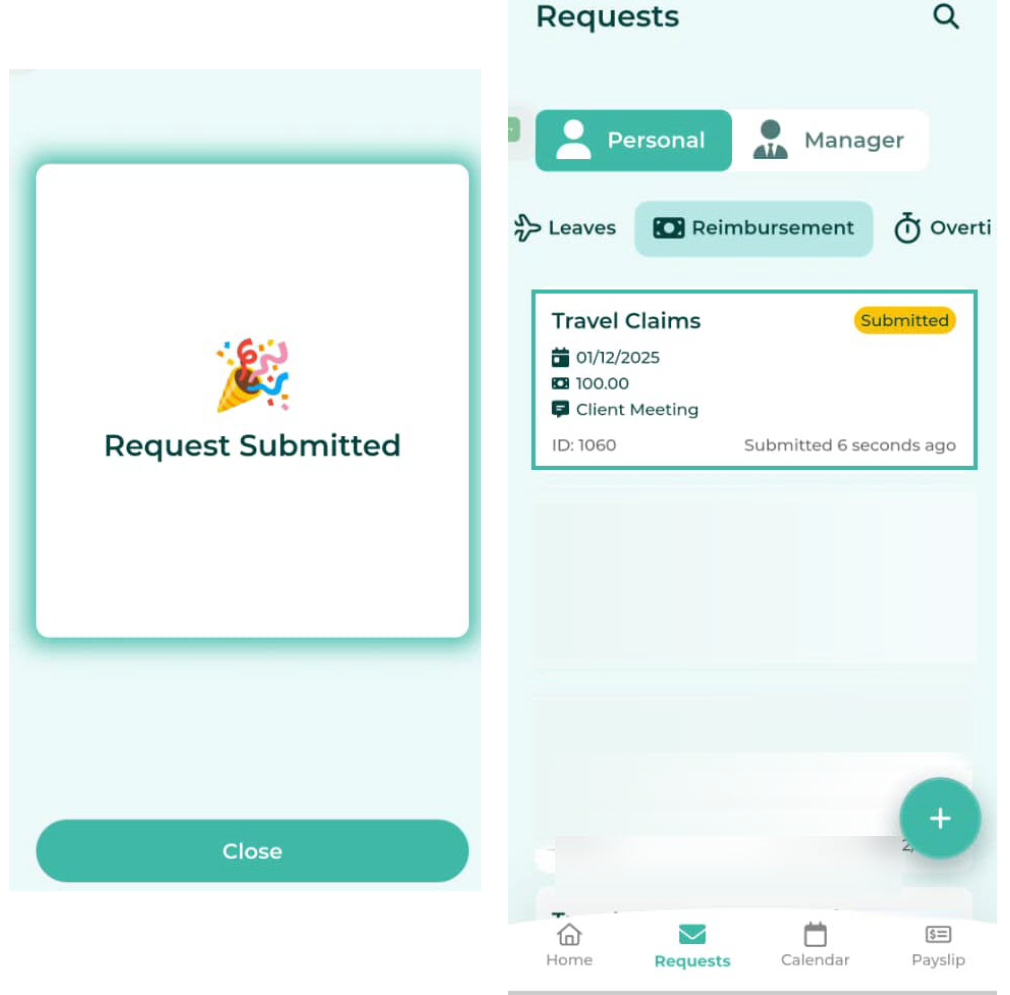
A confirmation message will appear stating “Request Submitted.” The submitted Reimbursement Request will appear under the Request page.
Note
- If a Maximum Amount Per Period has been configured for a reimbursement type, the system will display the employee's remaining reimbursement balance and the cut-off date for that reimbursement period when the employee submits the reimbursement request.
