
Create Overtime Requests in the Mobile App
Employees can request Overtime through their mobile application, which will then be approved by a manager or admin.
How to submit an Overtime Request through the ByteHR application.
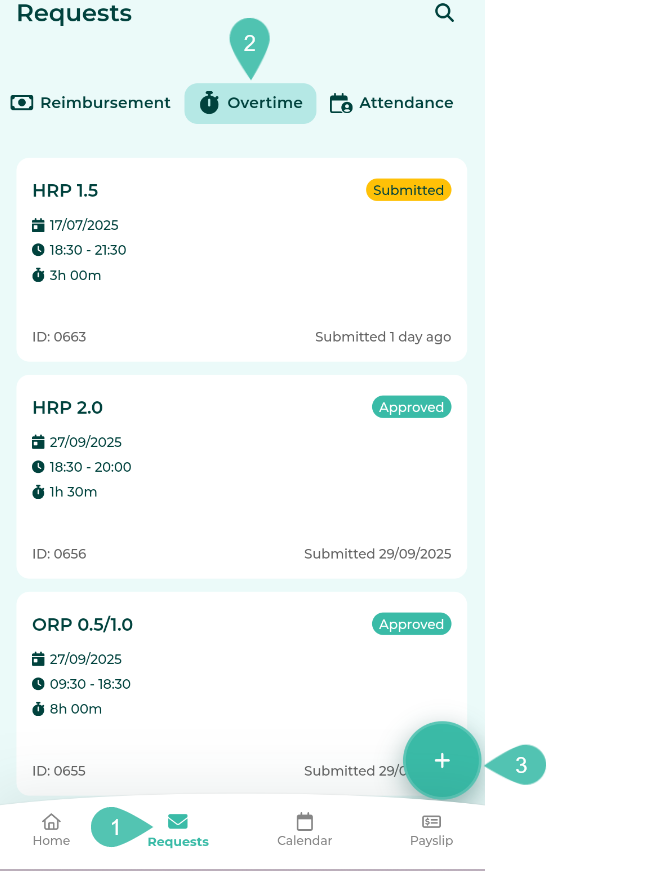
- Go to the "Request" tab.
- Select “Overtime.”
-
Tap the “+” icon at the bottom right of the screen to create a new request.
-
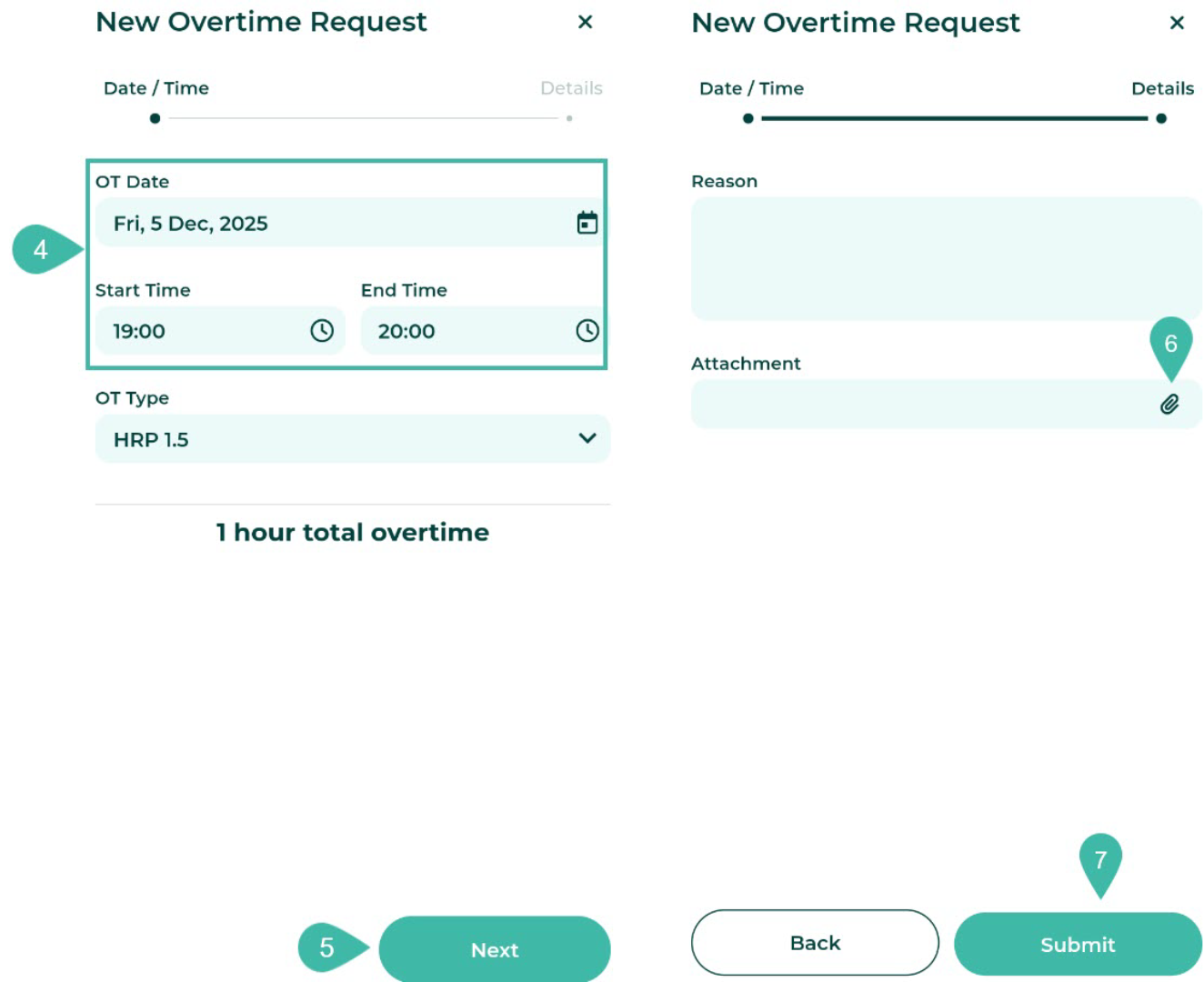
Enter the following details: OT Date: Select the date you worked overtime; Start Time & End Time: Enter the period of overtime.
The system will automatically calculate and display the number of overtime hours at the bottom.
- On normal working days, the system will automatically display the overtime rate according to the overtime rules.
- In the case of weekends or public holidays, the system will allow you to select overtime rates according to the pre-configured overtime rules.
- Tap “Next” to proceed.
- Attach supporting documents for overtime work. There are two attachment options:
-
Camera:
If you select a photo, the system will link to the camera. Once you have captured a picture, click the checkmark in the upper right corner of your mobile screen to upload the photo.
-
File:
If you select a file, you can choose various files from your mobile device to upload.
***You can attach one document file, which must not exceed 7MB (image files must not exceed 10MB)***
-
-
Click Submit.
-
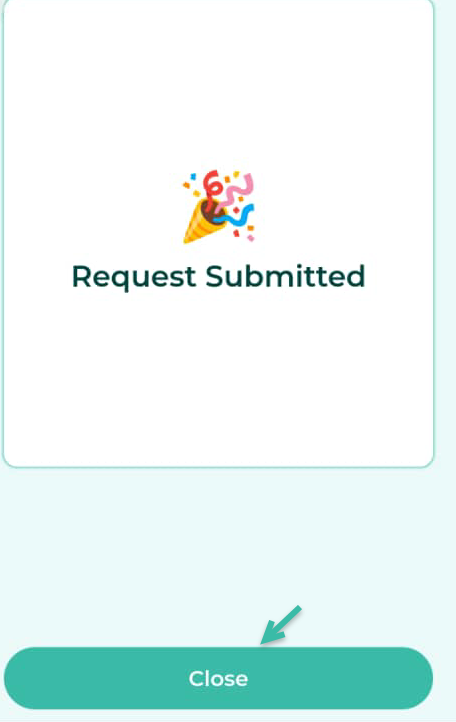
Once the request has been submitted, a confirmation message will appear stating “Request Submitted.”
-
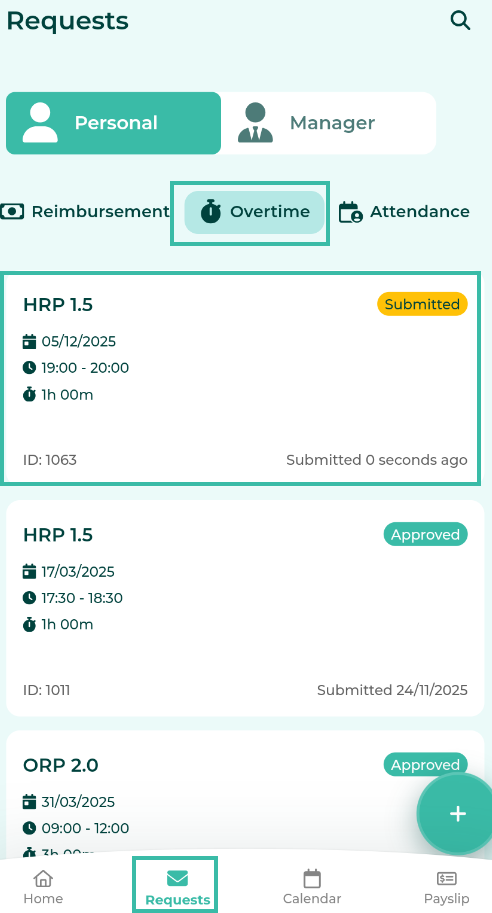
Go to the “Requests” tab and select “Overtime" option to view the submitted request.
📃Note
-
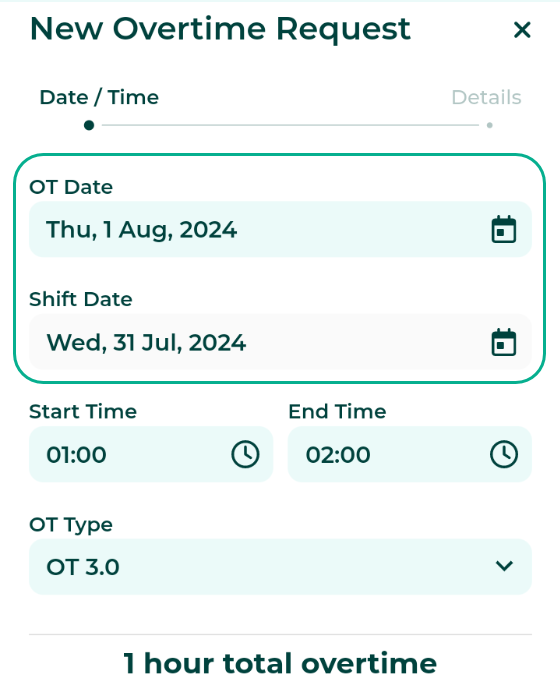
When requesting overtime that spans across different days, the system will display the actual overtime date and the date according to the shift schedule.
-
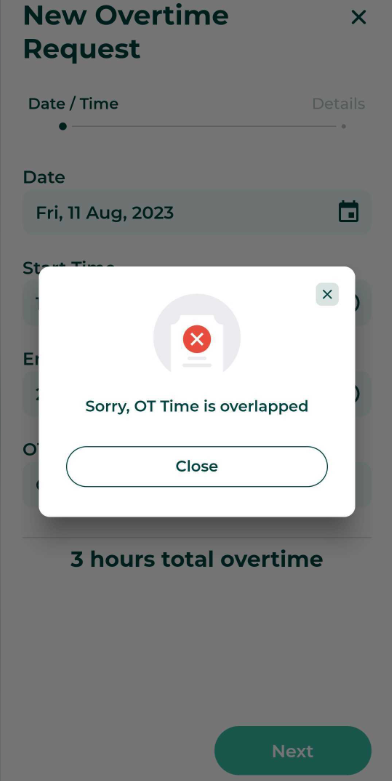
If an employee selects an incorrect time period in their overtime request according to the shift schedule, the system will not allow the employee to submit the overtime request.
The pricing for the Overtime Request feature will depend on the number of employees in your package and will prorate according to your billing cycle