
Create a Leave Request in the Mobile App
Employees can add New Leave requests through the mobile application for approval of their manager or admin.
How to submit a Leave Request via ByteHR Mobile App
- Click “Request” tab,
- Then select “Leave”.
-
Tap the “+” icon at the bottom right of the page.

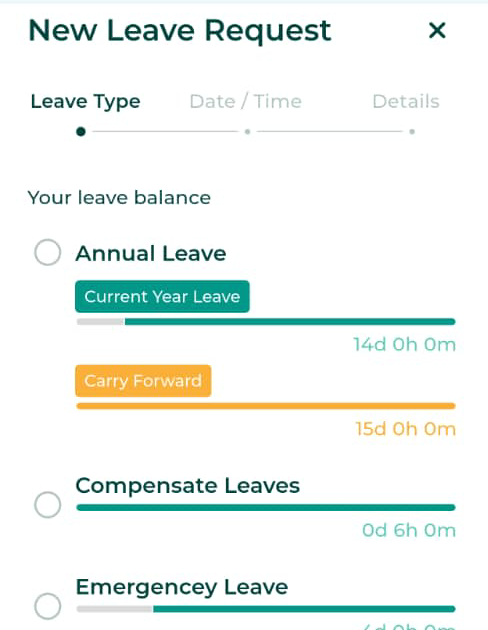
- Select the Leave Type.
- The system will display a coloured bar below the leave type to show the employee's remaining leave days.
- Grey: Indicates the portion of leave days already used.
- Green: Indicates the remaining leave days entitlement for the current year.
-
Yellow: Indicates the portion of accumulated leave days from the previous year (if any).
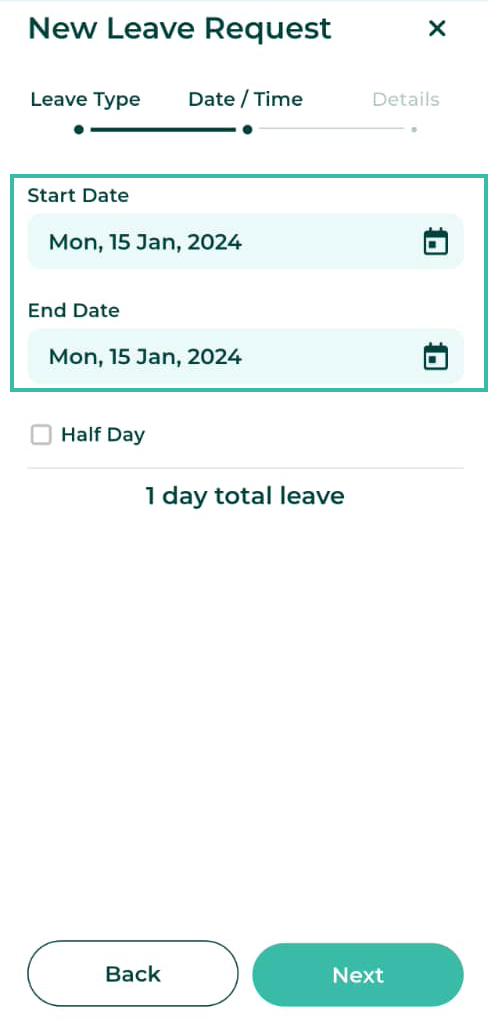
Select your desired leave dates (Start Date and End Date).
The system will automatically calculate and display the total number of leave days.
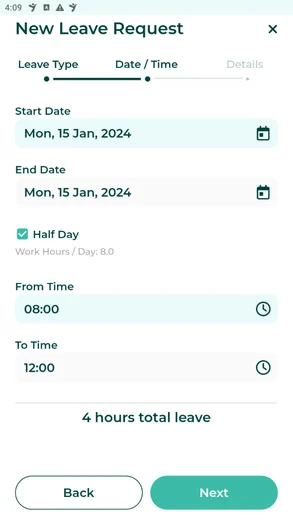
- If you need to take a half-day leave, tick the "Half Day Leave" box.
-
When setting up half-day leave from a contract, employees should select "From Time," and the system will automatically calculate and display the "To Time" option.
-
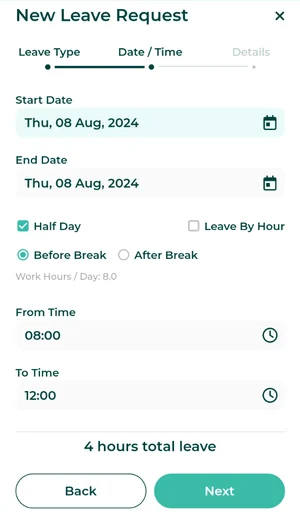
When setting up half-day leave from the shift schedule, employees can select Before Break or After Break. The system will automatically display the start time, end time, and hours.
-
- If an employee needs to take leave by hour, check the "Leave By Hour" box.
-
The system will then allow the employee to select "From Time" and "To Time," and calculate the employee's leave hours based on their selection.
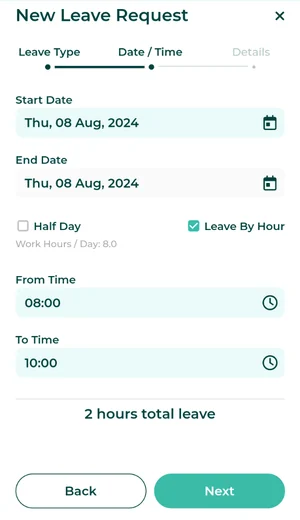
Once you have filled in all the information, click Next.
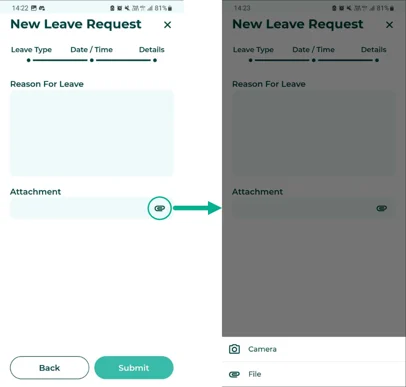
Employees can add a reason for their leave (Reason For Leave) for their manager or admin to view.
Click on Attachment to upload supporting documents for your leave request. Two attachment options are available.
-
-
Photos (Camera):
If you select a photo, the system will link to the camera. Once you have finished taking a photo, select OK or Use Photo in the bottom right corner of your mobile screen to upload the photo.
-
Files:
If you choose to upload a file, you can select various files from your mobile device to attach to your request.
*You can attach up to five supporting document files, which must not exceed 7MB (image files must not exceed 10MB).
- The system will display a coloured bar below the leave type to show the employee's remaining leave days.
- Click Submit to send the request.
-
A confirmation message will appear stating “Leave Request Submitted.” The submitted Leave Request will appear under the Request page.


The pricing for the Leave Request feature depends on the number of employees in your package and will procure based on your billing cycle.