
View Announcement for Employees
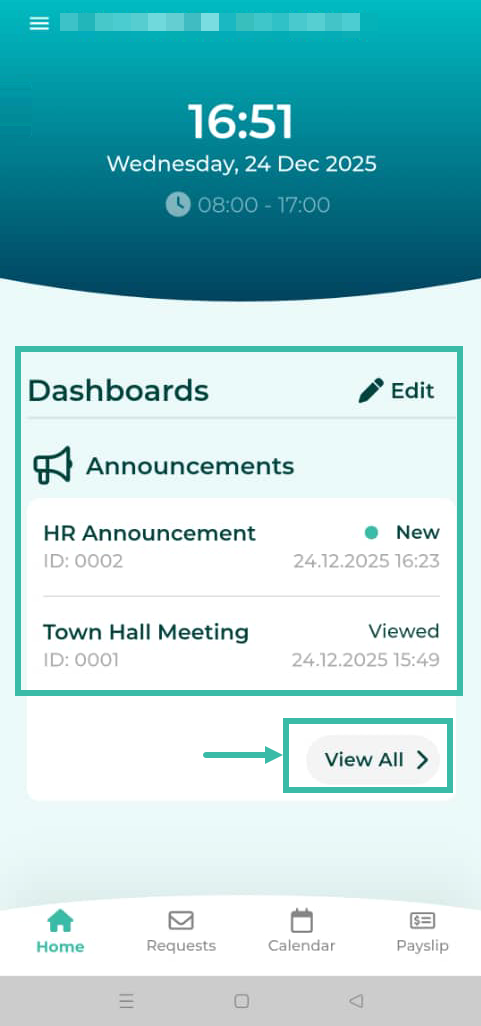
View via Mobile App: Click "View More" under the Announcements
View via Website: Click "Announcements" -> View Details and Attachments
Employees can view Announcements through three Channels:
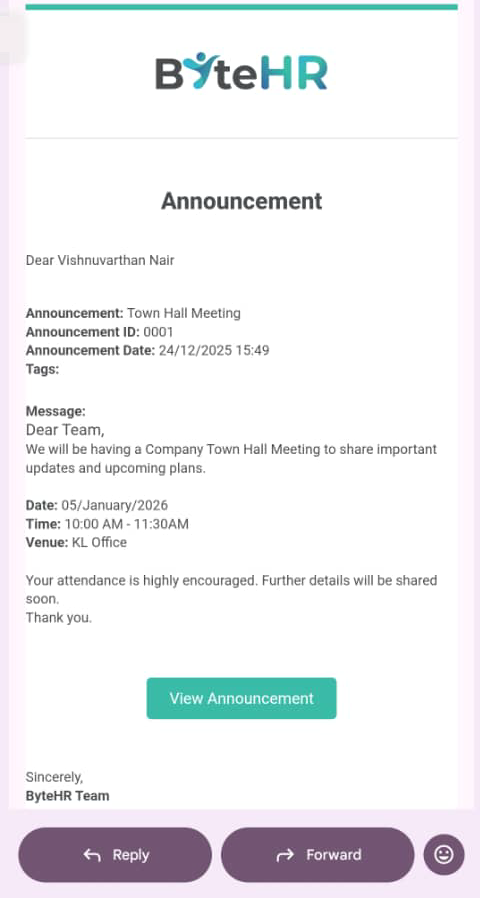
- Email Notification
- Employees will receive Email Notifications when an Announcement is made.
- They will see the announcement text, but if the announcement includes attachments, those attachments will not be viewable via email.
-
Employees can click on "View Announcement" after logging in to view the details of the announcement.
Note: Employees will only receive email notifications for Announcements if Announcement Notification via Email is enabled in the system.
- Mobile applications
- If you add an "Announcement" topic to your highlights, when a new announcement is made, its status will be "New!"
- The highlight on the Home page Announcement Dashboard will show the announcements for the month.
-
Status displayed as "Viewed" is for announcements that have been viewed.
Status shown as "New" is for announcements that have never been viewed before.
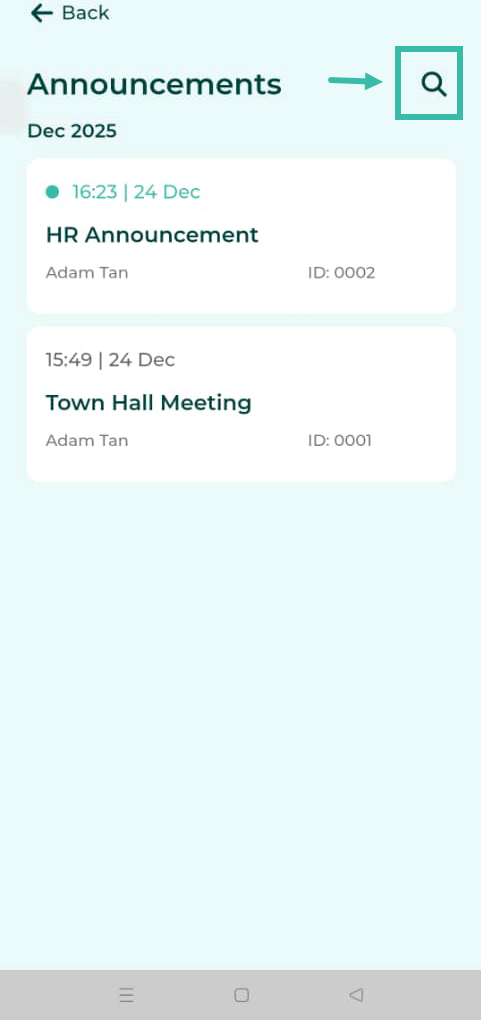
You can view all announcements at View All..
You can click on Filter to filter the data you want.
-
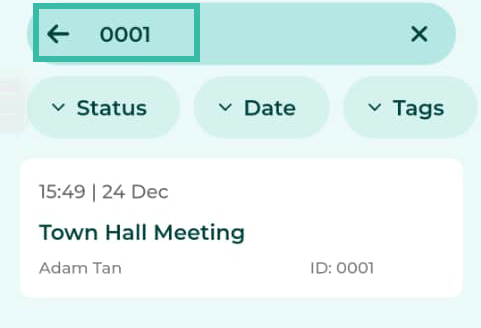
Filter data by Announcement Name/ID.
-
Filter data by Status.
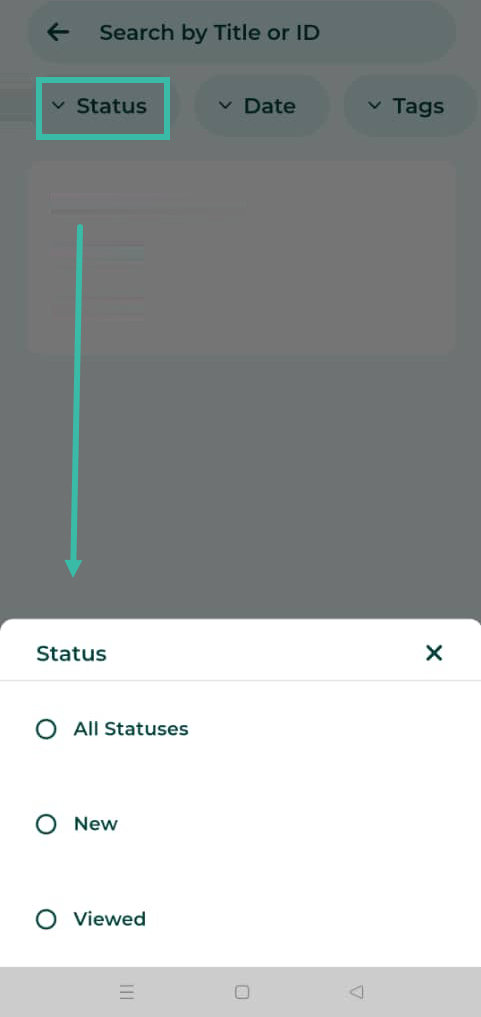
-
Filter data by announcement date (From Date, To Date).
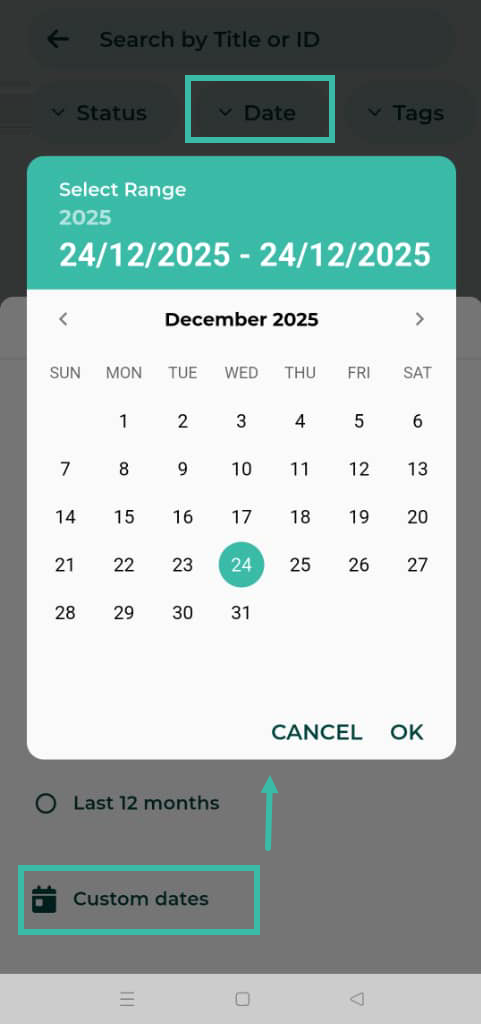
-
-
- Employee View in the Web App.
-
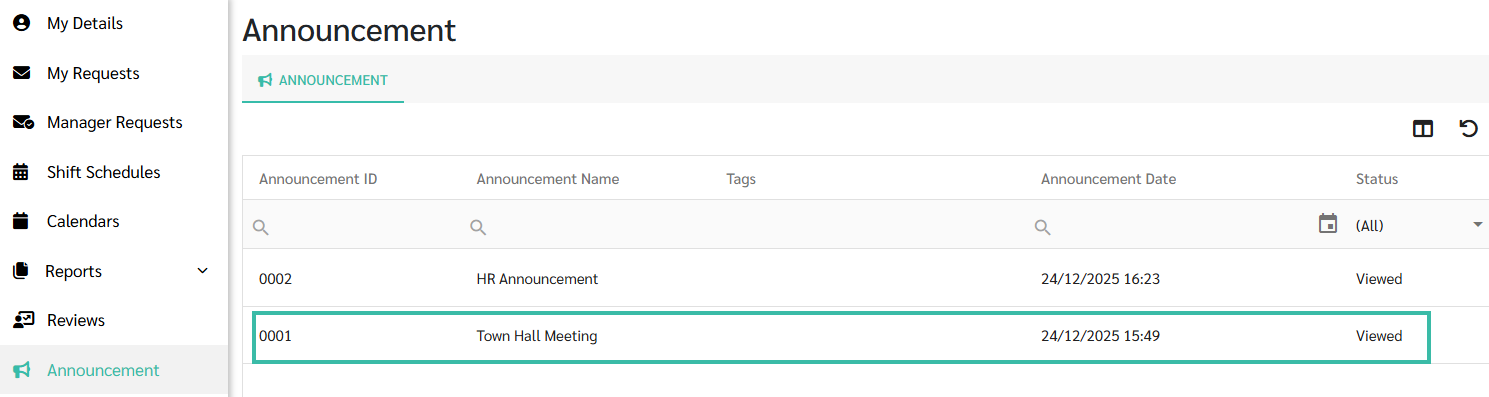
The Announcements tab in the Website will display the announcement status as "New!" when a new announcement is received.
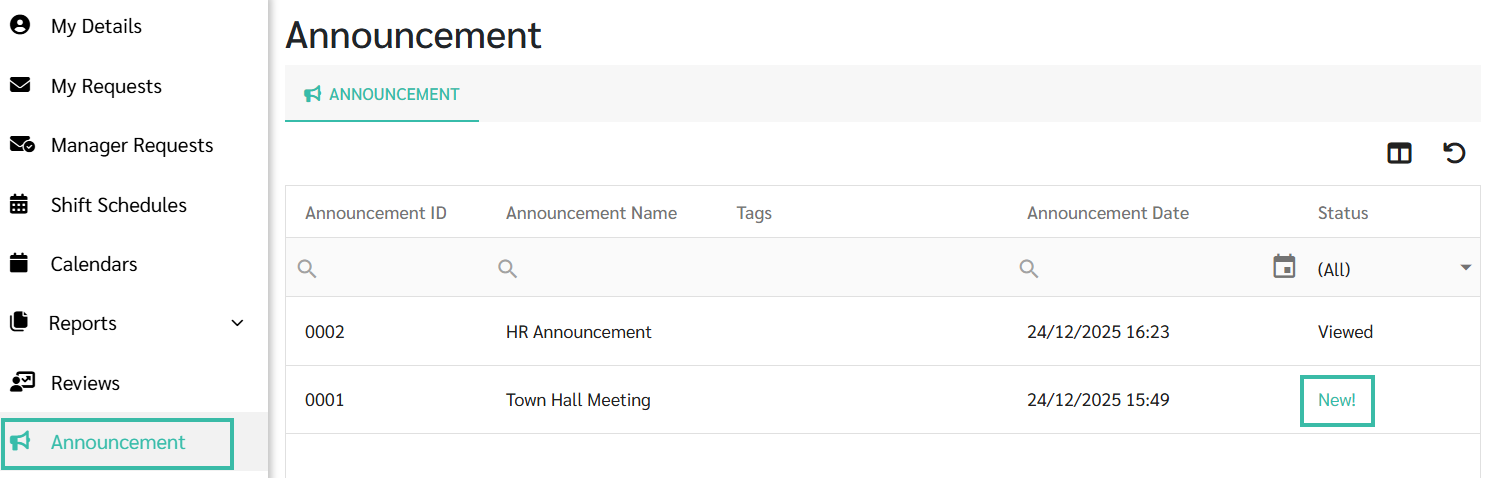
-
You can view the details of an Announcement by clicking on the desired Announcement and close it.
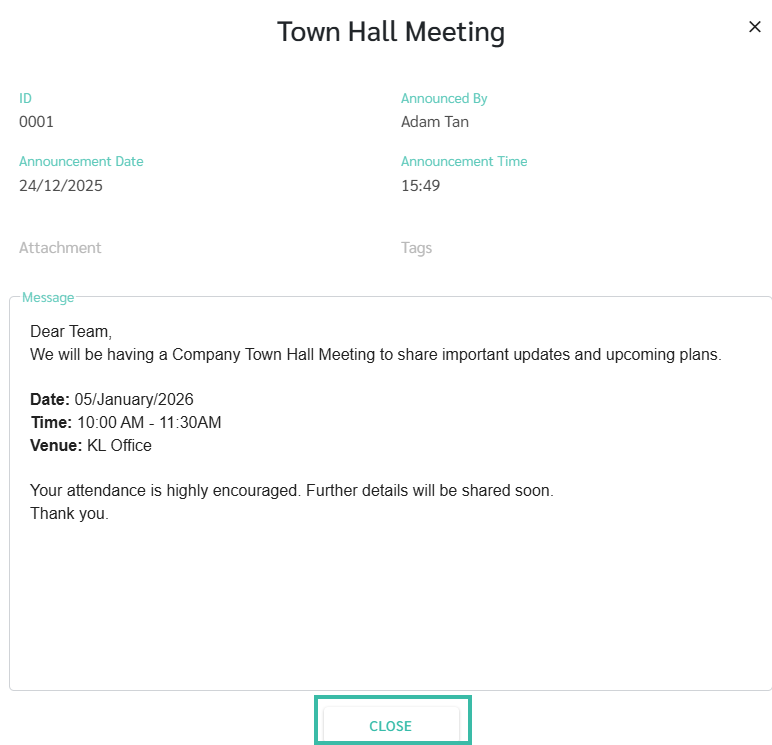
-
After you have viewed the details in the announcement, the announcement's status will change to "Viewed".
-
