
Attendance Dashboard in the Mobile App
Employees and Managers/Supervisors can view details of their own Attendance and the Attendance of those under their supervision from the mobile app.
List of Content
- How to View the Attendance Dashboard in the Mobile App
- My Attendance
- Overview
- Timestamps
- My Team
- Overview
- Timestamps
How to view the Attendance Dashboard in the Mobile Application
Employees and managers/supervisors can view their own and their subordinates' Attendance dashboards via the ByteHR mobile application as follows:
- After logging in, click Edit.
- Find the Widgets > Attendance widget and click to select it.
-
Click Back to return to the Home page.
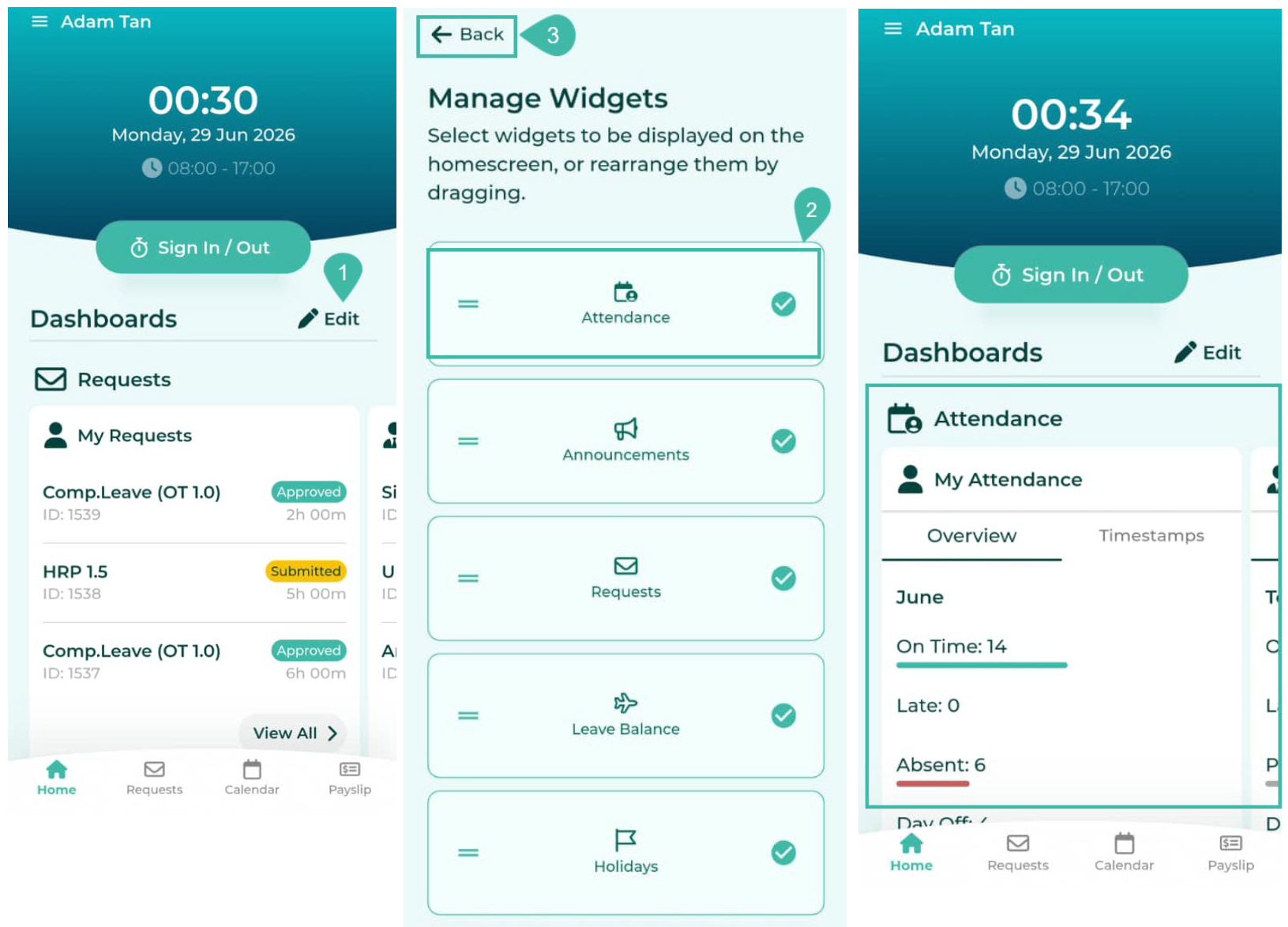
- The Home Page displays the employee Attendance dashboard, which can be scrolled left and right to view summary reports.
- My Attendance: Consists of Overview and Timestamps.
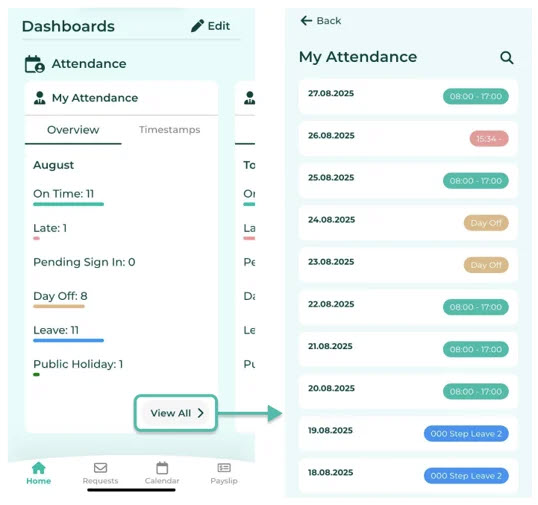
- The Overview tab allows you to view a summary of your current month's attendance, showing the number of days in various statuses, including:
- On Time: Shows the number of days you clocked in on time or before the Shift start time.
- Late: Shows the number of days you clocked in late or after the Shift start time.
- Pending Sign In: Shows the number of days you have not clocked in.
- Absent: Shows the number of days you were absent.
- Day Off: Shows the number of weekly days off.
- Leave: Shows the number of days you have taken the leaves.
-
Public Holiday: Shows the number of public holidays.
Employees can click the "View All" button to see details of their daily work.
The Overview tab of the Attendance provides a number of symbols on the daily attendance details page.
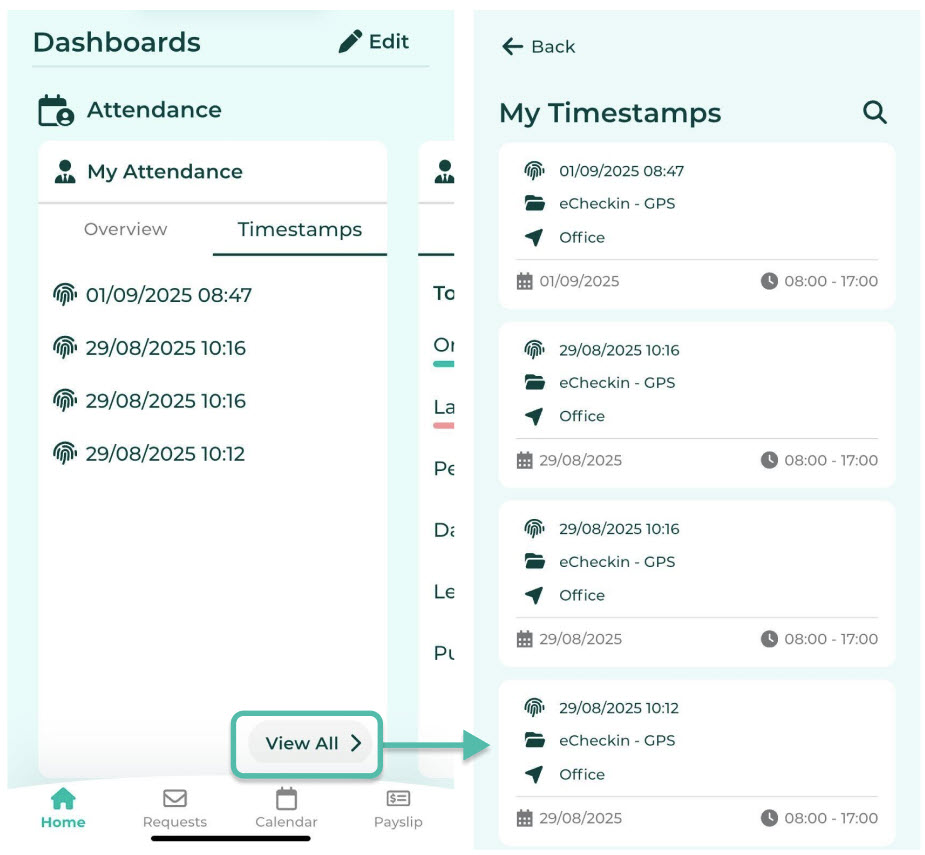
- The Timestamps tab allows employees to view their daily sign in/out entries.
- Clicking "View All" button enables them to view detailed work information for each day.
-
The Timestamps tab of the Attendance displays a number of symbols on the daily basis.
- The Overview tab allows you to view a summary of your current month's attendance, showing the number of days in various statuses, including:
|
Symbols Displayed in the Overview Tab |
Meaning |
|
|
Light green indicates on Time. |
|
|
Light red indicates Late. |
|
|
Grey indicates Pending Sign In. |
|
|
Red indicates Absence. |
|
|
Yellow indicates Day Off. |
|
|
Blue indicates Leave. |
|
|
Green indicates Public Holiday. |


|
Symbols Displayed in the Timestamp Tab |
Meaning |
|
|
Displays the actual Timestamps of dates and times clocked in/out. |
|
|
Displays the source of Timestamp, such as employees clocking in via FingerPrint Scanner or eCheckin. |
|
|
Shows the location that the employees clocked in. |
|
|
Displays employees' shift date. |
|
|
Displays employees' shift time. |


My Team Attendance Dashboard
- My Team is a view accessible only to employees designated as Managers/Supervisors. Managers/Supervisors can view details of the Attendance of their subordinates.
- My Team includes Overview and Timestamps.
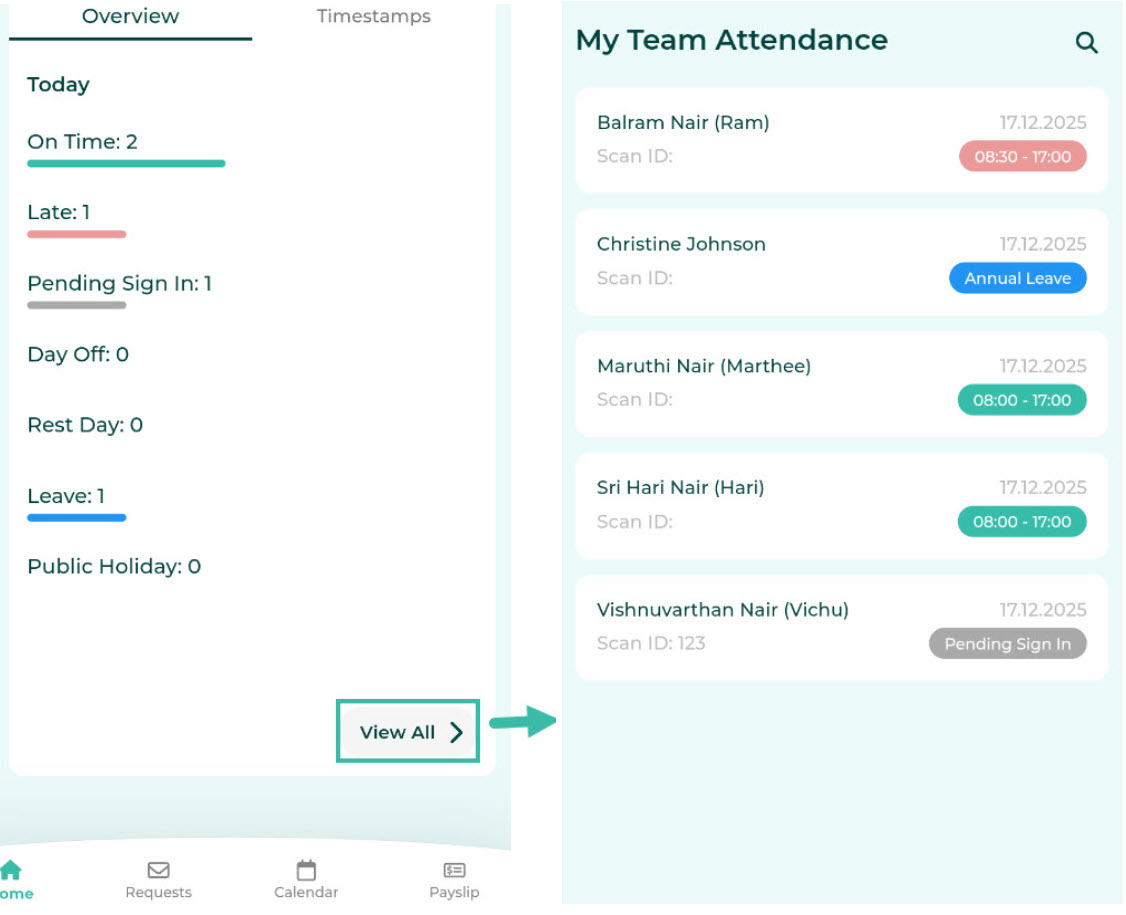
- The Overview tab provides a summary of the current day's Attendance of your subordinates. It displays the total number of employees under your supervision based on their status:
- On Time: Shows the number of employees who clocked in on time or before the Shift start time.
- Late: Shows the number of employees who clocked in late or after the Shift start time..
- Pending Sign In: Shows the number of employees who have not yet clocked in for the day.
- Day Off: Shows the number of employees who are on their weekly day off.
- Leave: Shows the number of employees who have taken their leave on that day.
-
Public Holiday: Shows the number of employees who had a public holiday on that day.
Managers/supervisors can click the "View All" button to see details of all employees under their supervision.
The Overview tab of the Attendance provides a number of symbols on the daily attendance details page.
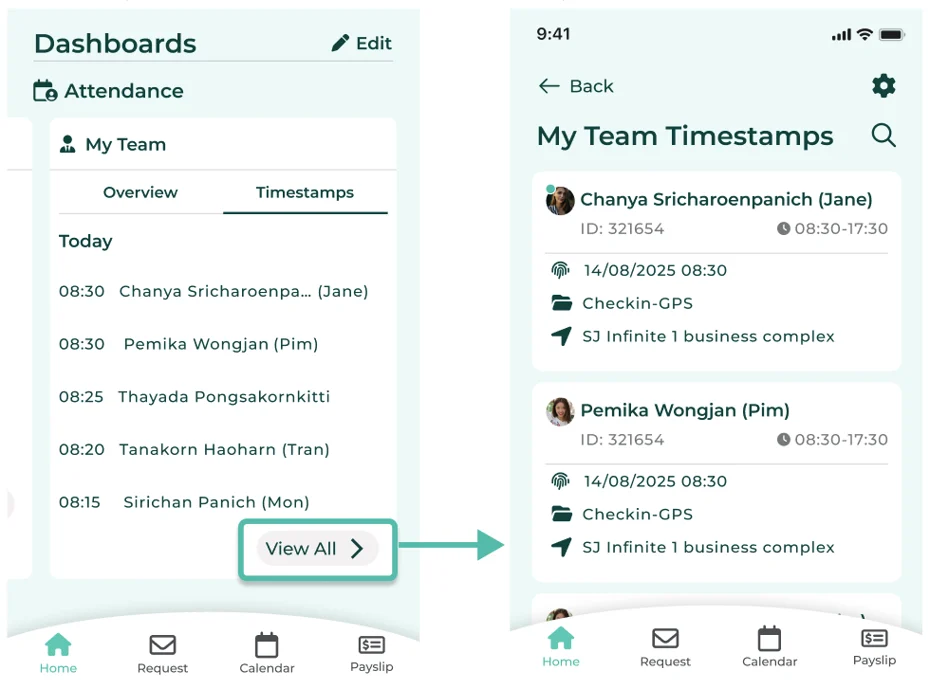
- The Timestamps tab allows you to view the daily sign in/out time entries of all employees under your supervision.
- Clicking the "View All" button allows managers/supervisors to view detailed daily sign in/out entries of all employees under their supervision.
-
The Timestamps tab of the Attendance displays a number of symbols on the daily basis.
- The Overview tab provides a summary of the current day's Attendance of your subordinates. It displays the total number of employees under your supervision based on their status:
|
Symbols Displayed in the Overview Tab |
Meaning |
|
|
Light green indicates on Time. |
|
|
Light red indicates Late. |
|
|
Grey indicates Pending Sign In. |
|
|
Red indicates Absence. |
|
|
Yellow indicates Day Off. |
|
|
Blue indicates Leave. |
|
|
Green indicates Public Holiday. |
|
Symbols Displayed in the Timestamp Tab |
Meaning |
|
|
Displays the actual Timestamps of dates and times clocked in/out. |
|
|
Displays the source of Timestamp, such as employees clocking in via FingerPrint Scanner or eCheckin. |
|
|
Shows the location that the subordinates clocked in. |
|
|
Displays subordinates'' shift date. |
🗒️Note:
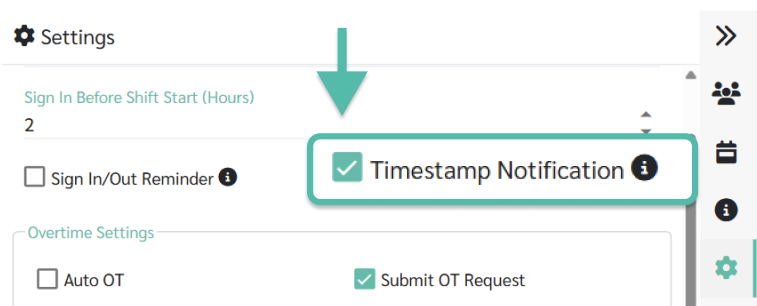
This setting enables the Timestamp notification function.
- Check in the Employee menu whether the Manager/Supervisor has access rights to the Timestamp information (Attendance).
- Check the Shift Schedule tab.
- Select the desired Shift Schedule name to set up the notifications.
- Go to the Settings menu.
- Check the Timestamp Notification checkbox to enable the function of sending Timestamp notifications to managers.
- Click Save.
🗒️Note:
Timestamp notifications will be sent every 10 minutes to the Managers, starting from the beginning of the hour.
For example,
if Employee A clocks in at 8:00 AM,
Employee B at 8:05 AM,
and Employee C at 8:09 AM,
the system will send a notification to the manager at 8:10 AM.
Subsequently,
if Employee D clocks in at 8:10 AM
and Employee E clocks in at 8:19 AM,
the system will send a notification to the manager at 8:20 AM.