
Set Notification in Mobile App
Employees have the option to Enable or Disable the Notifications for specific topics.
Email and Mobile notification settings:
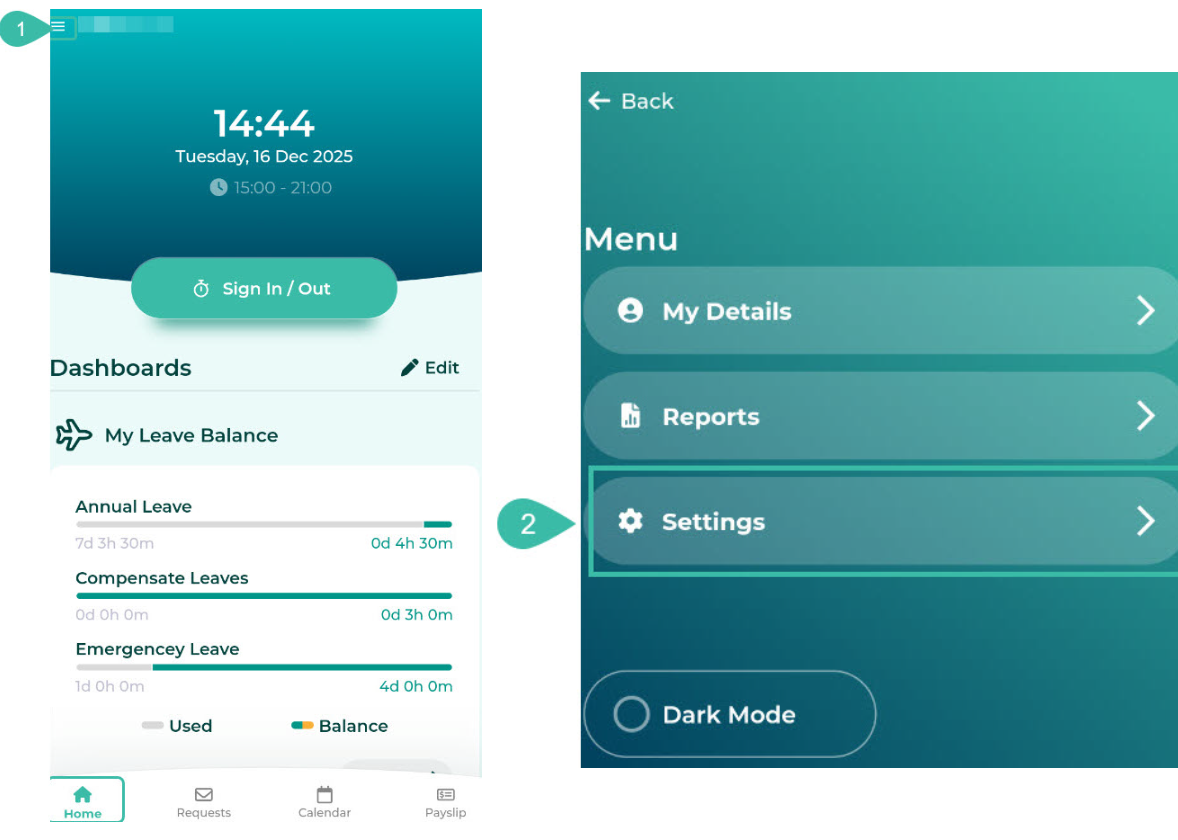
- On the home page, click the menu icon.
-
Click on Settings.
- In the Notifications tab, you will be able to enable or disable email and mobile notifications.
-
The default setting for notifications is "Notifications On" (green).

-
To disable the notifications, toggle the option to the left to turn it off (White).

If ByteHR has not yet been granted access to mobile Notifications, you will not be able to select the type of mobile notifications.

-
To enable mobile Notifications, grant permission by toggling the option to the right.
- The system redirects to ByteHR App Accessibility Settings page on your mobile device.
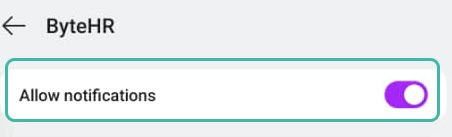
- Enable the Notifications to receive notifications from the ByteHR app.
-
For the Android Operating System
-
For the iOS Operating System

-
-
- You can then return to Notifications settings to configure them as desired.


