Change Password in Mobile App
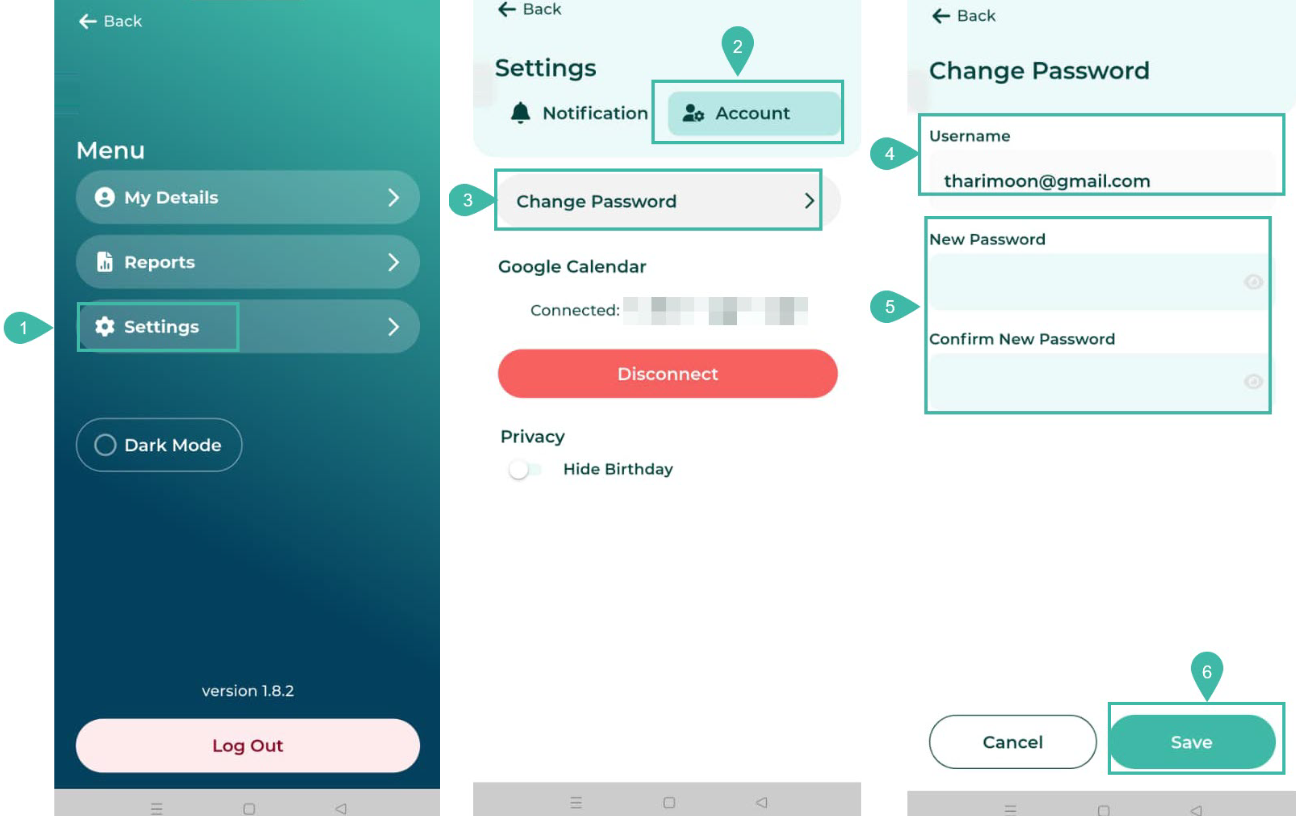
Open the Menu and Click Settings -> Click Account and click Change Password -> Click Save
In addition to changing your password to log in to the ByteHR App by clicking "Forget Password?", you can also change your password while logged into the app as follows:
- Click the three parallel lines at the top left, to open the Menu page and then click Settings.
- Select the Accounts tab.
- Next, select Change Password.
- The system will display the user's username.
- Enter your new password in the "New Password" field and confirm it in the "Confirm New Password" field.
-
Click the eye icon to show/hide the password.
Show password

Hide password

-
-
Click Save.