
Sync Employee Calendar to Google Calendar ***Add on***
Connecting the ByteHR application to your Google Account
- Employees can connect their Google Account to sync calendar data from ByteHR to Google Calendar in 3 ways:
- Account Setting on the Mobile Application
- Calendar setting on the Mobile Appllication
- Account Setting on the Website
- Connect from the Account Settings menu on the mobile application.
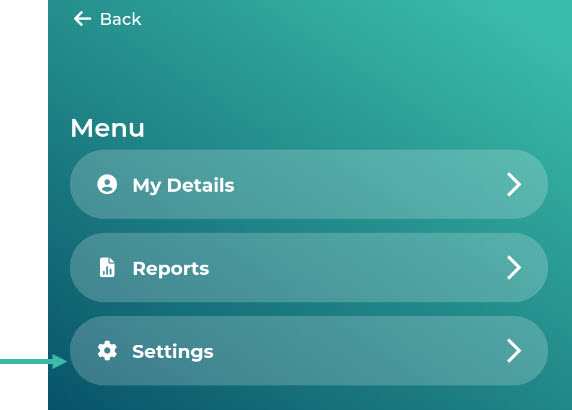
- Once you're in the mobile application, tap the three-parallel line Menu.
-
Click Settings..
-
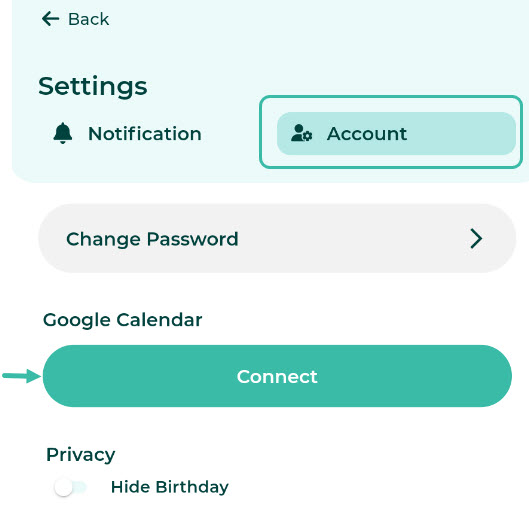
Click on the "Account" heading; you will be able to see the "Google Calendar" section..
- Connect from the Calendar page settings of the mobile application.
-
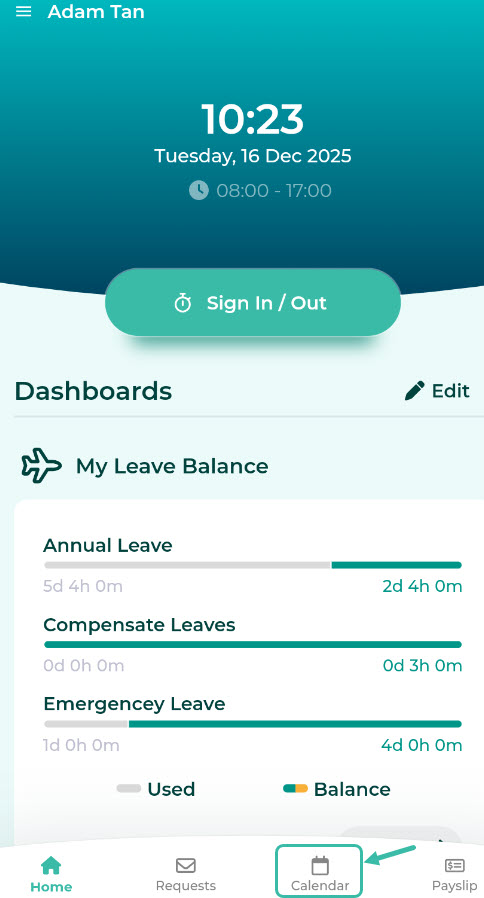
Once you have logged in the mobile application, click the Calendar tab.
-
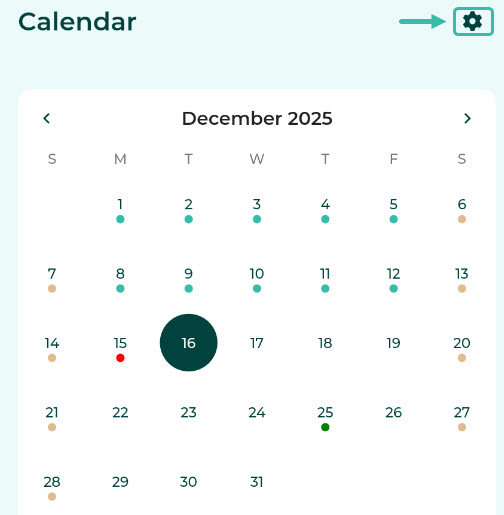
Tap the gear icon.
-
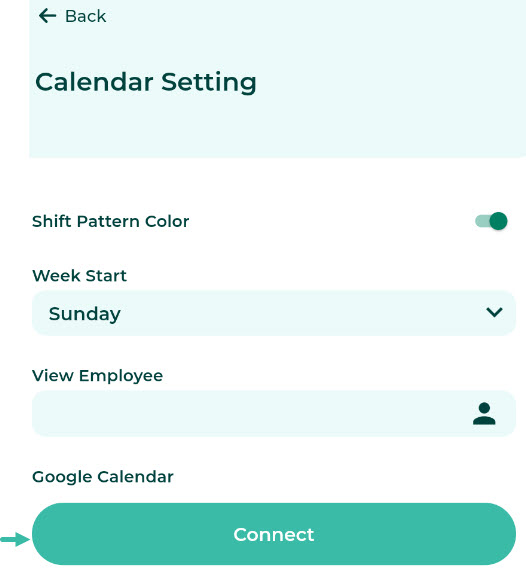
In the Calendar Settings menu, there will be a section for Google Calendar.
-
- Connect from the Account Settings menu on the website.
-
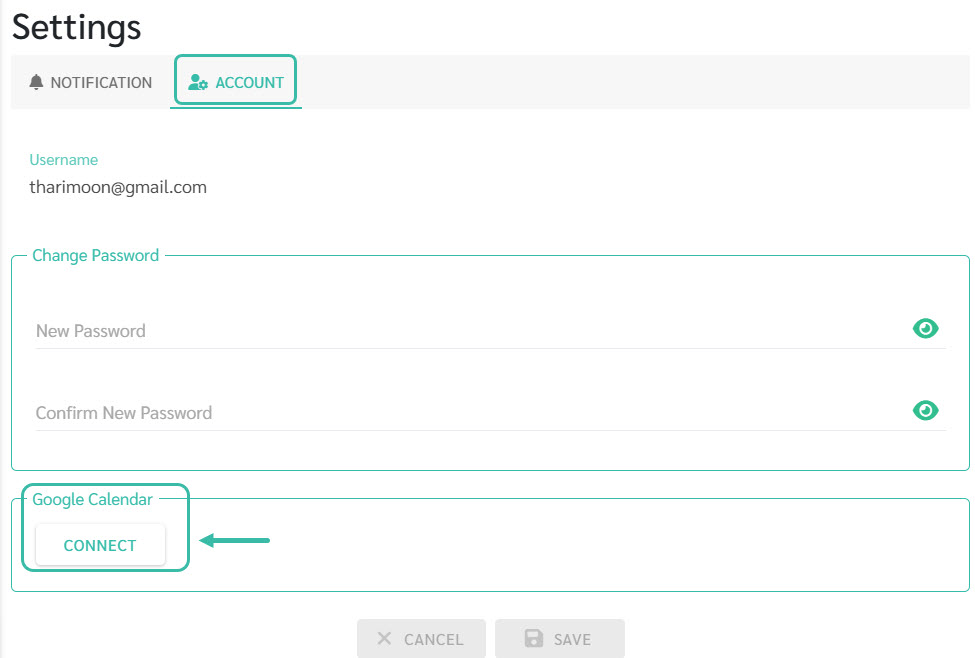
After logging into the website, click on your account name in the upper right corner, then click Settings.

-
Click Account tab; you will be able to see the Google Calendar section.
-
-
Click the Connect button.
-
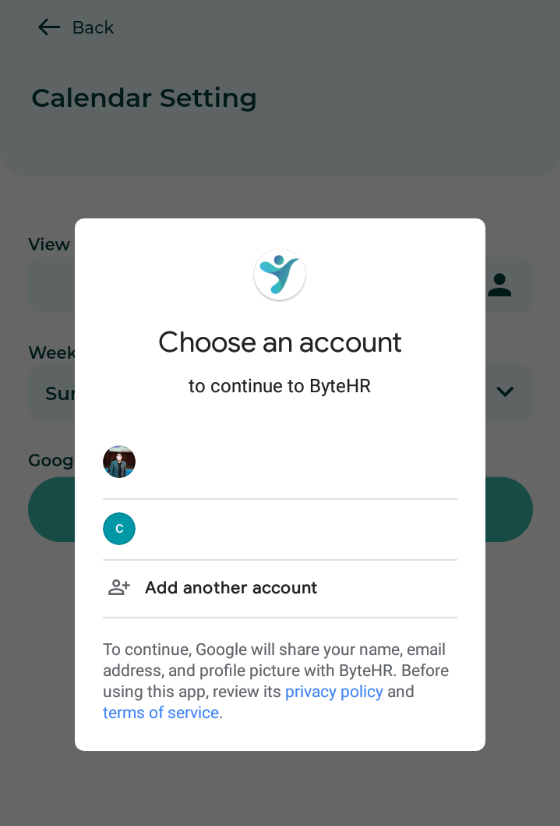
A pop-up will appear prompting you to connect to your Google Account.
-
Once the connection is successful, the system will display the connected account and a Disconnect button option.
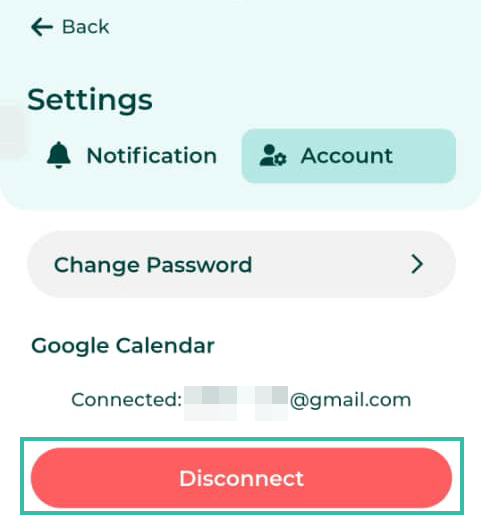
- The system will perform its first data sync for a period of 2 months (the current month and the next month).
- The data that will be synced to Google Calendar includes:
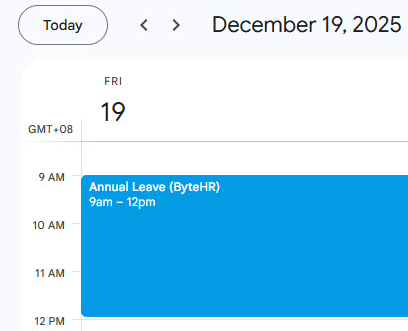
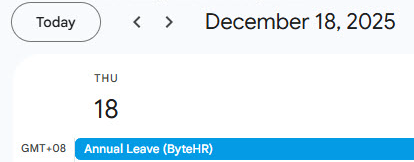
- Approved leave days: These will be displayed in blue, along with the leave type name, leave period (for short-term leave), and the date the data was synced.
-
Example of A Leave by Hours
-
Example of A Day leave request.
-
-
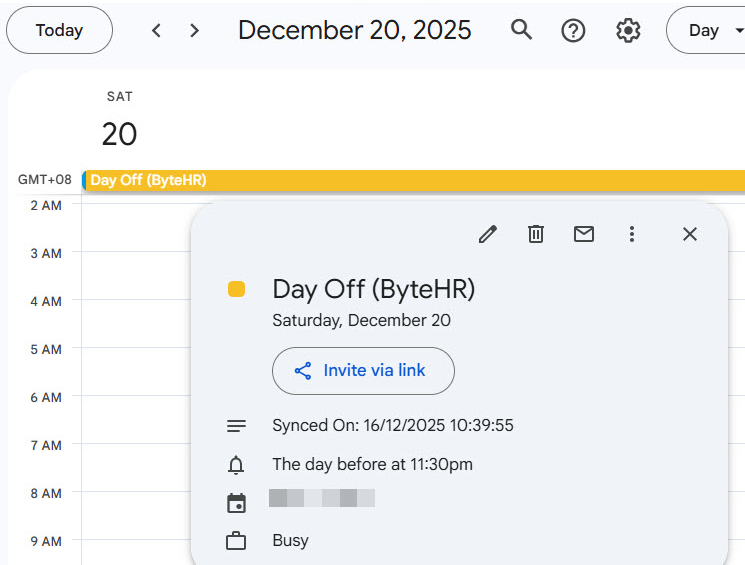
Weekly holidays: Dates will be displayed in yellow with the words "Day Off" and the date the data will be synced.
-
Public holidays: The dates will be displayed in green, along with the name of the public holiday that has been set and the date the data has been synced.
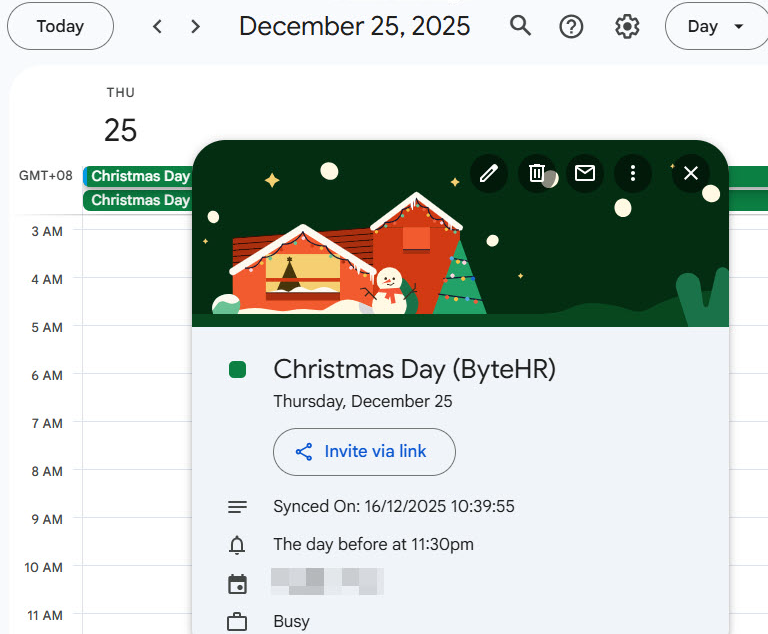
- Approved leave days: These will be displayed in blue, along with the leave type name, leave period (for short-term leave), and the date the data was synced.
- After the initial data sync, the system will then sync the data for each day with updates as follows:
- Leave request has been approved/cancelled.
- There have been changes to the holidays listed in the Shift Schedule.
- Public holidays or weekly days off can be added or removed in the calendar settings (Preference -> Calendar).
-
When you disconnect your Google Account, the system will stop syncing data in the future.

📃 Note
- Employees can only link one Google Account at a time.
- Data syncing will be for a period of one year.
- When you disconnect your Google Account, the system will retain the data that has already been synced and will not sync new data until you reconnect.
-
The system will synchronize data for both employees with and without shift schedules.
For employees without shift schedules, weekly and public holiday information will be from the default calendar.
- The data that the system syncs includes approved leave days, weekly holidays, and public holidays.
- The system will not synchronize employee's Attendance data, such as shift times, sign-in/out times, or absences.