
Log in to ByteHR for Android/IOS
- The admin will send an invitation to use ByteHR via email.
- You may install the ByteHR mobile app from the Google Play Store or iOS app store by searching for "ByteHR". You can also scan the relevant QR Code from the below links:
-
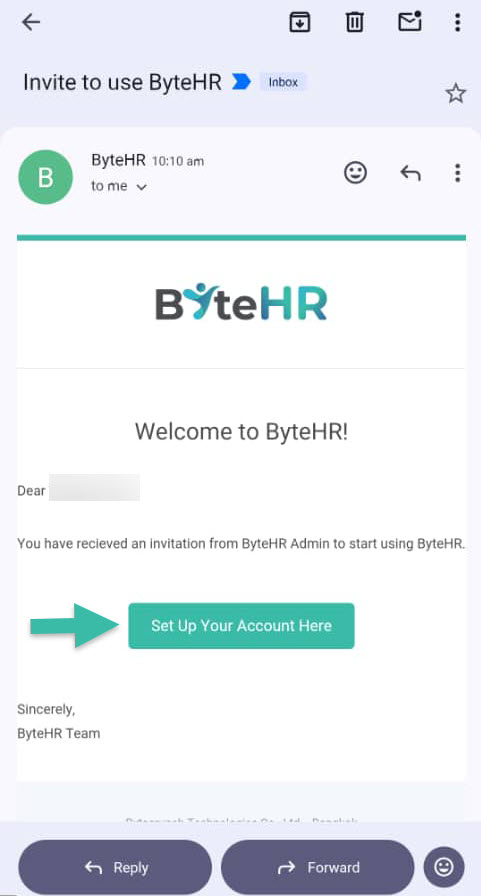
Once you receive the email invitation, you should click on the option "Set Up Your Account Here."
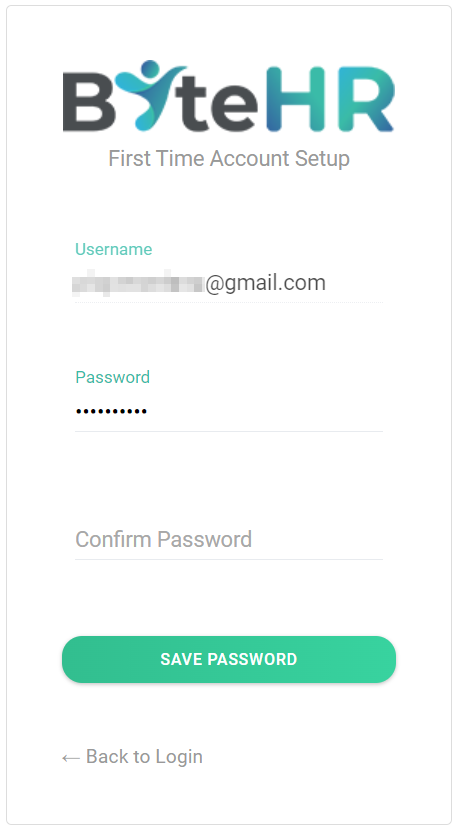
- A window will pop up for you to set a password. Enter your desired password in accordance with the Password Settings Rule shown below and confirm the password you've entered
- Password Settings rules
- Minimum 8 characters.
- At least one uppercase English letter.
- At least one lowercase English letter.
- At least one digit
-
At least one special character, such as ! @ # $ % ^ & *
-
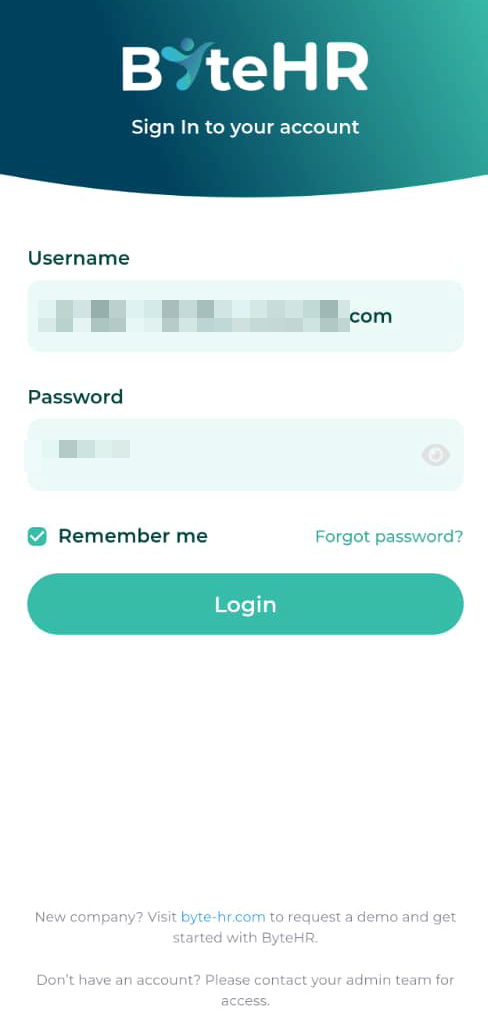
Open the installed ByteHR app on your mobile to continue with the logging in. The username is the email that you received the email invitation on, and the password is the one you just set on the 4th step, then click "Login".

📃Notes
-
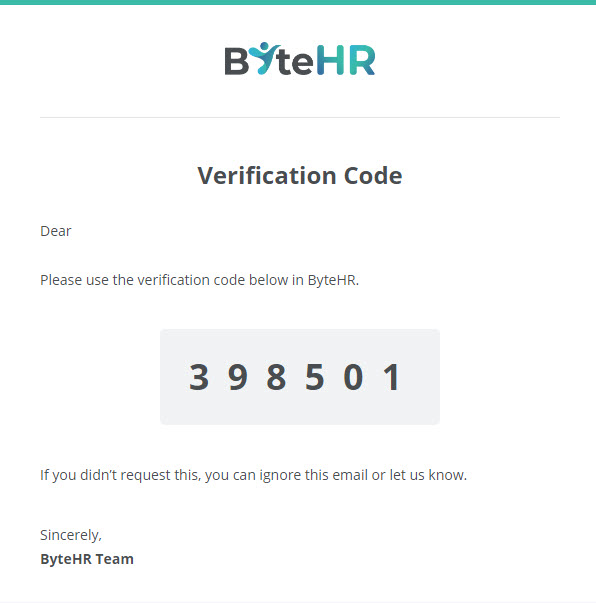
For verification while logging in for the First-Time you must input the OTP code that the system sends to your email or SMS (if you're utilizing the contact number log-in feature).
- After logging in, if you do not access the ByteHR app within 7 days, you will be automatically logged out.
- If you fail to find the ByteHR app on the Google Play Store, you should ensure the Google Account Region is set to Malaysia.
