Upload Other Payments and Deductions
How to Upload Other Payments and Deductions
- Navigate to Payrolls tab.
-
Click Upload Payments.
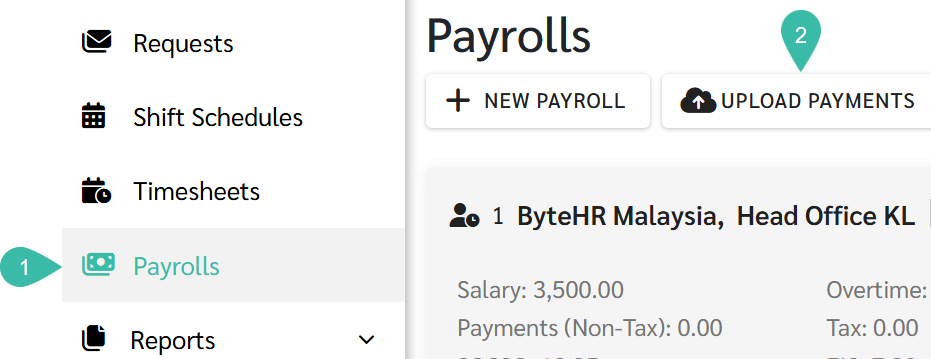
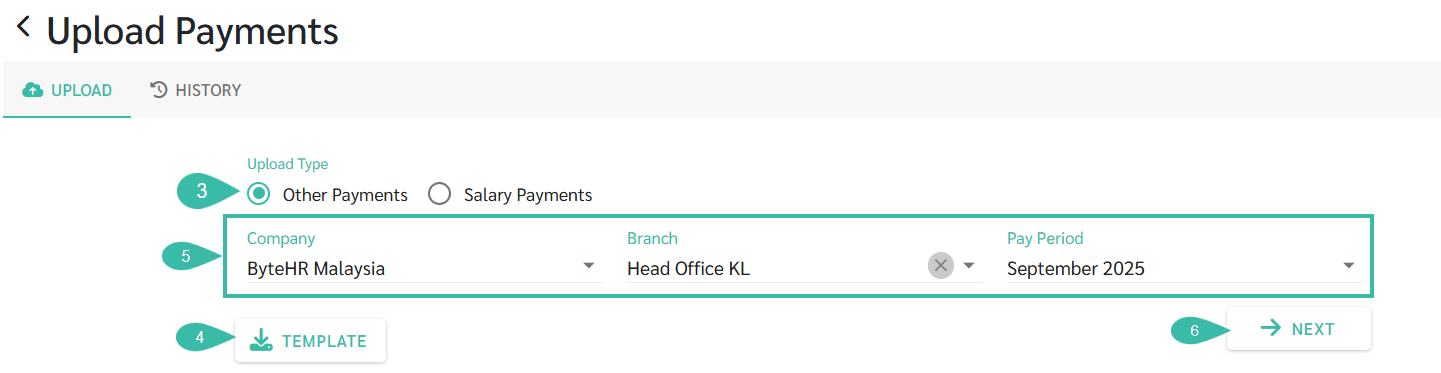
- Select Other Payments under Upload Type.
- You can download Other Payments templates to prepare the data to be uploaded.
- Payroll information that can be added into the Other Payments upload template includes: Overtime Hours, Overtime Amount, Payment Type, Deduction Type, Leave Type, and Comments.
- Once you have completed the Other Payments Template data filling, select the Company, Branch, and Pay Period you wish to upload.
-
Click Next.
-
Select the completed Other Payments Template file to upload.

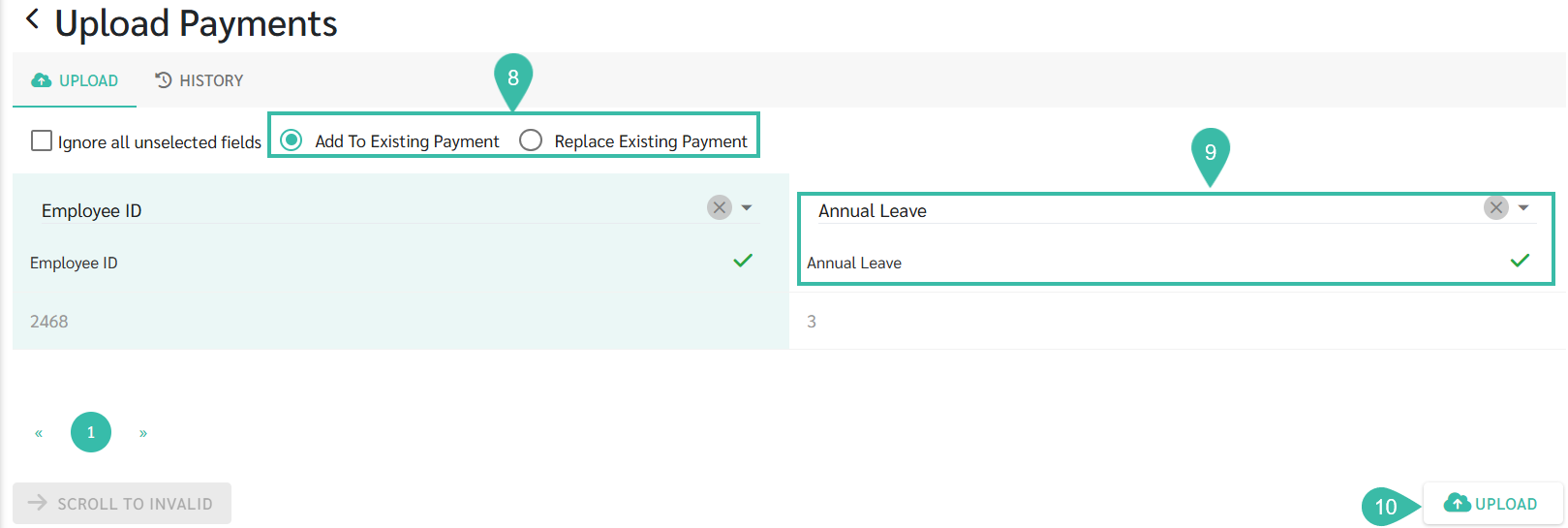
- A new page appears allowing you to map the fields according to the Payment/Deduction/Leave Type created in the system.
- If the Payment/Deduction/Leave type in your file matched what exists in the system, the system will auto-map the fields.
- If it does not match, you must manually select the correct field.
- Choose one of the two options:
- Tick the "Add To Existing Payment" checkbox if you want to upload additional Amounts or Type of Payments/Deductions to your existing data.
- Tick the "Replace Existing Payment" checkbox if you want to Replace the existing Payment/Deduction amount with the value in the uploaded file.
-
Click Upload to import the file into the system.
-
If your file contains an employee whose contract has ended (Ex-Employee), the system will prompt for confirmation. Click Upload to Proceed.

-
Once the Upload is successful, the system will display a message "Payroll Generated".

-
If a Payroll block already exist for the selected Pay Period, the uploaded file's values will be reflected in that existing Payroll.
If no Payroll Block exists, the system will create a new Payroll Block for the selected Pay Period.
📃Note
- Other Payment Upload template can be used to pay outstanding Payments to Ex-employees.
- Other Payment Upload template can also be used to upload Overtime Hours or Overtime Payments to employees.
-
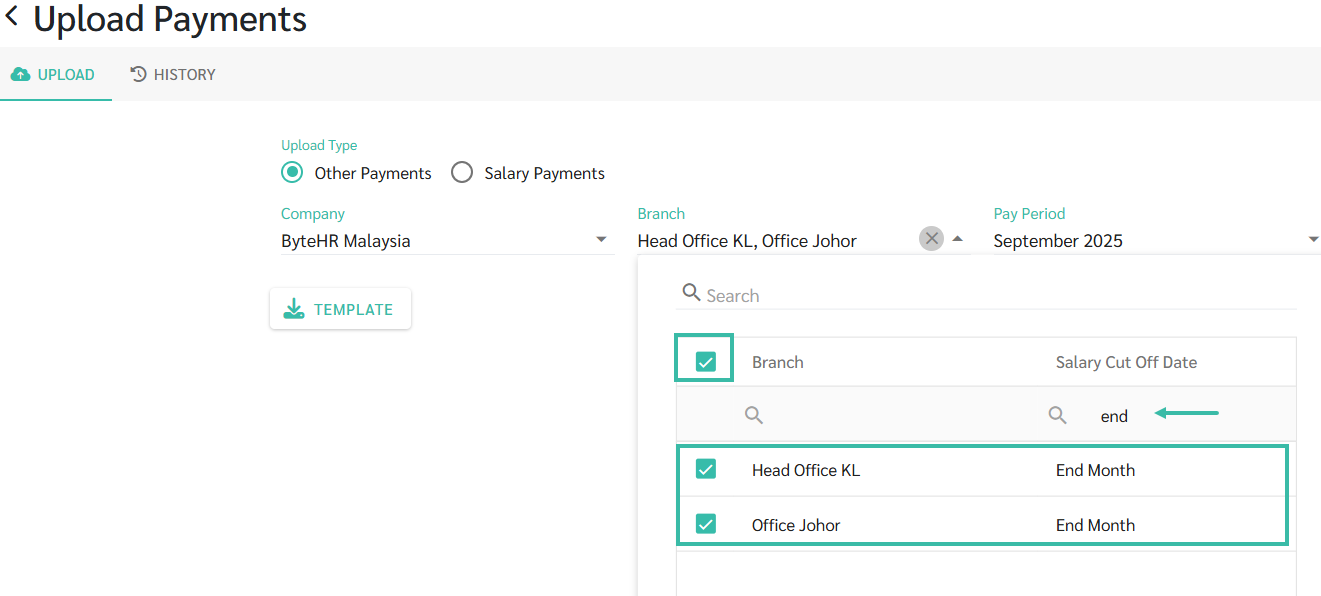
You may select multiple branches simultaneously, provided that each branch has the same salary cut-off date.
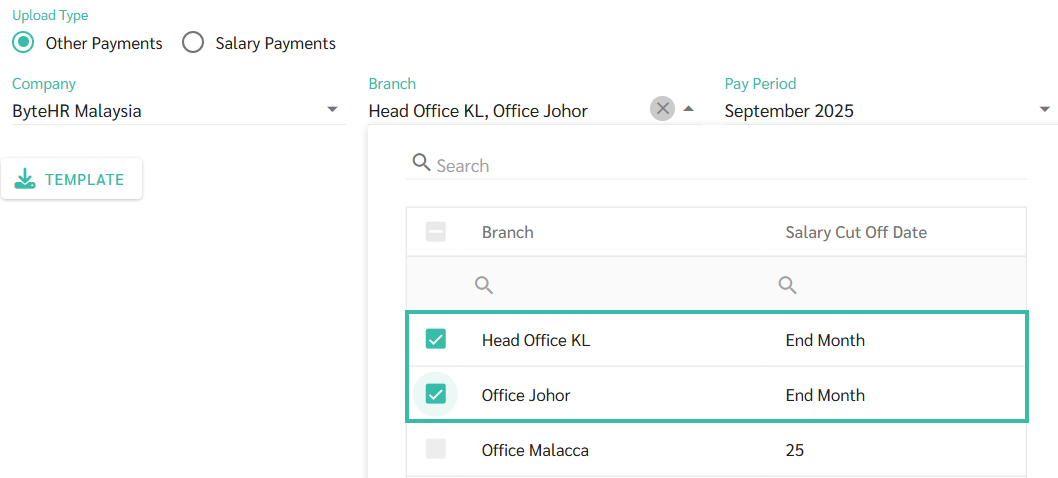
-
You can filter the Salary Cut Off Date column and then select all.