Upload Salary Payments
Generating Payroll by Uploading Salary Payments
- Navigate to the Payrolls tab.
-
Click Upload Payments.

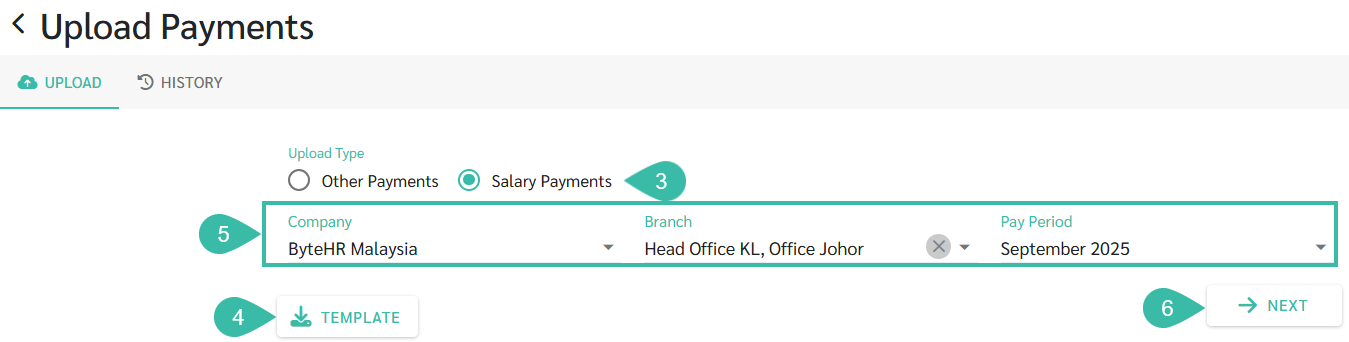
- Under Upload Type, select Salary Payments.
- Click the Template button to download the template file, then fill in the Salary Payments information in the file.
- Once the Salary Payments template is completed, select the Company, Branch, and Pay Period.
-
Click Next to proceed.
- Click "Select File," then choose the file you want to upload.
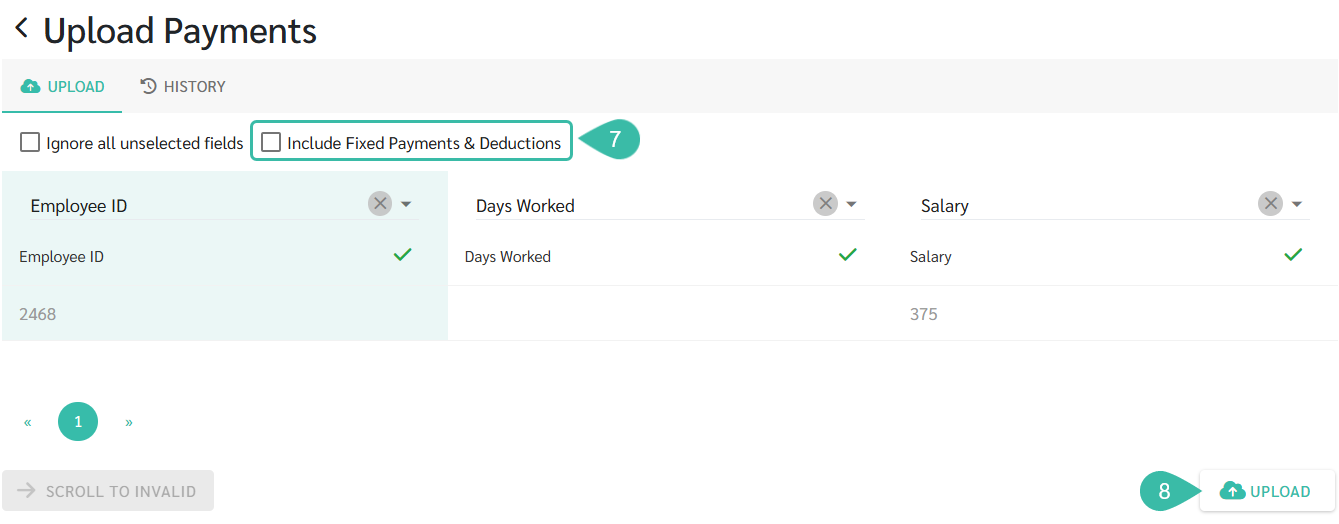
- If the "Include Fixed Payments & Deductions" option is checked, the system will retrieve the Fixed Payments and Deductions from the employment contract and display them in the payroll details.
- If you do not check the "Include Fixed Payments & Deductions" option, the system will not retrieve Fixed Payments and Deductions from your employment contract to display in your payroll details.
-
Click Upload, once done verifying the details.
-
Once the data is successfully uploaded, the system will display "Payroll Generated".

- Note
-
When uploading Salary Payments, if the number of days worked is added in the template, and the payroll period includes Unpaid Leave and Absent days, the calculation for the total number of Days Worked in the Payroll details will be:
Number of Days Worked uploaded - Number of Unpaid Leave days - Number of Absent days.
- When uploading Salary Payments, if no Overtime Hours are added in the template, the system will only include the approved Overtime Request within the pay period as configured by the company/branch.
- If you have already processed your payroll and wish to Upload Other Payments, we recommend using the "Other Payments" option to have the system recalculate the Statutory Deductions. If you do not want the system to recalculate the Statutory Deductions but only want to add those Payments, Upload Salary Payments by excluding the Statutory Deductions columns.
-
It is not possible to Upload Salary Payments for Ex-Employees.
-
📃Note
-
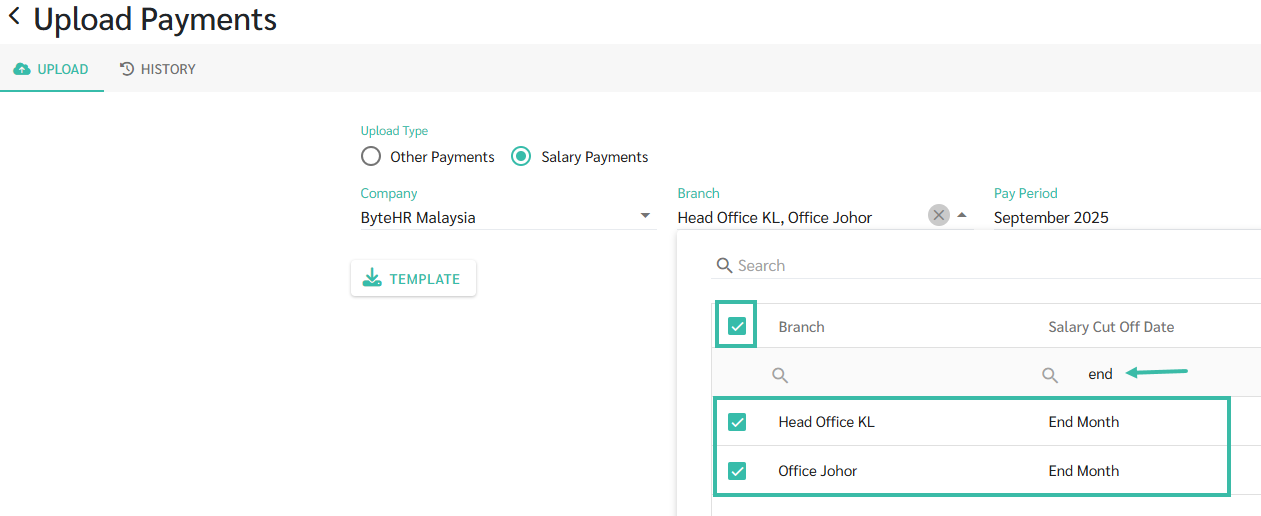
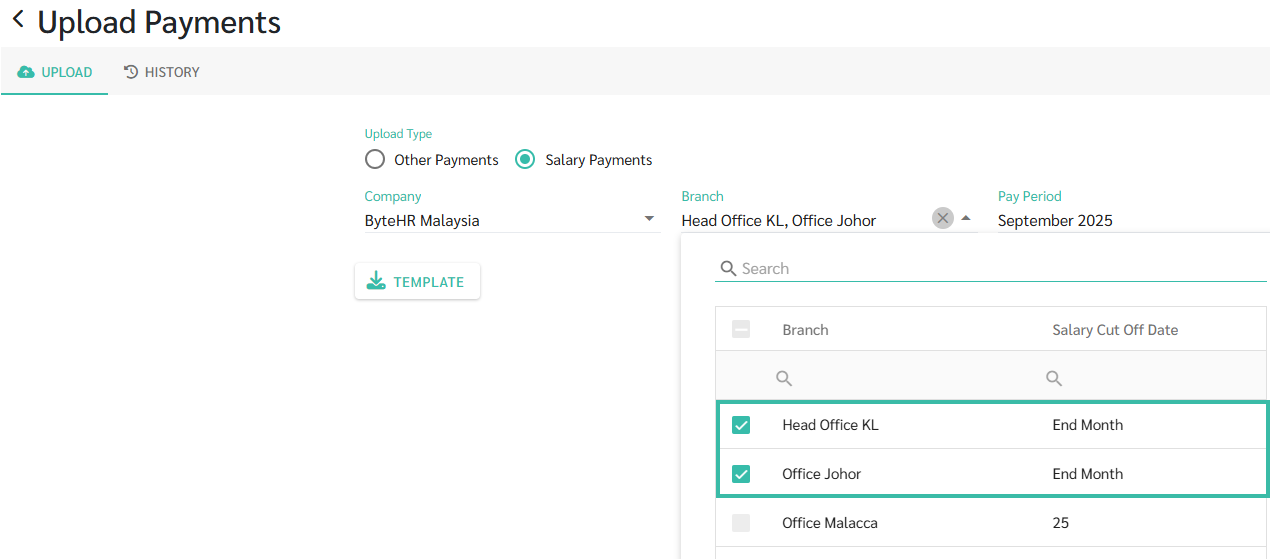
You may select multiple branches simultaneously, provided that each branch has the same salary cut-off date.
-
You can filter the Salary Cut Off Date column and then select all.