
Edit Payroll per Employee after Notifying Payslip
After the Payroll has been generated and Payslip notified to employees, the admin can edit the Payroll and send Payslip Notification again only to those employees who have been granted permission to do so.
How to Edit Individual Employee Payroll after Payslip Notified
- Click on the Payrolls tab.
-
Click on the Approved Payroll block you want to edit without reverting it to a draft.
*Note: You can only edit the latest Payroll block for each branch.
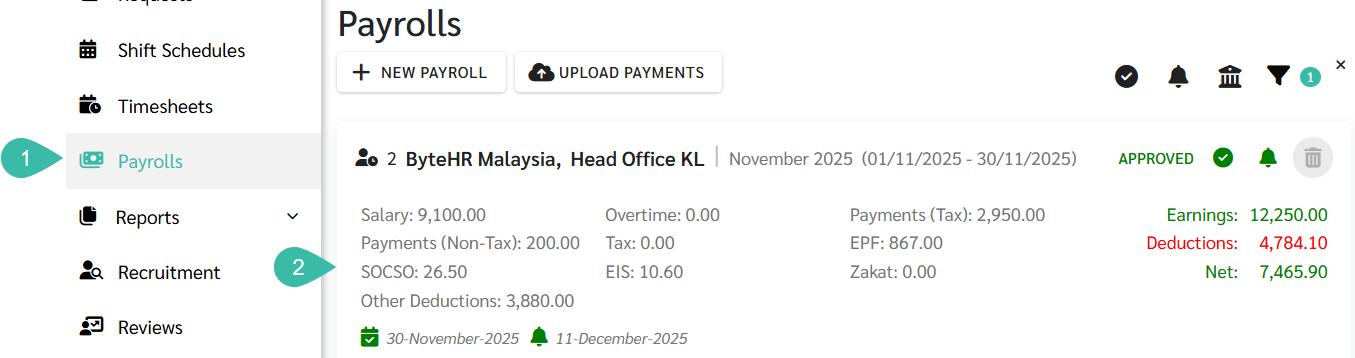
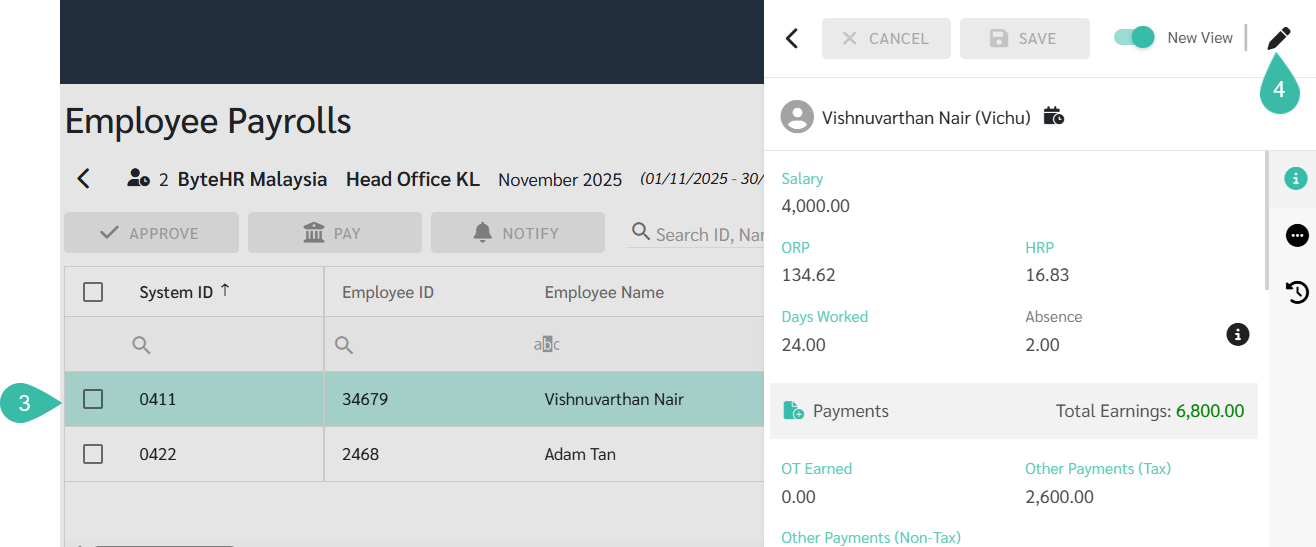
- Click on the name of the employee whose Payroll information you want to edit. The system will display the Payroll details on the right-side panel.
-
Click the "Mark As Draft" option in the upper right corner of the employee's Payroll details. You will then be able to edit this employee's Payroll details.
-
After making changes to the Payroll details, click Save at the top to save the changes.
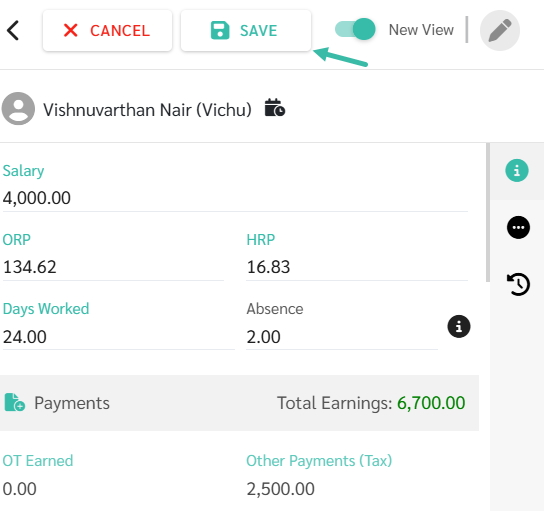
- When you click Save, the system will display a window prompting you to send a payslip notification to the employee again.
- Click "Cancel": The system will not notify Payslip to the employee. However, the Payslip information will still be updated to reflect the recent Payroll changes.
- Click "Proceed": The system will then notify Payslip to the employee. The notification will be sent to the employee whose Payroll information was updated.

To notify Payslip per employee , the following conditions apply:
- It must be the most recent Approved Payroll Block.
- Payslip must have been notified to the employee.