
Payrolls History
When an employee's Pay information is edited, the system will automatically save the edit history. Admins can check the edits in 2 ways:
- Payrolls Block History
- Employee Payrolls History
How to View the Payrolls Block History
-
In the Payroll block, click the History button in the upper right corner of the Payroll table.

-
The system will display the Payroll history of all employees since the start of Payroll processing. It will display the employee's name along with any added/deleted/edited information, as well as the history of Payroll block Approvals and Mark Payroll As Draft status.
-
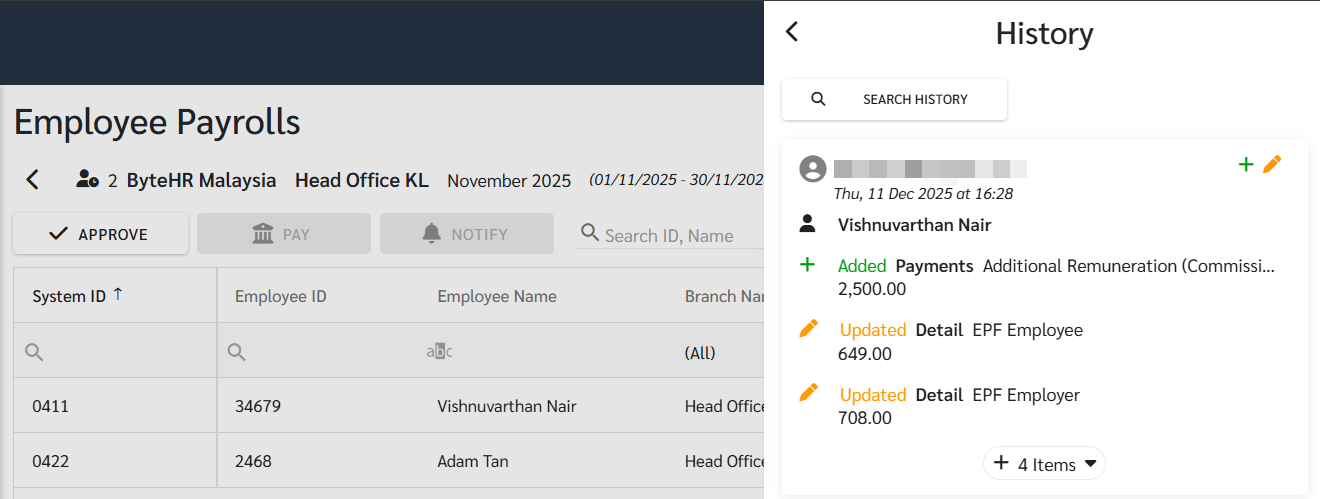
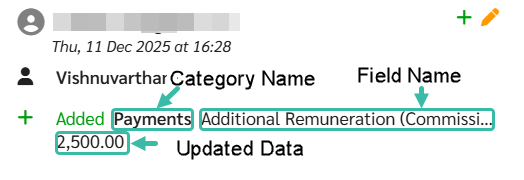
The system will display the Tab/Category Name and Field name and the Updated Data in that field, including the Username and the Date and Time it was modified.
-
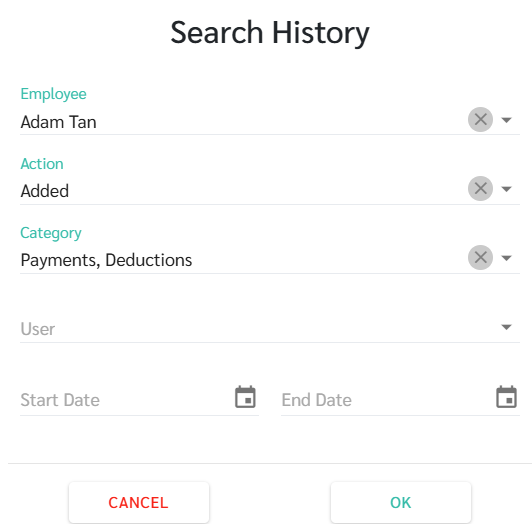
You can click the Search History button to filter the history you want to search by the desired topics.
How to View Employee Payrolls History
1. In the Payroll Block, click on the employee row to view their edit History.
2. Click the History tab on the sidebar to view the employee's Payroll edit history.

3. The system will display the employee's Payroll History from the time the Payroll was generated. It will display the Tab/Category Name and Field Name and the Updated Data in that field, including the Username as well as the Date and Time the changes was made.

The Meaning of the Symbols Displayed on the Payrolls History
The system will display symbols according to the method in which the Payroll was modified. The symbols have the following meanings:
|
Symbol/Icon |
Meaning |
|---|---|
|
|
Additional information has been added, such as increasing Payments or increasing Deductions. |
|
|
There is a correction of the original information / Payroll Approval / Payroll Draft |
|
|
The data has been deleted. |
|
|
Extract Payroll information from the Approved Timesheet. |
|
|
Retrieving Payroll information from the Employment Contract. |
|
|
Data has been Uploaded |


🗨️ Note
In the case of editing Payroll information by uploading YTD Payroll, the system will delete and edit the uploaded fields over that information. Therefore, when uploading YTD Payroll to employees, the history of past Payroll edits will disappear, showing only the new information from the upload file.