Add Reimbursements to Employees
💬 Note
Reimbursements (Payments) can be assigned to employees individually or by importing the Reimbursement template. Importing is recommended when assigning various/ same reimbursement type to multiple employees.
🏷️ Case
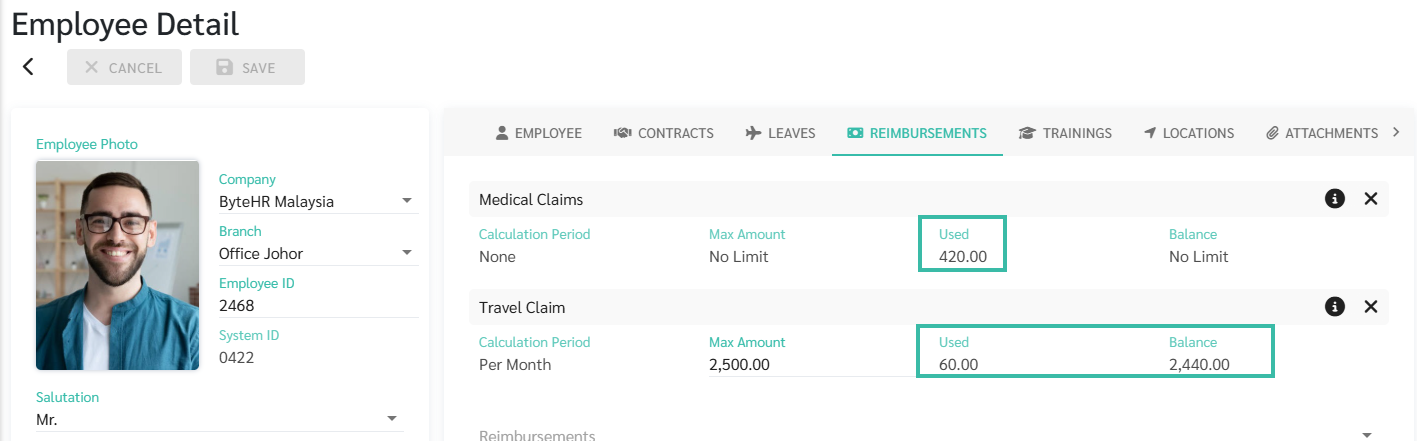
When a new employee is created, any Payment type that has Default enabled in Preferences > Payments > Submit Request (enabled) will automatically be assigned to the employee. The employee profile will display the Calculation Period, Maximum Amount, Used Amount, and Balance for the reimbursement.
How to Add Reimbursements to Employees
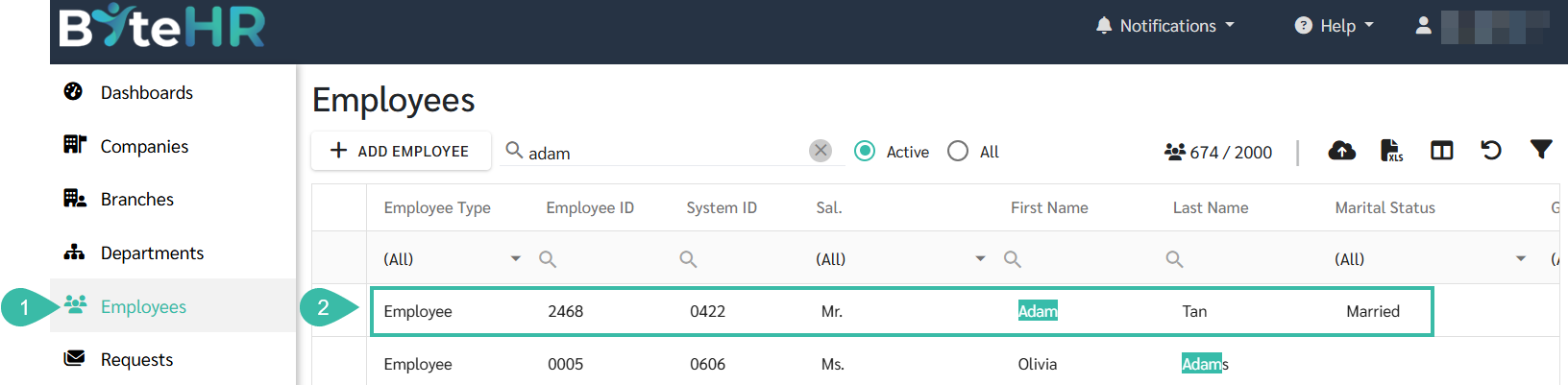
- Navigate to Employees tab.
-
Select the employee you want to assign a reimbursement to.
-
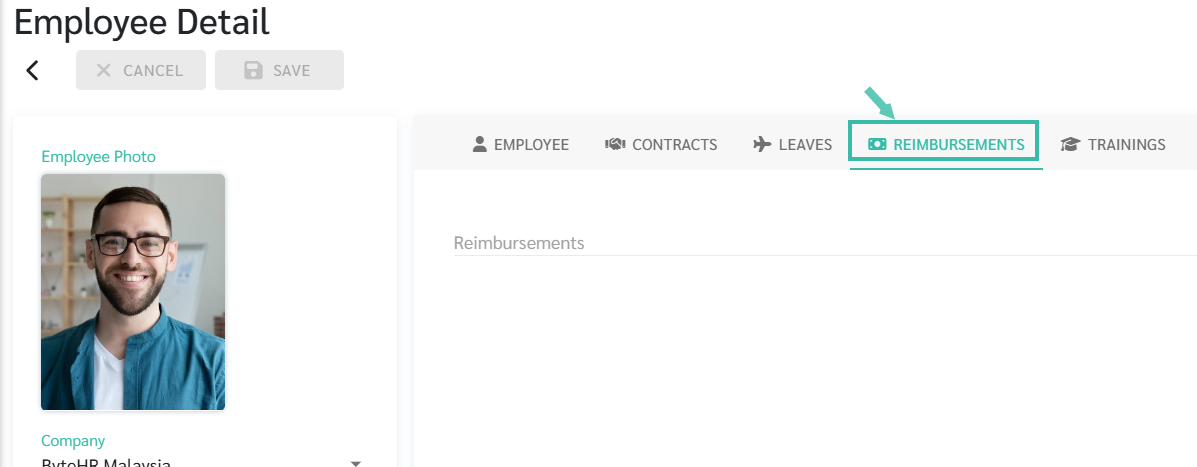
Head to Reimbursements tab.
-
Select a reimbursement type from the dropdown list. The available reimbursement types are configured under Preferences > Payments > Submit Request (enabled).
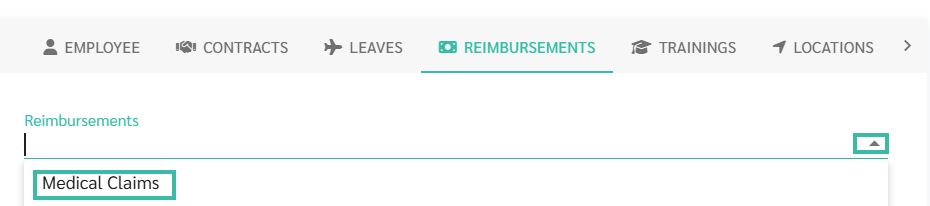
- The selected reimbursement type will be added to the employee profile.
-
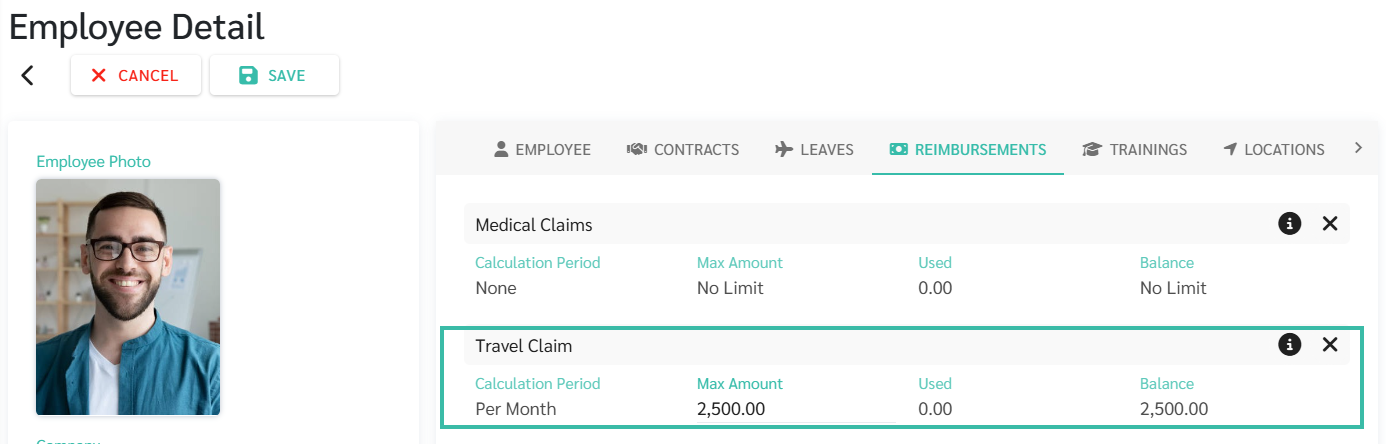
If a Maximum Amount Per Period has been configured for the reimbursement type, the following information will be displayed:
Calculation Period: Displays the configured calculation period (Month or Year).
Max Amount: Displays the maximum reimbursement amount per period configured in Preferences > Payments..
Used Amount: Displays the total amount from approved reimbursement requests.
Balance: Displays the remaining reimbursement balance, calculated as:
Maximum Amount Per Period − Used Amount Per Period
-
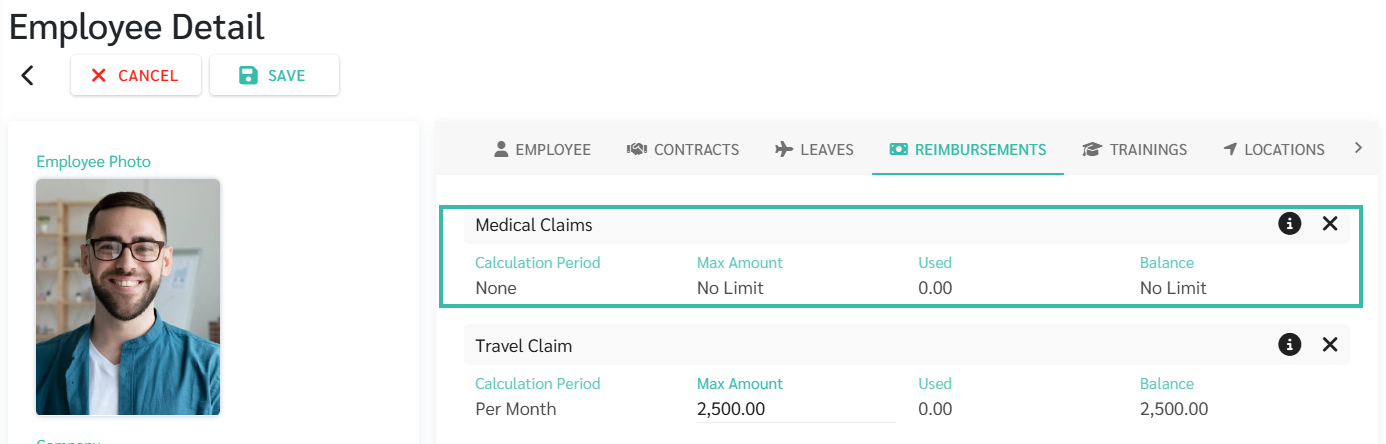
If the Calculation Period is set to None in the Payments (Preferences), no maximum reimbursement amount is applied. Therefore, the Max Amount and Balance will be displayed as No Limit in the employee profile.
-
- Click Save.
-
Once reimbursement requests for the employee are approved, the Used Amount and Balance will automatically be updated based on the approved reimbursement claims.