View and Export Document Reports
How to view the Reports
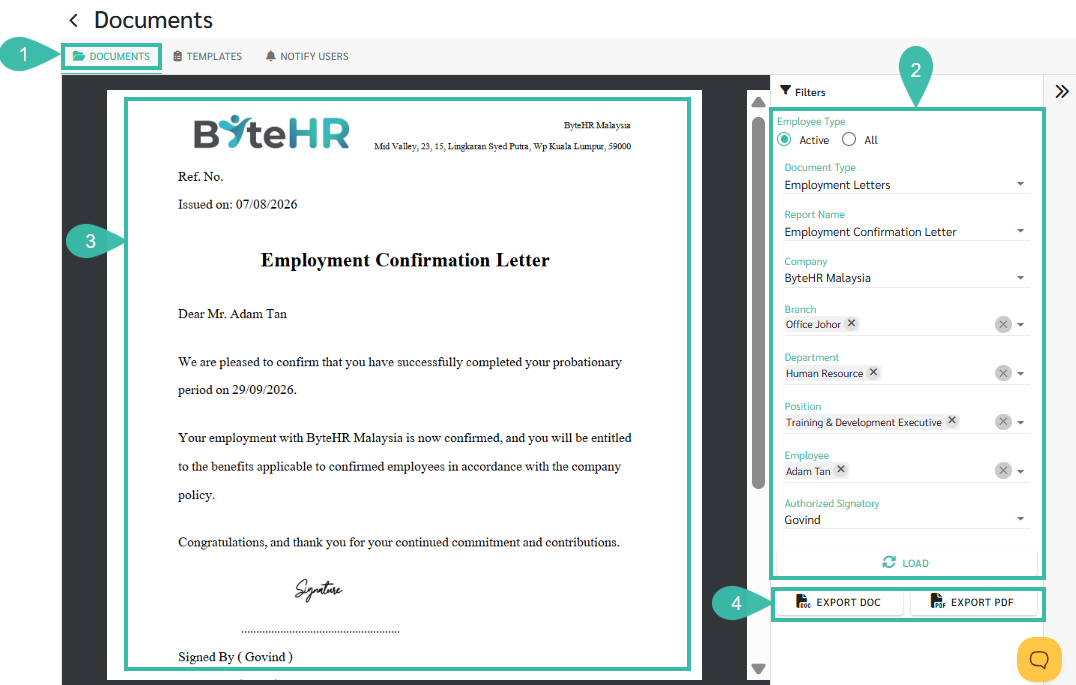
- Navigate to Reports -> Standard Reports -> Employee Reports -> Documents.
- Configure the required filters::
- Document Type: Select the document category.
- Report Name: Select the document template you want to generate.
- Company: Select the Company.
- Branch: Select the Branch.
- Department: Select the Department.
- Position: Select the Position.
- Employee: Select the employee for whom you want to generate the document.
- Authorized Signatory: Select the person who will appear as the signatory on the document.
- Click Load to generate and preview the document.
- Review the generated document in the preview pane.
-
Click Export DOC to download the document in Microsoft Word format, or click Export PDF to download it as a PDF.