Create a Document Template
How to create a Document Template
- Navigate to Reports > Standard Reports.
-
Click Documents under Employee Reports.
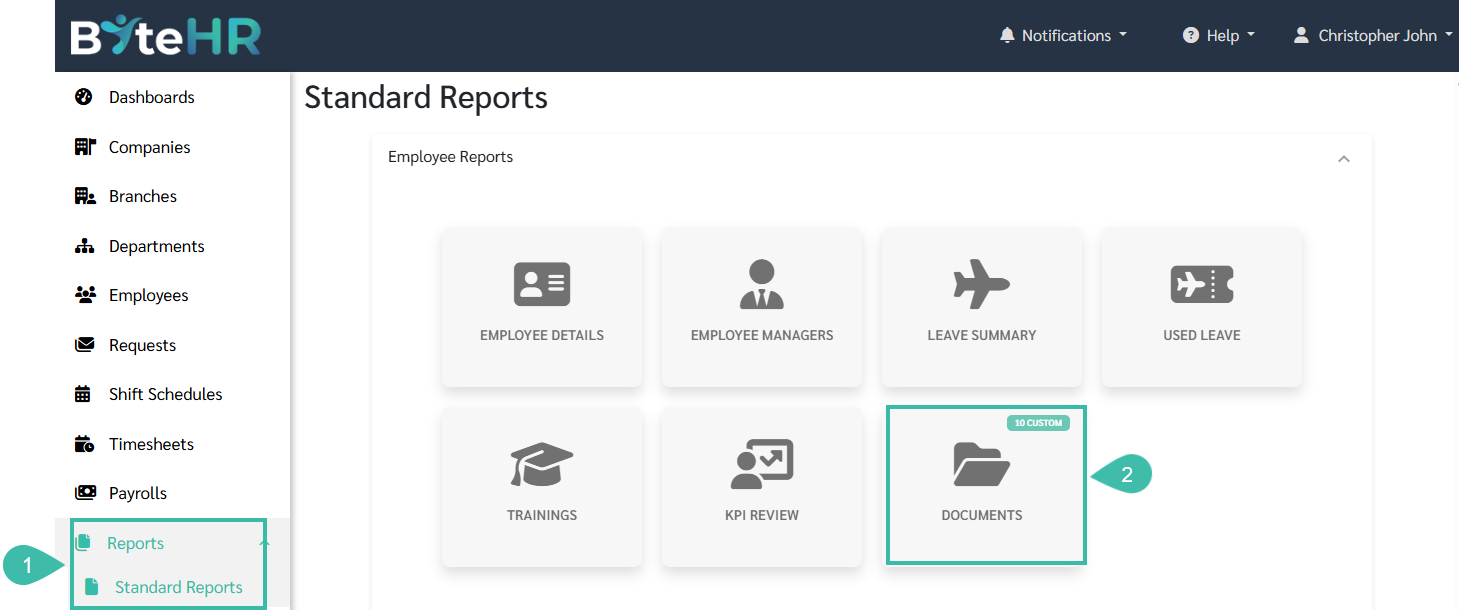
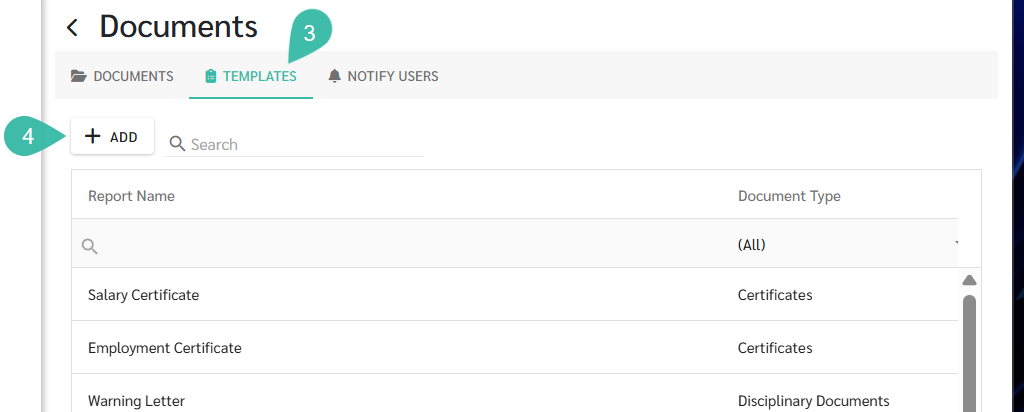
- Click Templates tab.
-
Click "+Add".
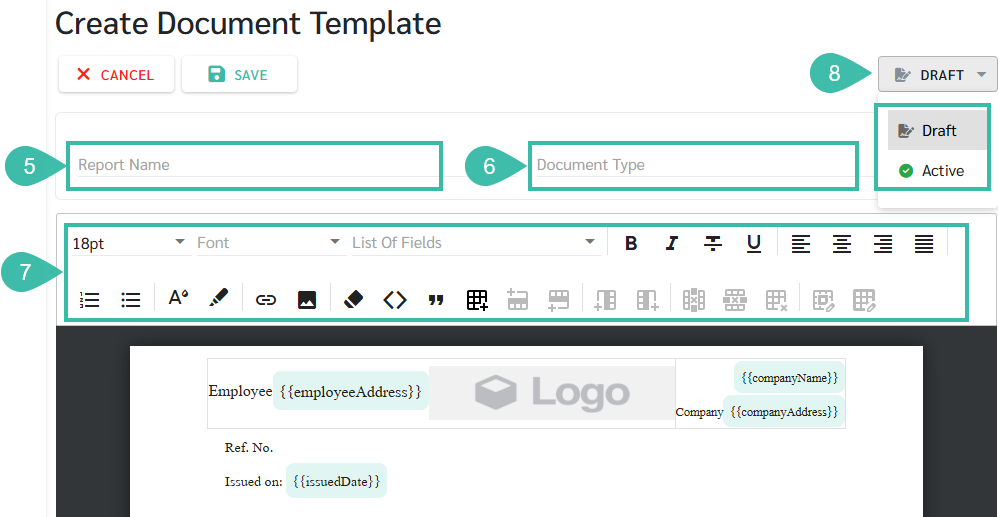
- Enter the Report Name.
- Select the Document Type. The available document types are::
- Certificates
- Disciplinary Documents
- Employment Letters
- Separation Documents
- Other
- Create your document using the editor. The editor supports the following features:
- Adjust the font size.
- Adjust the font style.
- List of Fields: Select information to display in the document. The system will automatically populate these fields using employee's profile and contract information when the document is generated.
- Text Formatting: Apply formatting such as bold, italic, strikethrough, and underlined.
- Text Alignment: Align text to the left, centre, right or justify.
- Lists: Create numbered or bulleted lists.
- Font and Background colour: Change the font colour or apply a background highlight.
- Image: Insert images such as Company Logo or employee photo.
- If an image is inserted, you may adjust its Width and Height as require
- Clear formatting: Remove all formatting from the selected text.
- Quote: Insert a quotation block.
- Tables: Create and customize the tables.
- Insert a row or column.
- Delete a row, column, or table.
- Customize cells and tables.
- Editable information includes: Border, Dimensions, Background, and Alignment.
-
Set the document template status to Active to make it available for use..
-
Submit Request: Enable this option to allow employees to submit requests for the document. This option is available only when the Document type is set to Separation Documents or Other.

-
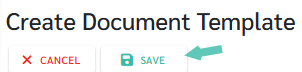
Click Save to create the document template.
-
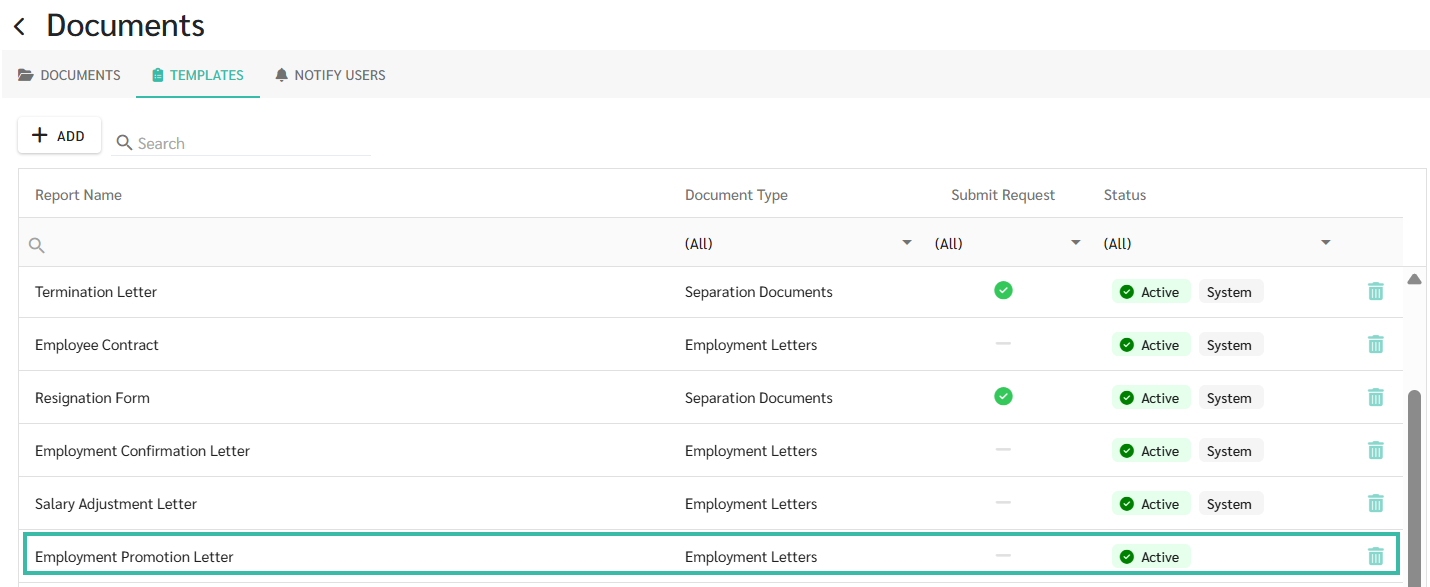
Once the document is Saved, it will appear in the Templates list.
-
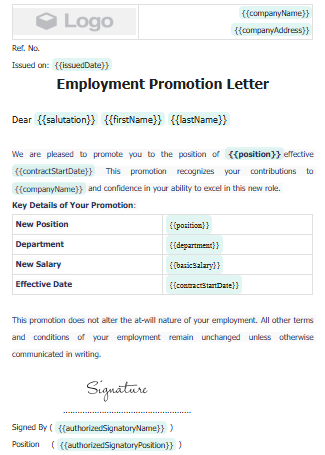
Sample document: