
Accrued Leave Entitlement based on Length of Service (Step Monthly)
The Step Monthly entitlement allows leave to be accrued based on an employee's length of service. Leave entitlement can be configured using one of the following methods:
- Entitlement by Years: Leave entitlement is determined based on the employee's years of service. The system automatically accrues the annual leave entitlement on a monthly basis.
- Entitlement by Months: Leave entitlement is determined based on the employee's months of service, allowing different leave entitlements to be assigned for specific service periods.
How to Configure Step Monthly Leave Entitlement
If you wish to configure accrued leave entitlement based on Years/Months of service, follow the steps below:
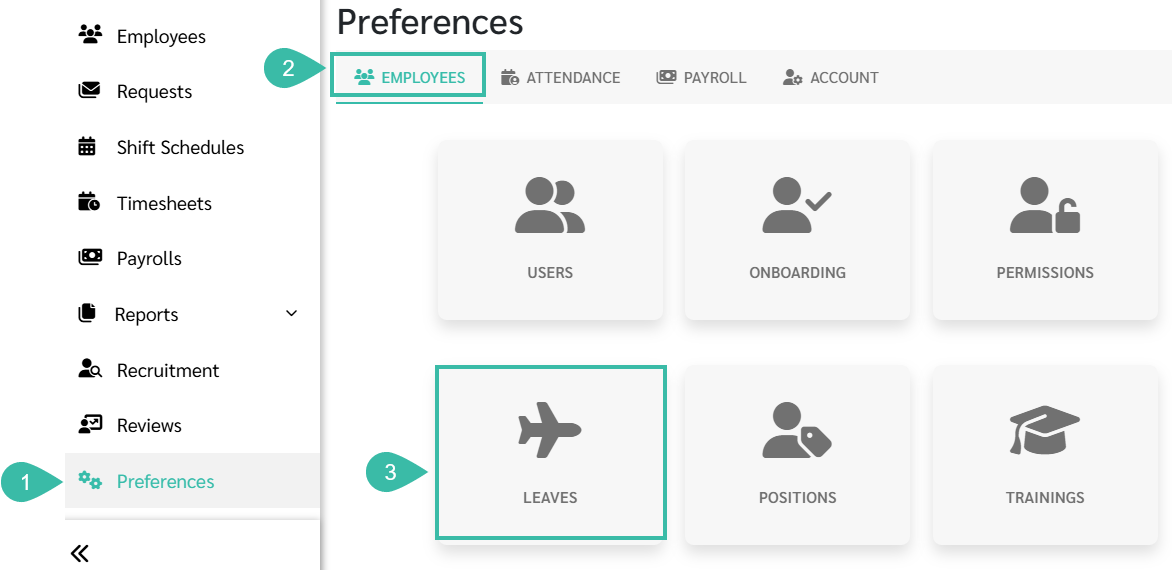
- Navigate to Preferences menu.
- Select the Employees tab.
-
Click Leaves.
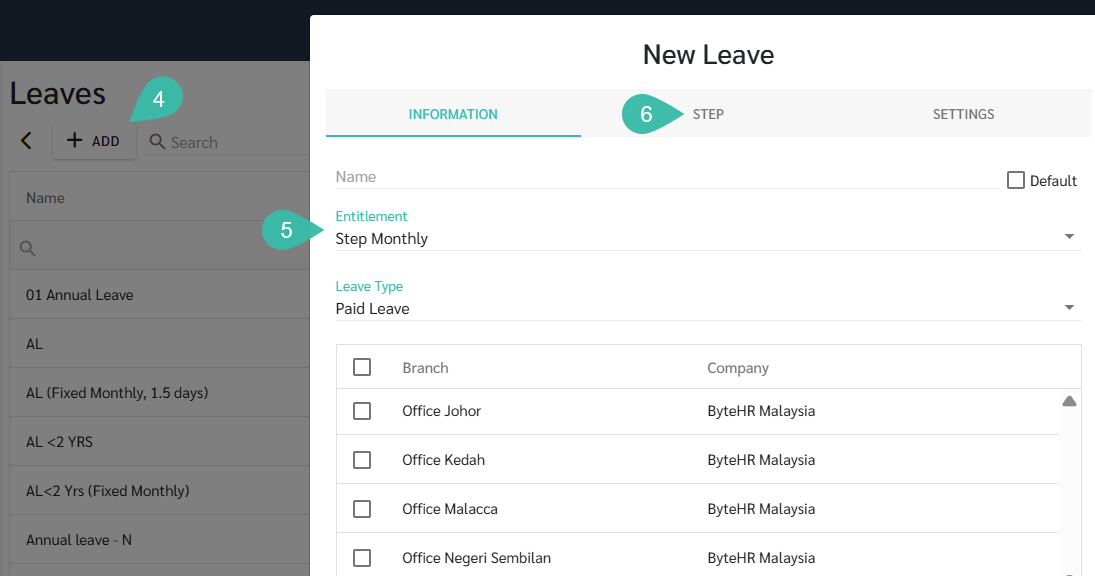
- Click "+ Add" to create a new leave type.
- Under Entitlement, select Step Monthly.
-
Open the Step tab.
-
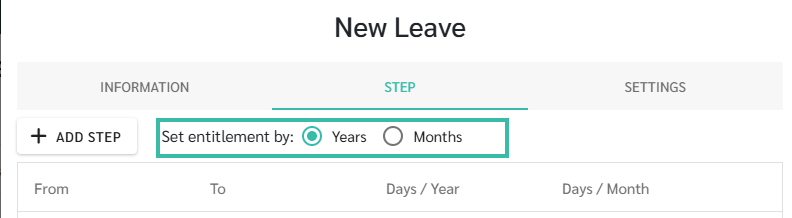
Choose either Entitlement by Years or Entitlement by Months, depending on your leave policy.
Set Entitlement by Years
- Click Add Step, then define:
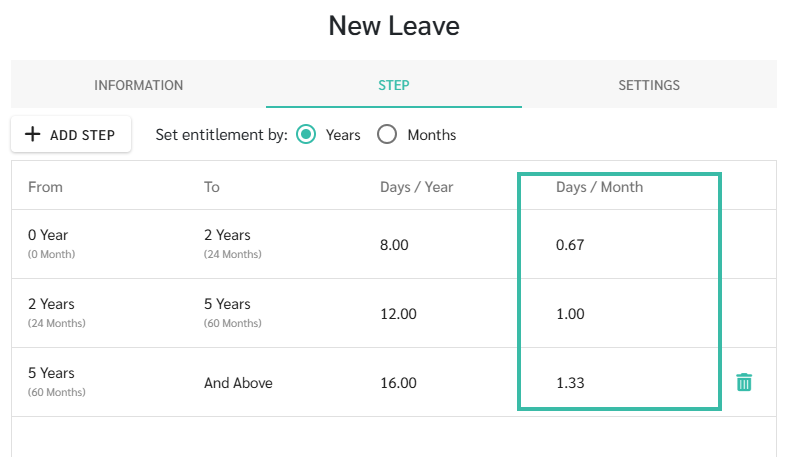
- The Years of Service range.
-
The Number of Leave Days entitled for each service tier.
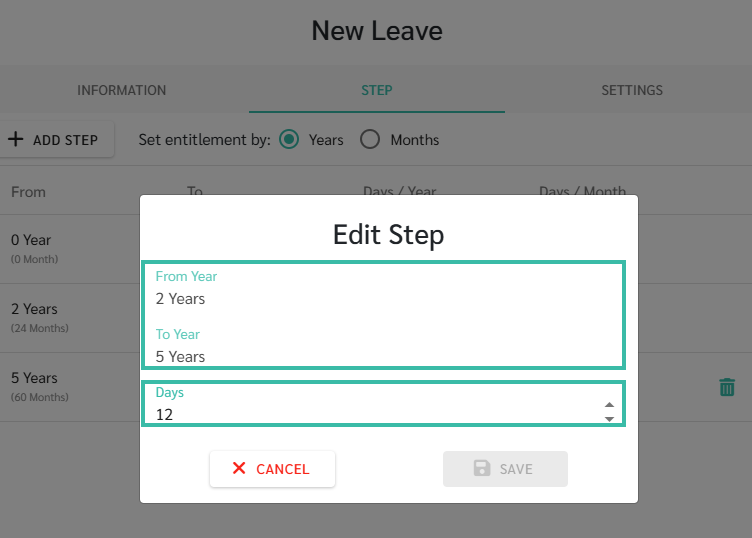
Note: The final Step must be set to "And Above".
-
The system will automatically calculate the monthly accrued leave entitlement based on the annual leave entitlement configured for each service tier.
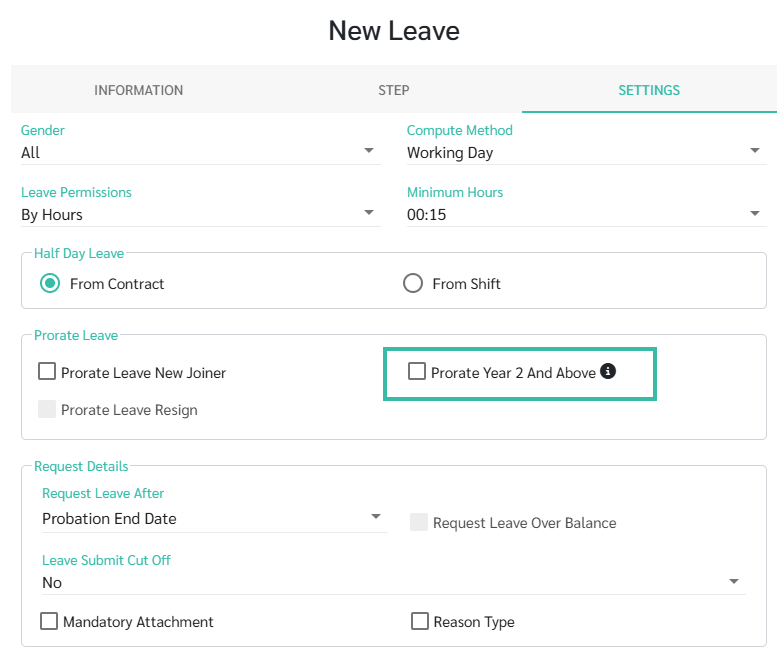
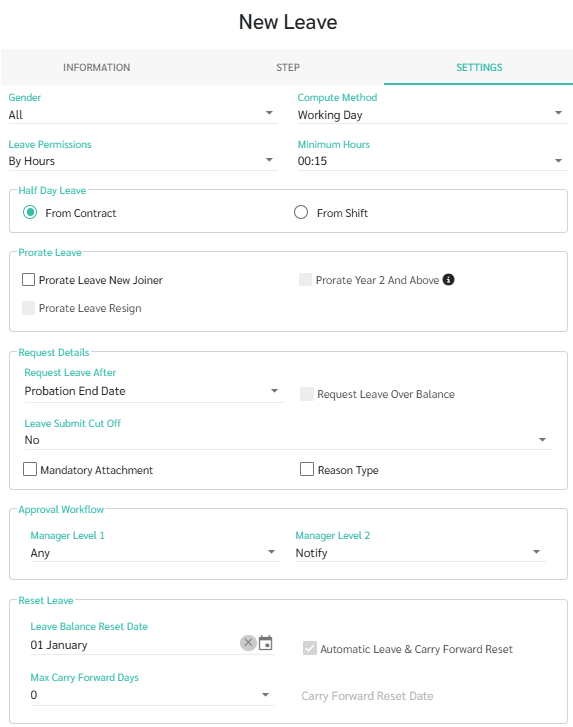
- Under the Settings tab, enable Prorate Year 2 and Above if you want the system to prorate leave entitlement from the employee's second year of service onwards.
-
If this option is disabled, employees will receive the full leave entitlement for the applicable service tier on the leave reset date instead of a prorated entitlement.
-
- Finally, click "Save".
Set Entitlement by Months
- Click Add Step, then define:
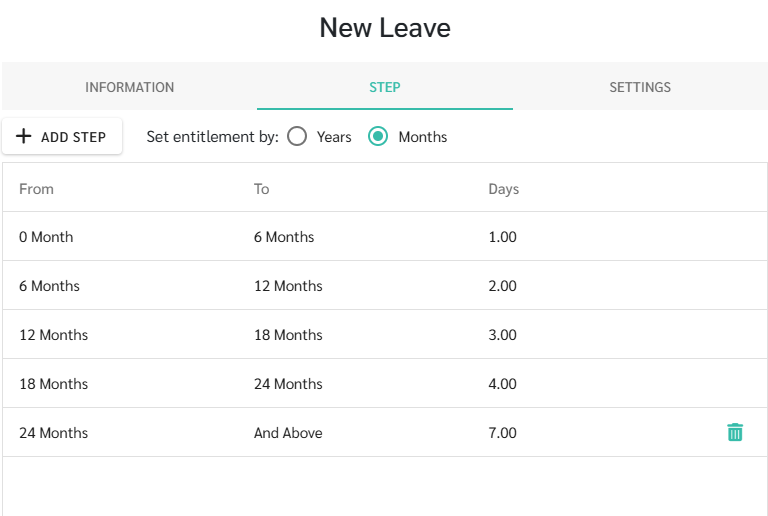
- The Months of Service range.
-
The Number of Leave Days entitled for each service tier.
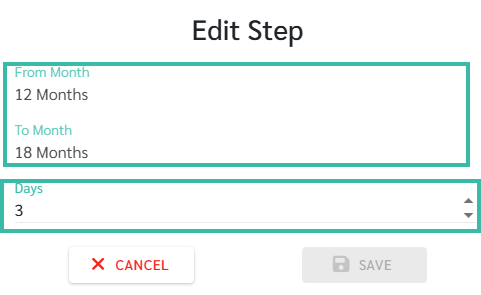
Note: The final Step must be set to "And Above".
-
The system will grant leave entitlement according to the configured months of service.
-
Configure the Leave settings.
- Finally, click "Save".
