
EPF Contributions
EPF (Employees Provident Fund) is a mandatory retirement savings scheme in Malaysia. Both the employee and employer contribute a percentage of the employee's salary each month. These contributions are submitted to KWSP/EPF on behalf of the employee.
There are two types of EPF contributions:
-
Mandatory EPF (required by law)
The contribution rate is set based on the employee's age and salary, following EPF guidelines.
-
Voluntary EPF (an optional top-up)
The employee and/or employer can make on top of the mandatory amount. This is agreed upon in the employment contract or declared separately by the employee.
ByteHR handles both types. This article explains how to set them up and where they appear.
How EPF contributions work in ByteHR
There are two ways voluntary EPF contributions can be recorded:
|
|
K1 (Employment Contract) | LP1 (Tax Deductions in Payroll) |
|---|---|---|
| What it is | Voluntary % agreed in the contract | Monthly self-contribution amount declared by employee |
| Where to set it | Employment Contract | Payroll Side Panel, each month |
| How it's calculated | % of EPF Payments | Fixed amount entered by admin |
| Affects tax calculation? | Yes | Yes |
Step 1 — Set up EPF in the Employment Contract
Every employee's EPF contribution starts here.
- Go to the employee's Employment Contract.
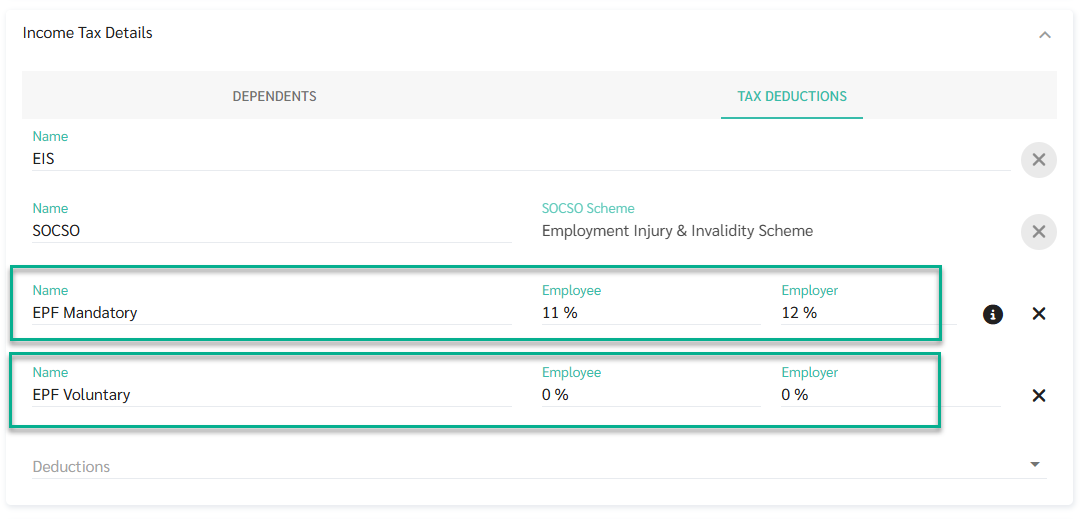
- Find the EPF section. You will see three fields:
-
EPF Mandatory
the required contribution rate (employee and employer). Fill this in as usual.
-
EPF Voluntary (optional)
Enter the voluntary contribution percentage for employee and/or employer only if agreed in the employment contract.
-
- Save the contract.
Step 2 — Record LP1 amounts in Payroll (if applicable)
Some employees declare a monthly voluntary EPF self-contribution amount on their TP1 form. This is separate from the percentage set in the Employment Contract. The admin records this amount in payroll each month.
- Open the employee's Payroll Side Panel for the relevant payroll period.
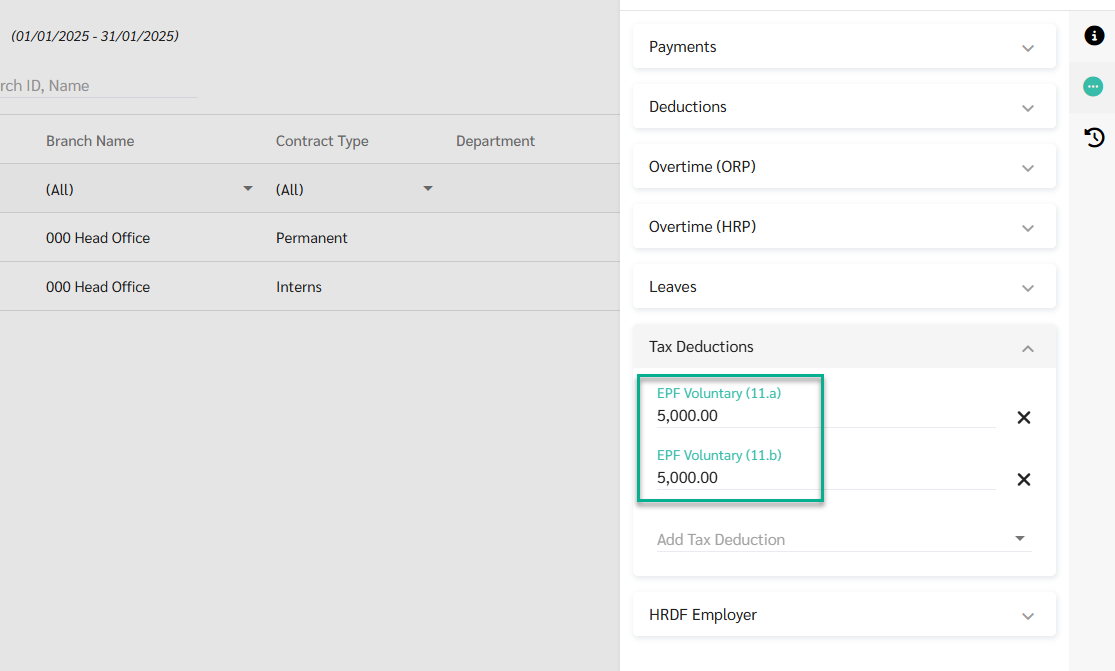
- Scroll down to the Tax Deductions accordion.
- Enter the LP1 amount under the correct line:
- EPF Voluntary (11.a)
- If the employee declared this under 11.a on their TP1 form.
- Annual cap: RM 4,000 (shared with EPF Contributions from the Employment Contract).
- EPF Voluntary (11.b)
- If the employee declared this under 11.b on their TP1 form.
- Annual cap: RM 3,000 (shared with Life Insurance deductions).
- EPF Voluntary (11.a)
- Save.
ByteHR tracks these caps automatically across all payroll runs in the year. You don't need to calculate manually.
What you'll see in payroll
Payroll Side Panel
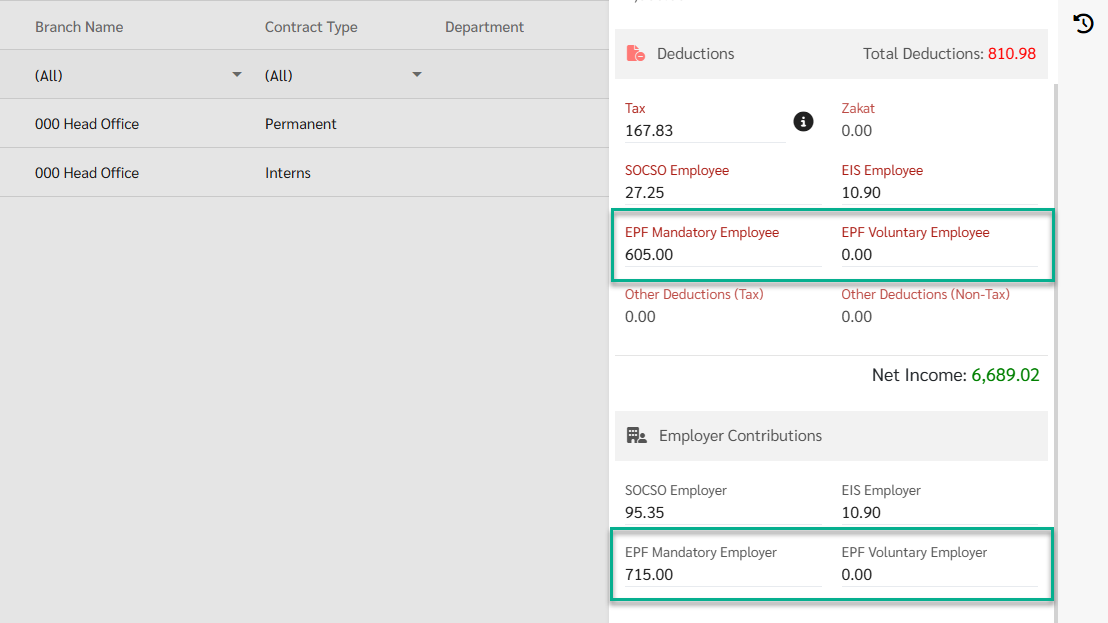
EPF shows as four separate fields so you can see exactly what is being contributed:
- EPF Mandatory Employee
- EPF Voluntary Employee
- EPF Mandatory Employer
- EPF Voluntary Employer
Tax Calculation Table
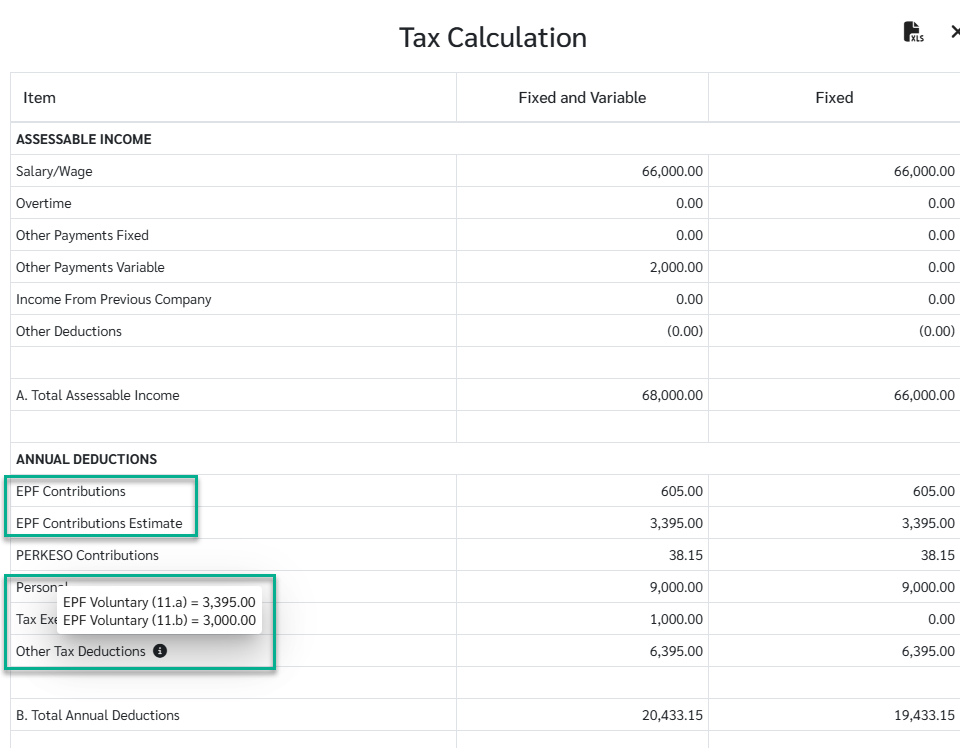
- "EPF Contributions" shows the K1 total used for tax deduction calculation.
- "Other Tax Deductions" shows LP1 amounts (11.a and 11.b) with an info icon. Click the icon to see the breakdown and remaining cap for each.
Uploading EPF data in bulk
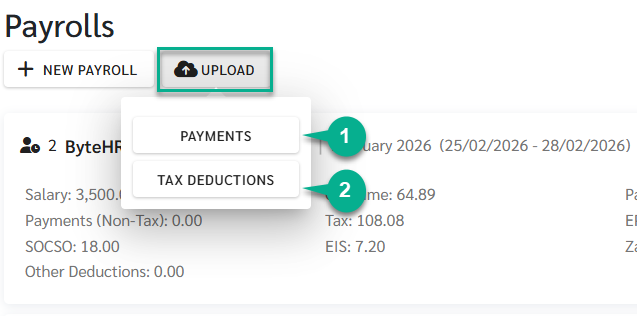
If you manage payroll for many employees, you can upload EPF data using the upload templates.
1) Upload Payments / Upload YTD
- Click the UPLOAD button in Payroll.
- Select Payment
- Download the template and fill in: EPF Mandatory Employee, EPF Voluntary Employee, EPF Mandatory Employer, EPF Voluntary Employer
- Upload the file
2) Upload Tax Deductions (for LP1)
- Click the UPLOAD button in Payroll.
- Select Tax Deductions
- Download the template and fill in the LP1 amounts per employee
- Upload the file
Note 🗒️
- Voluntary EPF % in the Employment Contract applies automatically to every payroll run.
- LP1 amounts must be entered (or uploaded) each month, there is no recurring monthly setup for LP1 yet.