
Payroll Register Report
After payroll has been generated and approved, the admin can retrieve the payroll report by the following steps:
How to retrieve the Payroll Register Report.
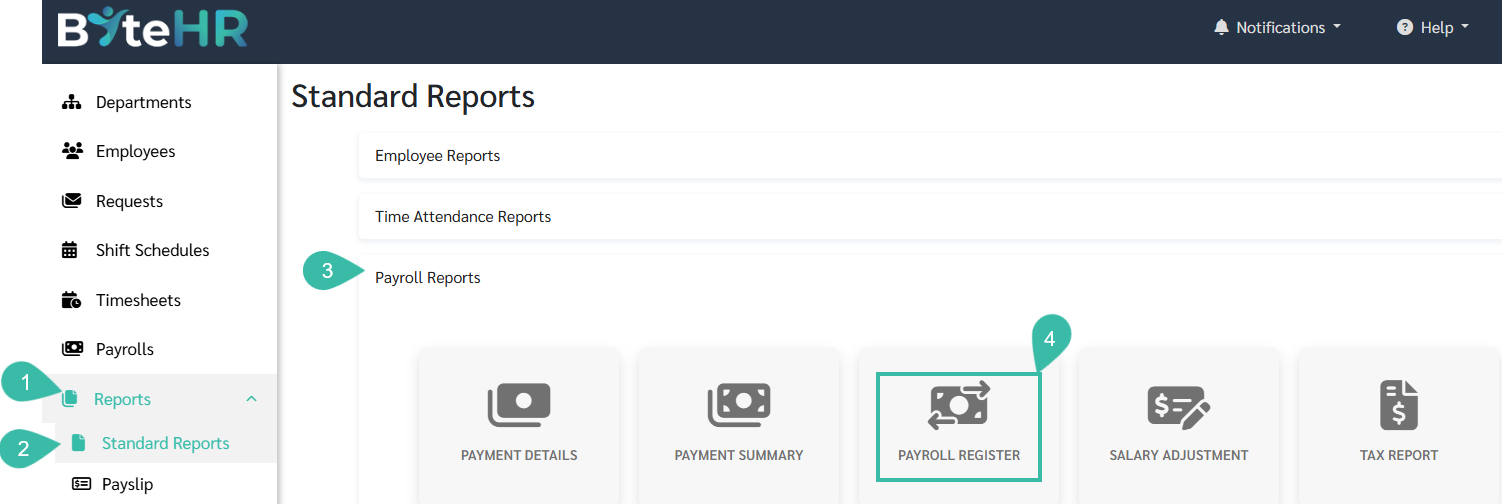
- Click Reports.
- Select the Standard Report tab.
- Click on Payroll Reports.
-
Select Payroll Register.
-
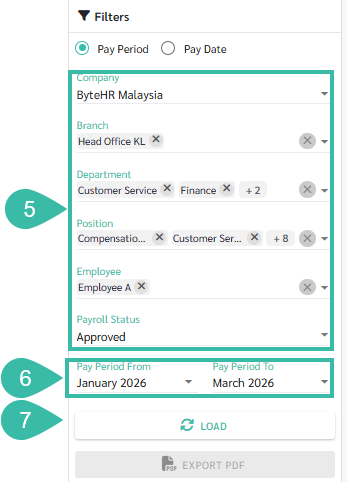
Select Company, Branch, Department, Position, Employee, and Payroll status.
🗨️ Note
The Payroll Register Report automatically groups employees by Company, Branch, and Department.
-
Select the Pay Period From and Pay Period To.
📢 Important Note
For branches with a "twice a month" payroll period, if the administrator wants to retrieve the payroll report for only that period, they must change the report to "Pay Date" and select the payment date that matches that period.
-
Click the Load to generate the Report.
-
Click the Export PDF to download the Report.

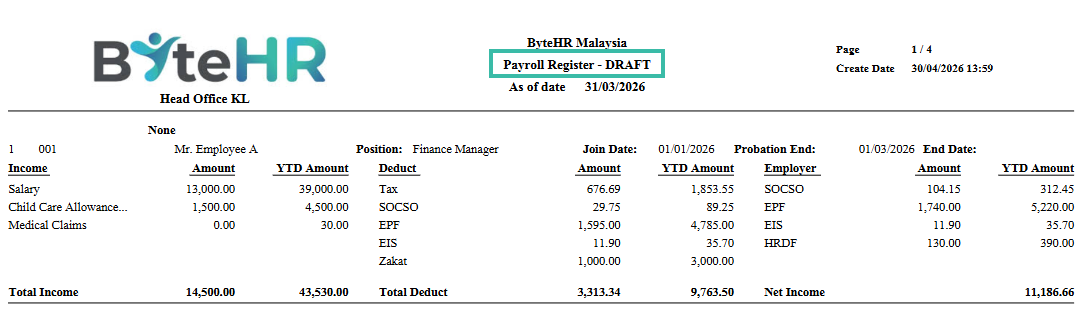
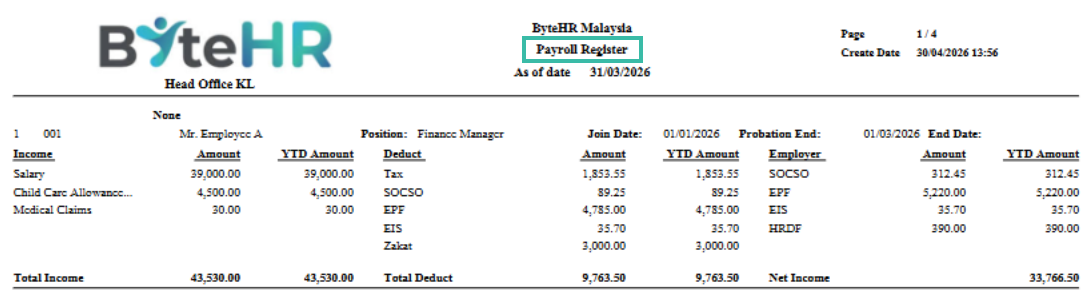
- Sample Report
-
If the user selects the Payroll Status as Draft / Pending Approval.
-
If the user selects the Payroll Status status as Approved.
-
