
Location Timestamp Report
💬 Note
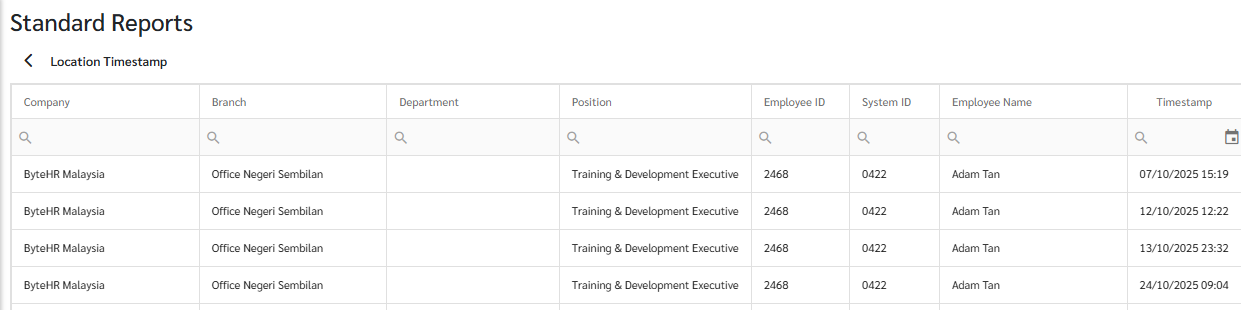
The Timestamp report will be displayed as follows:
-
Location Name
Displays the location name specified in the Branch Location or Employee Location categories, showing the nearest location.
-
Street Address
Shows the employee's location while signing in/out.
-
Longitude and Latitude
Displays the longitude and latitude of the employee's location while signing in/out.
-
Remarks
The notes entered by the employee when signing in/out will be displayed.
-
Photograph
This will be displayed when an employee takes a photo while signing in/out. You can click on the image to view it in full size.

How to View Reports.
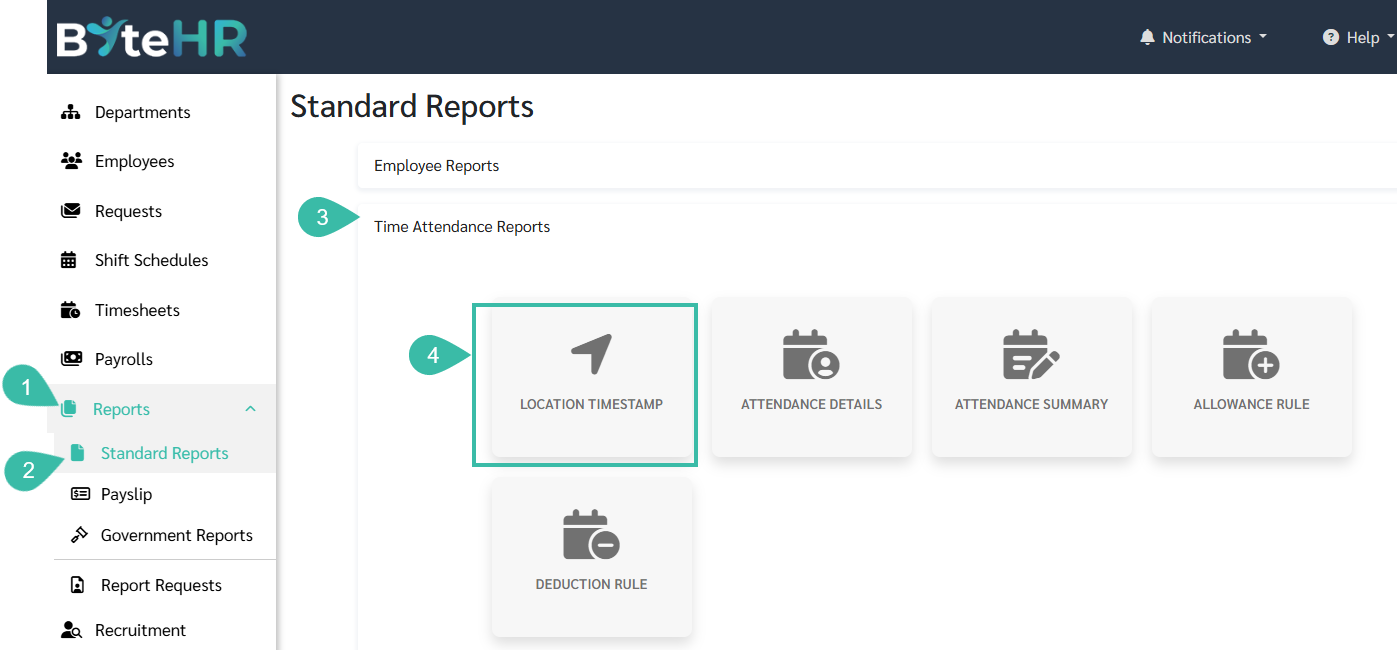
- Go to Reports menu.
- Click the Standard Reports tab.
- Select Time Attendance Reports.
-
Click Location Timestamp.
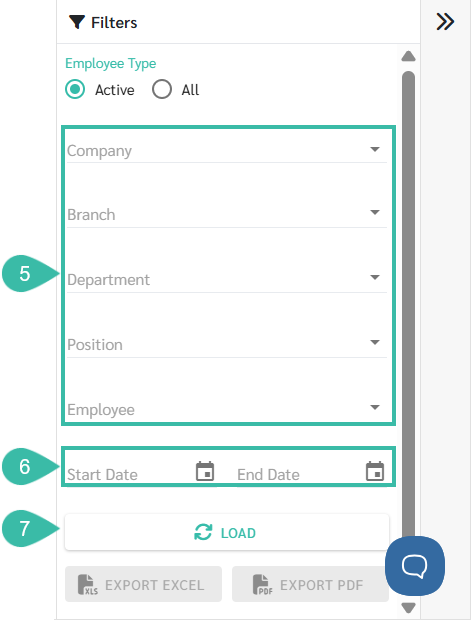
- Select Company, Branch, Department, Position, or Employee.
- Select the Start Date and End Date.
-
Click Load.
-
Arrange the columns as desired.
-
You can choose to download the file as a PDF or an Excel file.

🚩Note
- Employee photos in the Location Timestamp Report will be deleted after 2 years.