
Allowance Rule Report
💬 Note
If an allowance rule is set in the Preferences page, when data is retrieved from a timesheet to calculate payroll, the system will not only calculate the base salary and overtime but also various allowances and deductions, and display the payroll details.
⚠️ Caution
The Allowance rules report is only viewable for the pay period in which salaries have already been processed.
How to view Allowance Rules reports.
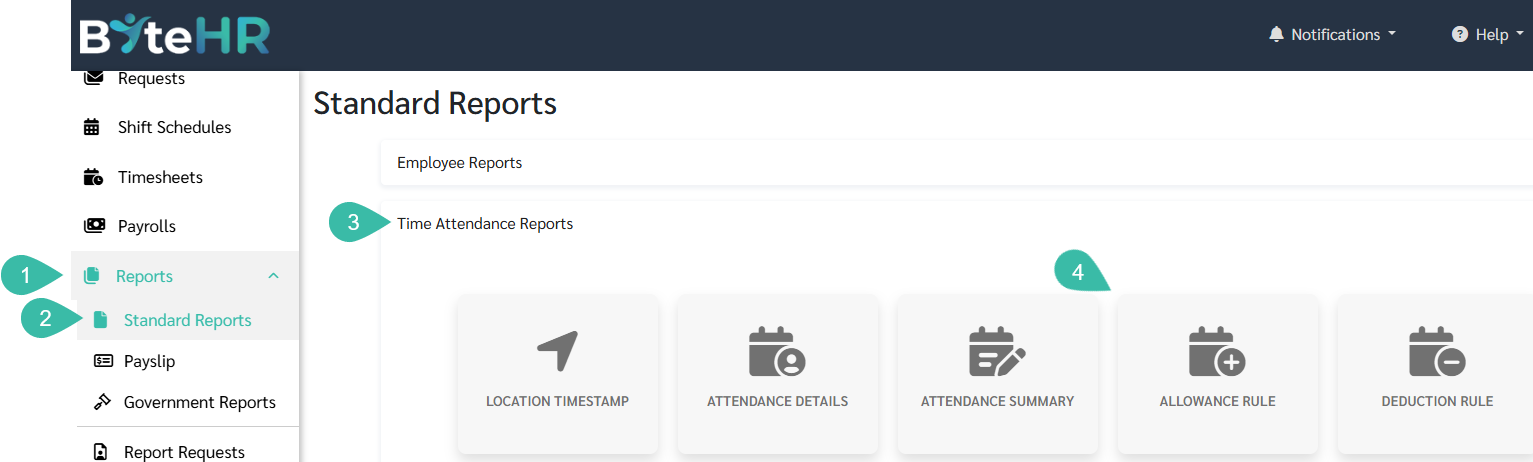
- Go to Reports.
- Select the Standard Reports tab.
- Go to Time Attendance Reports.
-
Select Allowance Rule Report.
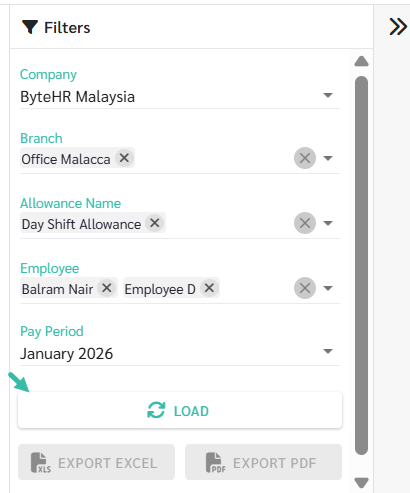
- Select the Company, Branch, Allowance Name, Employee and Pay Period.
-
Click Load.
An explanation of the various columns in the Allowance Rules report.
-
Late Minutes
Late (minutes) according to the conditions set in the Allowance Rule.
-
Late Minutes (Timesheet)
The number of minutes late (according to the Timesheet) is calculated by subtracting the shift start time from the time of signing in.
-
Out Early Minutes
The number of minutes signed out earlier then the shift end time, as per the conditions set in the Allowance Rules.
-
Out Early Minutes (Timesheet)
The number of minutes to leave early (according to the Timesheet) is calculated by subtracting the time the shift ends from the time the employee signs out.
-
Late Times
The number of times the conditions set in the Allowance Rules are met.
-
Late Times (Timesheet)
Number of times late (according to the Timesheet)
-
Late Days
Late (day) according to the conditions set in the Allowance Rules.
-
Late Days (Timesheet)
Number of days late (according to the Timesheet)
-
Absent Days
Absent days according to the conditions set in the Allowance Rules.
-
Absent Days (Timesheet)
Number of days absent from work (according to the Timesheet)
-
Forget Scan Days
Forgot to scan fingerprint, as per the conditions set in the Allowance Rules..
-
Leave Days
Leave days (days) as per the conditions set in the Allowance Rules.
-
Leave Days (Timesheet)
Number of leave days (according to the Timesheet)
-
Forget Scan Days
Number of days forgotten to scan fingerprint.
-
Column titled "Allowance"
Displays the amount of Allowance payments calculated based on the system settings.