Customize the Document Template
How to edit the document template:
-
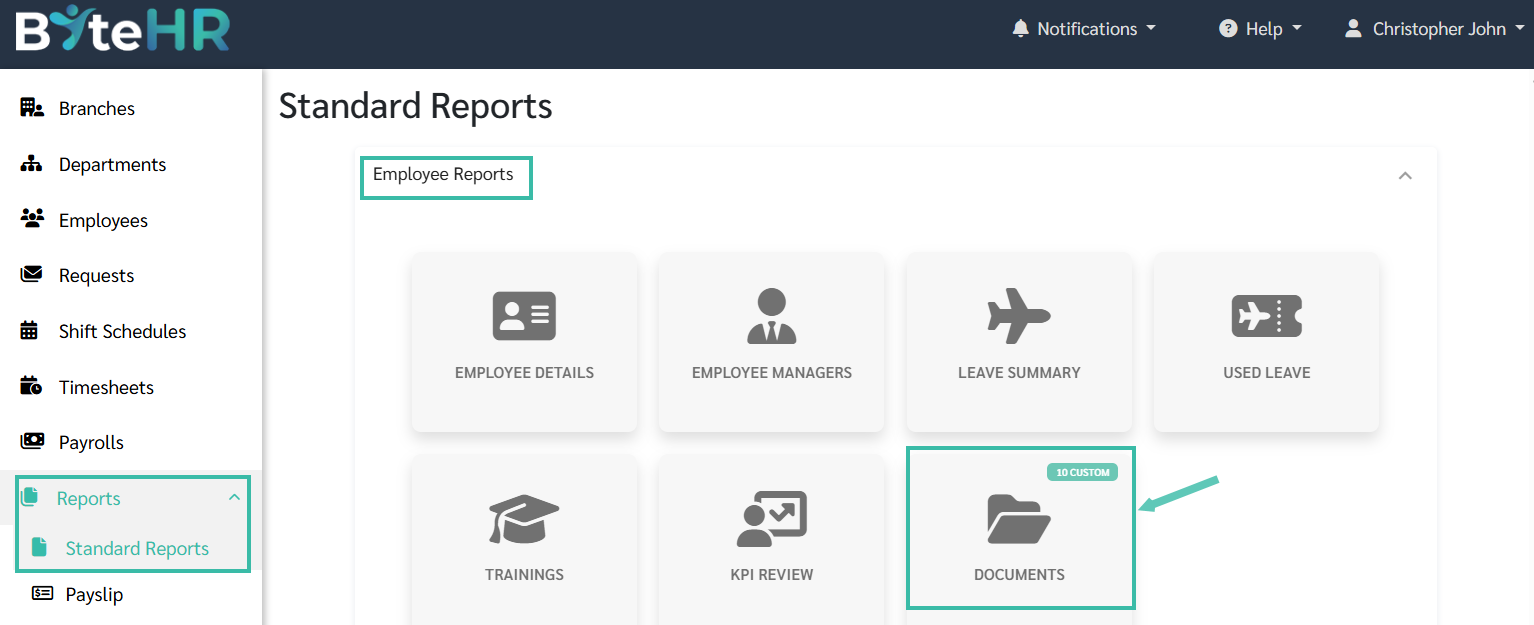
Navigate to Reports -> Standard Reports -> Employee Reports -> Documents.
-
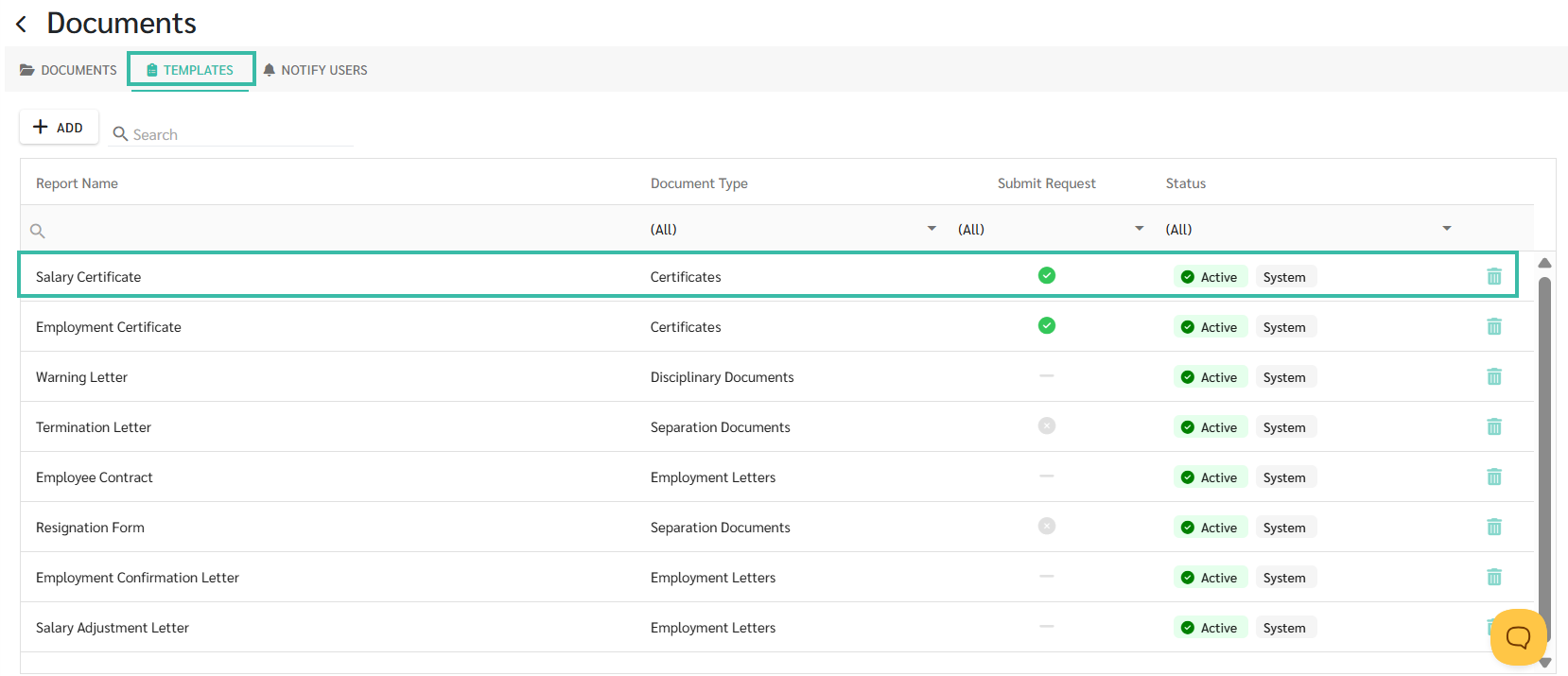
Click Templates.
Select a desired Template to edit.
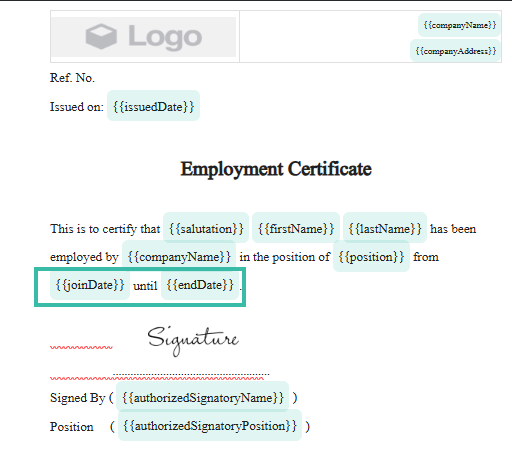
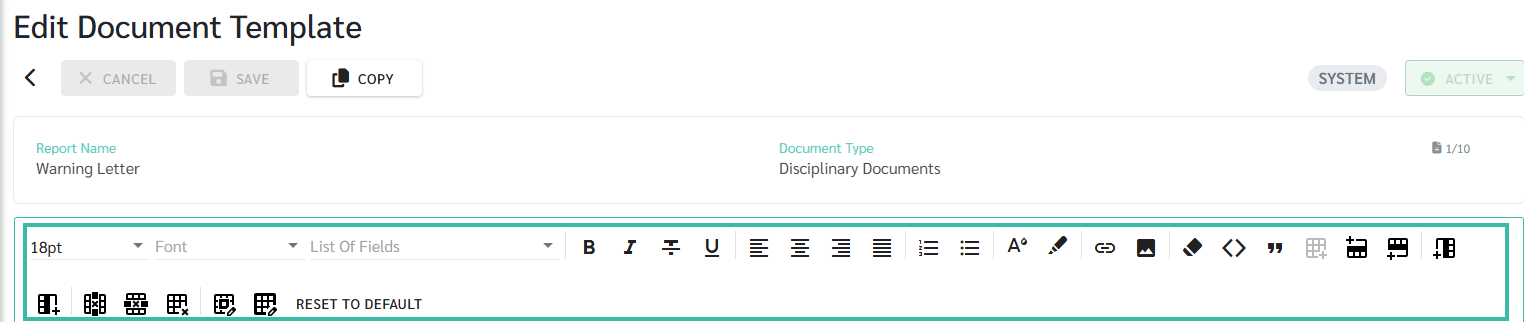
You can now type the desired text and use various tools, including:
- Adjust the font size.
-
Adjust the font style.
List of Fields: Select information to display (data is retrieved from employee records and contracts) from the List of Fields.
Examples
-
Employment Certificate template, you can select to retrieve data from:
The latest contract and the previous contract.
-
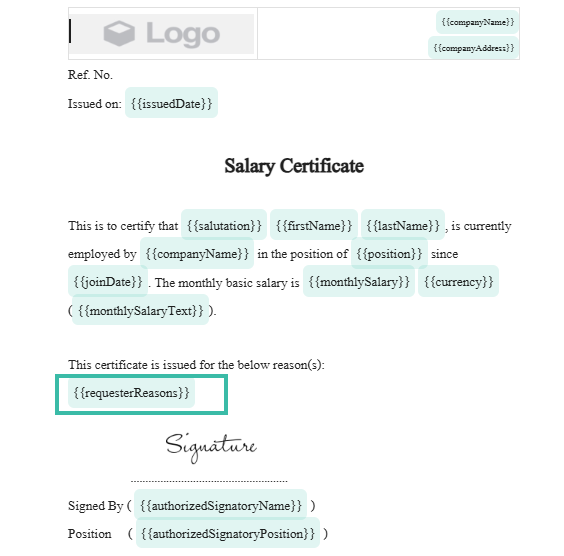
Salary Certificates includes "Requester Reason" field. This field displays the reason the employee provided when submitting a Report Request.
-
- Format text to be bold, italic, strikethrough, and underlined.
- Adjust paragraph alignment.
- Create a list.
- Adjust font colour and background colour.
- Edit the image.
-
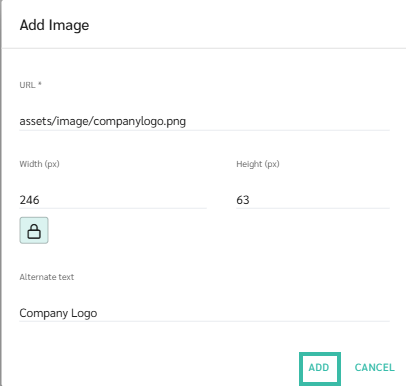
If using images, such as company logos or employee photos, you can edit the image size in the Width and Height fields.
-
- Clear the text formatting.
- Create a quote.
- Create and customize a table.
- Insert a row or column.
- Delete a row, column, or table.
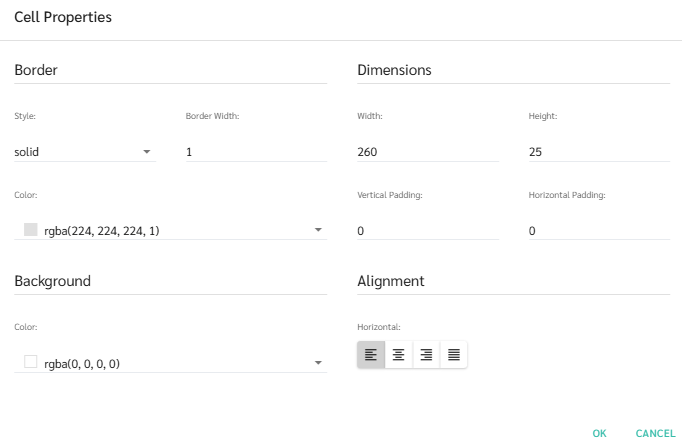
- Customize cells and tables.
-
Editable information includes: Border, Dimensions, Background, and Alignment.
-
-
Click "Reset to Default" to restore the default settings.
-
Click Save after editing.
-
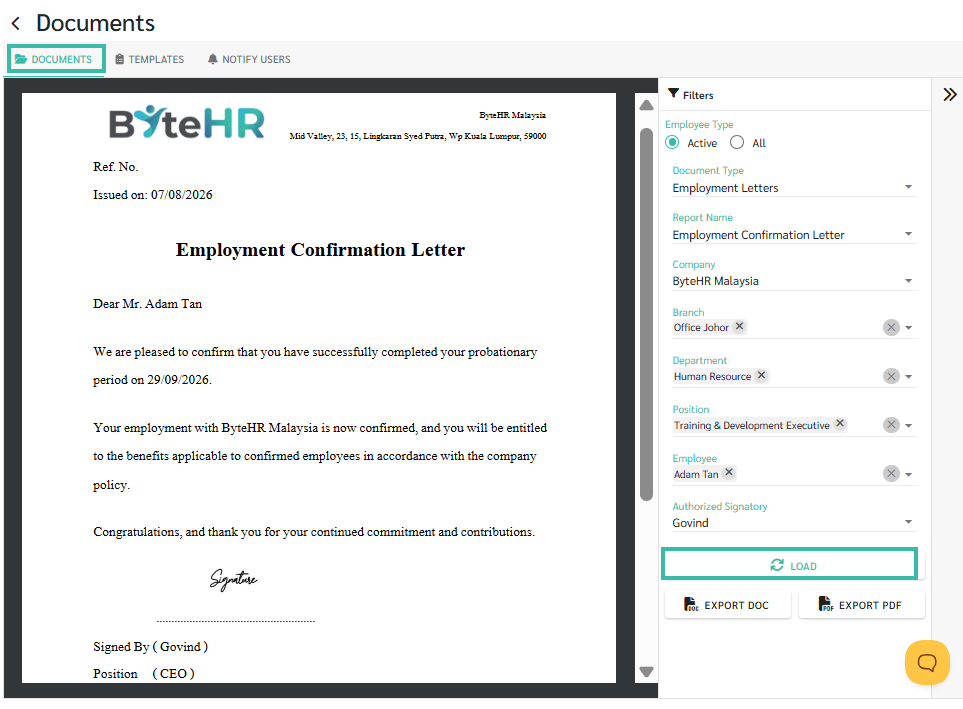
Click Load to generate the document. The report will be displayed with employee details automatically populated based on the employee's profile and contract.