Approving a Report Request
Process to Approving a Report Request
-
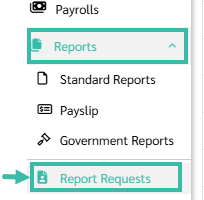
On the website, in admin view, click on the Reports menu-> Report Requests.
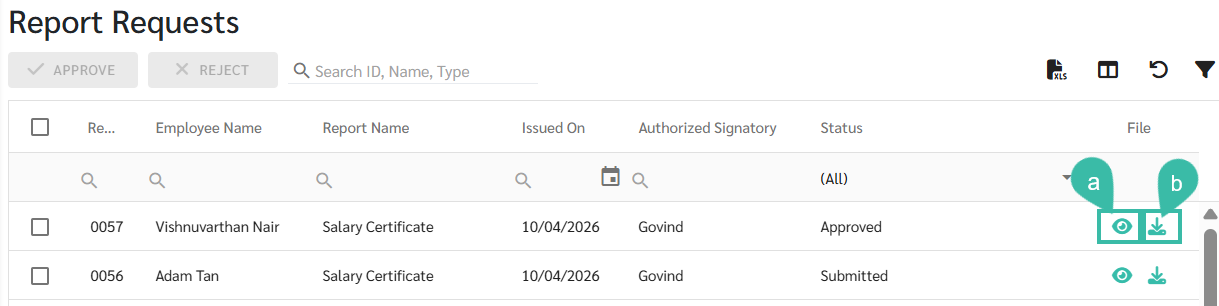
- The system will display a list of certificate requests submitted by employees.
- To review a Report Request:
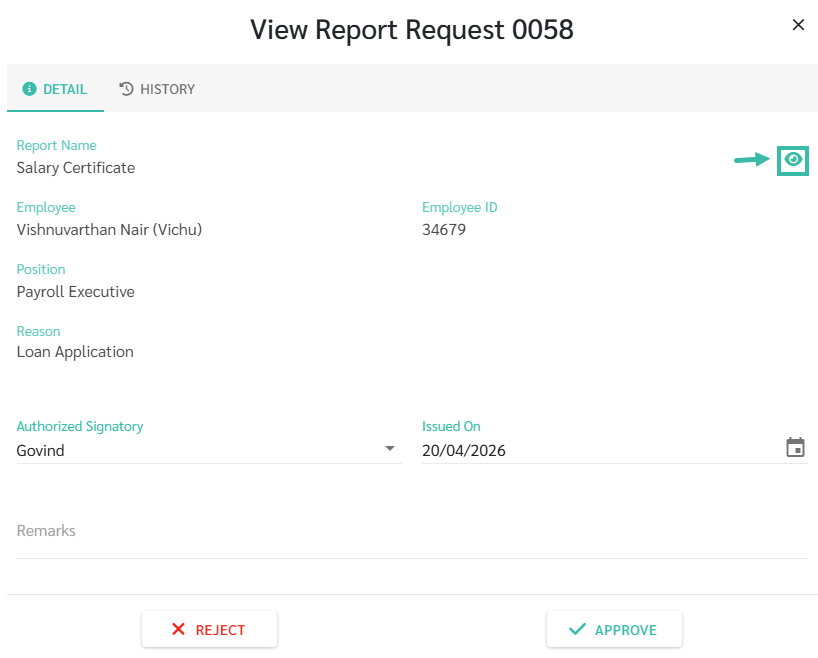
- Click eye icon (View) to preview the certificate, or
-
Click download icon to download the certificate.
- To review a Report Request:
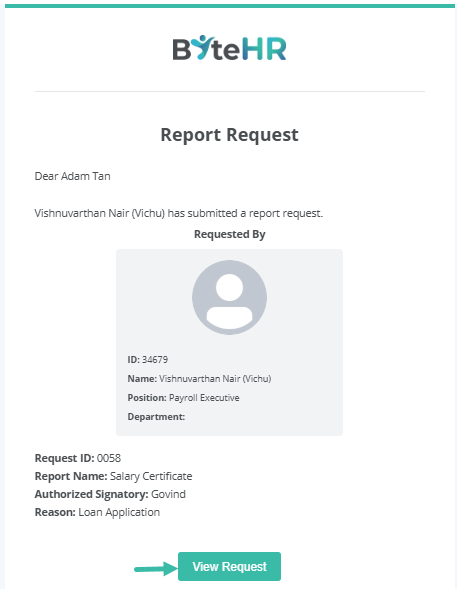
- When a Request is submitted, an email notification will be sent to the Notify User that has been added under Reports -> Standard Reports -> Employee Reports -> Documents-> Notify Users.
- You may also access the request via the email.
-
Click View Request to view details.
- To preview the report:
-
Click the eye icon.
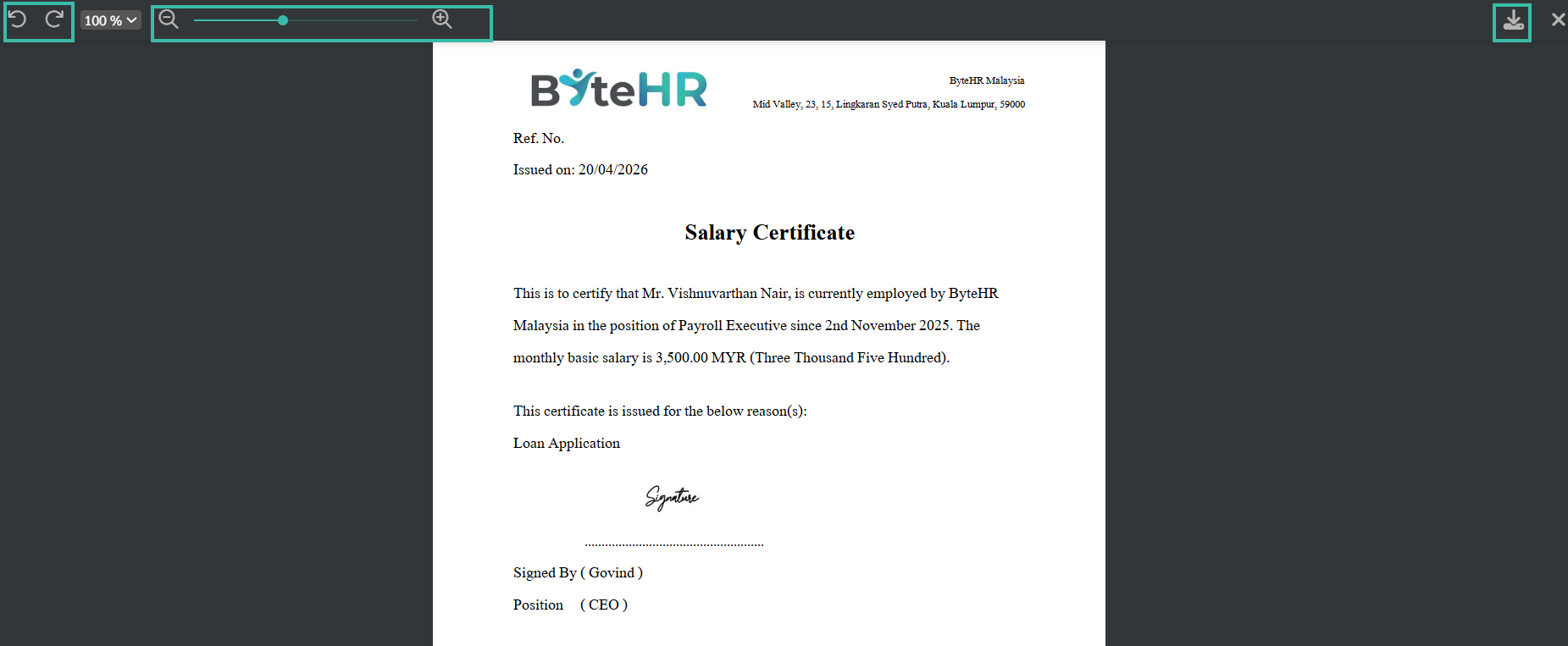
- Use the arrow icon to rotate the document.
- Use the magnifying glass (+/-) to zoom in or zoom out.
-
Click Download icon to download the report.
-
-
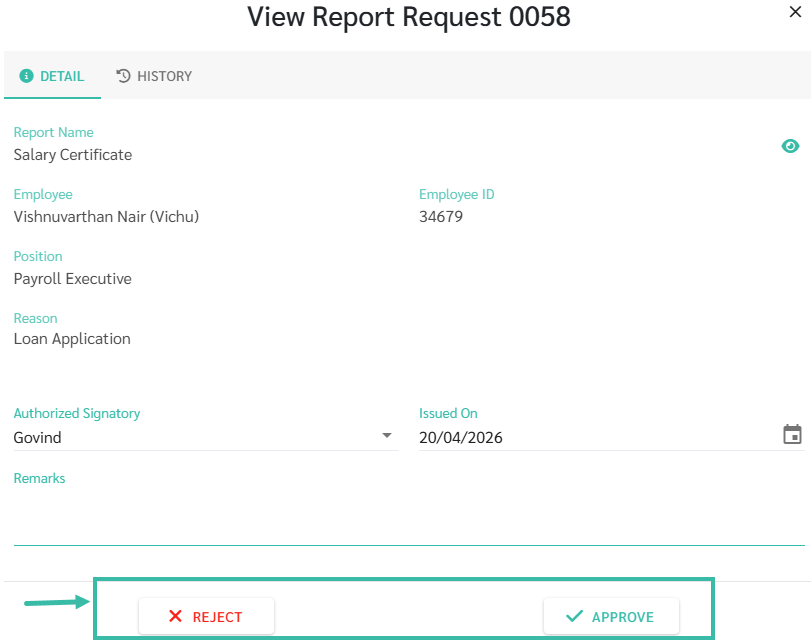
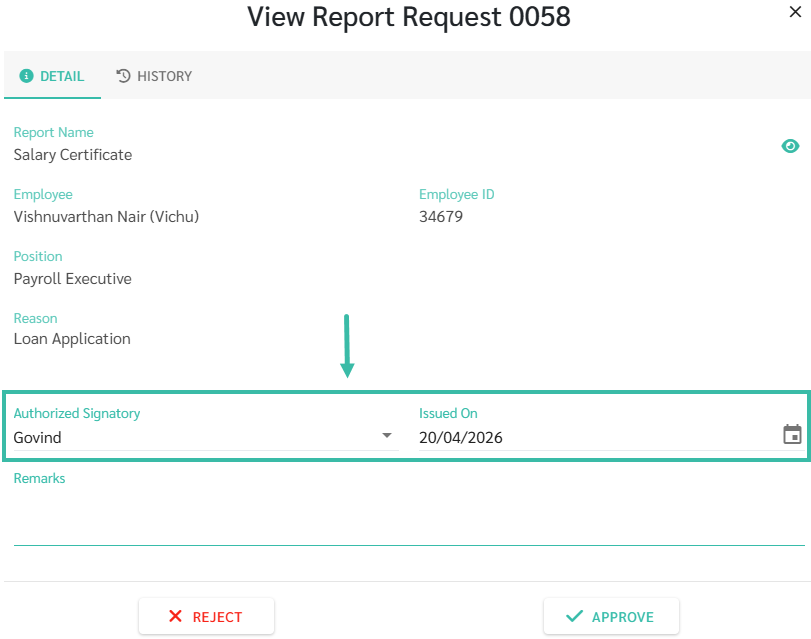
You may select the Authorized Signatory and specify the Issued on Date.
- After reviewing all details:
- Click Approve to approve the request, or
-
Click Reject to reject the Request.