
Time Attendance Dashboard (Monthly View)
-
The Time Attendance Dashboard displays employee working hours broken down into Department, Month, Contract Type, Payment Type, Attendance Rate, Absenteeism Rate, and statistics on Absences, Leave, Late/Out Early/ Forger Scan, etc.
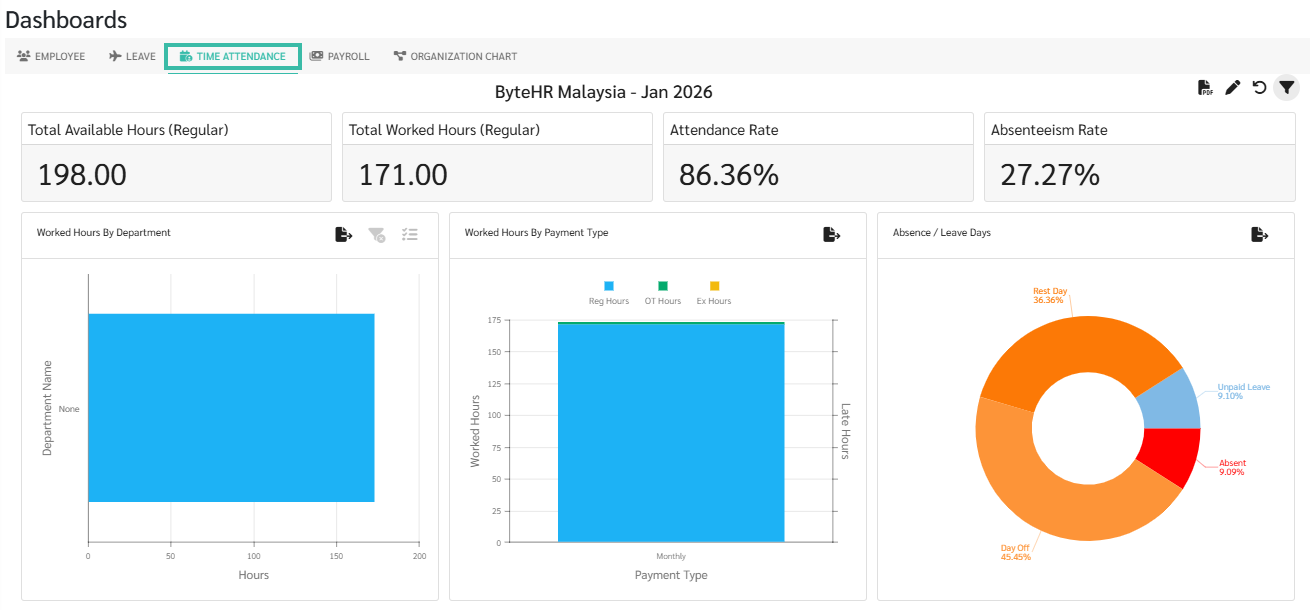
To view the Time Attendance Dashboard , click the filter icon on the right side of the Dashboard to select Company, Branch, and Period.
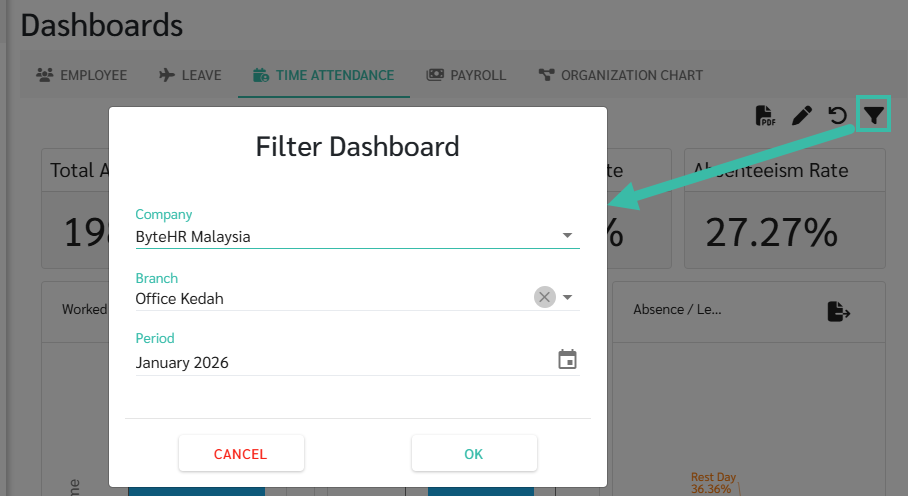
Note: Future dates cannot be selected.
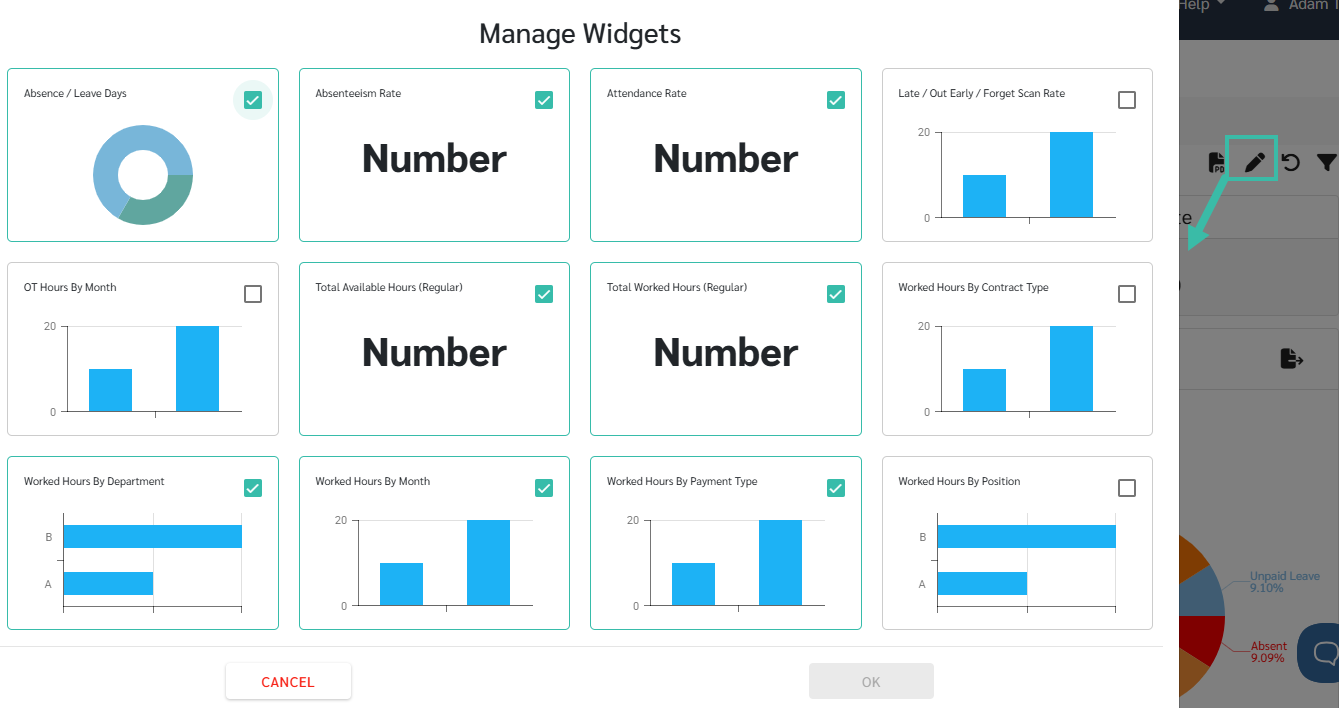
Click the pencil icon to select the widget you would prefer to be displayed in the Time Attendance Dashboard page.
-
Total Available Hours (Regular)
This refers to the sum of the working hours scheduled in an employee's Timesheet, excluding weekly and public holidays.
-
Total Worked Hours (Regular)
This refers to the sum of the number of working hours an employee earns according to their schedule, excluding overtime and hours worked beyond normal hours.
-
Attendance Rate
This refers to the ratio of the total number of hours an employee works to the total number of hours they are required to work.
-
Absenteeism Rate
This refers to the ratio of the number of hours an employee is absent from work to the total number of hours the employee is required to work.
-
Worked Hours by Department
This will show the number of hours each department's employees worked in the month.
-
Worked Hours by Payment Type
This will show the number of hours worked per month for each salary category, broken down into regular working hours and overtime hours, as well as the number of hours employees were late and out early before the end of the workday.
-
Worked Hours by Contract Type
This will show the number of hours worked per month for each type of contract, broken down into regular working hours and overtime hours, as well as the number of hours employees were late and out early before the end of the workday.
-
Absences / Leave Days
This will show the number of days and the ratio of weekly holidays, public holidays, leave days, and absences.
-
Worked Hours by Month
This will display the total number of working hours for each employee in each month.
-
Late/Out Early/Forget Scan Rate
It will show the percentage of lateness, Out Early, and forget to scan fingerprints.
-
Worked Hours By Position
The number of working hours will be displayed based on position.
-
Overtime (OT) hours by Month
The number of overtime hours will be displayed, broken down by month.
-
⚠️ Caution
The Dashboard shows the number of employees worked by department.
Data can be filtered by department only.