Upload Employee Fixed Payments and Deductions
Step 1: Fill in Payments and Deductions Information in the Template
-
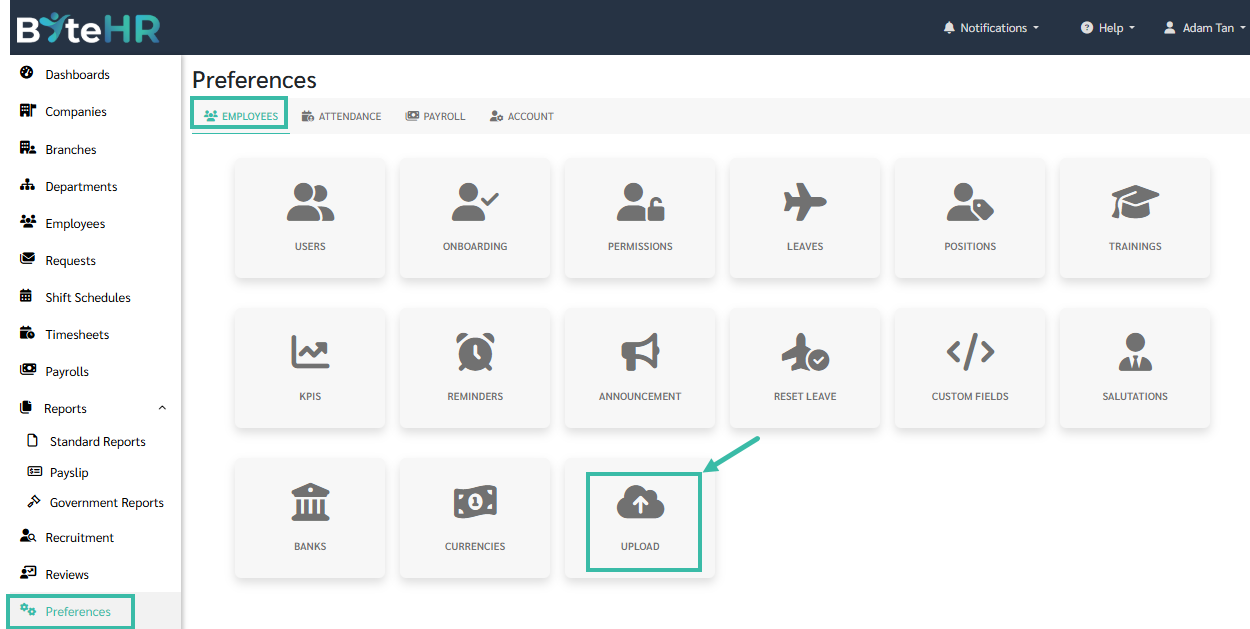
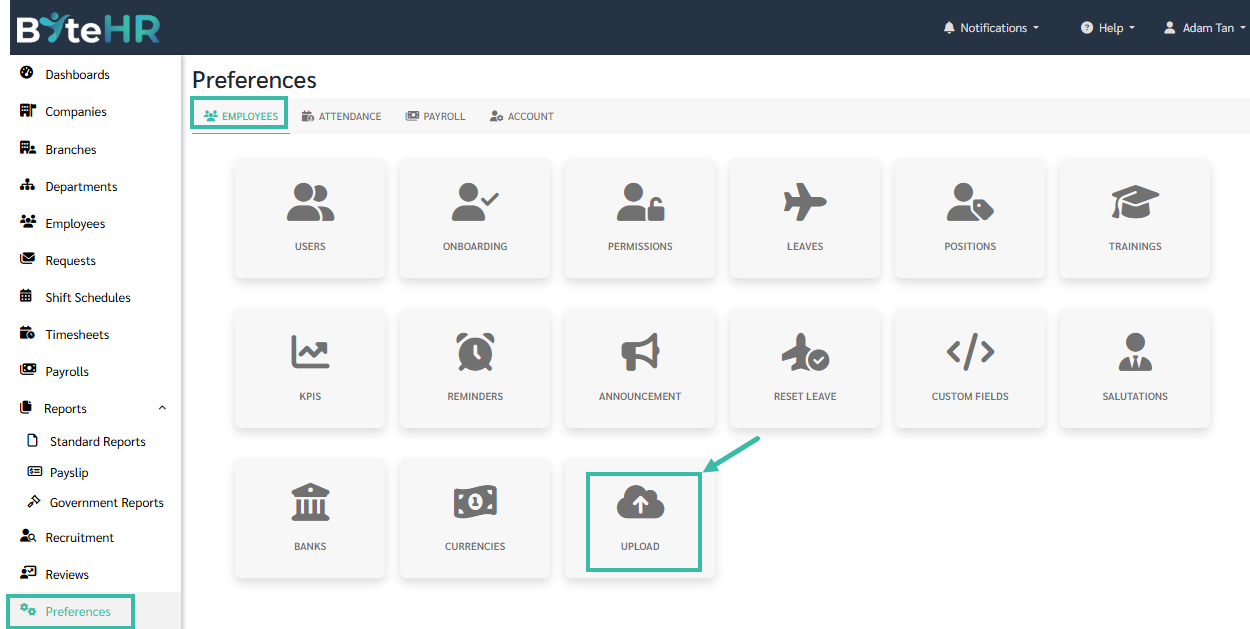
Templates can be downloaded at Preferences --> Employee --> Upload.
-
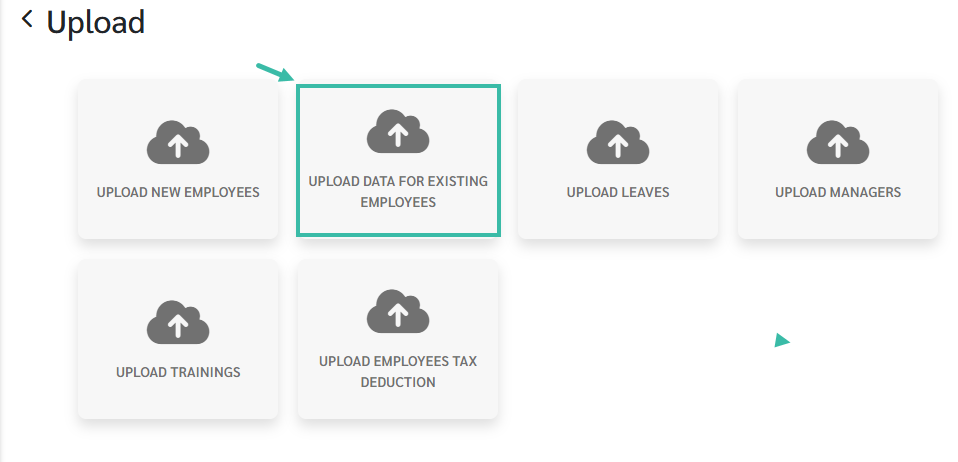
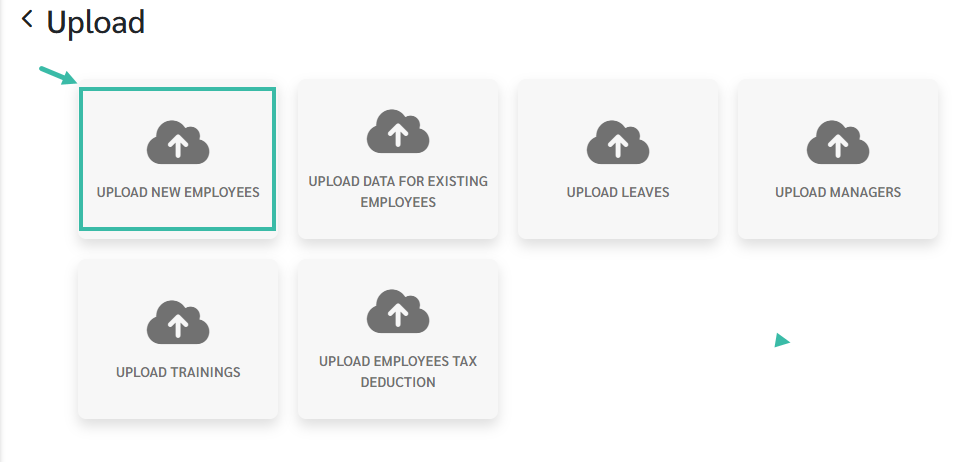
New employee: Use "Upload New Employees" template.
-
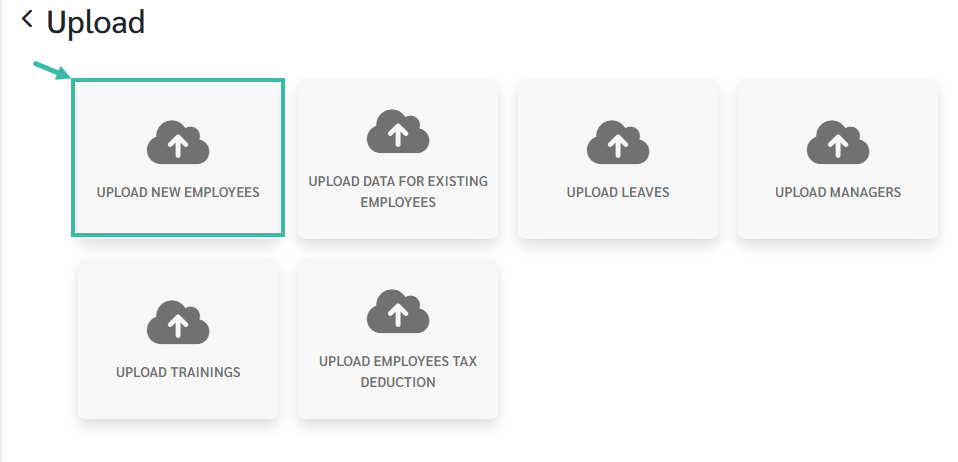
Existing Employee: Use "Upload Data for Existing Employees" template.
-
📃Note:
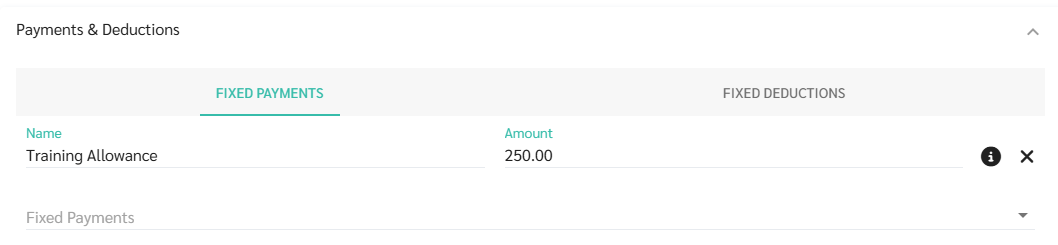
The Name/Type of Payments and Deductions must be created in the Preferences and added in the employment contract.


-
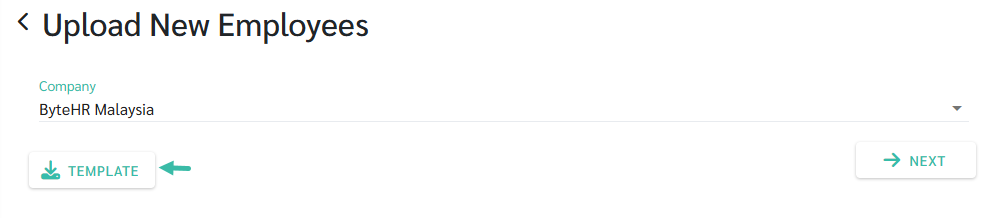
Click Template to download the Upload template.
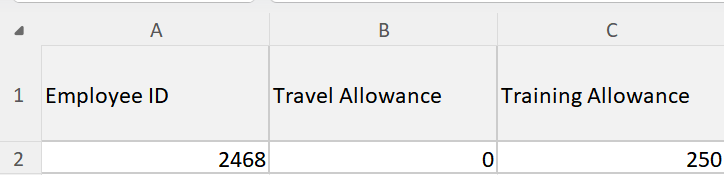
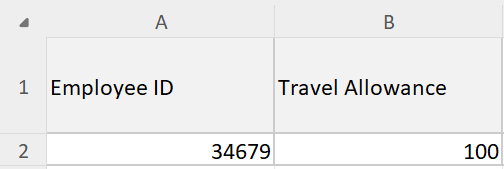
- Add columns to the Upload template with the Names of the Payments/Deductions you want to upload, such as "Travel Allowance."
-
Ensure the column names match the Payments/Deduction names created in the Payments/Deductions category on the Preferences page.
-
Step 2: Upload Payments and Deductions Template
-
Go to Preferences --> Employee --> Upload.
-
New employees: select "Upload New Employees".
-
Existing employees: Select "Upload Data for Existing Employees".
-
-
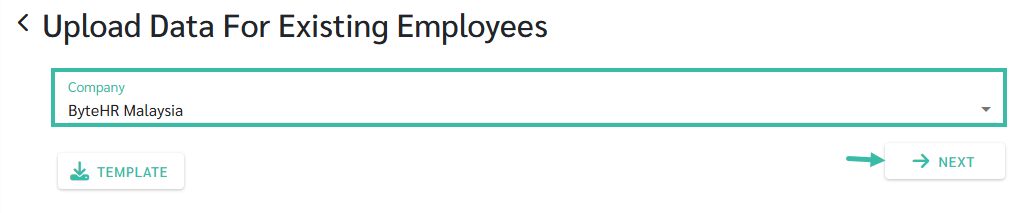
Select company and click Next.
-
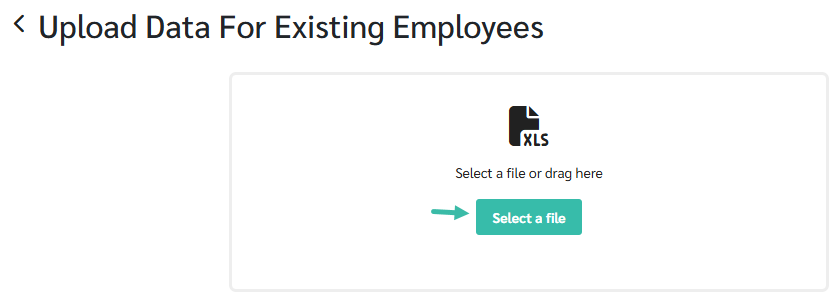
Select the file to upload.
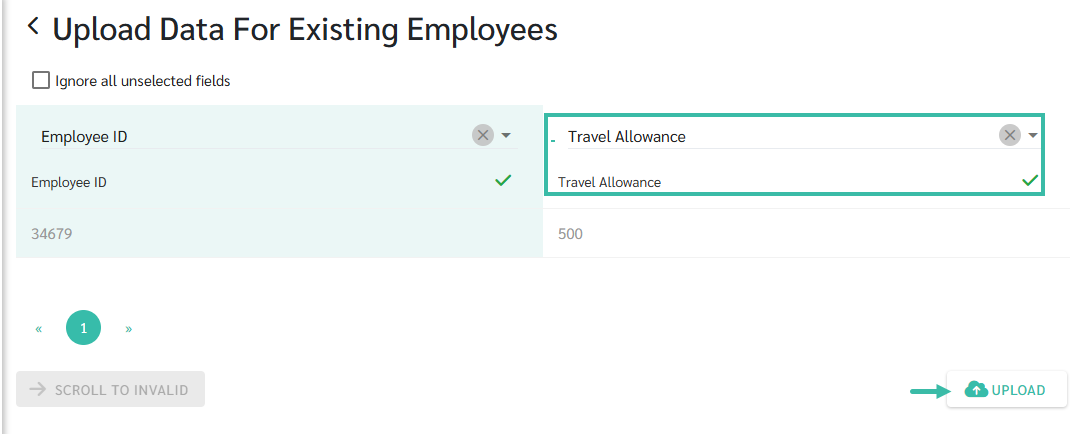
- Map the fields of Payments/Deduction type with the Payments/Deductions you want to upload.
-
Once completed, click Upload.
📃Note
-
To remove Payments/Deductions from an individual employee's employment contract, click the cross (X) icon.
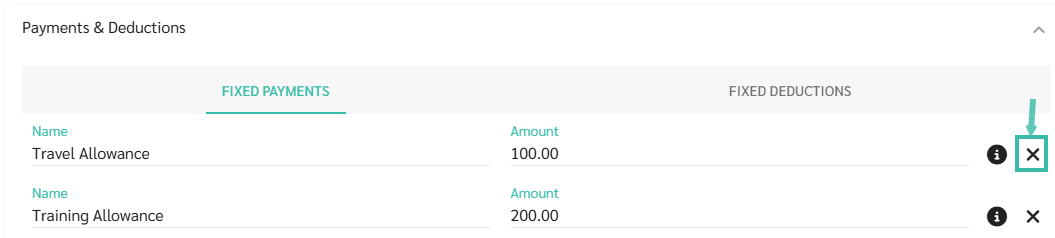
-
To remove Payments/Deductions from multiple employee's employment contract, complete the Upload Existing Employees template and specify {0" in the relevant field.