
Delete Employee from Database
⚠️ Caution
- To delete an employee's name from the database.
- This can only be done by employees who are in the Applicant status.
How to Delete an Employee from the Database
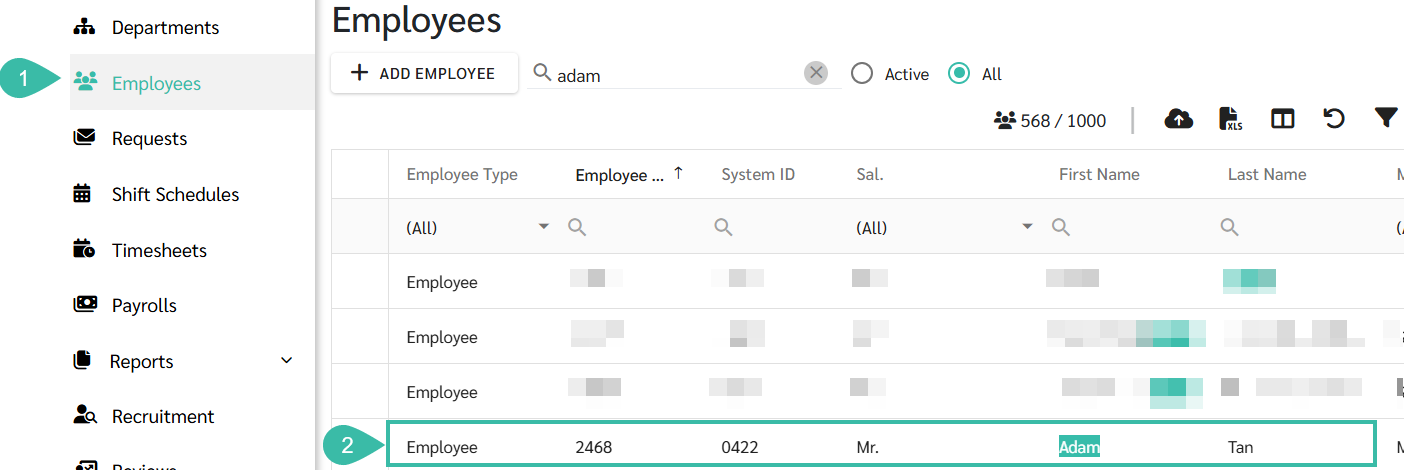
- Go to the Employee menu.
-
Search for the name of the employee you want to delete.
-
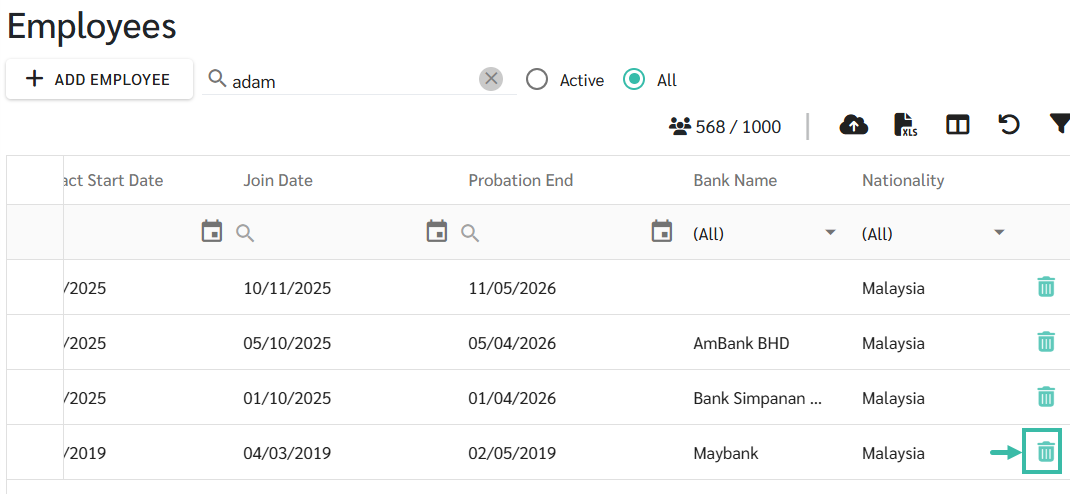
Click the trash can icon on the right most.
-
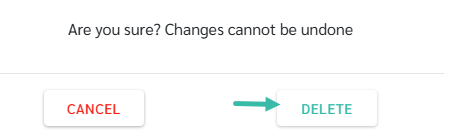
The system will ask if you are sure you want to delete the data, as it cannot be recovered once deleted.
To delete, click Delete to confirm that you want to delete the data.
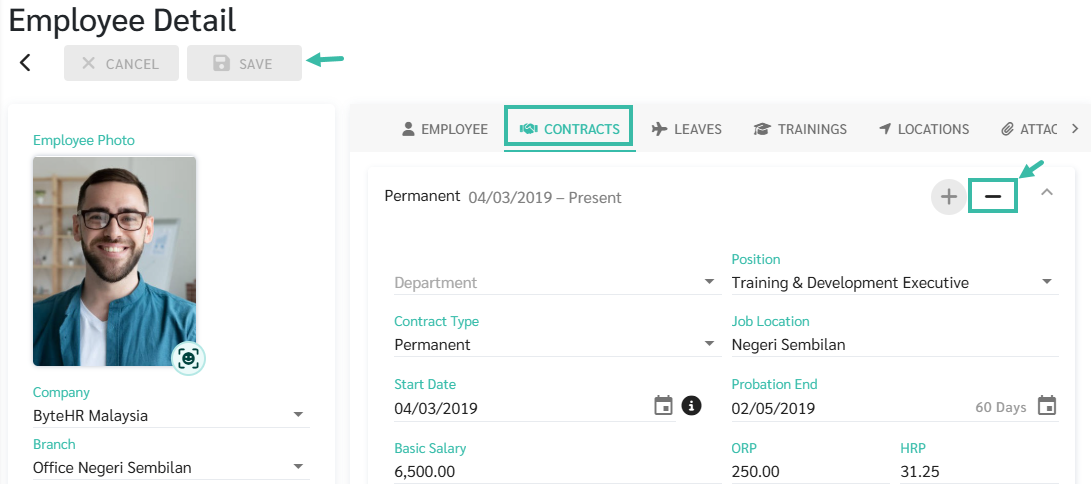
- If an employee has an existing employment contract, you must delete that contract first.
-
Go to the employee's contract, click the delete (-) button, and Click Save.
-
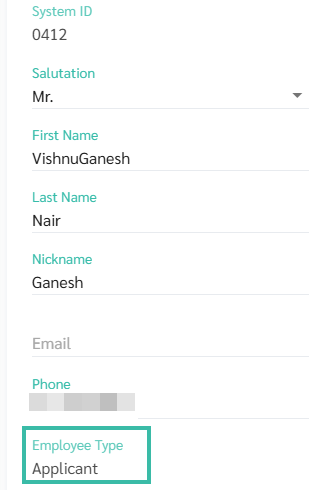
The Employee Type will be updated to "Applicant," and you can then delete the employee from the system.
-
🚩Notes:
The system will not be able to delete employees if:
- The employee has an employment contract.
- The employee's name is listed in the Shift Schedule.
- The employee is listed as a manager.
- Payroll has already been calculated for employees.
💡 Caution: Deleting an employee from the database will have the following effects:
| Employees | The names and details of employees will be deleted. |
| Requests | All types of employee requests will be deleted. |
| Timesheets | The employee Timesheet could not be loaded. |
| Payslip | The employee's payslip cannot be viewed. |
| Standard Reports | The reports will not include employee information. |
| Government Reports | The reports will not include employee information. |