
End of Contract
How to End Employee's Contract
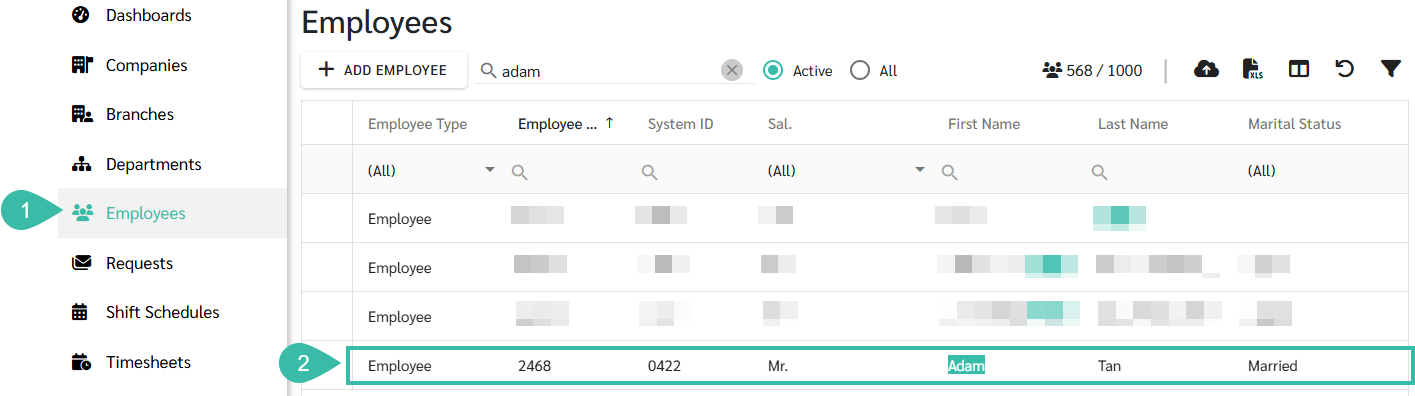
- Go to Employees tab.
-
Select an employee you would like to update the Contract End details.
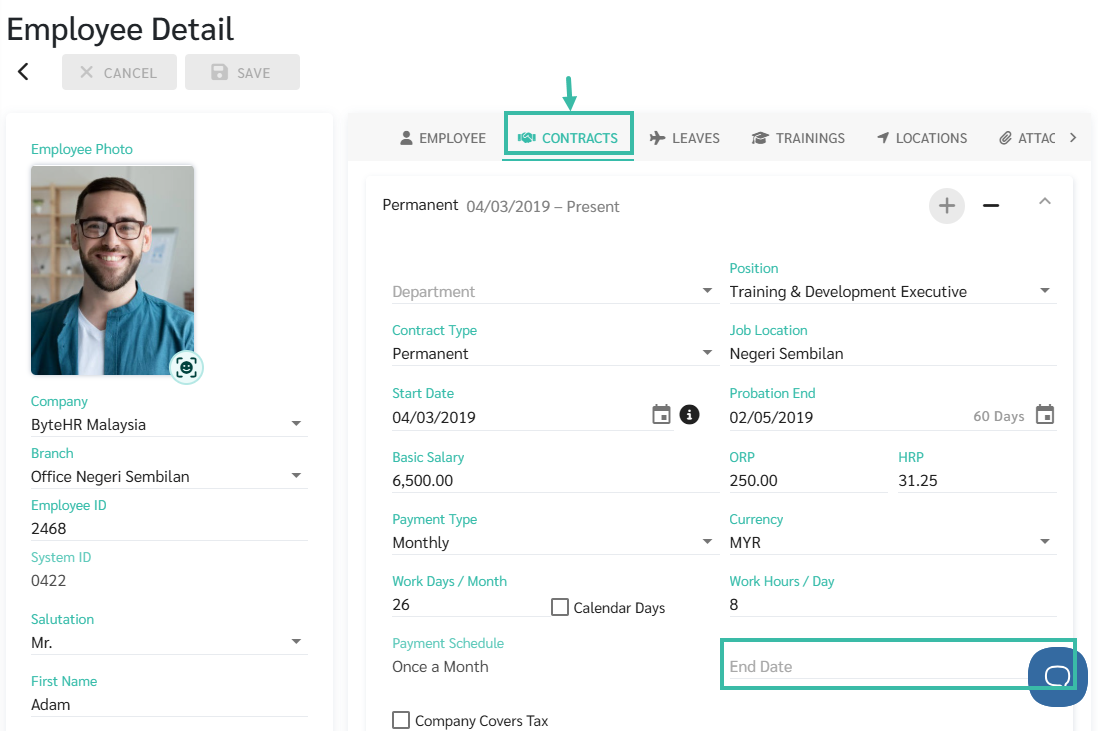
- In the Employee Detail page, click Contract.
-
Specify the End Date: The end of current employment contract.
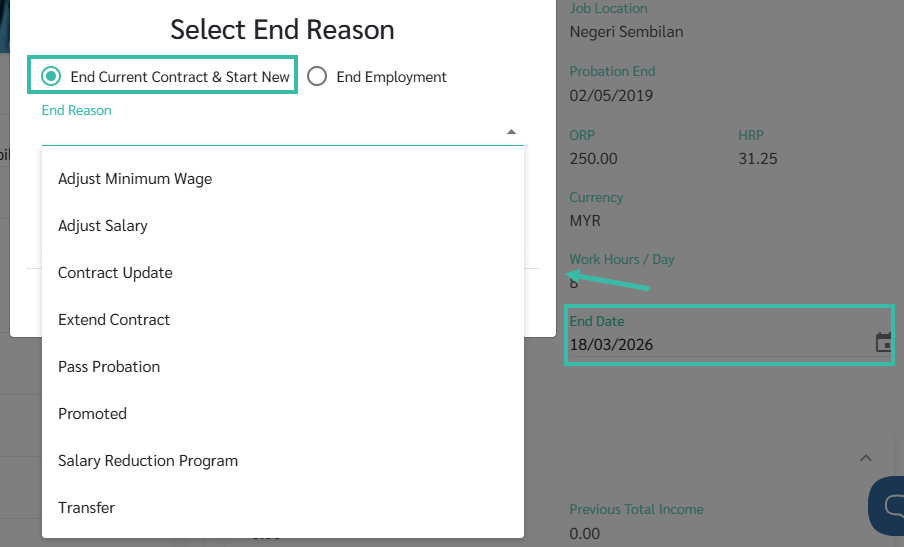
- Select the End Employment Type:
- End Current Contract & Start New. This option provides a number of End Reason to choose from:
- Adjust Minimum Wage
- Adjust Salary
- Contract Update
- Extend Contract
- Pass Probation
- Promoted
- Salary Reduction Program
-
Transfer
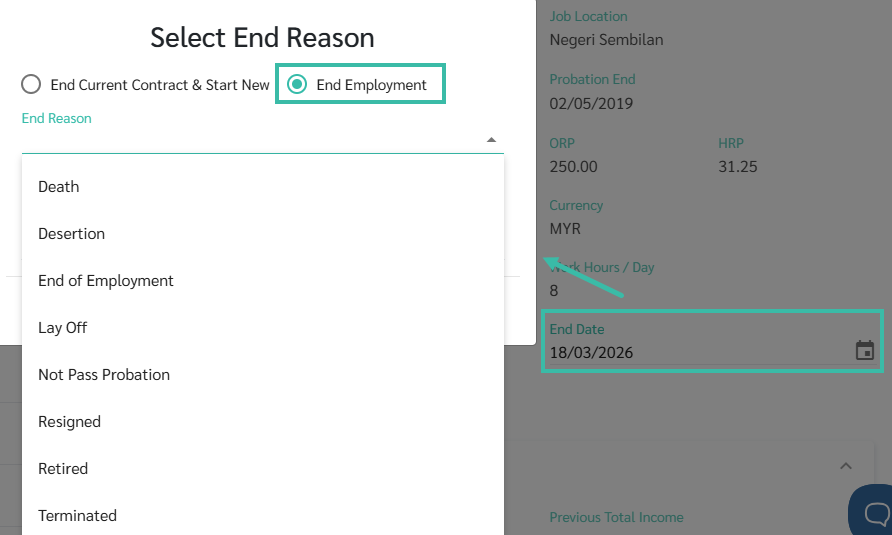
- End Employment. This option provides a number of End Reason to choose from:
- Death
- Desertion
- End of Employment
- Lay Off
- Not Pass Probation
- Resigned
- Retired
-
Terminated
- End Current Contract & Start New. This option provides a number of End Reason to choose from:
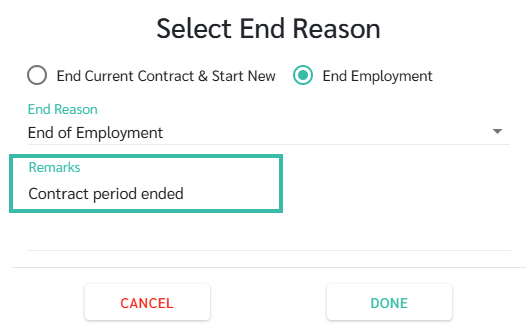
- Add Remarks (if any).
-
The Remarks will be displayed in the past contract within parentheses () after the end contract reason.

-
-
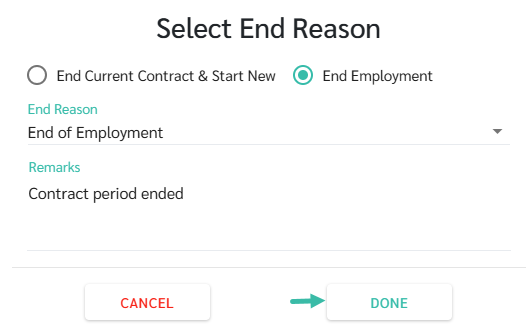
Once completed, click Done.
-
Once the End Date has been updated, the Employee Type will be changed to Ex-Employee, and the employee's user account will be deleted at 1:00 am of the following day.
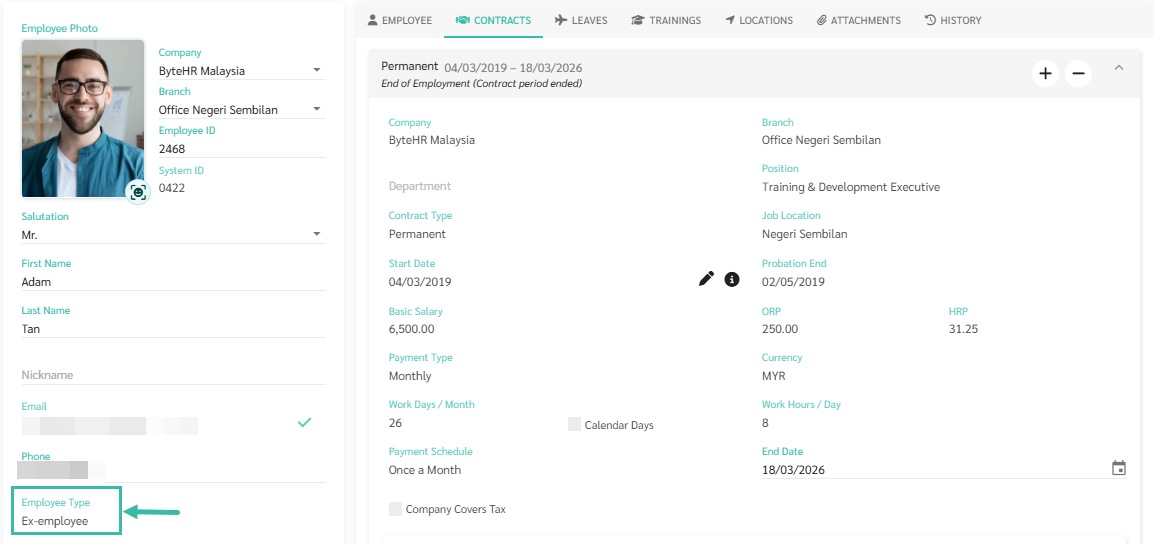
- The employee will no longer be able to access the ByteHR app.
- Example, If the specified End Date is on March 18,2026, the status will be updated to Ex-Employee after March 18,2026.
-
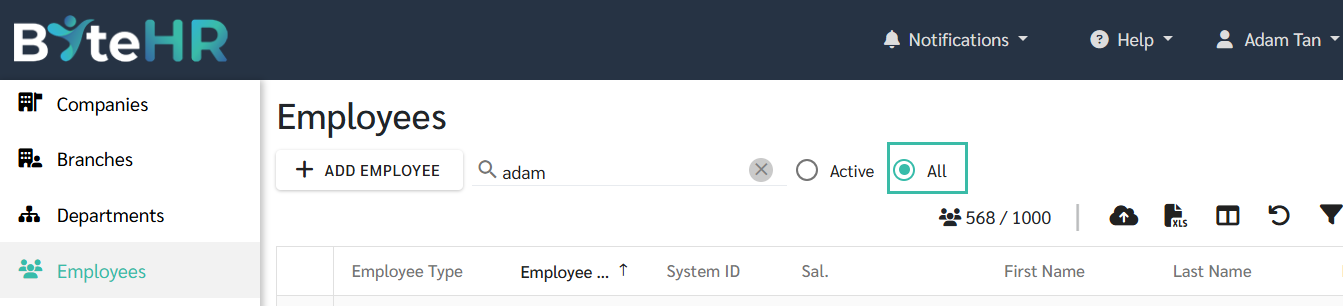
To search for employees with Employee Type: Ex-Employee, you must check the "All" checkbox to display the list of all employees.
Note:
- New employees cannot use the same Employee ID and Scan ID as existing employees (Ex-Employees).
- To reactivate an existing employment contract, you can remove the contract end date.
- To edit the reason for End Contract or the description, you can remove the end date and re-enter it.
- The system will automatically remove employees whose contracts have ended and who are listed as Ex-employees from the manager's list, and their user accounts will be deleted the following day.
- The system checks for user deletion at 1:00 AM every day.
-
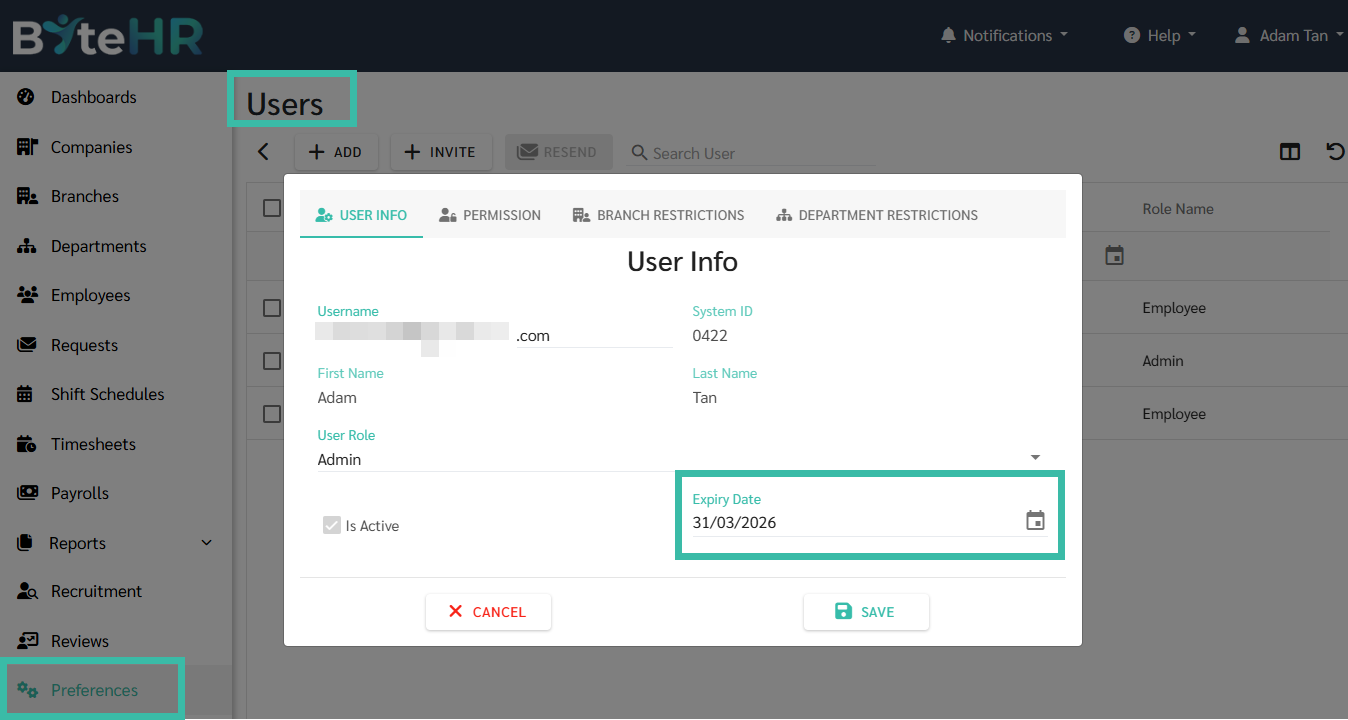
To postpone the user deletion date, you can edit the Expiry Date in the Preferences ->Users.
- If an employee returns to work, the admin can create a new employment contract in the old employee's history. However, the system will count the length of service from the first employment contract. Therefore, if you want the system to start counting the length of service anew, you must add the employee's history as a new employee.
