
Viewing Employee's Preview
How to View an Employee's Data Preview:
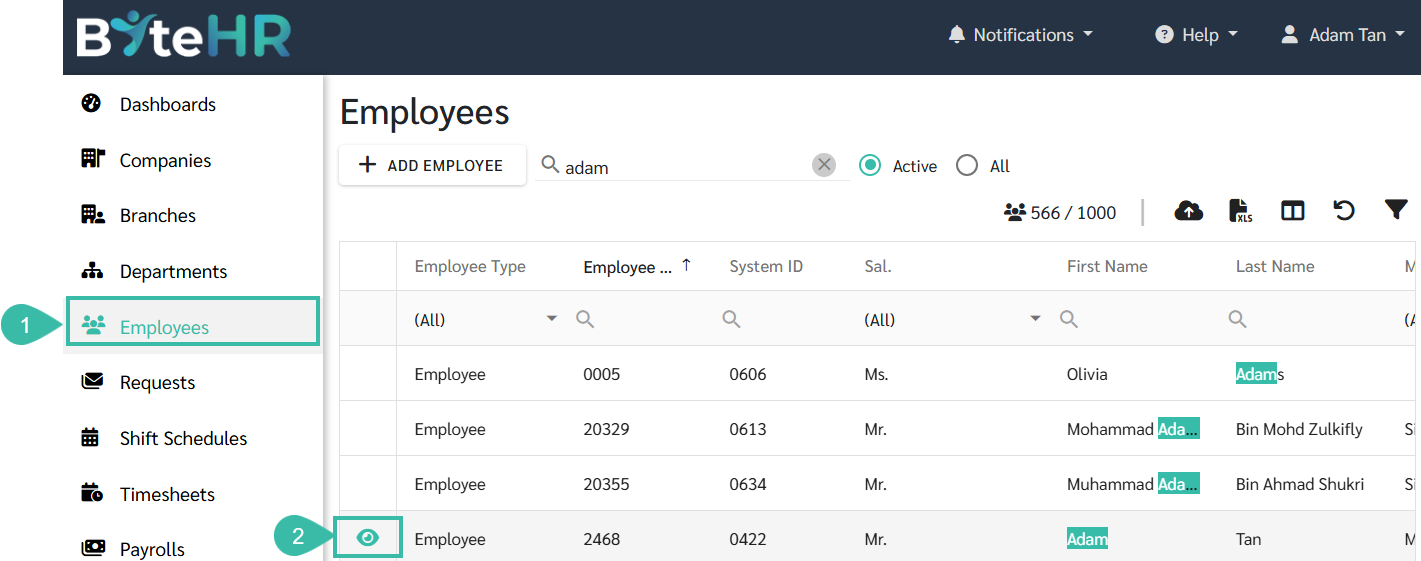
- Go to the Employees tab.
-
Hover your mouse over the employee's name you wish to view. An eye icon will appear on the left side.
-
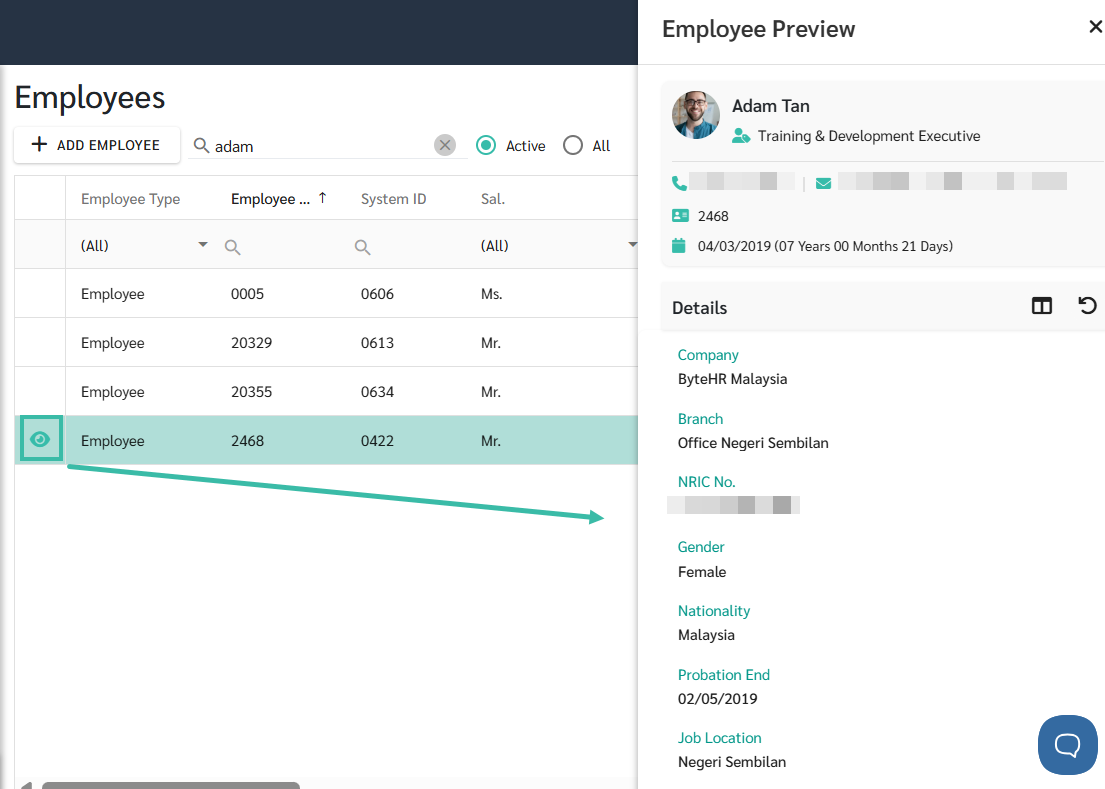
Click the eye icon to preview the employee's information. The details will be displayed on the right-side panel.
Employee Card
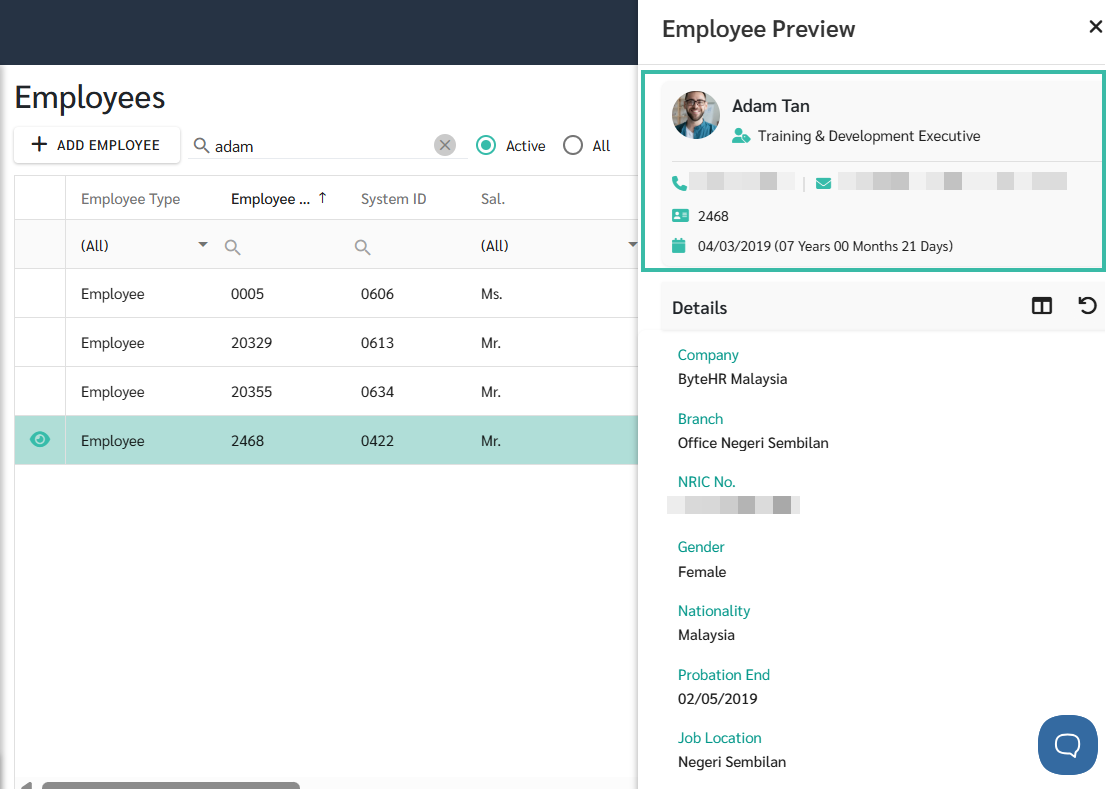
The Employee Card section will display the following details::
- Employee Name
- Department Name
- Phone number
- Employee ID
-
Start Date (including length of service in Years, Months and Days
Employee Details
In the Employee Details section, admin can customize the displayed information.
-
Click the Custom Chooser icon to add or remove fields shown in the Preview.
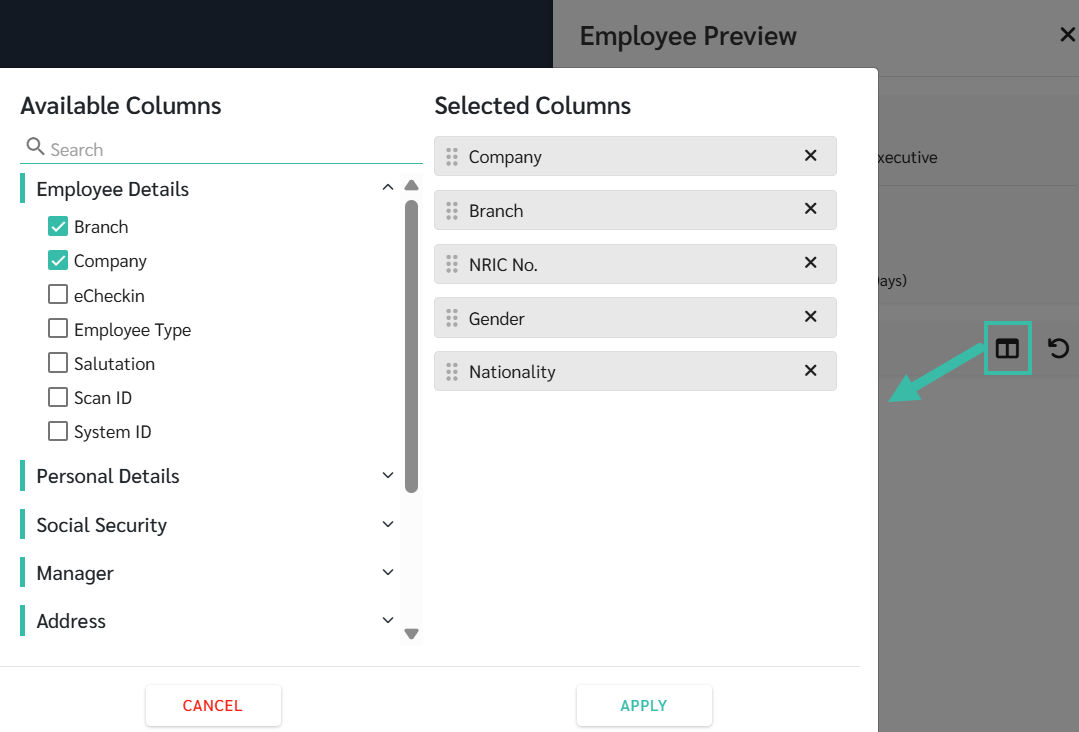
- For example, choosing Probation End and Job Location to be displayed in the Employee Preview.
- Tick the desired fields checkbox.
-
Click Apply.
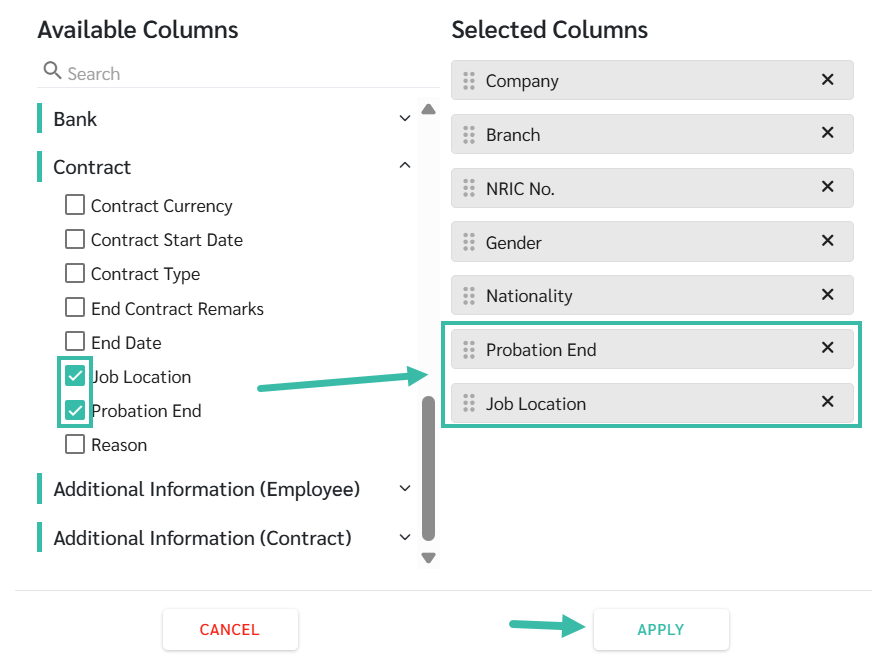
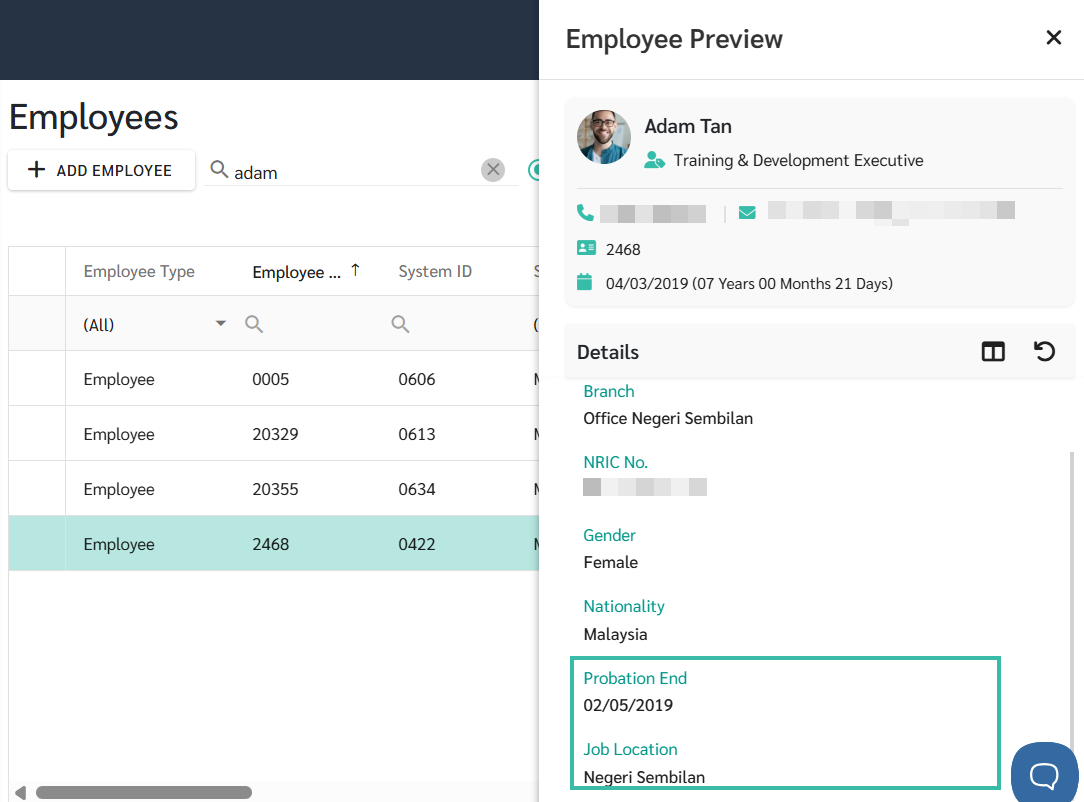
- For example, choosing Probation End and Job Location to be displayed in the Employee Preview.
-
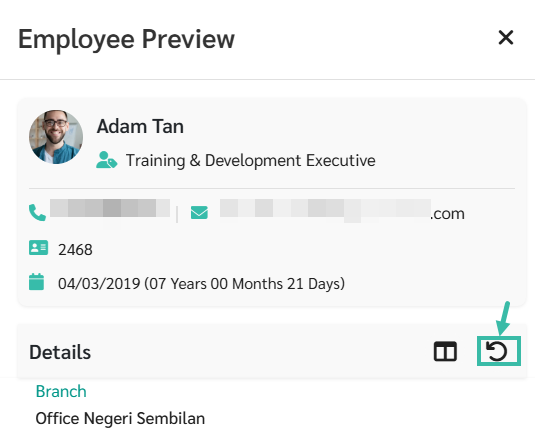
Click the Reset Layout icon to revert to the default system settings.
- Click the pencil icon or alternatively, click on the employee's name in the table to edit their details.
-
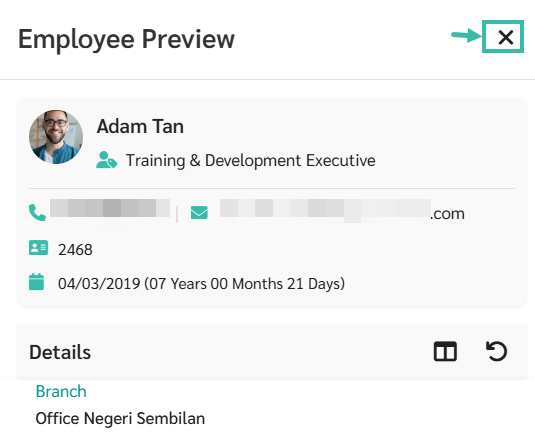
Click the cross icon to close the Preview window.
📄 Note:
- Any changes made via the Column Chooser in the Employee Preview will be saved individually per user.
- The customized layout will remain even when the user is logging in from another device.
-
To revert to default, use the Reset Layout option.

