
Upload Manager
Uploading a Manager can be done as follows:
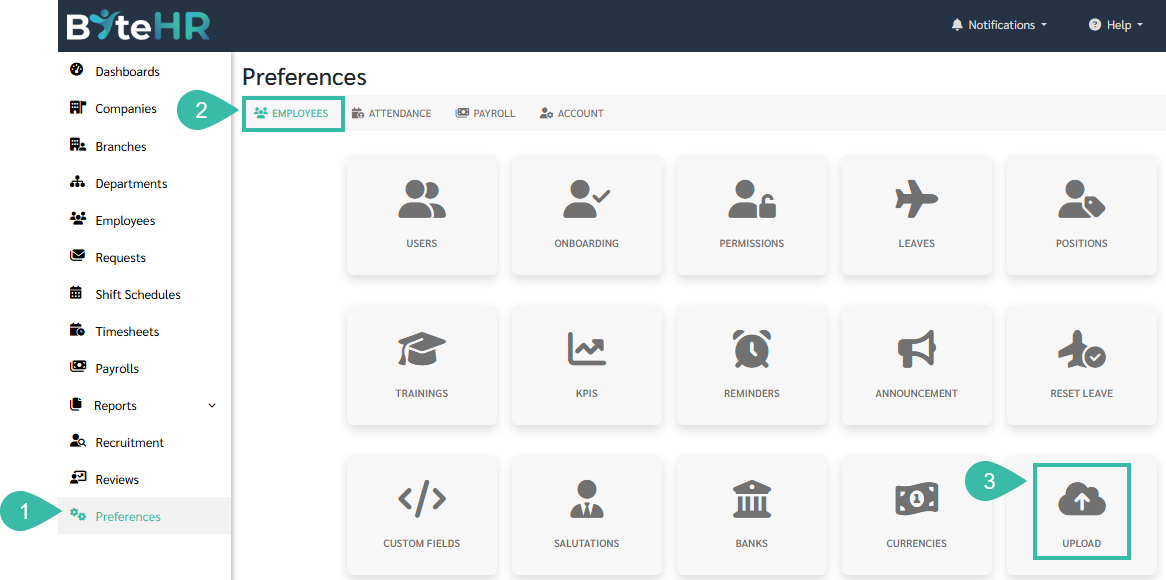
- Go to Preferences.
- Select Employee.
-
Click Upload.
-
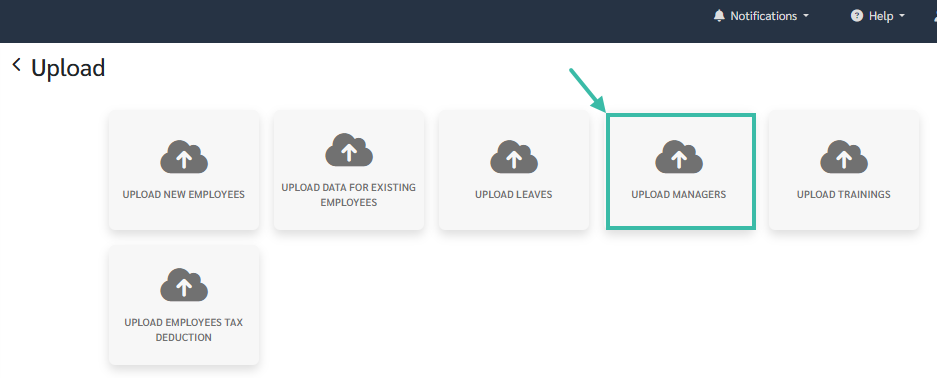
Select Upload Managers.
-
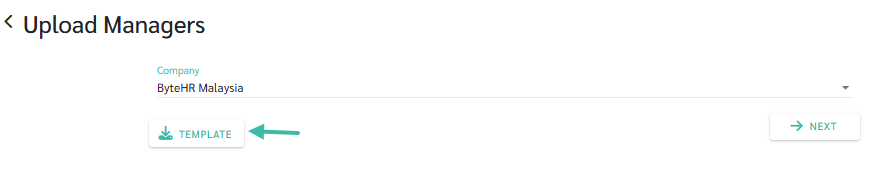
Click on Template to download the Upload Managers template.
-
Fill in the details in the template and save the file, including the employee ID, manager ID, and manager level.

-
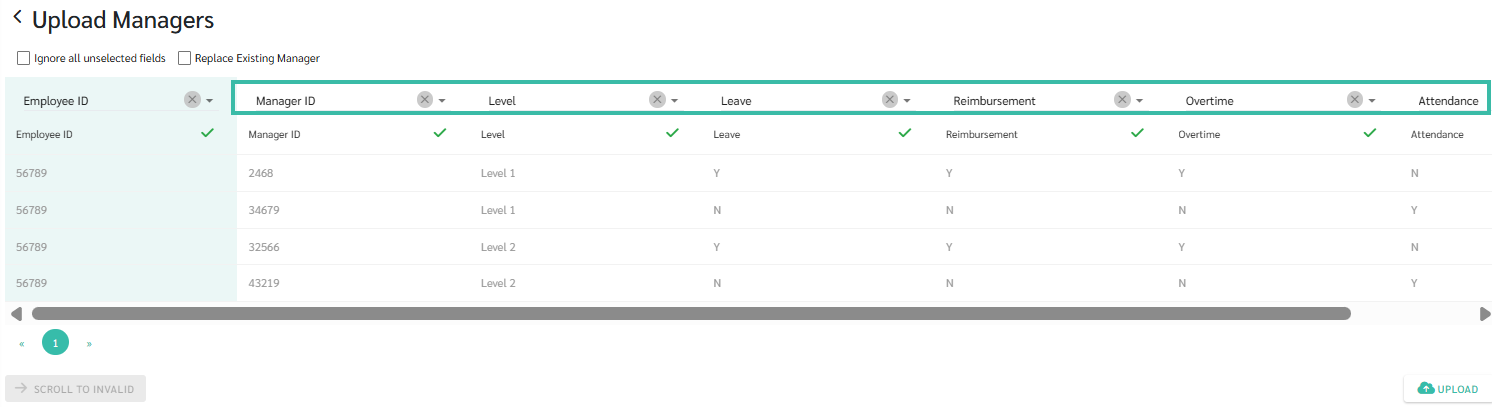
If you want managers to only be able to approve certain types of requests, you can add a "Request Type" column in the template.
example
Employee code 56789 has four managers as follows:
- Manager code 2468 is a Level 1 manager with the authority to approve Leave Requests, Reimbursement Requests, and Overtime Requests.
- Manager code 34679 is a Level 1 manager with the authority to approve only Attendance Requests.
- Manager code 32566 is a Level 2 manager with the authority to approve Leave Requests, Reimbursement Requests, and Overtime Requests.
-
Manager code 43219 is a Level 2 manager with the authority to approve only Attendance Requests.

- Once the template is completed:
- Select the Company.
-
Click Next.

-
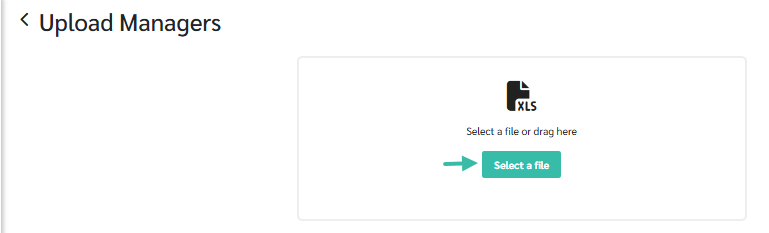
Select File to choose a file to upload.
-
Match the fields in each column.
-
To remove an employee's current manager, check the "Replace Existing Manager" box.
All of the employee's current managers will be removed and replaced with the information in the template. This can be used to remove specific managers from an employee's list.

-
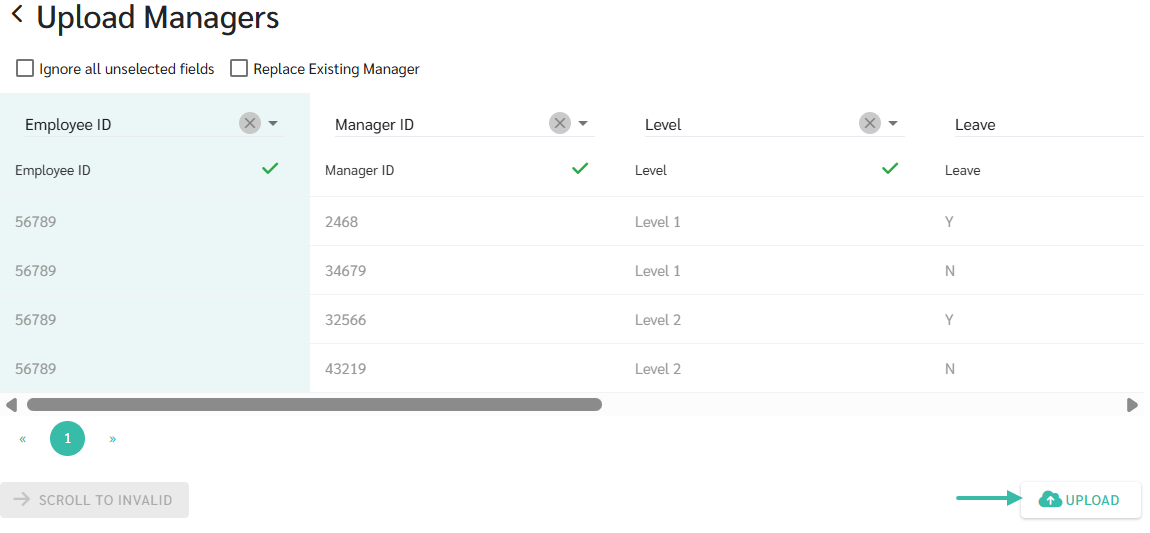
Click Upload.
📃Note
- Request type column includes:
- Leave Request
- Reimbursement Request
- Overtime Request
- Attendance Request
- Reviews
- If the manager has approval authority = Y. If the manager does not have approval authority = N
- If the manager has the authority to approve all types of requests, there is no need to add this column in the template.
- Except for the "Reviews" section, which requires the addition of a column for managers with permission.