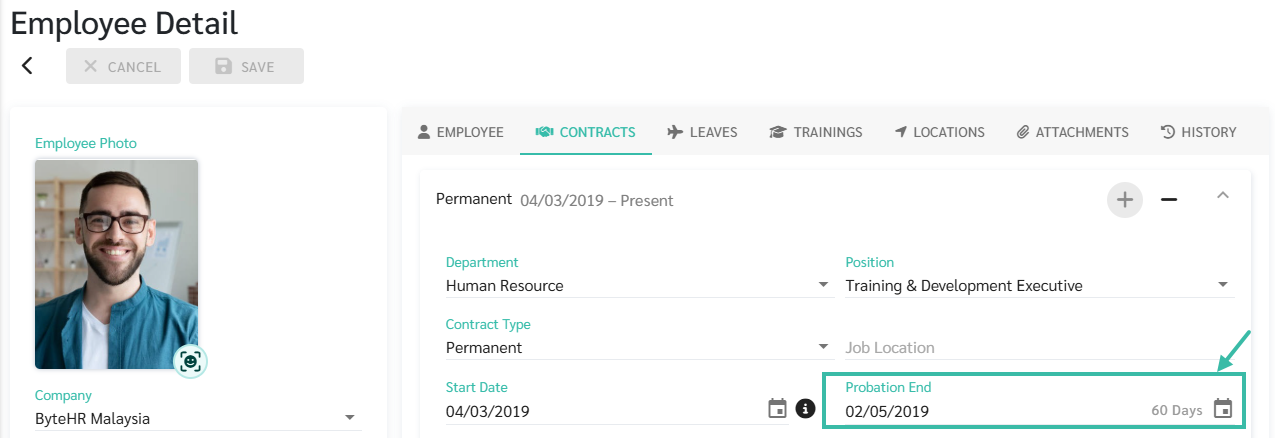
Probation End
💬 Note:
Admins can set the initial probation period at the company level to ensure consistency in setting up new employee data.
- Go to Company > Employee Settings.
- This setting will only affect newly created employees and will not impact existing employee data.

You can enter Probation period information in ByteHR in two ways:
- Directly in the Employee Contract - Enter the Probation End date.
- Upload New Employees/ Upload Existing Employees
Method 1: Directly in the Employee Contract - Enter the Probation End date
To add the employees Probation End Date:
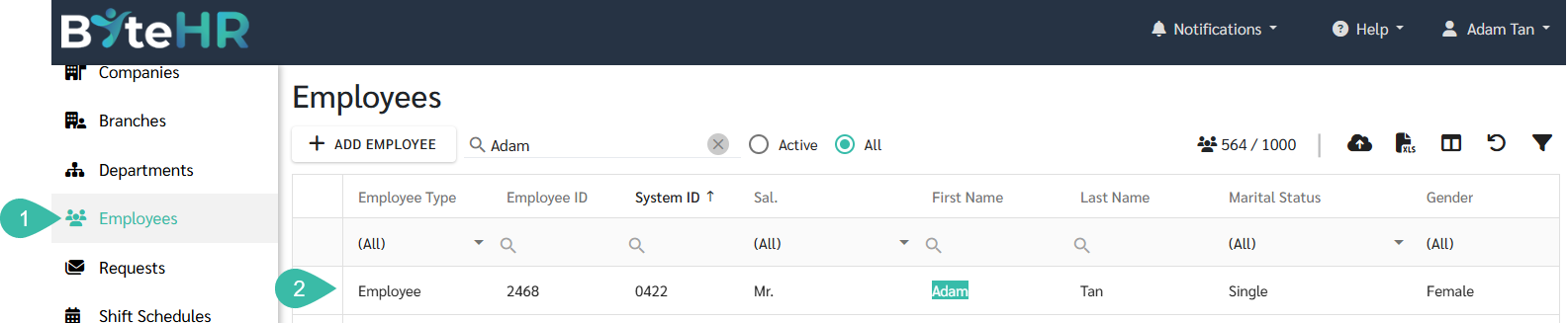
- Go to Employees tab.
-
Select the desired employees you would like to update the Probation End Date.
-
Click Contracts.
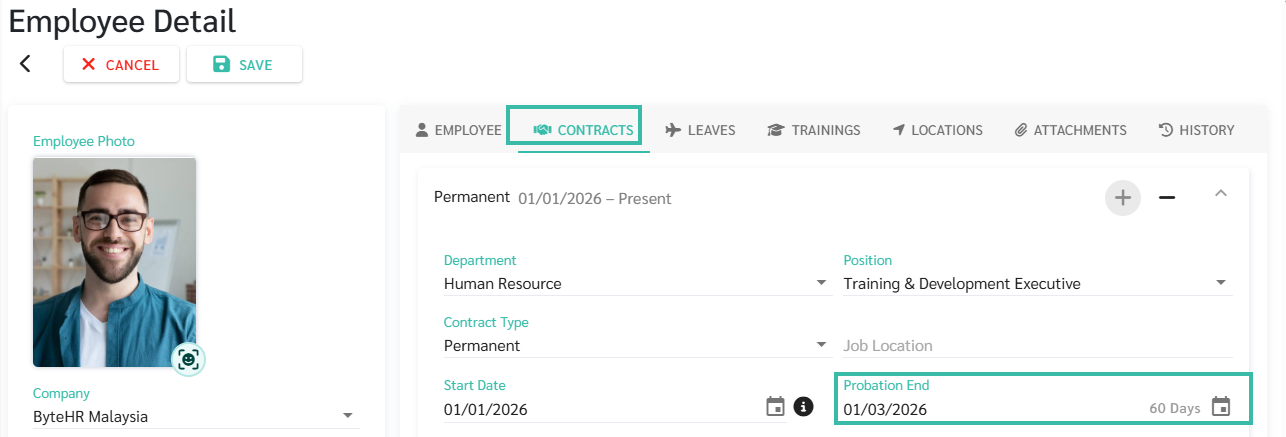
- In the Probation End field:
- Select the number of days for the probation period OR,
- To select a number of days, click the number in the calendar bar.
-
The system will automatically calculate the probation period end date and display the number of days to the right of the field.
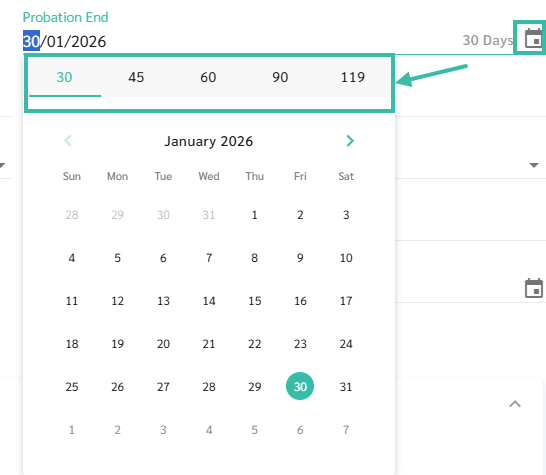
- Probation period end date.
- To select a date, click the date in the calendar.
-
The system will display the probation period end date to the left of the field and automatically calculate the number of days.
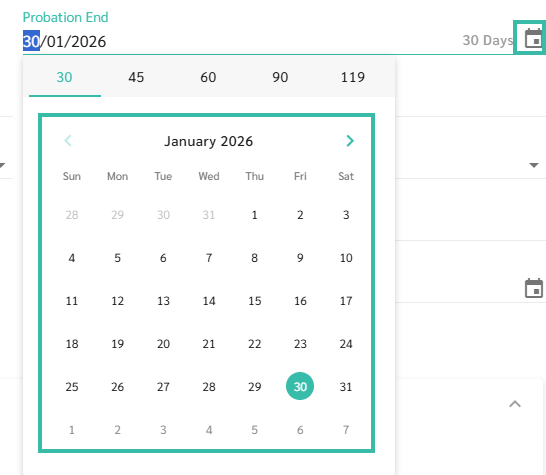
- Select the number of days for the probation period OR,
Method 2: Upload New Employees/ Upload Data for Existing Employees
To upload the employees Probation End Date:
- Navigate to Preferences.
- Select Employees.
-
Click Upload.
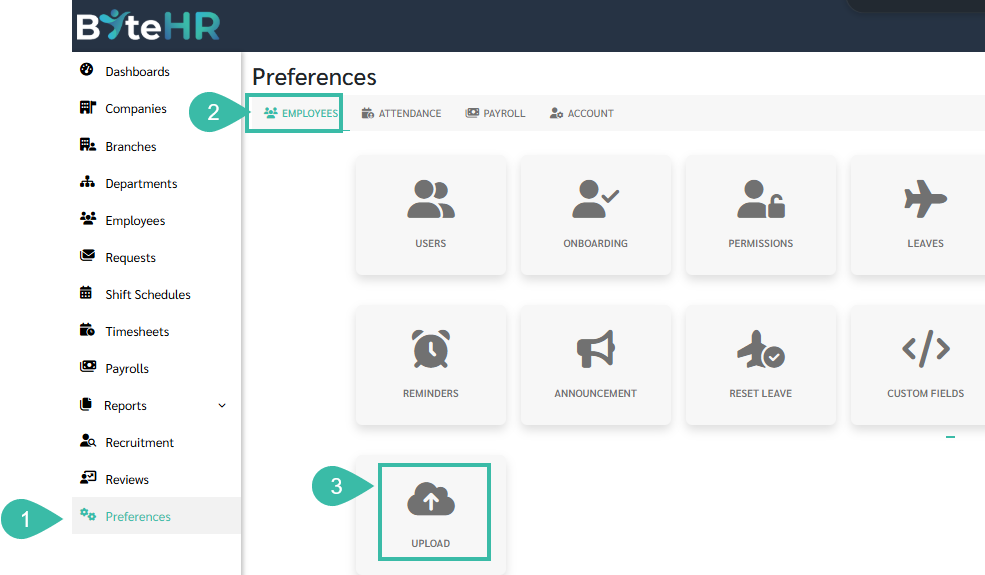
- Choose Upload New Employees or Upload Data For Existing Employees.
- Upload New Employees:
- Select this Upload type, if the employee is not yet in the system.
- The system will automatically set the default probation end date to 119 days.
- If you do not enter a probation end date in the uploaded file, and you want a different probation end date, it is recommended to enter the date in the Probation End field in the template file.
- Upload Data for Existing Employees:
- Select this Upload type, if the employees are already added in the system.
- For uploading data for existing employees, the system will not automatically set the default probation end date.
-
It is recommended to enter the date in the Probation End field in the template file.
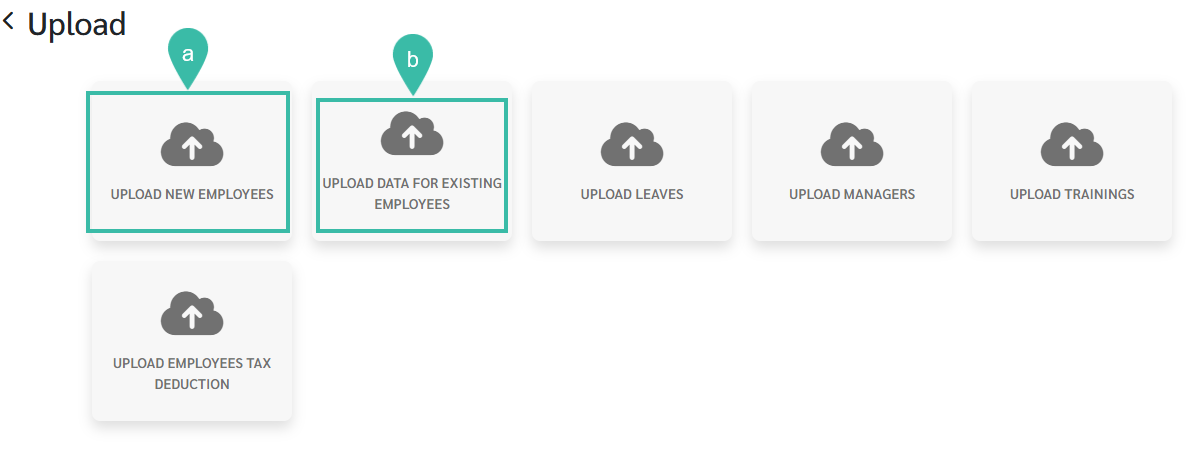
- Upload New Employees:
-
Click Upload. Once the Upload is successful, the system will display the probation end date and the number of probation days in the Probation End field of the employee's employment contract.