Add Employees
💬 Note
Before adding employees, the company and branches must be established first, as the system does not allow employees to be without a branch and company.
How to Add Employees to the System:
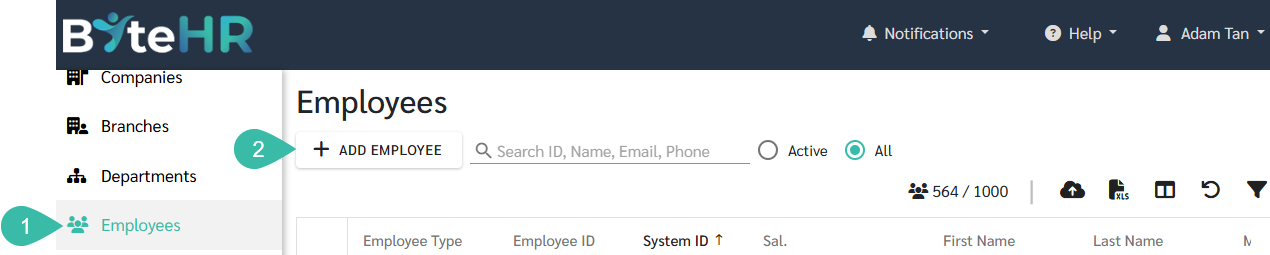
- Go to Employees.
-
Click on Add Employee.
-
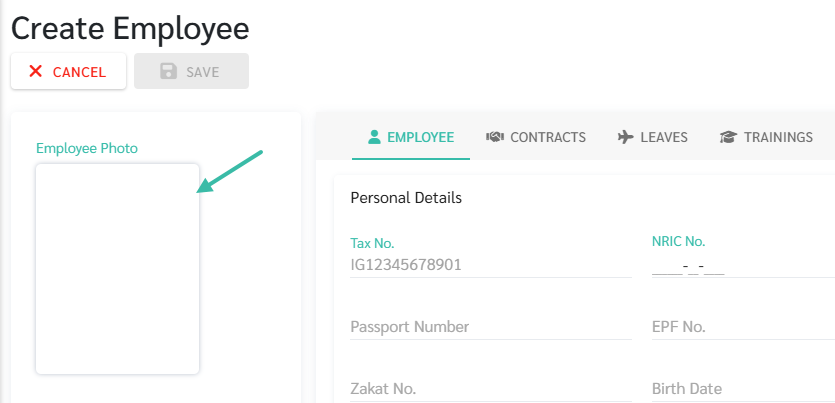
To attach an employee photo, click on "Employee Photo" and upload the photo file. The file size must not exceed 10 MB.
- Select the Company and Branch, and fill in all the required information on the various tabs, including Employee, Contracts, Leaves, Reimbursements, Trainings, Locations, and Attachments.
-
Click Save.
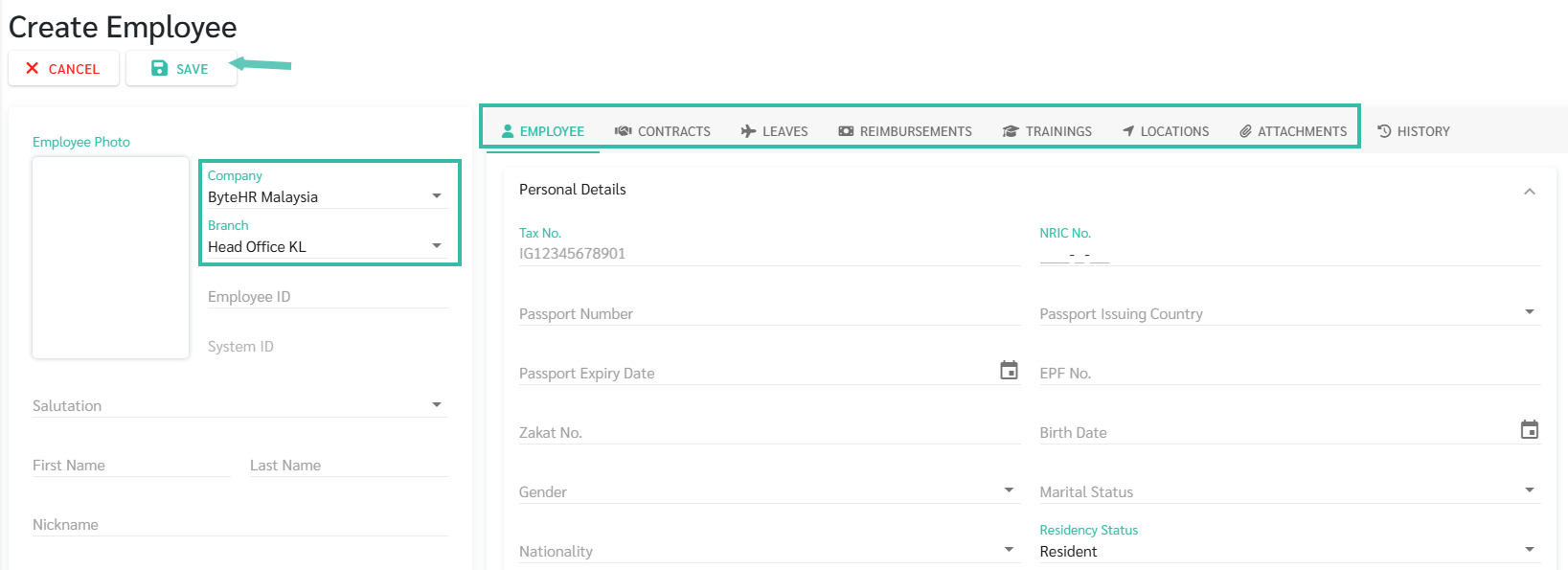
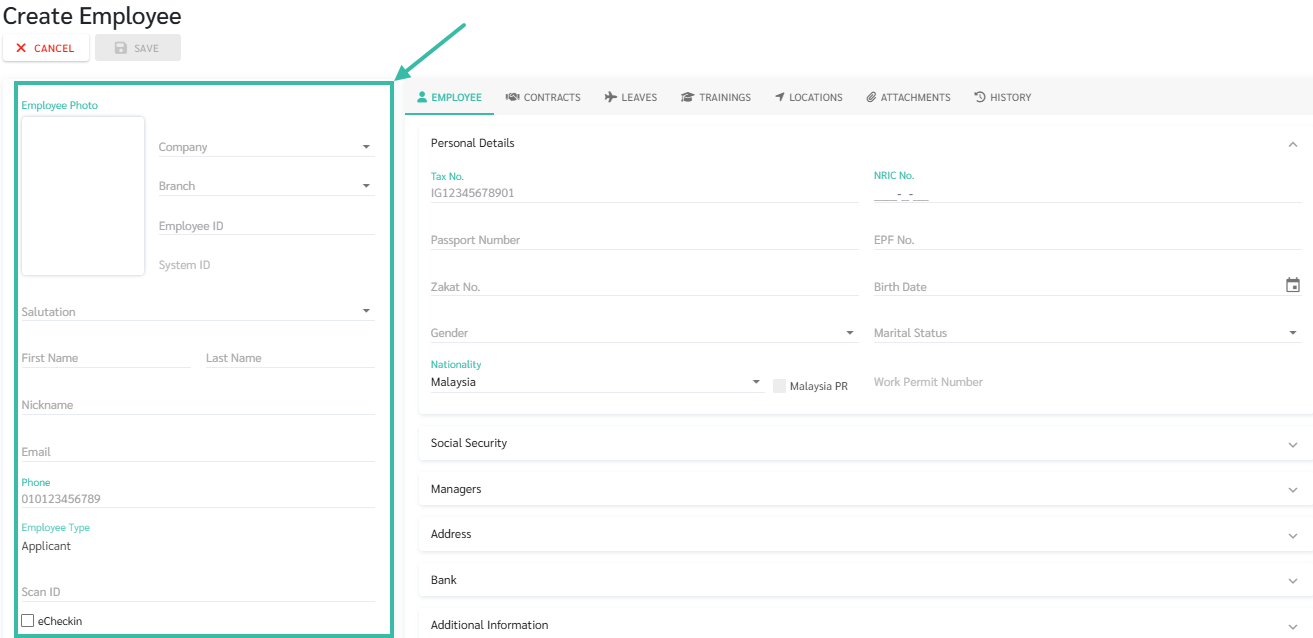
- General employee information includes:
- Company: Select from the companies already created in the system.
- Branch: Select from the branches already created in the system.
- Employee ID: Each employee must have a unique employee ID.
- System ID: This will be generated automatically by the system.
- Salutation: Choose from the salutations created in the Preferences page.
- First Name: Please enter the employee's English name.
- Last Name: Please enter your last name in English.
- Nickname: Enter the employee's nickname (limited to 10 characters).
- Email: Each employee must have a unique email address. This email will serve as their username for logging into ByteHR.
- Phone: Each employee must have a unique phone number
- Employee Type: There are 3 types:
- Applicant: Refers to employees who do not yet have an employment contract in the system.
- Employee: Refers to employees whose employment contracts have been added to the system.
- Ex-Employee: Refers to employees whose employment contract has expired.
- Fingerprint Scan ID: If a fingerprint scanner is used, enter the employee's fingerprint scan ID. This ID must match the one stored in the scanner, and each employee's fingerprint scan ID must be unique.
-
eCheckin: Tick the eCheckin box to enable the Sign In/Out button for employees. Employees must be listed in the shift schedule to see the sign-in/sign-out button.
- Attachments tab
-
Click "Select File" to attach employee documents to the system, such as educational records, copies of NRIC, etc.
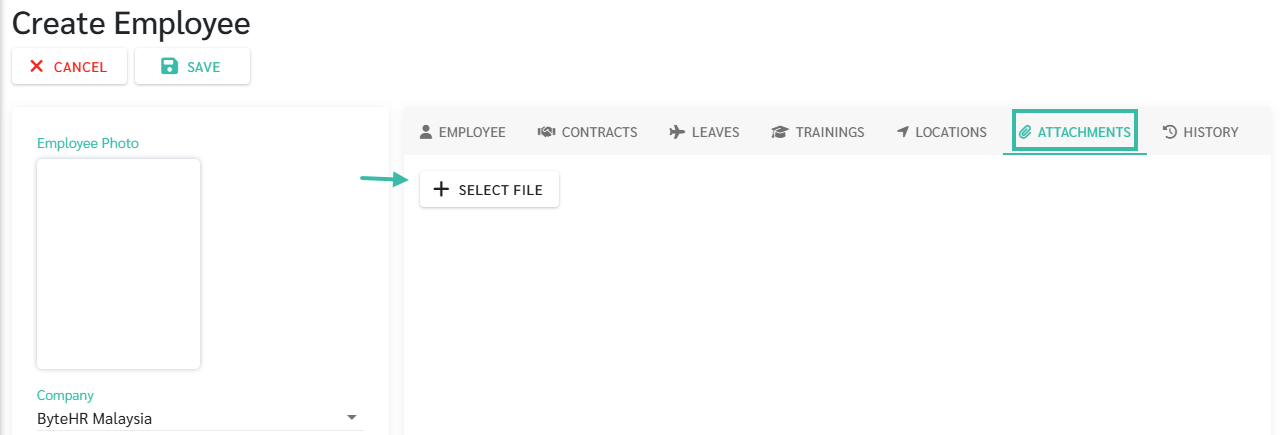
- File size must not exceed 7 MB, and there is no limit on the number of attached documents. Supported file types include Word, Excel, PDF, Zip, and image files (JPEG, JPG, PNG, GIF, TIFF, PSD, PDF, EPS, AI, INDD, RAW).
-
📃Note
-
The system will display the current number of employees versus the maximum number of employees on the Employees tab.

-
If the current number of employees is nearing the maximum limit, the system will display the number of employees in red.

-
If an employee's nickname is entered, the system will display it after the employee's name. For example: