
Two Factor Authentication (2FA)
Once an employee or admin is invited to access ByteHR, the first time they log in via their device (computer or mobile phone), ByteHR will send an email to set up your account.
How to Enable/Disable Two Factor Authentication (2FA):
- Go to the Preferences.
- Select Account.
-
Click Settings.
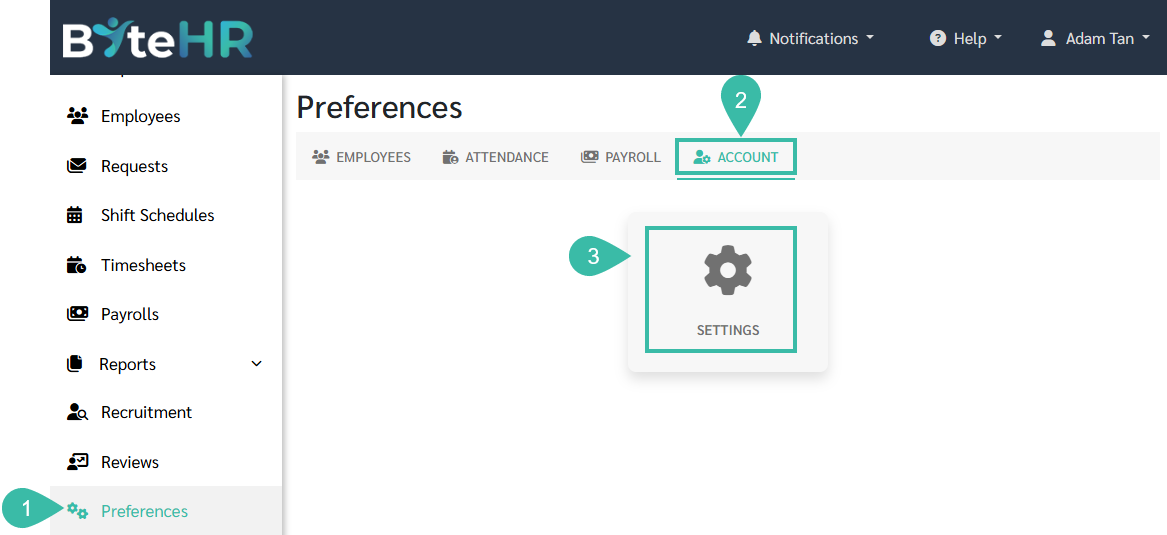
-
You can enable/disable two-step verification (2FA).
📃Note:
- The default is "2FA disabled"
-
Enabling/disabling 2FA will affect all employees, including admin.
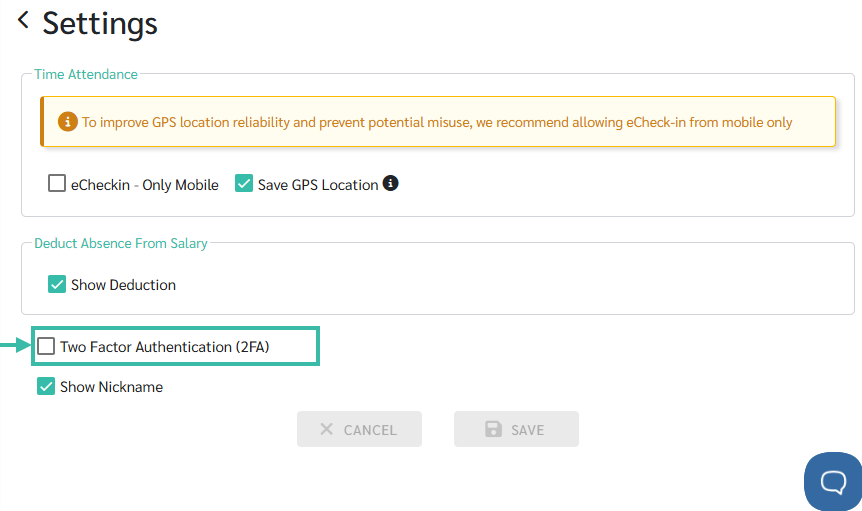
- After enabling 2FA, employees and admin can access ByteHR in two ways:
- Logging in via a web browser on a computer.
- Logging in via the mobile application on a mobile phone.
Two Factor Authentication via Web Browser:
-
Enter your username and password, click "Log In" to proceed.
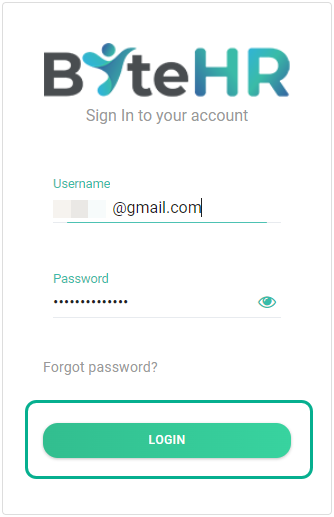
-
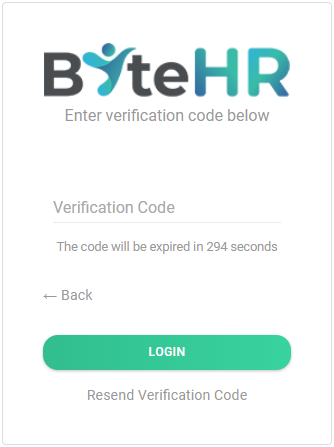
The system redirects you to "Enter Verification Code Below" page and sends a verification code to your email address registered as the employee's username.
If the code expires, the user must click "Resend Verification Code" for a new verification code to be sent to your email.
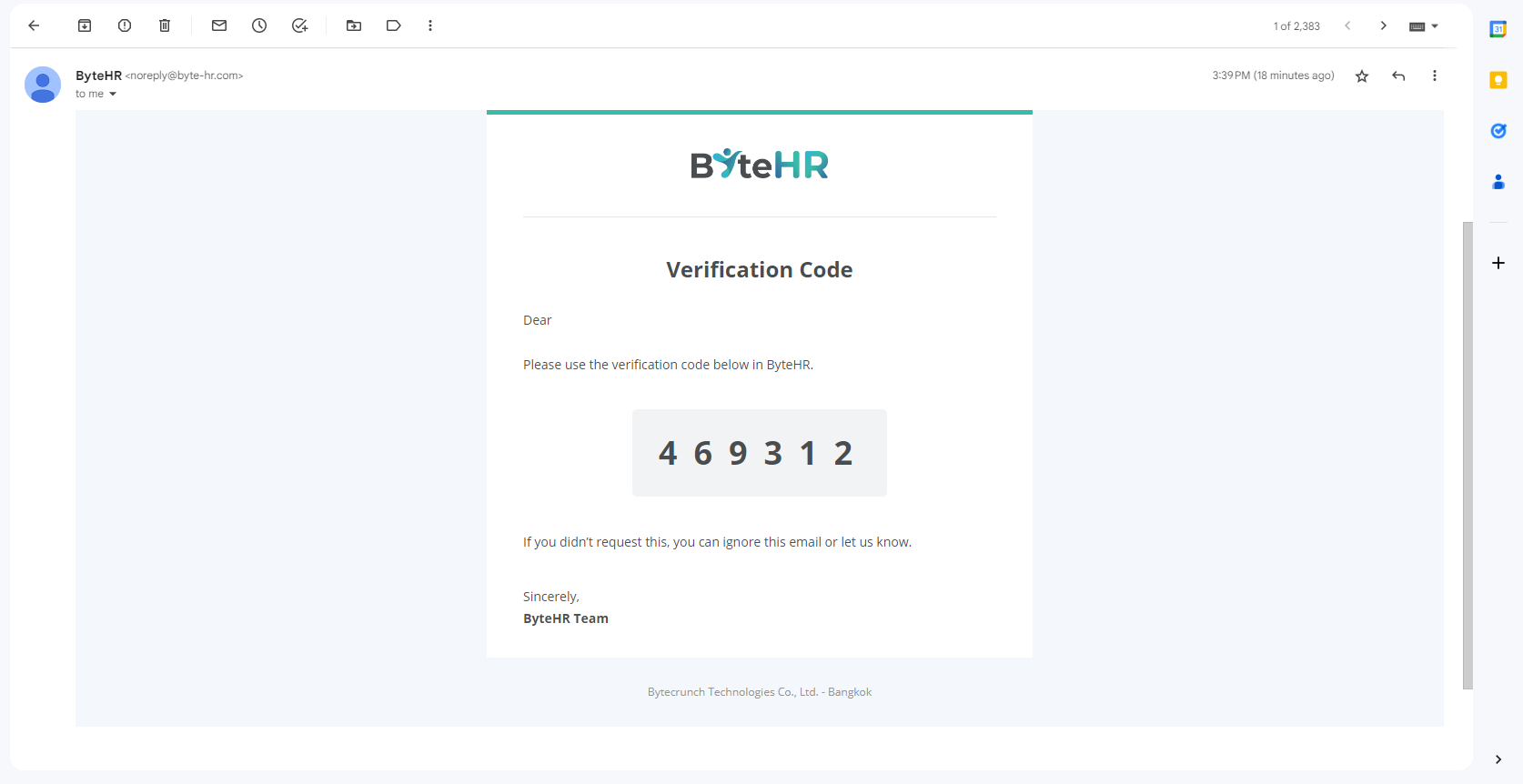
-
The employee should enter the Verification Code sent to your email in the Verification Code field.
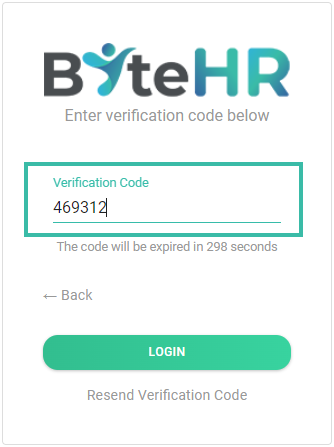
- Upon successful login, the system will save the employee's device as a registered device. "Trusted Devices" and employees do not need to verify their identity on subsequent logins.
📢 Important Note:
- If an employee accesses the system via a different browser or does not log in through a trusted device after 30 days, the system will prompt the employee to perform two-factor authentication again on their next login.
Two Factor Authentication via ByteHR Mobile App:
-
Enter your username and password, click "Log In" to proceed.
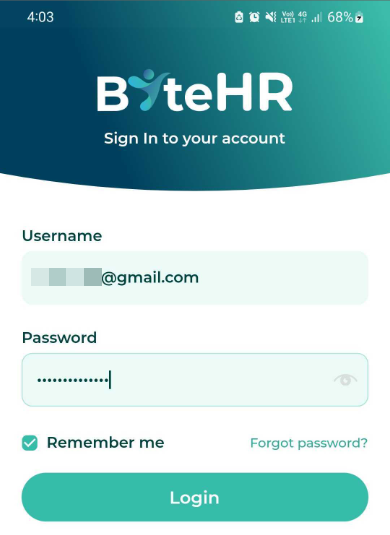
-
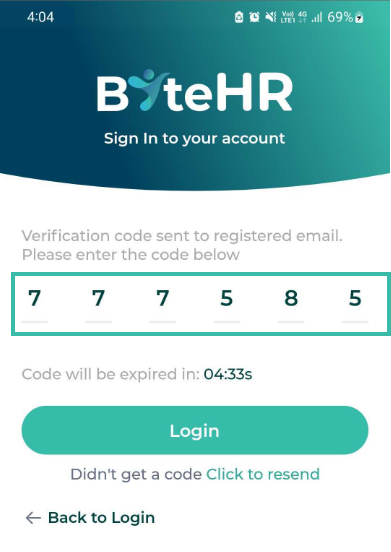
The system displays a page to verify your identity and sends a verification code to your email address registered as the employee's username.
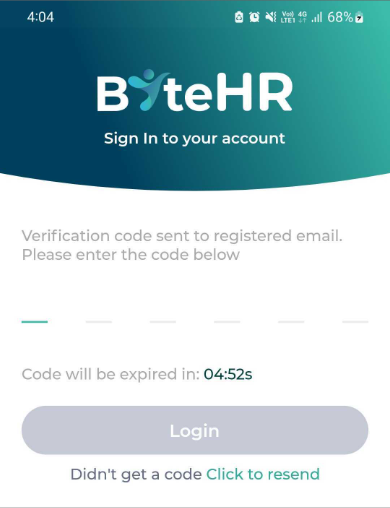
If the code expires, the user must click "Didn't get a code Click to resend" option for a new verification code to be sent to your email.
-
In the verification page, the employee should enter the Verification Code sent to your email.
- After successful login, the system will register the employee's device as a "Trusted Device," and the employee will not need to verify their identity on subsequent logins.
📢 Important Note:
- If the employee deletes and reinstalls the app or does not log in via a trusted device after 30 days, the system will require the employee to perform two-step verification again on their next login.