
Set Up the Display of Salary Deduction for Absences
💬 Note
- Payroll is processed after the Timesheet is approved. The system will calculate Payroll based on the number of days the employee works.
- ByteHR's default setting is that in the event of employee absence, the system will deduct the employee's salary but will not display the Absence Deductions under Deductions.
If you want to display the Absence Deduction separately from your salary, you can set it up as follows:
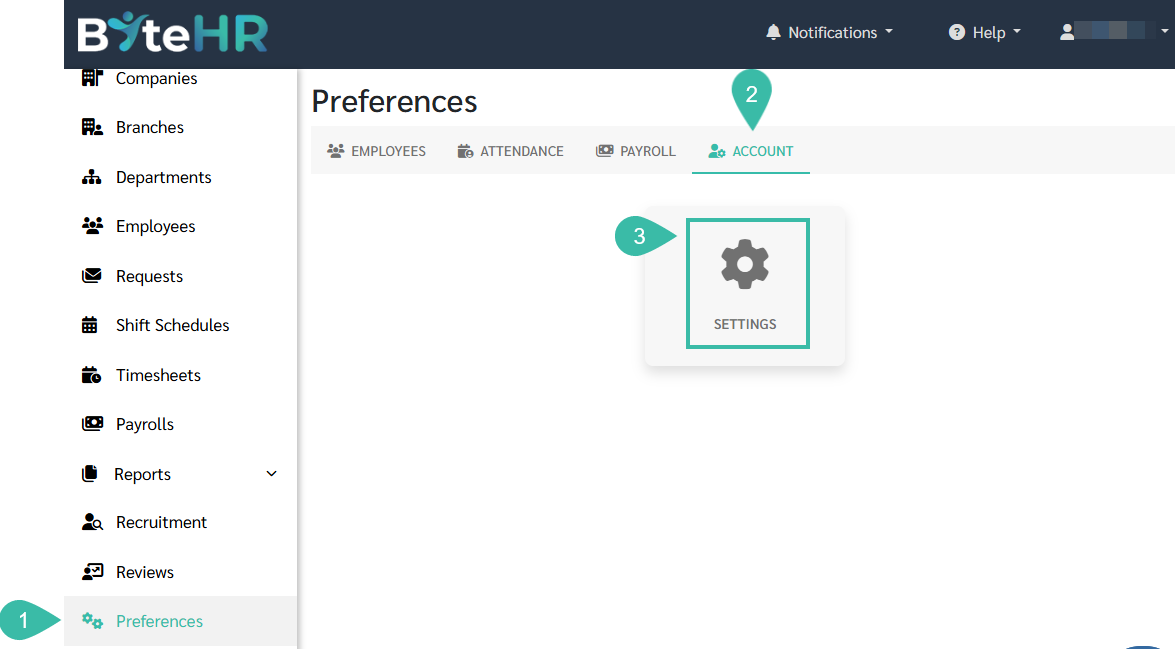
- Click Preferences.
- Select Account.
-
Click Settings
-
Under the "Deduct Absence From Salary" tick the Show Deduction checkbox.

-
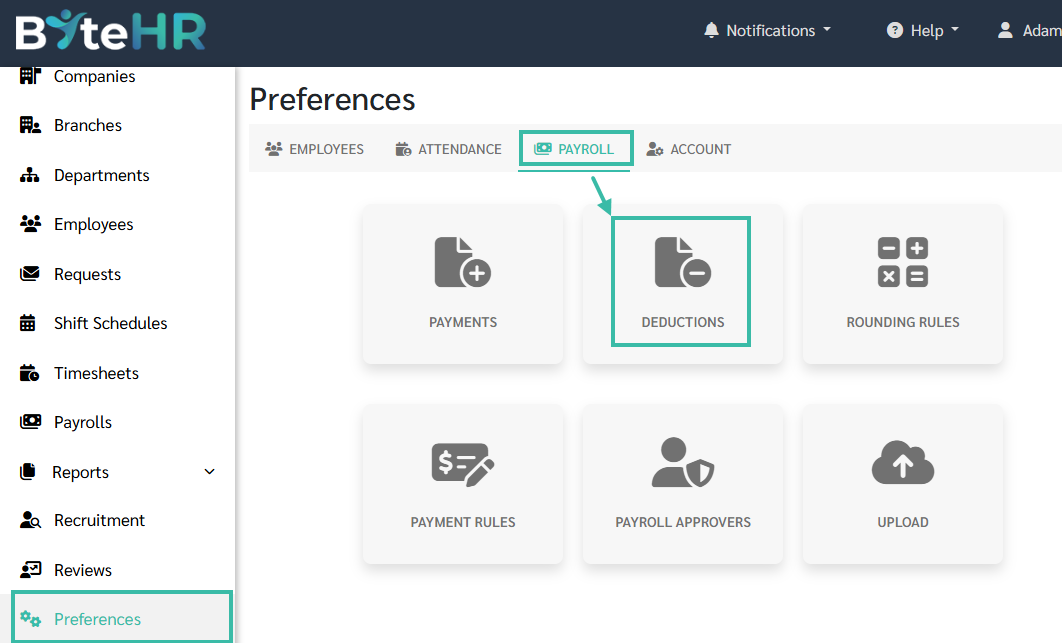
Head over to the Preferences, Select Payroll and click Deductions.
-
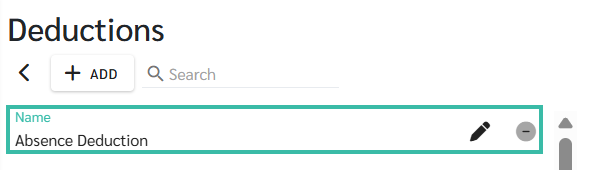
The system will display the Deduction Type Absence Deduction.
-
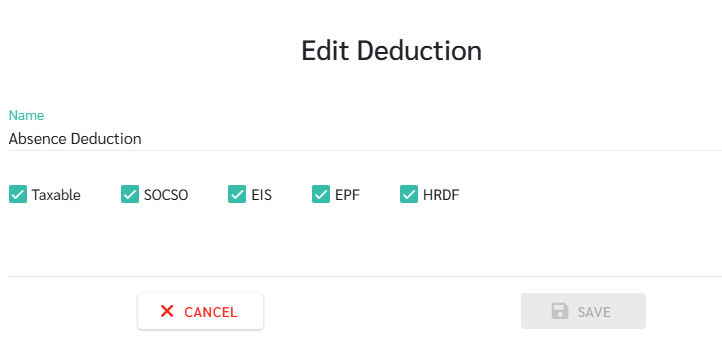
You can configure settings related to Tax, SOCSO, EIS, EPF, HRDF.
-
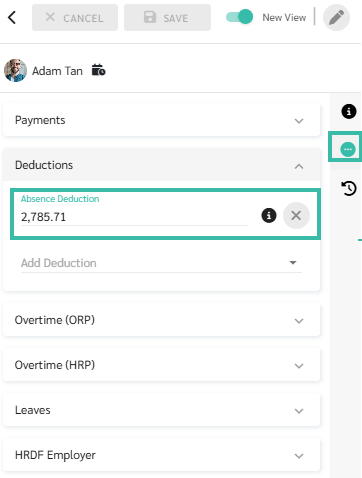
If "Show Deduction" is enabled, the system will display the employee's salary according to the employment contract, and will show deductions for absenteeism and unpaid leave under the "Deductions" section.
-
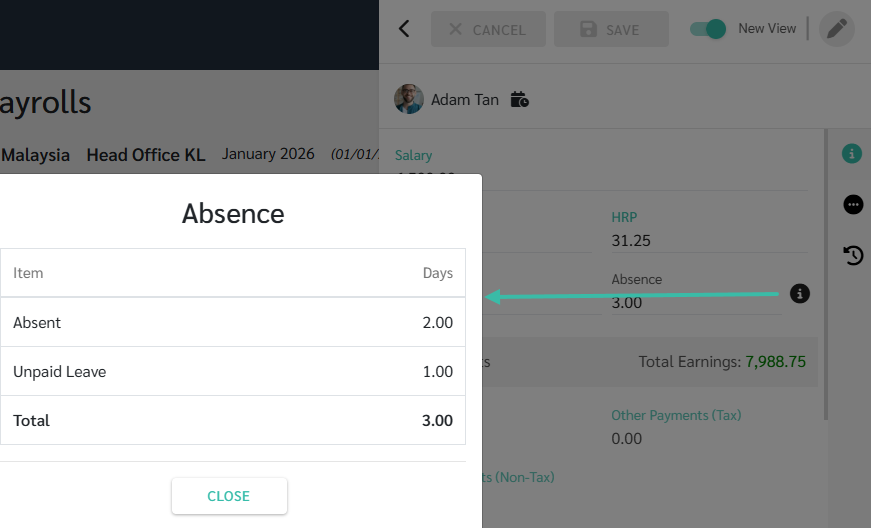
You can click on the Info Icon in the "Absence" field to view the number of days absent and unpaid leave for this payroll period.
⚠️ Caution
These types of deductions cannot be removed from the system. To hide these deductions from your salary, uncheck the "Show Deduction" box under "Deduct Absence From Salary" in the Settings section of the Preferences menu. These deductions will then be hidden from the Deductions page.
