Upload YTD Payrolls
💬 Note
If you started using the ByteHR app in the year, you can upload your salary details of the previous months into the system. These salary details will be included in the tax calculation for the current and subsequent months, and will be reflected in the year end reports like EA Form, CP8D, PCB II.
Here's how to upload your Pay details for the pervious months:
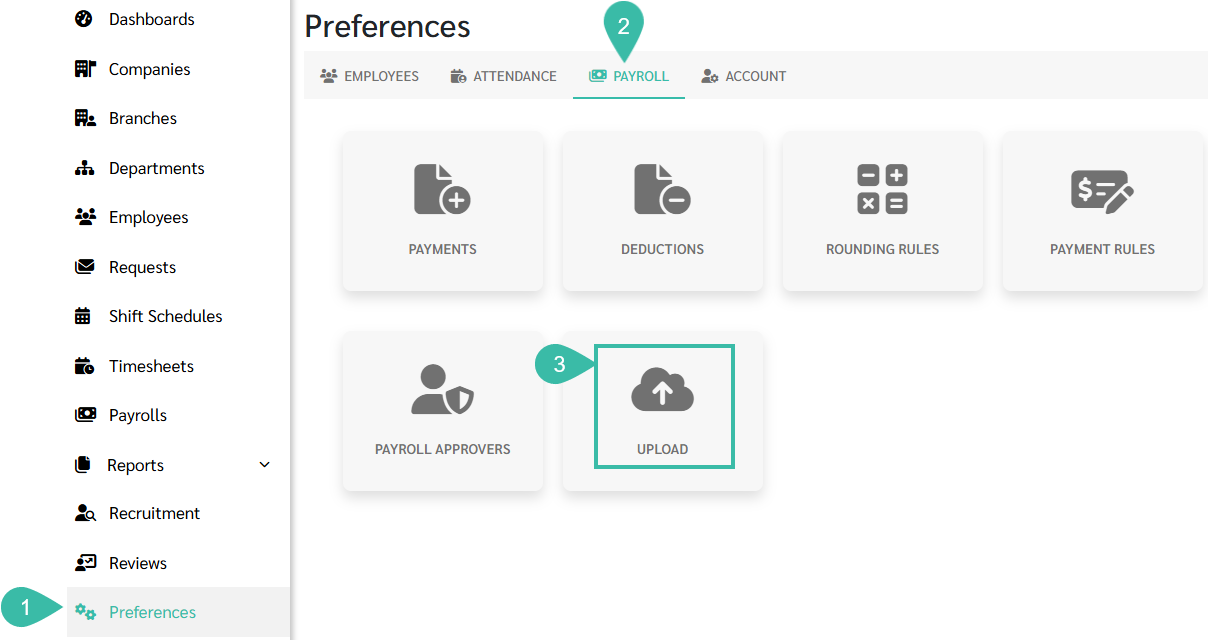
- Go to Preferences.
- Select Payroll.
-
Click Upload.
-
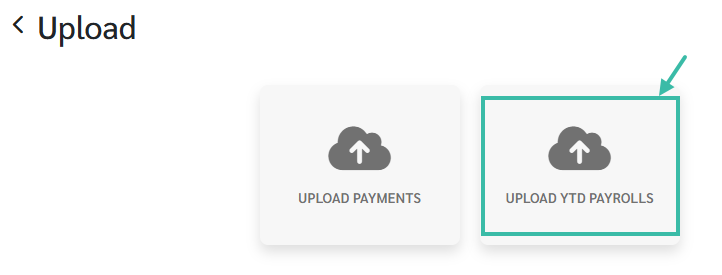
Go to Upload YTD Payrolls.
-
Click on Template to download the template.


- Fill in the details in the template and save the file.
-
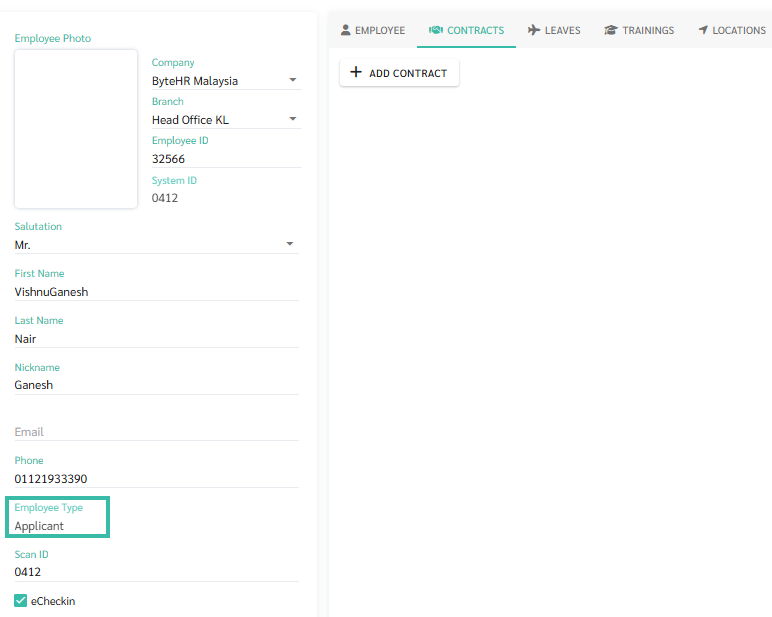
If the Employee Type is Applicant, you will not be able to upload YTD payrolls.
-
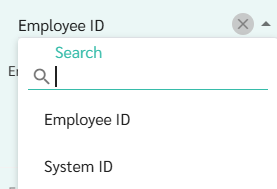
The Employee ID field can be filled in as either Employee ID or System ID, by selecting the column match that corresponds to the data in the template.
-
The sum of the Total Earnings column must equal Salary + Overtime + All other Payments.

-
The sum of the Total Deductions must equal SOCSO Employee + EIS Employee +EPF Employee + Zakat + Tax

-
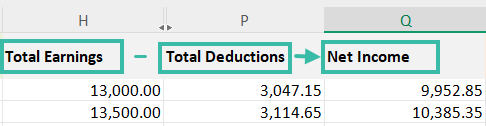
The Net Income column must equal Total Earnings - Total Deductions.
- Before uploading, please ensure that the Employee ID, Pay Period, and Pay Date are not duplicated in each row.
-
Example: A file that cannot be uploaded to the system.

-
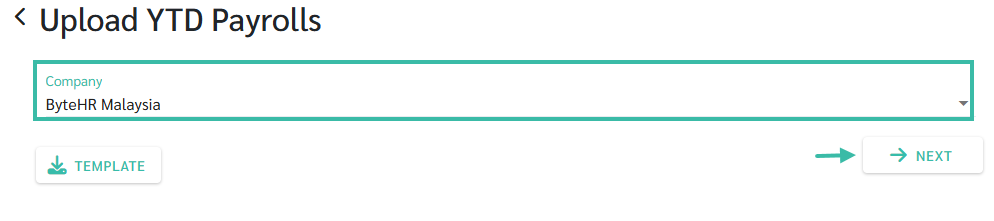
- Select the company where you want to upload new employees.
-
Click Next.
-
Select the file you wish to upload.
-
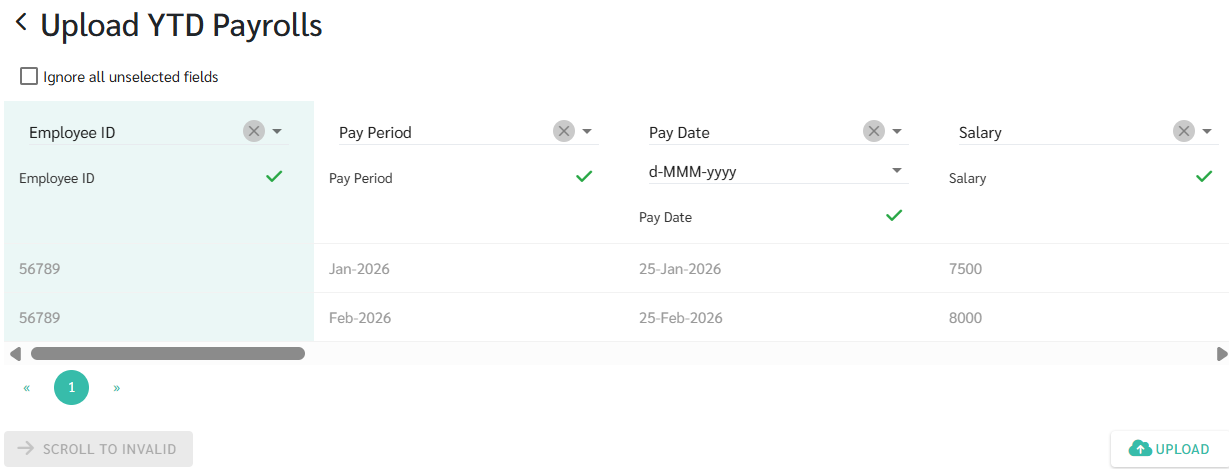
Map the fields according to the Columns in the Template and click Upload.
-
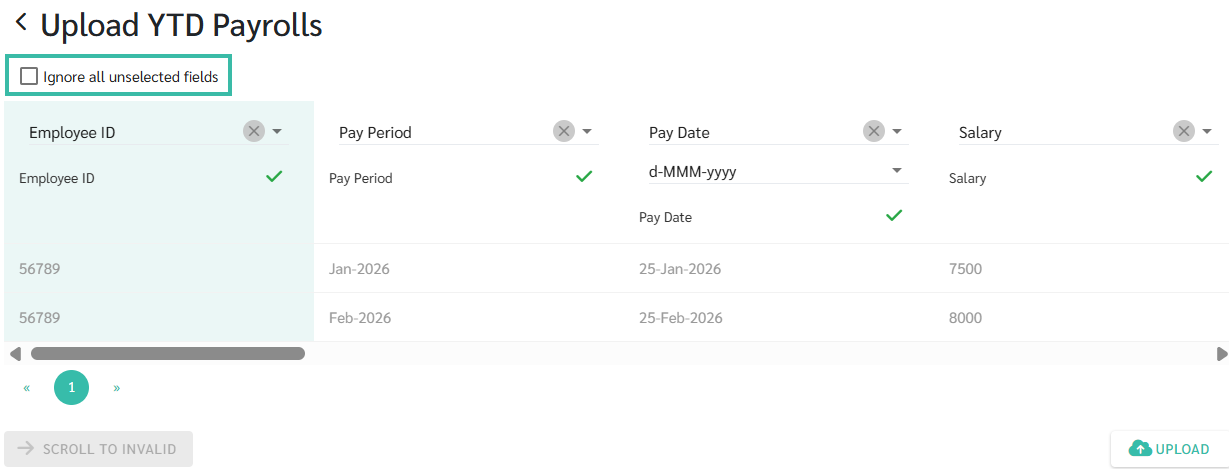
If you click "Ignore all unselected fields," the system will skip the fields that have not been entered.
- If you click Upload and the system displays an error message:
-
"Sorry, Duplicate Payroll Exists" / "Sorry, duplicate payroll entries have been detected."
This is because there is more than one Payroll Block in the system containing the same Employee, Pay Period, and Pay Date.
In this case, it is recommended to delete the Payroll Block you wish to edit and re-upload the entire YTD Payroll Block.
-
"Duplicate value in file" / "Sorry, a duplicate value was found in the file."
This is because the uploaded file contains duplicate Employee ID, Pay Period, and Pay Date in each row (example #).
In this case, it is recommended to check the file carefully before uploading.
-
-
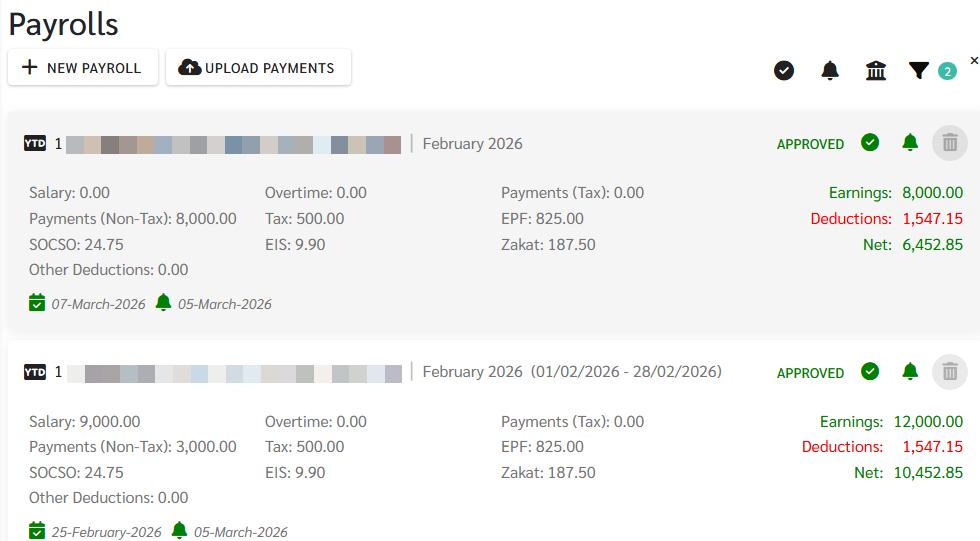
How will the Payroll Block be displayed when YTD Payrolls are uploaded?
-
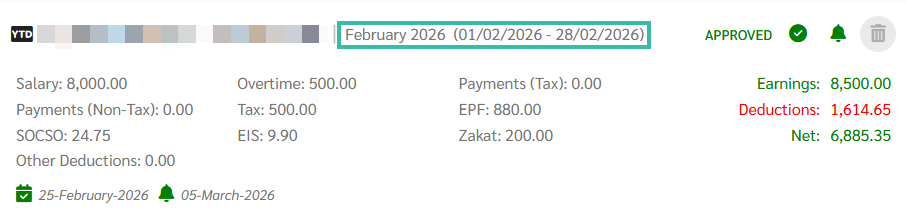
If the payroll period is monthly, the Payroll Block will display the month, year of upload, and Payroll period according to the payroll settings.
-
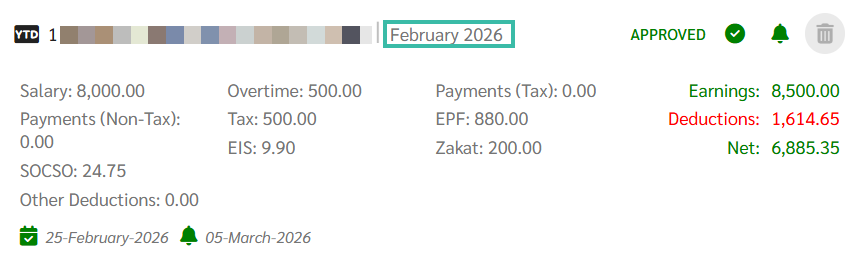
For payroll periods of twice a month or weekly, the Payroll Block will only display the month and year (Pay Period) that was uploaded.
-
If you upload YTD payrolls that contains the same Employee ID, Pay Period, and Pay Date as the existing Payroll Block (Payroll processed from contracts, Approved Timesheets and uploads Other Payments/Salary Payments), the system will maintain the payroll period as in the original Payroll Block.

Note
-
If the YTD payroll data contains the same Employee ID, Pay Period, and Pay Date as an existing YTD Payroll Block, the system will replace the old data with the new data.
example
Upload #1

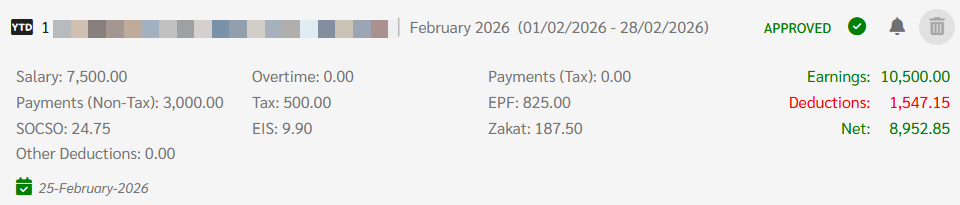
Upload # 2.

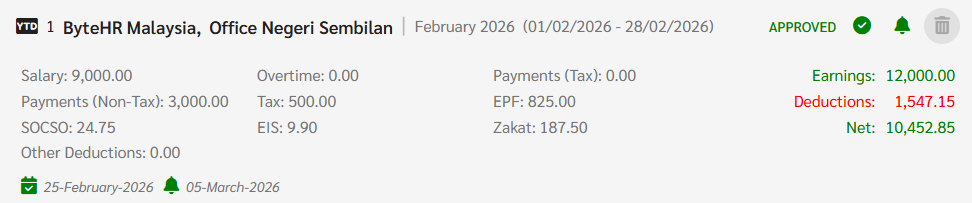
-
If a YTD Payroll block is uploaded that contains the same Employee ID and Pay Period as the original YTD block, but with a different Pay Date, the system will create a new YTD block.
example